
Introduction
Working in Microsoft Excel often involves managing multiple datasets, reports, or templates. Whether you’re an IT professional handling enterprise data or a beginner organizing spreadsheets, knowing how to quickly duplicate an Excel sheet can save you significant time and reduce errors.
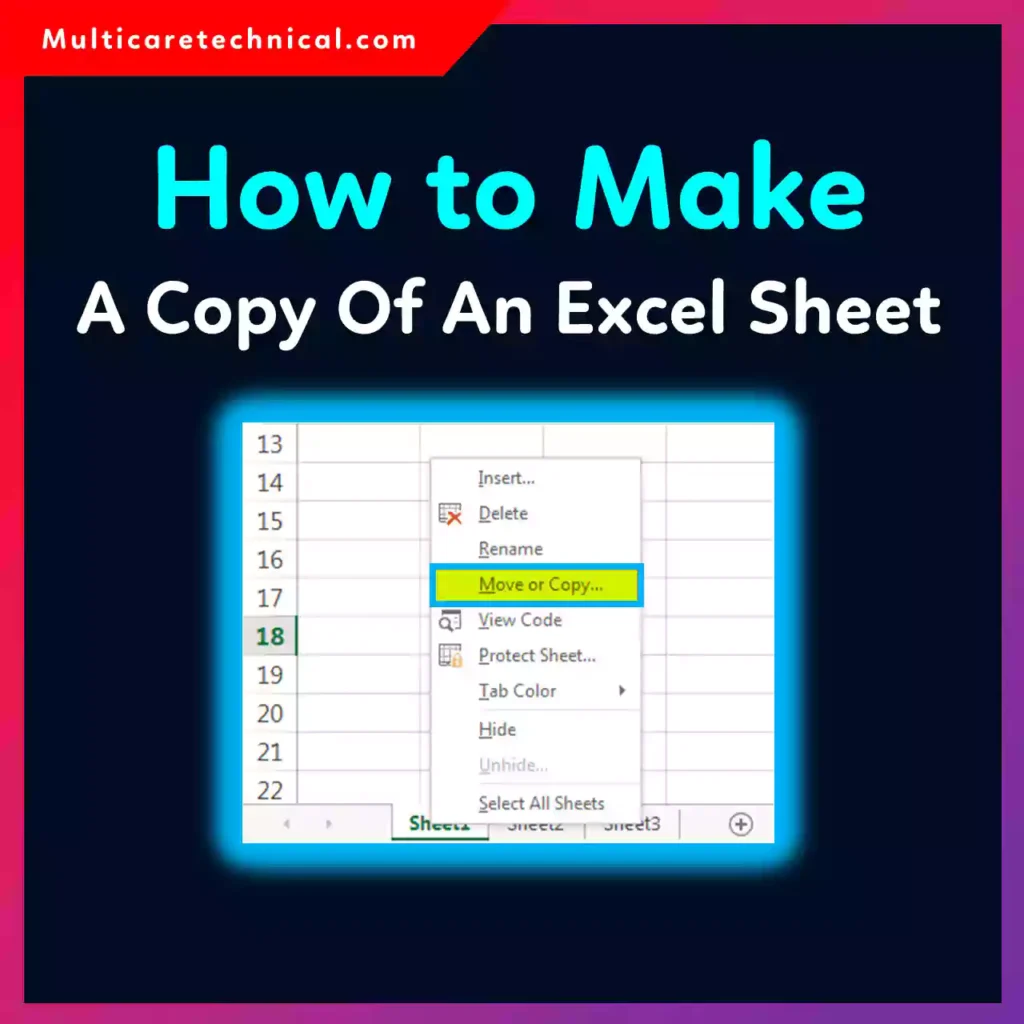
Instead of recreating the same formatting, formulas, or structure from scratch, Excel allows you to copy sheets in just a few clicks. But many users still struggle with the different methods—especially when copying across workbooks or preserving formulas.
In this guide, you’ll learn exactly how to make a copy of an Excel sheet, including multiple methods, troubleshooting tips, and expert-level shortcuts.
Quick Answer
To copy an Excel sheet:
- Right-click on the sheet tab.
- Select Move or Copy.
- Check the box Create a copy.
- Choose the destination workbook (optional).
- Click OK.
You can also hold the Ctrl key and drag the sheet tab to create a quick duplicate.
Table of Contents
- What Does Copying an Excel Sheet Mean?
- Methods to Copy an Excel Sheet
- Step-by-Step Guide (All Methods)
- Copying Sheets Between Workbooks
- Common Errors and Fixes
- Best Practices and Pro Tips
- Conclusion
- FAQs
What Does Copying an Excel Sheet Mean?
Copying an Excel sheet means creating an exact duplicate of a worksheet within the same workbook or into another workbook. The copied sheet includes:
- Data and values
- Formulas and functions
- Formatting (colors, fonts, borders)
- Charts and graphs
- Pivot tables
This is especially useful when:
- Creating templates
- Backing up data
- Running different scenarios
- Reusing structured reports
Methods to Copy an Excel Sheet
There are multiple ways to duplicate a worksheet in Excel. Each method suits different use cases:
1. Right-Click Method (Most Common)
Simple and user-friendly, ideal for beginners.
2. Drag and Drop with Ctrl Key
Quickest way for power users.
3. Ribbon Menu Option
Useful when managing multiple sheets or workbooks.
4. Keyboard Shortcut Approach
Best for IT professionals and advanced users.
Step-by-Step Guide
Method 1: Copy Sheet Using Right-Click
- Open your Excel workbook.
- Locate the sheet tab at the bottom.
- Right-click on the sheet name.
- Click Move or Copy.
- In the dialog box:
- Select destination workbook (optional)
- Check Create a copy
- Click OK
Result: A duplicate sheet will appear.
Method 2: Drag and Drop (Fastest Way)
- Click and hold the sheet tab.
- Press and hold the Ctrl key.
- Drag the sheet to the desired position.
- Release the mouse button.
Result: Excel creates a copy instantly.
Method 3: Using Ribbon Menu
- Go to the Home tab.
- Click Format in the Cells group.
- Select Move or Copy Sheet.
- Check Create a copy.
- Choose destination and click OK.
Method 4: Copy Sheet to Another Workbook
- Open both Excel files.
- Right-click the sheet you want to copy.
- Select Move or Copy.
- In “To book”, choose the target workbook.
- Check Create a copy.
- Click OK
Important Tip:
If formulas reference other sheets, ensure those references exist in the destination workbook.
Copying Sheets Between Workbooks (Advanced Explanation)
When copying sheets across workbooks:
- Excel maintains formulas but may adjust references
- External links may be created automatically
- Named ranges might not transfer properly
Example:
If your formula is:
=Sheet1!A1
After copying, Excel may convert it to:
=[OriginalWorkbook.xlsx]Sheet1!A1
You may need to clean these references manually.
Common Errors and Fixes
1. “Cannot Move or Copy Sheet” Error
Cause: Protected workbook or shared file
Fix: Unprotect workbook from Review tab
2. Broken Formulas After Copying
Cause: Missing references
Fix: Update formulas or use absolute references ($A$1)
3. Duplicate Sheet Names Not Allowed
Cause: Excel doesn’t allow identical sheet names
Fix: Rename the copied sheet
4. External Links Warning
Cause: Copying between workbooks
Fix: Go to Data → Edit Links → Break links if needed
5. Large File Size After Copy
Cause: Embedded objects and formatting
Fix: Clean unnecessary formatting or use “Save As”
Best Practices / Pro Tips
✔ Use Keyboard Shortcuts
Speed up your workflow with Excel shortcuts. Check this guide:
👉 https://multicaretechnical.com/excel-shortcuts-cheat-sheet-save-time-like-a-pro
✔ Clean Data Before Copying
Remove unnecessary elements like hyperlinks:
👉 https://multicaretechnical.com/how-to-remove-hyperlink-in-excel-single-cell-bulk-entire-column
✔ Test with Sample Data
Before copying critical sheets, test with a sample version.
✔ Use Templates
Instead of copying repeatedly, create a reusable template file.
✔ Randomize Data for Testing
If you need test datasets:
👉 https://multicaretechnical.com/how-to-randomize-a-list-in-excel-easy-advanced-methods
✔ Use Absolute References
When copying formulas, use $ to prevent reference changes.
✔ Rename Sheets Immediately
Avoid confusion by renaming copies (e.g., “Report_Copy1”).
Conclusion
Copying an Excel sheet is a simple yet powerful feature that can dramatically improve productivity. Whether you’re duplicating a report, creating backups, or preparing multiple versions of a dataset, Excel offers several efficient methods to get the job done.
For beginners, the right-click method is the easiest. For professionals, drag-and-drop or shortcuts provide speed and efficiency. Understanding how Excel handles formulas and references ensures that your copied sheets remain accurate and functional.
By applying best practices and avoiding common mistakes, you can work smarter and maintain clean, organized spreadsheets.
FAQs
1. How do I copy an Excel sheet with formulas intact?
Excel automatically copies formulas. To keep references unchanged, use absolute references like $A$1.
2. Can I copy a sheet to another Excel file?
Yes, use the Move or Copy option and select another workbook.
3. What is the fastest way to duplicate a sheet?
Hold Ctrl + drag the sheet tab to instantly create a copy.
4. Why are my formulas changing after copying?
Excel adjusts relative references automatically. Use absolute references to fix this.
5. Can I copy multiple sheets at once?
Yes, hold Ctrl, select multiple sheets, then use Move or Copy.