
Introduction
Smartphones are now a major part of children’s daily lives. From educational apps and games to social media and streaming platforms, iPhones provide endless access to online content. While this technology can be useful, many parents want better control over what their children can access and how long they use their devices.
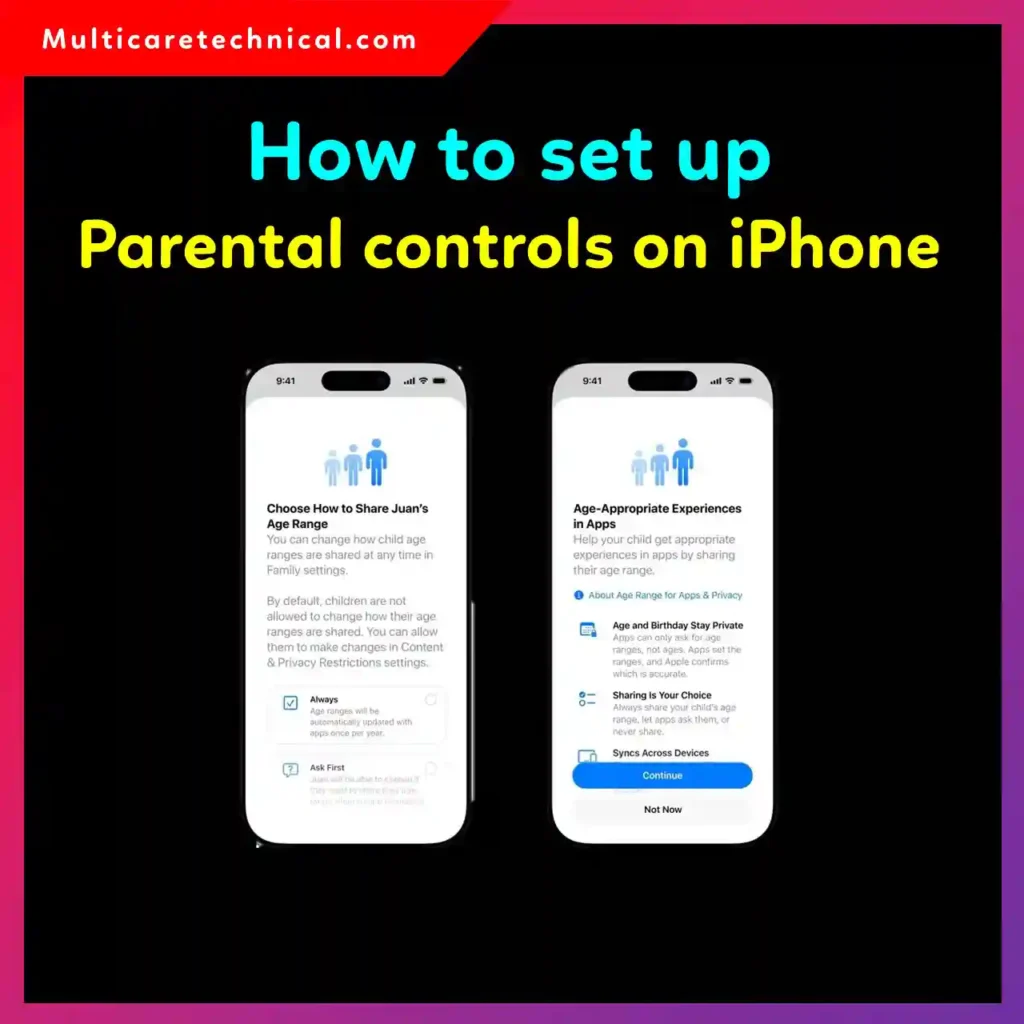
Apple includes powerful parental control features directly inside iOS through Screen Time, Family Sharing, and Content & Privacy Restrictions. These tools allow parents to limit screen time, block explicit content, manage app downloads, restrict purchases, and monitor device usage.
Whether you are a parent trying to create a safer digital environment or an IT professional helping families configure Apple devices, this guide explains exactly how to set up parental controls on iPhone step by step.
Quick Answer
To set up parental controls on iPhone:
- Open Settings
- Tap Screen Time
- Select Turn On Screen Time
- Tap Continue
- Choose This is My Child’s iPhone
- Configure:
- Downtime
- App Limits
- Content & Privacy Restrictions
- Create a Screen Time passcode
- Enable Family Sharing for remote management
These settings help restrict apps, websites, purchases, and screen time on an iPhone.
Table of Contents
- What Are iPhone Parental Controls?
- Why Parents Should Use iPhone Restrictions
- How to Set Up Screen Time
- How to Configure Content Restrictions
- How to Block Apps and Purchases
- How to Set Communication Limits
- How to Use Family Sharing
- Step-by-Step Guide
- Common Errors and Fixes
- Best Practices and Pro Tips
- Conclusion
- FAQs
- FAQ Schema
What Are iPhone Parental Controls?
Parental controls on iPhone are built-in security and monitoring tools designed to help parents manage how children use Apple devices. These controls are primarily managed through Apple’s Screen Time feature.
Using parental controls, you can:
- Limit daily screen time
- Restrict adult websites
- Block explicit music and movies
- Prevent app installations
- Disable in-app purchases
- Control privacy permissions
- Monitor app usage
- Set communication limits
Apple continuously improves these features in newer iOS versions, making them more flexible and secure.
Why Parents Should Use iPhone Restrictions
Children today spend significant time online. Without restrictions, they may accidentally access inappropriate content, overspend through in-app purchases, or develop unhealthy screen habits.
Parental controls help:
- Improve digital safety
- Reduce screen addiction
- Prevent unauthorized purchases
- Protect personal information
- Encourage healthier device usage
For households with multiple Apple devices, Family Sharing makes managing child accounts much easier.
If you later want to remove these settings, you can also read this guide on
how to disable parental controls on iPhone 11–16
How to Set Up Screen Time on iPhone
Screen Time is Apple’s central dashboard for parental controls.
Enable Screen Time
Follow these steps:
- Open Settings
- Tap Screen Time
- Select Turn On Screen Time
- Tap Continue
- Choose:
- This is My iPhone
- This is My Child’s iPhone
For child devices, Apple will guide you through parental control settings.
Configure Downtime
Downtime blocks most apps during selected hours.
Example:
- Bedtime: 9 PM to 7 AM
During downtime:
- Only approved apps remain accessible
- Calls can still work if allowed
This feature is useful for improving sleep routines and reducing nighttime screen use.
Set App Limits
App Limits allow you to restrict usage by category.
Examples:
- Social Media: 1 hour daily
- Games: 45 minutes
- Entertainment: 2 hours
To configure:
- Open Screen Time
- Tap App Limits
- Tap Add Limit
- Choose categories or apps
- Set the time limit
How to Configure Content & Privacy Restrictions
Content restrictions help filter inappropriate material.
Enable Restrictions
- Open Settings
- Tap Screen Time
- Select Content & Privacy Restrictions
- Toggle it ON
You can now manage:
- Web content
- App ratings
- Explicit music
- Siri web searches
- Multiplayer gaming
- Privacy permissions
Restrict Adult Websites
To block adult websites:
- Open Content Restrictions
- Tap Web Content
- Select:
- Limit Adult Websites
You can also manually allow or block specific websites.
Restrict Explicit Content
Inside Content Restrictions, you can block:
- Explicit music
- Mature TV shows
- R-rated movies
- Adult books
- Podcasts with explicit language
This is especially useful for younger children.
How to Block App Installations and Purchases
Children may accidentally install apps or make purchases.
To prevent this:
- Open Screen Time
- Tap Content & Privacy Restrictions
- Select iTunes & App Store Purchases
Set:
- Installing Apps → Don’t Allow
- Deleting Apps → Don’t Allow
- In-App Purchases → Don’t Allow
This prevents unauthorized spending.
How to Set Communication Limits
Communication Limits control who children can contact.
You can manage:
- Phone calls
- FaceTime
- Messages
- iCloud contacts
Options include:
- Contacts only
- Specific people
- Everyone
- Allowed during downtime
This helps protect children from unknown contacts.
How to Use Family Sharing
Family Sharing allows parents to manage devices remotely.
Set Up Family Sharing
- Open Settings
- Tap your Apple ID
- Select Family Sharing
- Tap Add Member
- Create or add a child account
Benefits include:
- Shared subscriptions
- Location sharing
- Purchase approval
- Screen Time monitoring
Parents can change restrictions directly from their own iPhone.
Step-by-Step Guide to Fully Secure a Child’s iPhone
Here is a recommended setup checklist.
Step 1: Enable Screen Time
Turn on Screen Time and choose “This is My Child’s iPhone.”
Step 2: Create a Screen Time Passcode
Use a strong passcode different from the phone unlock code.
Step 3: Configure Downtime
Set bedtime hours to reduce late-night usage.
Step 4: Add App Limits
Restrict gaming and social media time.
Step 5: Enable Content Restrictions
Block explicit media and adult websites.
Step 6: Disable Purchases
Prevent accidental app spending.
Step 7: Set Communication Limits
Allow contact only with trusted family members.
Step 8: Enable Family Sharing
Manage all restrictions remotely.
Common Errors and Fixes
Screen Time Passcode Forgotten
Fix:
Use your Apple ID to reset the Screen Time passcode.
Path:
- Settings → Screen Time → Change Passcode
Restrictions Not Applying
Fix:
- Restart the iPhone
- Update iOS
- Verify Family Sharing settings
- Ensure Screen Time is enabled
Child Bypassing Limits
Fix:
- Use a unique Screen Time passcode
- Disable account changes
- Restrict app deletion
Websites Still Accessible
Fix:
- Enable “Limit Adult Websites”
- Add blocked websites manually
- Use Safari restrictions properly
Best Practices and Pro Tips
Use a Separate Screen Time Passcode
Never share the parental control passcode with children.
Review Weekly Reports
Screen Time provides weekly activity reports.
Use them to:
- Monitor app usage
- Identify unhealthy habits
- Adjust restrictions
Keep iOS Updated
Apple frequently improves parental control features and security protections.
Balance Restrictions with Communication
Technology rules work best when children understand why restrictions exist.
Customize Restrictions by Age
Younger children may need:
- Strict web filtering
- Shorter screen limits
Teenagers may need:
- Flexible communication settings
- Educational access
Additional Helpful Guides
You may also find these guides useful:
Conclusion
Setting up parental controls on iPhone is one of the best ways to create a safer digital environment for children. Apple’s built-in Screen Time and Family Sharing features make it possible to manage screen usage, restrict inappropriate content, and prevent unwanted purchases without installing third-party apps.
By properly configuring app limits, downtime, content restrictions, and communication settings, parents can encourage healthier technology habits while maintaining online safety.
Whether you are protecting a young child or guiding a teenager toward responsible device use, iPhone parental controls provide flexible tools that adapt to different family needs.
FAQs
1. Can parental controls be removed on iPhone?
Yes. Parents can disable Screen Time restrictions using the Screen Time passcode.
2. Does Apple charge for parental controls?
No. Screen Time and Family Sharing parental controls are included free with iOS.
3. Can I block YouTube on my child’s iPhone?
Yes. You can block YouTube using App Limits or Content Restrictions.
4. How do I stop my child from installing apps?
Disable app installations under:
Settings → Screen Time → Content & Privacy Restrictions → iTunes & App Store Purchases.
5. Are parental controls available on all iPhones?
Yes. Most modern iPhones running recent iOS versions support parental controls.