
Introduction
Severe weather can happen quickly—storms, floods, extreme heat, or winter conditions can develop within minutes. For this reason, weather alerts on your iPhone are an essential safety feature. They provide real-time notifications about dangerous weather conditions in your area so you can stay prepared and take action when necessary.
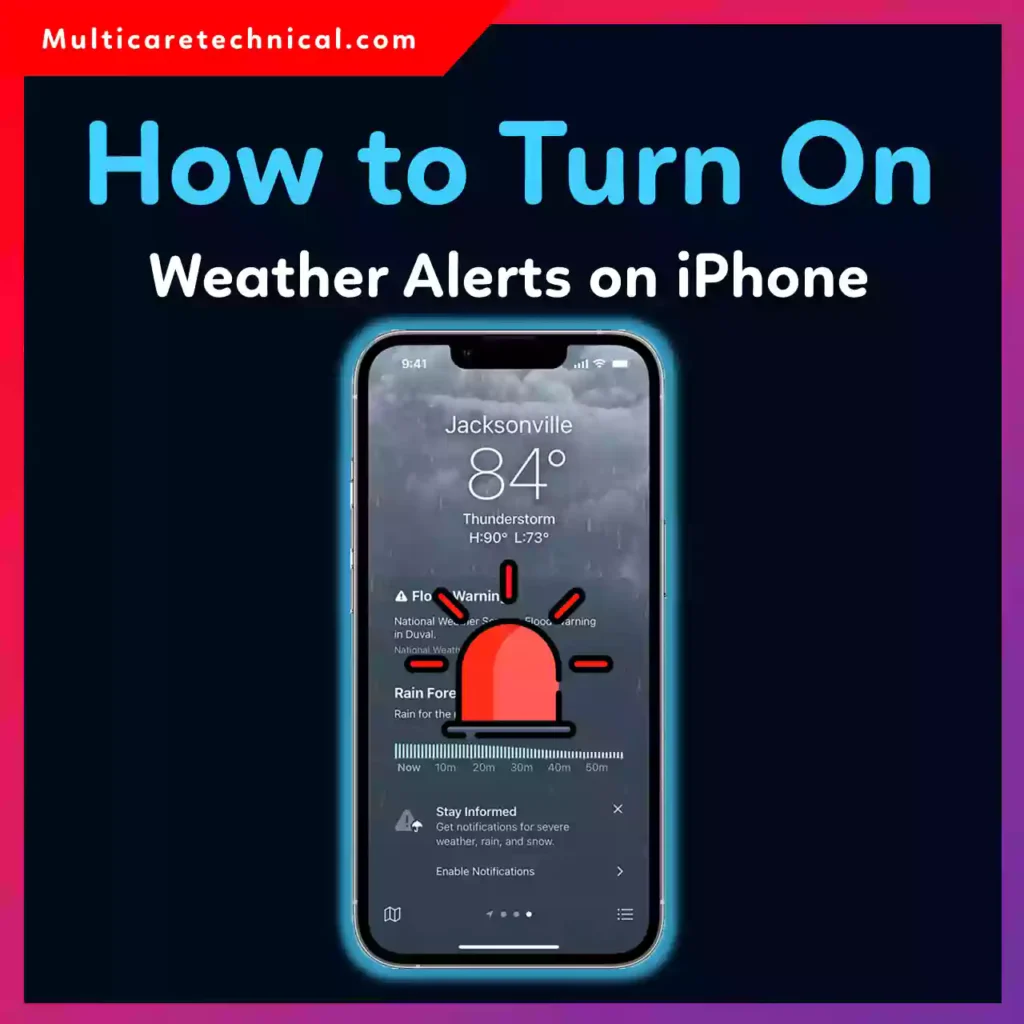
Apple has built several weather alert systems into iPhones, including Emergency Alerts, Weather app notifications, and location-based alerts. When properly configured, your iPhone can notify you about:
- Severe thunderstorms
- Tornado warnings
- Flash flood alerts
- Extreme heat or cold
- Government emergency notifications
For users in the United States, these alerts often come from National Weather Service (NWS) systems and are delivered directly to your device.
In this guide, you’ll learn how to turn on weather alerts on iPhone step by step, how to customize them, and how to fix common issues if alerts are not working.
Quick Answer (Featured Snippet)
To turn on weather alerts on an iPhone:
- Open Settings.
- Tap Notifications.
- Scroll down and select Weather.
- Enable Allow Notifications.
- Turn on Critical Alerts and Time Sensitive Notifications.
You can also enable Government Emergency Alerts by going to:
Settings → Notifications → Scroll to the bottom → Turn on Emergency Alerts.
Once enabled, your iPhone will automatically notify you about severe weather in your area.
Table of Contents
- Introduction
- Quick Answer
- What Are iPhone Weather Alerts?
- Types of Weather Alerts on iPhone
- Step-by-Step Guide to Turn On Weather Alerts
- How to Enable Location-Based Weather Notifications
- Common Errors and Fixes
- Best Practices and Pro Tips
- Conclusion
- FAQs
What Are iPhone Weather Alerts?
Weather alerts on iPhone are push notifications that warn users about dangerous or unusual weather conditions.
These alerts come from several sources:
- Apple Weather app
- National Weather Service (NWS)
- Government emergency alert systems
- Location-based weather services
When enabled, these alerts can appear as:
- Lock screen notifications
- Banners
- Sounds and vibrations
- Emergency alerts with warning tones
For example, if a tornado warning or flash flood alert is issued in your area, your iPhone will notify you immediately.
This feature is extremely useful for travelers, families, and professionals who rely on timely information to stay safe.
Types of Weather Alerts on iPhone
Your iPhone supports several types of weather notifications.
1. Severe Weather Alerts
These include warnings such as:
- Tornado warnings
- Severe thunderstorms
- Flash floods
- Hurricanes
These alerts are typically issued by the National Weather Service.
2. Government Emergency Alerts
Government alerts include:
- Extreme weather warnings
- Public safety alerts
- AMBER alerts
- Presidential alerts
These alerts are enabled through the Emergency Alerts system in iOS.
3. Weather App Notifications
The Apple Weather app can notify you about:
- Rain starting or stopping
- Severe weather warnings
- Daily weather forecasts
These notifications are customizable.
Step-by-Step Guide: Turn On Weather Alerts on iPhone
Follow this detailed guide to enable weather alerts on your iPhone.
Step 1: Open the Settings App
Unlock your iPhone and tap Settings.
Scroll down to find the Notifications section.
Step 2: Open Notification Settings
Tap:
Notifications
This section controls alerts for all apps installed on your iPhone.
Step 3: Find the Weather App
Scroll down through the list of apps and tap:
Weather
You will now see the notification options for the Weather app.
Step 4: Enable Notifications
Turn on:
Allow Notifications
Then enable:
- Lock Screen notifications
- Banner notifications
- Sounds
This ensures alerts appear immediately.
Step 5: Turn On Critical Alerts
Enable:
Critical Alerts
Critical alerts override Do Not Disturb mode and ensure you receive important weather warnings.
Step 6: Enable Time-Sensitive Notifications
Turn on:
Time Sensitive Notifications
These alerts are delivered immediately when severe weather occurs.
How to Enable Government Emergency Weather Alerts
For severe weather events like tornadoes and floods, government alerts must also be enabled.
Follow these steps.
Step 1
Open:
Settings
Step 2
Tap:
Notifications
Step 3
Scroll to the bottom.
You will see the Government Alerts section.
Step 4
Enable:
- Emergency Alerts
- Public Safety Alerts
- AMBER Alerts (optional)
Once enabled, your iPhone will notify you about critical weather emergencies in your region.
How to Enable Location-Based Weather Alerts
Weather alerts work best when location services are enabled.
Steps
- Open Settings
- Tap Privacy & Security
- Select Location Services
- Tap Weather
- Choose:
Always Allow Location Access
This allows the Weather app to detect your location and send accurate alerts.
Common Errors and Fixes
Sometimes weather alerts may not work properly. Here are common issues and solutions.
Problem 1: Weather Alerts Not Showing
Cause
Notifications may be disabled.
Fix
Go to:
Settings → Notifications → Weather
Enable Allow Notifications.
Problem 2: Alerts Not Appearing on Lock Screen
Cause
Lock screen notifications are disabled.
Fix
Enable:
Lock Screen notifications
inside Weather notification settings.
Problem 3: No Severe Weather Alerts
Cause
Government alerts are disabled.
Fix
Enable:
Settings → Notifications → Government Alerts
Problem 4: Location-Based Alerts Not Working
Cause
Location services are disabled.
Fix
Enable:
Settings → Privacy → Location Services → Weather → Always
Problem 5: Notifications Delayed
Cause
Low power mode or background restrictions.
Fix
Turn off Low Power Mode and ensure the Weather app can refresh in the background.
Best Practices / Pro Tips
To get the most accurate weather alerts on iPhone, follow these tips.
1. Keep iOS Updated
Software updates improve notification reliability.
Keeping your device updated also ensures security—similar to important system updates like those discussed in:
2. Enable Multiple Alert Sources
Use both:
- Weather app alerts
- Government emergency alerts
This ensures you never miss critical warnings.
3. Enable Location Access
Without location services, alerts may be inaccurate.
Always allow location access for the Weather app.
4. Allow Critical Alerts
Critical alerts bypass Do Not Disturb, making them essential for safety.
5. Use Weather Widgets
Adding the Weather widget to your iPhone home screen helps you monitor conditions quickly.
6. Stay Organized With Digital Tools
Many professionals manage documents and alerts across multiple devices.
For example, if you are preparing reports or documentation, guides like:
can help manage written content efficiently.
Similarly, IT administrators working with corporate devices may reference network configuration tutorials such as:
Conclusion
Turning on weather alerts on your iPhone is one of the simplest ways to stay safe during severe weather events.
By enabling notifications in the Weather app, turning on Government Emergency Alerts, and allowing location services, your iPhone can provide real-time updates about dangerous weather conditions in your area.
These alerts help you stay informed about storms, floods, extreme temperatures, and other environmental hazards.
Taking a few minutes to configure these settings ensures that your iPhone becomes a reliable early warning system, helping you and your family stay safe no matter where you are.
Frequently Asked Questions (FAQs)
1. How do I turn on severe weather alerts on my iPhone?
Go to Settings → Notifications → Weather and enable Allow Notifications, Critical Alerts, and Time Sensitive Notifications.
2. Why am I not receiving weather alerts on my iPhone?
This may happen if:
- Notifications are disabled
- Government alerts are turned off
- Location services are disabled
Check these settings in your iPhone configuration.
3. Do iPhones automatically send weather alerts?
Yes. If notifications and emergency alerts are enabled, your iPhone will automatically notify you about severe weather conditions in your area.
4. What are government emergency alerts on iPhone?
Government alerts are emergency notifications sent by public safety authorities about:
- Severe weather
- Natural disasters
- Public safety threats
They appear even when your phone is locked.
5. Can weather alerts override Do Not Disturb?
Yes. If Critical Alerts are enabled, weather warnings can override Do Not Disturb mode.