
1. Introduction
In modern business environments, managing multiple computers individually can quickly become complicated. That’s why organizations rely on Active Directory domain controllers to centralize management, enforce security policies, and control user access.
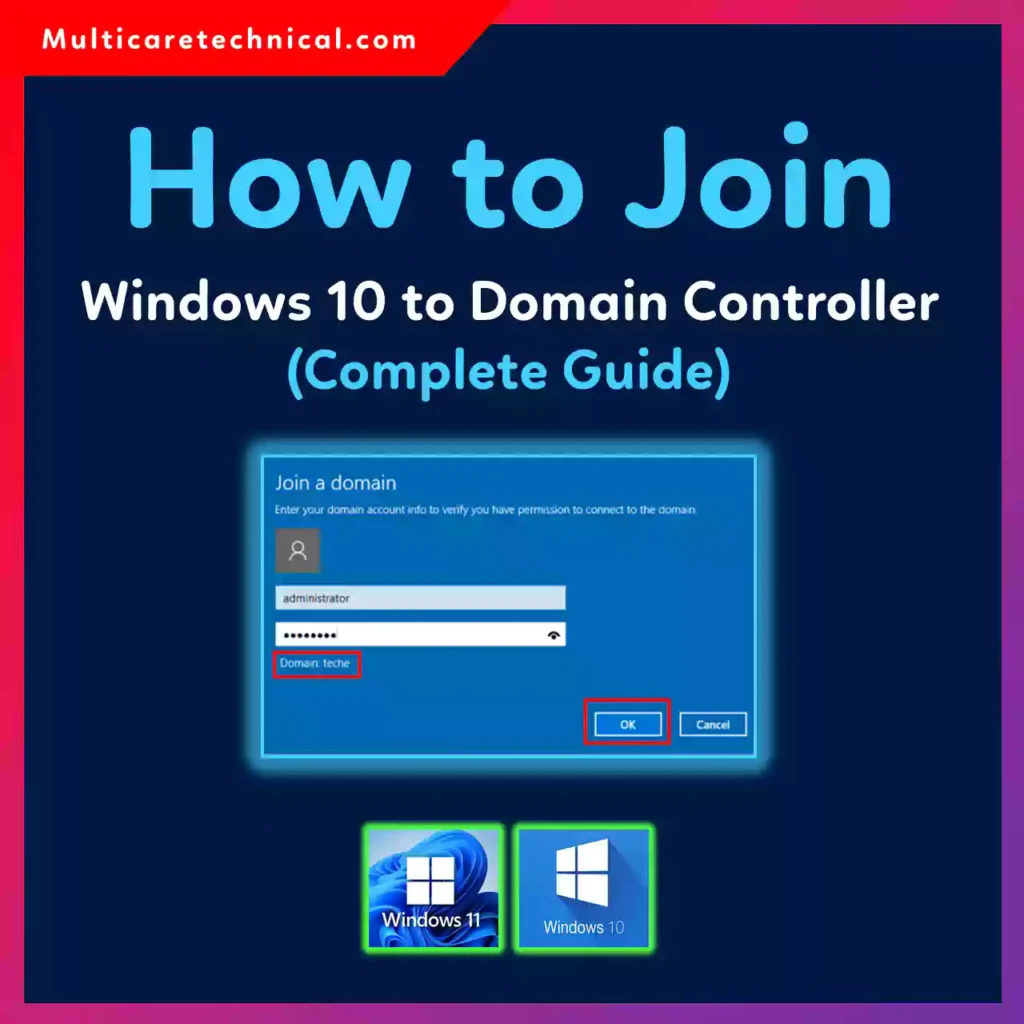
When a Windows computer joins a domain, it becomes part of a centralized network where administrators can manage users, permissions, updates, and policies from one place.
Whether you are an IT professional, system administrator, or someone learning Windows Server administration, understanding how to join a computer to a domain is an essential skill.
In this complete guide, you will learn how to join Windows 10 and Windows 11 to a domain controller, including prerequisites, step-by-step instructions, troubleshooting tips, and best practices used in enterprise environments.
2. Quick Answer
To join Windows 10 or Windows 11 to a domain controller:
- Open Settings.
- Go to System → About.
- Click Rename this PC (Advanced).
- Click Change.
- Select Domain and enter the domain name.
- Enter domain administrator credentials.
- Restart the computer.
After restarting, the PC becomes part of the domain and can be managed through Active Directory.
3. Table of Contents
- Introduction
- Quick Answer
- What Is a Domain Controller?
- Requirements Before Joining a Domain
- Step-by-Step Guide to Join Windows 10 & 11 to Domain
- Verify Domain Join Status
- Common Errors and Fixes
- Best Practices and Pro Tips
- Conclusion
- FAQs
4. What Is a Domain Controller?
A Domain Controller (DC) is a server that manages authentication and authorization within a Windows domain.
It runs Active Directory Domain Services (AD DS) and stores important information such as:
- User accounts
- Computer accounts
- Security policies
- Group policies
- Domain permissions
When a computer joins the domain:
- The device becomes part of the organization’s network.
- Users can log in using domain credentials.
- Administrators can apply policies using Group Policy.
Large organizations rely on domain controllers to maintain centralized security and identity management.
If you’re managing Active Directory infrastructure, you may also want to review how to check domain roles using this guide:
Understanding FSMO roles helps ensure your domain controllers function properly.
5. Requirements Before Joining a Domain
Before joining a Windows computer to a domain controller, make sure the following requirements are met.
1. Windows Edition Must Support Domain Join
Domain join is only supported on:
- Windows 10 Pro
- Windows 10 Enterprise
- Windows 10 Education
- Windows 11 Pro
- Windows 11 Enterprise
- Windows 11 Education
Windows Home edition cannot join a domain.
2. Network Connectivity
The computer must be able to reach the domain controller over the network.
Test connectivity using:
ping domainname.local
If the domain controller is reachable, the system can communicate with Active Directory.
3. Correct DNS Configuration
DNS must point to the domain controller’s IP address.
Incorrect DNS configuration is one of the most common causes of domain join failure.
4. Domain Administrator Credentials
You must have permission to join a computer to the domain. Typically this requires:
- Domain Administrator account
- Delegated domain join permissions
If administrator credentials are lost, you may need to reset them using this guide:
6. Step-by-Step Guide to Join Windows 10 & 11 to Domain
Follow these steps to join your Windows system to a domain controller.
Step 1: Open System Settings
Press:
Windows + I
Open:
Settings → System → About
Scroll down and click:
Rename this PC (Advanced)
This opens System Properties.
Step 2: Open Computer Name Settings
Inside System Properties:
Click the Computer Name tab.
Then click:
Change
Step 3: Select Domain
In the Computer Name/Domain Changes window:
- Select Domain
- Enter your domain name.
Example:
company.local
Click OK.
Step 4: Enter Domain Credentials
Windows will prompt for authentication.
Enter:
- Domain username
- Domain password
Example:
Administrator
Password
Click OK.
Step 5: Confirm Domain Join
If everything is configured correctly, you will see the message:
Welcome to the domain
Click OK.
Step 6: Restart the Computer
You must restart the system to complete the process.
After restarting, the computer becomes part of the Active Directory domain.
Users can now log in using domain credentials.
Example login:
DOMAIN\username
7. Verify Domain Join Status
To confirm the computer successfully joined the domain:
Method 1: System Properties
Open:
System → About
Check the Domain field.
Method 2: Command Prompt
Run:
systeminfo
Look for:
Domain: yourdomain.local
Method 3: Active Directory Users and Computers
On the domain controller:
Open:
Active Directory Users and Computers
Check the Computers container.
You should see the newly joined computer listed.
8. Common Errors and Fixes
Joining a domain sometimes fails due to configuration problems. Here are the most common issues and how to fix them.
Error 1: DNS Server Not Found
Message:
Domain controller could not be contacted
Fix
Set DNS to the domain controller IP.
Check in:
Network Adapter → IPv4 Settings
Error 2: Access Denied
Message:
Access is denied
Fix
Ensure the account used has domain join permissions.
If needed, reset administrator credentials:
Error 3: Clock Synchronization Issue
Domain authentication requires time synchronization.
Fix
Run:
w32tm /resync
Ensure system time matches the domain controller.
Error 4: Computer Already Exists in Active Directory
If the computer account already exists, domain join may fail.
Fix
Delete the old computer object in Active Directory Users and Computers and retry.
9. Best Practices / Pro Tips
Professional IT administrators follow several best practices when joining machines to domains.
Use Organizational Units (OUs)
Instead of leaving computers in the default container, move them to proper Organizational Units.
This allows:
- Group Policy management
- Security control
- Device organization
Use Naming Conventions
Use consistent device naming such as:
NYC-LAPTOP-001
HR-PC-023
SERVER-FILE01
This makes device management easier.
Verify Domain Health
Before joining devices, ensure the domain controller is functioning correctly.
Check roles and domain services using:
Document System Changes
Keep records of:
- Domain joins
- device names
- user assignments
Documentation helps during troubleshooting.
Maintain Clean Systems
Misconfigured systems can cause errors. For example, if system applications behave incorrectly, resetting them can help.
Here is a guide to reset Microsoft Word settings if needed:
10. Conclusion
Joining Windows 10 and Windows 11 computers to a domain controller is a fundamental task for IT administrators and network engineers.
By adding devices to a domain, organizations gain:
- Centralized user management
- Improved security policies
- Simplified device administration
- Better network control
The process itself is straightforward when the prerequisites are met: proper DNS configuration, network connectivity, and administrator credentials.
Following the step-by-step method outlined in this guide ensures a smooth domain join process while avoiding common configuration mistakes.
Whether you’re managing a small office network or a large enterprise environment, mastering domain management is a critical skill for any Windows professional.
FAQs
1. Can Windows 10 Home join a domain?
No. Windows 10 Home does not support domain join. You must upgrade to Windows 10 Pro, Enterprise, or Education.
2. How do I know if my PC is joined to a domain?
Open System Properties or run:
systeminfo
If the computer is joined, the domain name will appear in the system information.
3. Can I join a domain without administrator rights?
No. You need domain administrator credentials or delegated permission to add a computer to the domain.
4. Why can’t my computer find the domain controller?
The most common cause is incorrect DNS configuration. Ensure the DNS server is set to the domain controller’s IP address.
5. Do I need to restart after joining a domain?
Yes. Windows requires a restart to complete the domain join process.