
Blocked someone by mistake? Or just want to check who’s on your block list? This complete guide shows you how to access blocked numbers on iPhone 11 to 16 in seconds — no apps, no $ cost, no complicated steps.
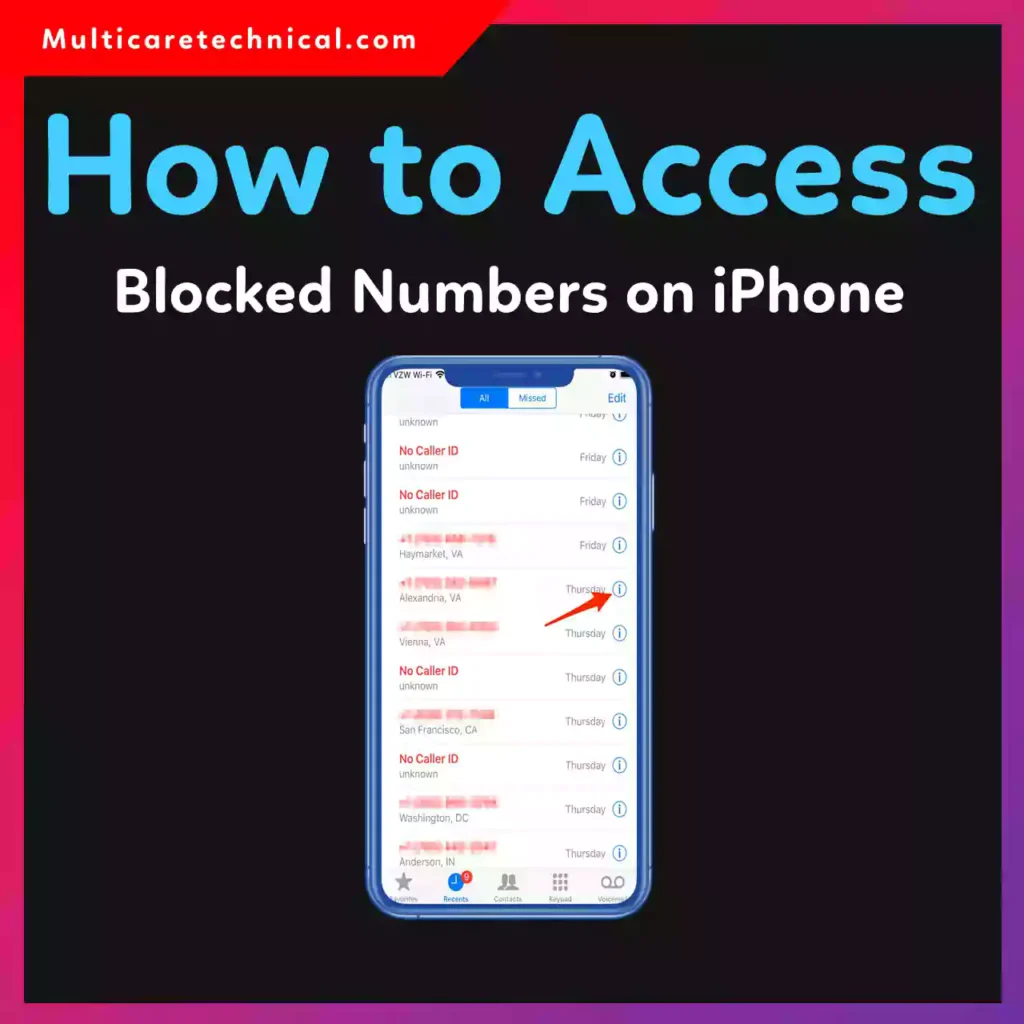
Works on:
- iPhone 11
- iPhone 12
- iPhone 13
- iPhone 14
- iPhone 15
- iPhone 16
🔥 Quick Answer (Featured Snippet Ready)
How to access blocked numbers on iPhone 11 to 16?
Go to Settings → Phone → Blocked Contacts. You’ll see the full list of blocked numbers. Tap Edit to unblock any contact.
That’s it.
📱 Method 1: How to Access Blocked Numbers on iPhone 11 to 16
This method works on all recent iOS versions.
Step-by-Step:
- Open Settings
- Scroll down and tap Phone
- Tap Blocked Contacts
- View your blocked numbers list
- Tap Edit (top right) to remove a number
💡 You can also swipe left on a number to unblock it instantly.
📞 Method 2: Check Blocked Numbers from Messages
If you blocked someone through Messages:
- Open Settings
- Tap Messages
- Select Blocked Contacts
- View or edit the list
🎥 Method 3: Check Blocked FaceTime Contacts
- Open Settings
- Tap FaceTime
- Choose Blocked Contacts
This shows people blocked from FaceTime calls.
💬 How to See If a Number Is Blocked on iPhone
You cannot directly see call logs from blocked numbers. However:
- Blocked calls won’t ring
- No notifications appear
- The caller goes straight to voicemail
⚠️ Important: iPhone does NOT notify blocked users.
📲 How to Unblock a Number on iPhone 11 to 16
If you want to remove someone from the list:
- Go to Settings → Phone → Blocked Contacts
- Tap Edit
- Tap the red minus icon
- Tap Unblock
Done.
❓ Where Do Blocked Messages Go on iPhone?
iPhone does not store blocked SMS in your inbox. They are automatically filtered and hidden.
There’s no built-in recovery option unless you unblock the number and ask the sender to resend.
💰 Is There Any Cost?
No. Viewing or managing blocked numbers is completely free and built into iOS.
No subscription.
No third-party app.
No hidden $ charges.
📌 Why You Might Need This
- You blocked someone accidentally
- You want to unblock a friend
- You’re checking privacy settings
- You’re troubleshooting missed calls
If you’re also learning phone tricks, check these helpful guides:
- 👉 How to Gain Live Access on TikTok (2026 Guide):
https://multicaretechnical.com/how-to-gain-live-access-on-tiktok-2026-step-by-step-guide - 👉 How to Remotely Access Another Computer (Windows, Mac & Free Methods):
https://multicaretechnical.com/how-to-remotely-access-another-computer-windows-10-11-mac-free-methods
🛑 Important Privacy Note
Blocked contacts:
- Cannot call you
- Cannot FaceTime you
- Cannot send visible messages
- Do not get notified they’re blocked
Your privacy stays protected.
📌 Featured Snippet Optimized Answer
To access blocked numbers on iPhone 11 to 16:
- Open Settings
- Tap Phone
- Select Blocked Contacts
- View or edit the blocked list
This works on iOS 16, 17, and newer versions.
❓ Short FAQs (AI Overview Optimized)
1. How do I see blocked numbers on iPhone 11?
Go to Settings → Phone → Blocked Contacts.
2. Can I recover messages from blocked numbers?
No. iPhone does not store blocked SMS messages.
3. Does iPhone notify someone when you unblock them?
No. They will not be notified.
4. Is checking blocked numbers free?
Yes, it’s completely free.
5. Where are blocked FaceTime contacts?
Settings → FaceTime → Blocked Contacts.
🏁 Final Thoughts
Now you know exactly how to access blocked numbers on iPhone 11 to 16, how to unblock them, and where to manage blocked contacts for Phone, Messages, and FaceTime.
No apps needed.
No payment required.
Just a few taps.