
If you’re seeing “Windows cannot connect to the printer error 0x0000011b”, you’re not alone. This issue became common after a Windows security update and usually appears when connecting to a shared network printer.
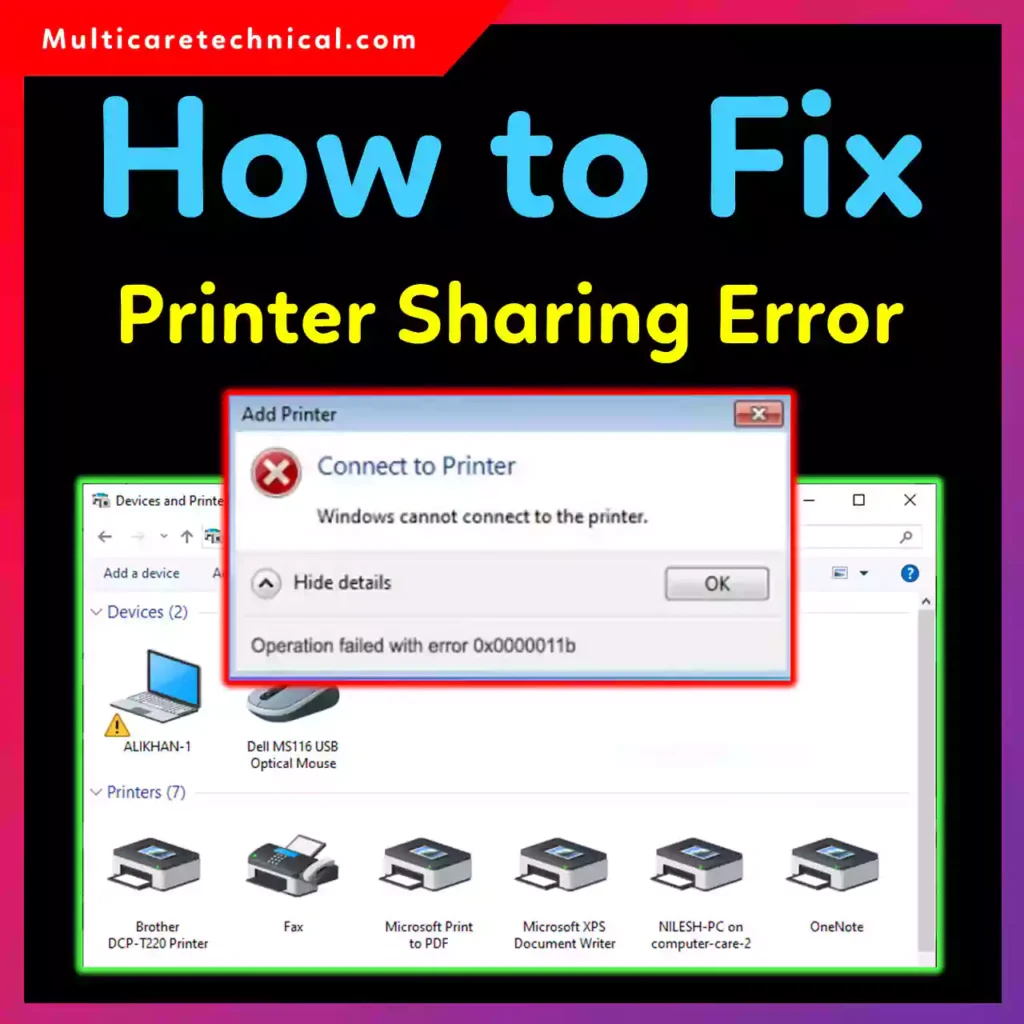
Whether you’re facing:
- operation failed with error 0x0000011b windows 10
- windows cannot connect to the printer operation failed with error 0x00011b windows 7
- add printer error windows cannot connect printer
This guide will walk you through the exact fix — step by step.
Why Does Printer Error 0x0000011b Happen?
The operation failed with error 0x0000011b solution is related to a Windows security update that tightened printer sharing rules.
This error typically appears when:
- Connecting to a shared network printer
- Using Windows 7 or Windows 10
- After installing a Windows security update
- Printer sharing authentication fails
You may also see:
“Windows couldn’t connect to the printer. Check the printer name and try again.”
✅ Quick Fix: Registry Method (Most Effective)
This method works for:
- operation failed with error 0x0000011b windows 10 fix
- windows cannot connect to the printer windows 7
- Network shared printer issues
Step 1: Open Registry Editor
- Press Windows + R
- Type
regedit - Press Enter
Step 2: Navigate to:
HKEY_LOCAL_MACHINE\System\CurrentControlSet\Control\Print
Step 3: Create New DWORD
- Right-click → New → DWORD (32-bit) Value
- Name it:
RpcAuthnLevelPrivacyEnabled
- Double-click it
- Set Value Data to:
0
- Click OK
- Restart your PC
✔ Now try connecting to the printer again.
🔄 Fix 2: Uninstall Problematic Windows Update
Sometimes the update causes authentication conflicts.
Steps:
- Open Control Panel
- Click Programs → View Installed Updates
- Look for recent security updates
- Uninstall latest update
- Restart PC
⚠️ Caution: Removing updates may reduce security protection. Only do this if registry method doesn’t work.
🖨 Fix 3: Add Printer Using IP Address
If you get:
windows couldn’t connect to the printer check the printer name and try again
Try adding printer manually.
Steps:
- Go to Settings → Devices → Printers & Scanners
- Click Add a printer
- Select: “The printer that I want isn’t listed”
- Choose: “Add a printer using TCP/IP address”
- Enter printer IP
- Install drivers
🔧 Fix 4: Restart Print Spooler Service
- Press Windows + R
- Type
services.msc - Find Print Spooler
- Right-click → Restart
This fixes temporary spooler glitches.
💻 Works on These Versions
- operation failed with error 0x0000011b windows 10
- windows cannot connect to the printer operation failed with error 0x00011b windows 7
- Windows 11 (similar fix)
If you’re troubleshooting other Windows issues, you may also find these helpful:
- 🔗 How to Reset Instagram Feed (2026 Guide)
https://multicaretechnical.com/how-to-reset-instagram-feed-2026-guide - 🔗 How to Change Cursor on Windows 11
https://multicaretechnical.com/how-to-change-cursor-on-windows-11-step-by-step-2026-guide - 🔗 How to Change Margins in Google Docs
https://multicaretechnical.com/how-to-change-margins-in-google-docs-2026-step-by-step-guide
🧠 Featured Snippet: One-Line Solution
To fix “operation failed with error 0x0000011b”, create a DWORD named RpcAuthnLevelPrivacyEnabled in the Print registry path and set its value to 0, then restart your PC.
📌 Short FAQ (Optimized for AI Overviews)
What is error 0x0000011b in Windows?
It’s a printer connection error caused by Windows security updates affecting network printer authentication.
How do I fix Windows cannot connect to the printer 0x0000011b?
Create a registry DWORD called RpcAuthnLevelPrivacyEnabled and set its value to 0, then restart your system.
Does error 0x0000011b affect Windows 7?
Yes. It commonly affects Windows 7 and Windows 10 when connecting to shared printers.
Is uninstalling Windows update safe?
It works, but it may reduce system security. Registry fix is safer.
🏁 Final Thoughts
Printer error 0x0000011b can be frustrating, especially in office or shared environments. Thankfully, the registry fix resolves the issue in most cases.
Follow the steps carefully, restart your PC, and your printer should reconnect without issues.
If this guide helped, consider bookmarking it — printer errors always show up at the worst time.