
Introduction
Drop-down lists in Excel are powerful tools for maintaining clean, consistent data—especially in professional environments where accuracy matters. But what happens when your list needs to change? Maybe you need to add new options, remove outdated ones, or link it to dynamic data.
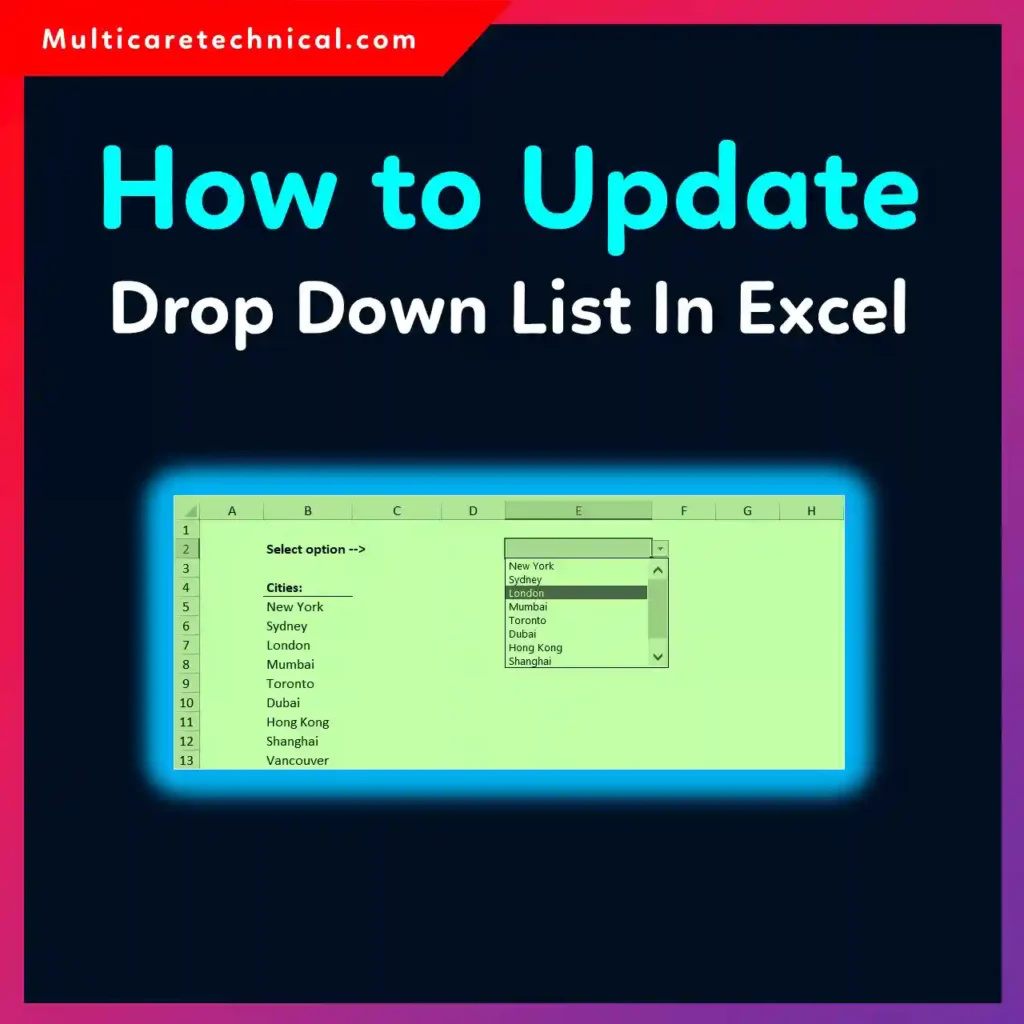
If you don’t update your drop-down list correctly, it can break workflows, cause errors, or confuse users.
In this guide, you’ll learn how to update a drop-down list in Excel step-by-step, along with pro tips used by IT professionals to make lists dynamic, scalable, and error-proof.
Quick Answer
To update a drop-down list in Excel:
- Select the cell with the drop-down list
- Go to Data → Data Validation
- In the Source field, update the range or values
- Click OK
For dynamic updates, use a Table or named range so the list updates automatically when new data is added.
Table of Contents
- What Is a Drop-Down List in Excel?
- Types of Drop-Down Lists
- How to Update Drop-Down List (Basic Method)
- How to Update Dynamic Drop-Down Lists
- Editing Named Ranges
- Common Errors and Fixes
- Best Practices and Pro Tips
- Conclusion
- FAQs
What Is a Drop-Down List in Excel?
A drop-down list in Excel allows users to select predefined values from a menu instead of typing manually. This ensures:
- Data consistency
- Reduced errors
- Faster data entry
- Better reporting accuracy
Drop-down lists are created using Data Validation, one of Excel’s most useful features.
Types of Drop-Down Lists
Understanding the type of drop-down list you’re using is important before updating it.
1. Static List
- Values are typed manually (e.g., Yes, No, Maybe)
- Stored directly in Data Validation
2. Range-Based List
- Values come from a range of cells (e.g., A1:A10)
3. Named Range List
- Uses a defined name instead of cell references
4. Table-Based (Dynamic)
- Uses Excel Tables that expand automatically
Explanation Section
Updating a drop-down list depends on how it was originally created. If it’s static, you’ll edit text directly. If it’s linked to a range or table, you’ll update the source data.
Professionals prefer dynamic lists because they automatically update without manual changes.
If you’re working with formulas alongside lists, you might also find this guide useful:
👉 https://multicaretechnical.com/how-to-do-less-than-or-greater-than-or-equal-to-in-excel-complete-guide
Step-by-Step Guide
Method 1: Update a Static Drop-Down List
- Select the drop-down cell
- Click Data → Data Validation
- In the Source box, edit values
- Example:
Apple, Banana, Orange
- Example:
- Click OK
✔ Best for small, fixed lists
Method 2: Update a Range-Based Drop-Down List
- Locate the source range (e.g., A1:A5)
- Add or remove items in that range
- Ensure Data Validation includes the updated range
- Example: change from
A1:A5toA1:A10
- Example: change from
✔ Ideal for moderate-sized lists
Method 3: Update Drop-Down List Using Excel Table (Recommended)
- Select your data range
- Press Ctrl + T to convert it into a Table
- Use the table column as your source
- Add new rows below the table
✔ The drop-down list updates automatically
This method is widely used by IT professionals for scalability.
Method 4: Update Named Range Drop-Down List
- Go to Formulas → Name Manager
- Find the named range
- Click Edit
- Update the range reference
- Click OK
✔ Great for managing large datasets
Method 5: Dynamic Drop-Down with OFFSET or INDEX
Advanced users can use formulas like:
- OFFSET
- INDEX
These create auto-expanding lists based on data.
Common Errors and Fixes
❌ Drop-Down Not Updating
Cause: Range not expanded
Fix: Update source range or use a Table
❌ Blank Values Appearing
Cause: Empty cells in source range
Fix: Remove blanks or use dynamic formulas
❌ Data Validation Error
Cause: Invalid formula or reference
Fix: Check named ranges and cell references
❌ Copy-Paste Breaks Drop-Down
Cause: Validation rules not copied
Fix: Use Paste Special → Validation
❌ Incorrect Data Display
Cause: Formatting or formula conflicts
Fix: Check related formulas and formatting
For formatting improvements, see:
👉 https://multicaretechnical.com/how-to-highlight-every-other-row-in-excel-complete-guide-for-it-professionals
Best Practices / Pro Tips
✔ Use Excel Tables
Tables automatically expand and reduce maintenance effort.
✔ Avoid Hardcoding Values
Always link drop-down lists to a range instead of typing values manually.
✔ Use Named Ranges
Improves readability and makes formulas easier to manage.
✔ Keep Data Clean
Remove duplicates and blanks from your source list.
✔ Combine with Data Cleaning Techniques
For example, if your data includes full names, you may need to separate them:
👉 https://multicaretechnical.com/how-to-separate-names-in-excel-step-by-step-guide-for-beginners-it-professionals
✔ Use Conditional Formatting
Enhance usability and highlight selections.
Conclusion
Updating a drop-down list in Excel is simple once you understand how it’s structured. Whether you’re working with a basic list or a dynamic table, the key is to manage the source correctly.
For professionals handling large datasets, using Tables and named ranges is the best approach. It saves time, reduces errors, and ensures your lists always stay up to date.
Mastering this feature will significantly improve your Excel workflows and data accuracy.
FAQs
1. How do I update a drop-down list automatically in Excel?
Use an Excel Table as the source. When you add new data, the drop-down updates automatically.
2. Why is my drop-down list not updating?
Your source range may be fixed. Update the range or convert it into a Table.
3. Can I edit multiple drop-down lists at once?
Yes, if they share the same Data Validation rule, updating one source updates all.
4. How do I remove items from a drop-down list?
Delete the item from the source range or edit the Data Validation list.
5. What is the best method for large datasets?
Using Excel Tables or named ranges is the most efficient and scalable method.