
Accidentally closing a Safari tab on your iPhone can be frustrating, especially when you were reading an important article, researching a project, shopping online, or working with multiple websites at once. Fortunately, Safari includes several built-in features that allow users to recover recently closed tabs and even restore entire browsing sessions in certain situations.
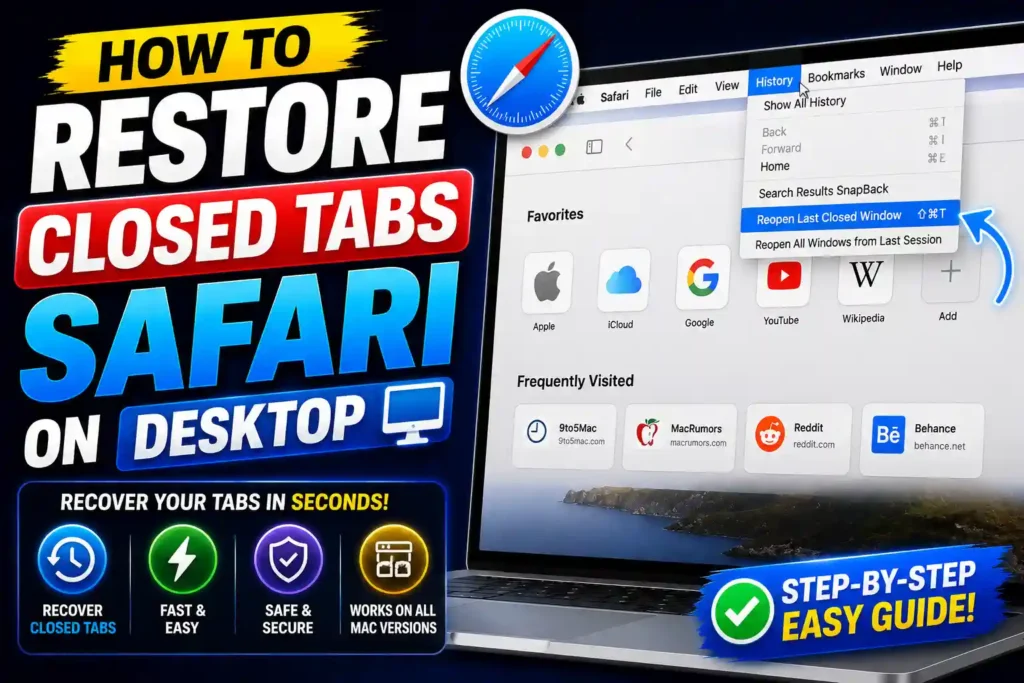
Whether you’re using the latest iPhone 16 series or an older iPhone model, Safari provides multiple ways to find and reopen tabs that were closed accidentally. Understanding these recovery methods can save time and prevent the need to search for lost pages again.
This guide explains how Safari tab recovery works, how to reopen recently closed tabs, what limitations exist, and how to prevent future tab loss.
Quick Answer
To restore a recently closed Safari tab on iPhone:
- Open Safari.
- Tap the Tabs button in the bottom-right corner.
- Press and hold the + (Plus) icon.
- A list of recently closed tabs will appear.
- Tap the page you want to restore.
Safari will immediately reopen the selected tab.
Table of Contents
- Understanding Safari Tab Recovery
- Why Safari Tabs Get Closed
- Reopening Recently Closed Tabs
- Recovering Tabs from Browsing History
- Restoring Entire Tab Groups
- Recovering Closed Private Tabs
- Common Errors and Fixes
- Best Practices and Pro Tips
- FAQs
- Conclusion
Understanding Safari Tab Recovery
Safari includes several recovery features that many iPhone users never discover.
These tools can help you:
- Recover recently closed tabs
- Restore browsing sessions
- Access browsing history
- Reopen accidentally closed pages
- Restore synced tabs from other Apple devices
The recovery method depends on how the tab was closed and whether browsing history is still available.
Why Safari Tabs Get Closed
Users commonly lose tabs because of:
- Accidental swipes
- Closing all tabs unintentionally
- Device restarts
- Safari crashes
- Clearing browsing data
- Switching between tab groups
Fortunately, most recently closed tabs can be recovered quickly.
How to Reopen Closed Tabs Safari iPhone
Safari includes a hidden Recently Closed Tabs feature.
Step-by-Step Instructions
- Open Safari.
- Tap the Tabs icon.
- Press and hold the + button.
- Safari displays recently closed tabs.
- Select the page you want to restore.
The tab will reopen instantly.
This is the fastest method for recovering recently closed webpages.
How to Retrieve Closed Tabs Through History
If the recently closed list no longer contains the page you need, Safari history may help.
Using Browsing History
- Open Safari.
- Tap the Bookmarks icon.
- Select the History tab.
- Browse recent websites.
- Tap the desired page.
Safari stores browsing history for an extended period unless manually cleared.
This method is useful when several hours or days have passed since a tab was closed.
How to Restore Recently Closed Tabs Safari iPhone
Many users mistakenly believe closed tabs disappear permanently.
In reality, Safari keeps a record of recently closed tabs that can usually be recovered.
Best Recovery Method
- Open Tabs view.
- Hold the Plus button.
- Select the tab from the Recently Closed list.
This feature works on modern versions of iOS and remains the easiest recovery option.
Restoring Multiple Tabs After Accidental Closure
Closing numerous tabs at once can seem disastrous, but recovery is often possible.
Check Recently Closed Tabs
Safari may preserve multiple recently closed pages.
Use Tab Groups
If tabs were organized into a Tab Group, restoring them is often easier.
Steps
- Open Safari.
- Tap Tabs.
- Select Tab Groups.
- Open the saved group.
Previously organized tabs may still be available.
How to Restore All Closed Tabs Safari iPhone
The ability to restore all tabs depends on how they were closed.
Possible Recovery Sources
- Recently Closed Tabs
- Safari History
- Tab Groups
- iCloud Synced Tabs
If tabs were synchronized through iCloud, they may still exist on another Apple device.
How to Reopen All Closed Tabs Safari iPhone
If multiple tabs were lost:
- Check Recently Closed Tabs.
- Review Safari History.
- Look for saved Tab Groups.
- Verify iCloud synchronization.
Combining these methods often recovers most browsing sessions.
How to Reopen Recently Closed Tabs Safari iPhone
Safari’s hidden recovery menu is specifically designed for recently closed pages.
Access Method
- Open Tabs view.
- Hold the Plus icon.
- Browse recently closed entries.
This works for most accidental tab closures.
Recovering Closed Private Browsing Tabs
Private Browsing behaves differently than standard Safari tabs.
Important Limitation
When a Private Browsing tab is closed:
- Safari generally does not save history.
- Recovery options are limited.
- Closed private tabs often cannot be restored.
This behavior is intentional and designed to protect privacy.
How to Restore Accidentally Closed Tabs in Safari iPhone
Accidental closures happen frequently during multitasking.
Recommended Recovery Process
- Check Recently Closed Tabs first.
- Search Safari History.
- Review Tab Groups.
- Check synced Apple devices.
The sooner recovery is attempted, the greater the chance of success.
Using iCloud to Recover Safari Tabs
Safari synchronizes tabs across Apple devices when iCloud is enabled.
Benefits
You may recover tabs from:
- MacBook
- iPad
- Another iPhone
Requirements
- Same Apple ID
- Safari synchronization enabled
- Active internet connection
For users who frequently work across Apple devices, this can be extremely helpful.
Common Errors and Fixes
Recently Closed Tabs List Is Empty
Fix
Check Safari History instead.
Cannot Find Closed Website
Fix
Search browsing history using keywords or website names.
Private Tab Cannot Be Recovered
Fix
Unfortunately, closed private tabs generally cannot be restored.
Safari History Missing
Fix
Verify that browsing history was not manually cleared.
Tabs Missing After Device Restart
Fix
Check Tab Groups and iCloud-synced tabs.
Best Practices and Pro Tips
Use Tab Groups
Tab Groups help organize important browsing sessions.
Enable iCloud Safari Sync
Synchronization improves recovery options across devices.
Bookmark Important Pages
Bookmarks provide a permanent backup.
Avoid Frequent History Deletion
Clearing history removes recovery opportunities.
Regularly Organize Tabs
Large numbers of open tabs increase the risk of accidental closure.
You may also find these related guides useful:
- https://multicaretechnical.com/how-to-access-clipboard-on-mac-view-clipboard-history-shortcuts-guide
- https://multicaretechnical.com/how-to-access-web-browser-on-ps5-complete-2026-guide
- https://multicaretechnical.com/how-to-fix-roblox-not-opening-on-windows-11-complete-troubleshooting-guide
Frequently Asked Questions
1. Can I recover a recently closed Safari tab on iPhone?
Yes. Press and hold the Plus button in Safari’s tab view to see recently closed tabs.
2. How far back does Safari store recently closed tabs?
The list varies, but Safari typically stores multiple recently closed tabs until they are replaced by newer entries.
3. Can I restore all closed tabs at once?
Sometimes. Tab Groups, Safari History, and iCloud synchronization may help recover multiple tabs.
4. Can private Safari tabs be restored?
Generally no. Private Browsing is designed not to save browsing history.
5. What happens if I clear Safari history?
Clearing history removes many recovery options, including access to previously visited pages.
Conclusion
Safari offers several effective ways to recover closed tabs on iPhone, making accidental tab closures far less stressful than many users assume. Whether you’re reopening a recently closed page, restoring an entire browsing session, or recovering tabs through iCloud synchronization, Apple’s built-in tools provide multiple recovery options.
The most reliable method remains the Recently Closed Tabs feature, accessible by pressing and holding the Plus button in Safari’s tab view. For older tabs, browsing history and Tab Groups can often help restore important pages.
By enabling iCloud sync, organizing tabs into groups, and bookmarking critical websites, you can greatly reduce the risk of losing valuable browsing sessions in the future.