
Copying and pasting are among the most common tasks performed on a Mac. Whether you’re working on documents, coding projects, emails, spreadsheets, or presentations, the clipboard plays a crucial role in storing temporary information before it is pasted elsewhere.
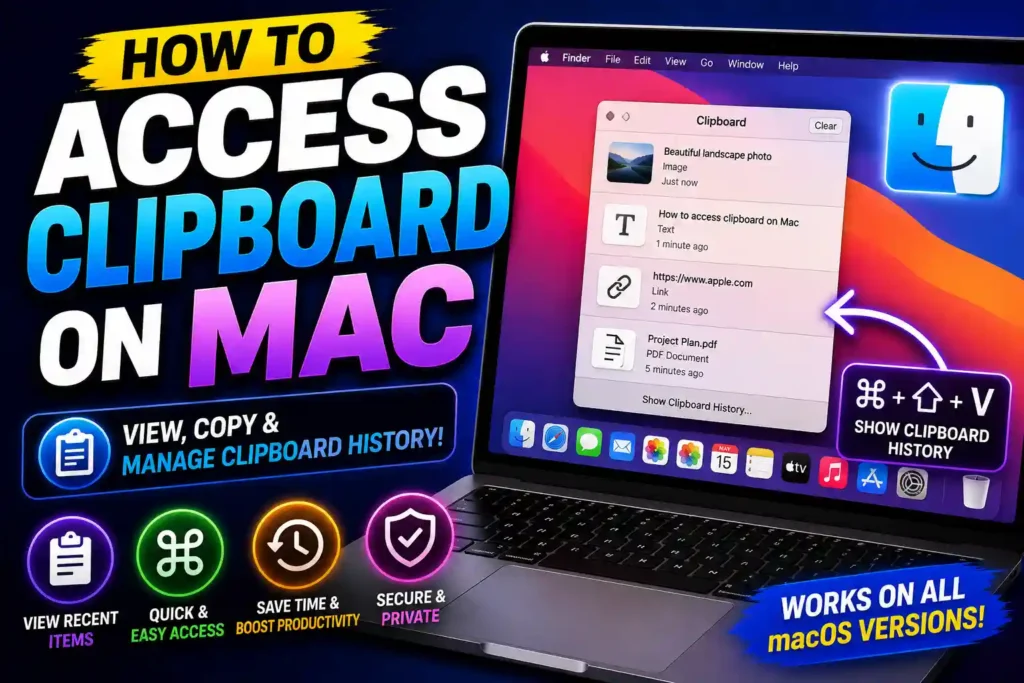
However, many Mac users are surprised to discover that macOS doesn’t provide an obvious clipboard app or icon. If you’ve ever copied text, an image, or a file and wondered where it went, you’re not alone.
The good news is that macOS includes built-in tools that allow you to view clipboard contents, and there are also methods for accessing clipboard history with third-party applications. Whether you’re using a MacBook Air, MacBook Pro, Mac mini, or the latest version of macOS, this guide explains everything you need to know.
Quick Answer
To access the clipboard on a Mac:
- Open Finder.
- Click Edit in the menu bar.
- Select Show Clipboard.
- A window will display the current item stored in the clipboard.
For clipboard history, you’ll need a third-party clipboard manager because macOS only stores the most recently copied item by default.
Table of Contents
- What Is the Mac Clipboard?
- Understanding How Clipboard Works in macOS
- Viewing the Current Clipboard Content
- Keyboard Shortcuts for Clipboard Functions
- Accessing Clipboard History
- Using Clipboard on MacBook Air, Mac mini, and Other Models
- Managing Clipboard Across Apple Devices
- Common Errors and Fixes
- Best Practices and Pro Tips
- FAQs
- Conclusion
What Is the Mac Clipboard?
The clipboard is a temporary storage area that holds information you’ve copied or cut.
Examples include:
- Text
- Images
- Screenshots
- Files
- Links
- Documents
Whenever you press Command + C or choose Copy from a menu, the selected content is placed into the clipboard until you replace it with another copied item.
Understanding How Clipboard Works in macOS
Unlike some operating systems that offer built-in clipboard history, macOS typically stores only one clipboard item at a time.
This means:
- Copying new content replaces the previous item.
- The clipboard is temporary.
- Clipboard contents may disappear after a restart.
- Clipboard data isn’t permanently stored.
For most users, this simple approach works well, but power users often prefer clipboard managers that keep a history of copied items.
Viewing the Current Clipboard Content
One of the easiest ways to see what’s currently stored in the clipboard is through Finder.
Step-by-Step Instructions
- Open Finder.
- Click Edit in the top menu bar.
- Select Show Clipboard.
A small window appears displaying the current clipboard contents.
What You Can View
Depending on what was copied, you may see:
- Text
- Images
- Rich text formatting
- Other supported content
This method works on virtually all modern versions of macOS.
Keyboard Shortcuts for Clipboard Functions
Mac users rely heavily on keyboard shortcuts to improve productivity.
Common Clipboard Shortcuts
Copy
Command (⌘) + C
Copies selected content.
Cut
Command (⌘) + X
Removes selected content and places it into the clipboard.
Paste
Command (⌘) + V
Inserts clipboard contents into the current location.
Paste and Match Style
Option + Shift + Command + V
Pastes text without preserving original formatting.
These shortcuts work across most Mac applications.
Finding Clipboard History on Mac
Many users expect to see a complete list of previously copied items.
Unfortunately, macOS does not include a built-in clipboard history feature.
Why Clipboard History Is Limited
Apple prioritizes:
- Simplicity
- Security
- Performance
As a result, only the most recent clipboard item is accessible by default.
Using Clipboard Managers
Third-party clipboard managers can provide:
- Clipboard history
- Search functions
- Saved snippets
- Synchronization options
Popular clipboard managers can store dozens or even hundreds of copied items for later retrieval.
Using Clipboard on Different Mac Models
The clipboard functions the same way regardless of hardware.
MacBook Air
MacBook Air users can access clipboard contents through Finder and use standard keyboard shortcuts.
MacBook Pro
Clipboard behavior remains identical across MacBook Pro models.
Mac mini
Mac mini systems offer the same clipboard functionality found on laptops.
Desktop Macs
Whether you’re using an iMac, Mac Studio, or Mac Pro, clipboard access follows the same process.
The instructions in this guide apply to all current Mac computers.
Clipboard Features in Modern macOS Versions
Recent versions of macOS have introduced improvements that make clipboard usage more convenient.
Universal Clipboard
Universal Clipboard allows users to copy content on one Apple device and paste it on another.
For example:
- Copy text on iPhone
- Paste it on Mac
Or:
- Copy an image on Mac
- Paste it on iPad
Requirements include:
- Same Apple ID
- Wi-Fi enabled
- Bluetooth enabled
- Handoff enabled
This feature significantly improves productivity for Apple ecosystem users.
Clipboard Access in macOS Tahoe
Users running newer macOS versions, including macOS Tahoe, can access clipboard contents using the same Finder method.
Steps
- Open Finder.
- Click Edit.
- Select Show Clipboard.
Apple has maintained a consistent clipboard interface across recent releases, making it easy for users upgrading from older versions.
Common Errors and Fixes
Clipboard Appears Empty
Fix
Copy new content and reopen the Show Clipboard window.
Paste Not Working
Fix
Try:
- Restarting the application
- Copying the content again
- Restarting your Mac
Clipboard Content Missing After Restart
Fix
This behavior is normal because clipboard data is temporary.
Universal Clipboard Not Working
Fix
Verify:
- Same Apple ID
- Bluetooth enabled
- Wi-Fi enabled
- Handoff enabled
Clipboard Manager Not Saving History
Fix
Check application permissions and update the clipboard manager software.
Best Practices and Pro Tips
Learn Essential Shortcuts
Using keyboard shortcuts can significantly improve productivity.
Use Universal Clipboard
If you own an iPhone or iPad, Universal Clipboard creates a seamless workflow.
Consider Clipboard Managers
Frequent copy-and-paste users benefit greatly from clipboard history tools.
Protect Sensitive Information
Avoid leaving passwords or confidential information in the clipboard for extended periods.
Keep macOS Updated
System updates often improve performance and compatibility.
You may also find these technology guides helpful:
- https://multicaretechnical.com/how-to-clear-cache-on-iphone-safari-chrome-instagram-whatsapp-apps
- https://multicaretechnical.com/how-to-access-web-browser-on-ps5-complete-2026-guide
- https://multicaretechnical.com/how-to-fix-roblox-not-opening-on-windows-11-complete-troubleshooting-guide
Frequently Asked Questions
1. How do I see what is currently copied on my Mac?
Open Finder, click Edit, and select Show Clipboard.
2. Does Mac have clipboard history?
By default, no. macOS only stores the most recently copied item.
3. What is the shortcut for clipboard on Mac?
Common shortcuts include Command + C for Copy and Command + V for Paste.
4. Can I recover old clipboard items?
Not without a clipboard manager. Once a new item is copied, the previous clipboard content is replaced.
5. Does Universal Clipboard work between Mac and iPhone?
Yes. Universal Clipboard allows copying on one Apple device and pasting on another when properly configured.
Conclusion
The clipboard is one of the most useful yet overlooked features of macOS. While Apple doesn’t provide a dedicated clipboard application or built-in clipboard history, accessing the current clipboard content is straightforward through Finder’s Show Clipboard option.
Whether you’re using a MacBook Air, MacBook Pro, Mac mini, or the latest macOS release, understanding how the clipboard works can improve productivity and streamline everyday tasks. For users who frequently copy and paste information, adding a clipboard manager can further enhance efficiency by providing searchable clipboard history and advanced management tools.
By mastering clipboard shortcuts, leveraging Universal Clipboard, and following the best practices outlined in this guide, you’ll be able to work faster and more effectively across your Apple devices.