
If your computer crashes, shows errors, or behaves strangely, Event Viewer can help you find the problem. It is a built-in Windows tool that records system events, warnings, and errors.
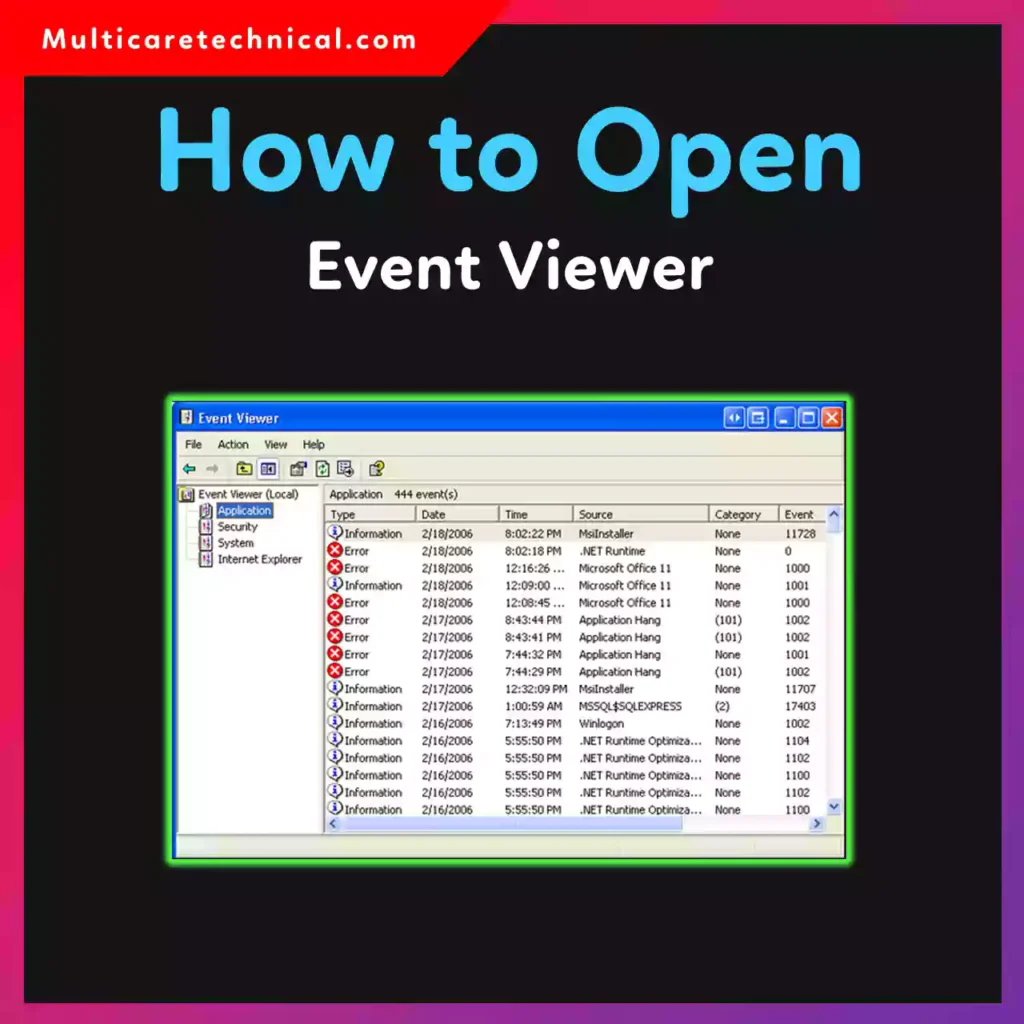
In this guide, you’ll learn how to open Event Viewer in Windows, including methods using Run, Command Prompt, PowerShell, Task Manager, and Administrator mode. These techniques work for both Windows 10 and Windows 11.
What Is Event Viewer?
Event Viewer is a Windows utility that logs system activities such as:
- System errors
- Application crashes
- Security events
- Windows updates
- Hardware problems
IT professionals and advanced users often use it to troubleshoot Windows problems and monitor system health.
Why Use Event Viewer?
Here are some common reasons people open Event Viewer:
✔ Diagnose system errors
✔ Troubleshoot application crashes
✔ Monitor security events
✔ Analyze Windows startup issues
✔ Investigate unexpected shutdowns
Learning how to open Event Viewer in Windows is an essential skill for system troubleshooting.
How to Open Event Viewer in Windows 11
The easiest way is through the Start menu.
Steps
- Click the Start Menu
- Type Event Viewer
- Click Event Viewer from the results
This method works for Windows 11 and Windows 10.
How to Open Event Viewer from Run
Many IT professionals prefer using the Run command because it’s faster.
Steps
- Press Windows + R
- Type:
eventvwr
- Press Enter
This instantly opens Event Viewer.
This method answers the common query how to open Event Viewer from Run.
How to Open Event Viewer from CMD (Command Prompt)
If you’re using command-line tools, you can launch it directly.
Steps
- Open Command Prompt
- Type the following command:
eventvwr
- Press Enter
This is the fastest way if you’re searching for how to open Event Viewer from CMD or how to open Event Viewer in command prompt.
How to Open Event Viewer from PowerShell
You can also open it using Windows PowerShell.
Steps
- Open PowerShell
- Run this command:
eventvwr
- Press Enter
This method helps users searching how to open Event Viewer from PowerShell.
How to Open Event Viewer from Task Manager
Another lesser-known method is through Task Manager.
Steps
- Press Ctrl + Shift + Esc
- Open Task Manager
- Click File → Run new task
- Type:
eventvwr
- Click OK
This answers the query how to open Event Viewer from Task Manager.
How to Open Event Viewer as Administrator
Sometimes you need administrator access to view detailed logs.
Steps
- Open Start Menu
- Search Event Viewer
- Right-click the app
- Select Run as Administrator
This method is useful if you’re searching how to open Event Viewer as admin.
Event Viewer Sections Explained
When Event Viewer opens, you’ll see several categories.
Windows Logs
Includes important logs such as:
- Application – App-related events
- Security – Login attempts and security actions
- System – Operating system events
- Setup – Installation logs
Applications and Services Logs
Contains logs for specific Windows services and applications.
When Should You Check Event Viewer?
You should open Event Viewer when:
- Your computer crashes
- Applications stop working
- Windows updates fail
- The system shuts down unexpectedly
- Drivers cause hardware errors
Helpful Guides You May Also Like
These guides can help you improve system management and troubleshooting:
- https://multicaretechnical.com/how-to-use-retrobar-in-windows-11-2026-guide
- https://multicaretechnical.com/how-to-use-windows-adk-for-beginners-complete-2026-guide
- https://multicaretechnical.com/how-to-disable-passcode-on-ipad-mini-air-pro-9th-10th-generation-guide
Quick Summary
Event Viewer is one of the most powerful built-in troubleshooting tools in Windows.
You can open it in several ways, including:
- Start Menu search
- Run command (
eventvwr) - Command Prompt
- PowerShell
- Task Manager
- Administrator mode
Learning how to open Event Viewer in Windows 10 and Windows 11 can help you quickly diagnose and fix system issues.
Frequently Asked Questions (FAQ)
1. What is Event Viewer used for?
Event Viewer is used to view system logs, errors, warnings, and security events in Windows.
2. How do I open Event Viewer from Run?
Press Windows + R, type eventvwr, and press Enter.
3. Can I open Event Viewer from Command Prompt?
Yes. Open Command Prompt, type eventvwr, and press Enter.
4. How do I open Event Viewer in Windows 11?
Open the Start menu, search for Event Viewer, and click the application.
5. Is Event Viewer available in Windows 10?
Yes. Event Viewer is built into Windows 10, Windows 11, and earlier versions of Windows.