
If your internet suddenly stops working on Windows 10, you’re not alone. From no internet access to Ethernet not detected or the Network Connections folder showing empty, these problems are common—and usually easy to fix.
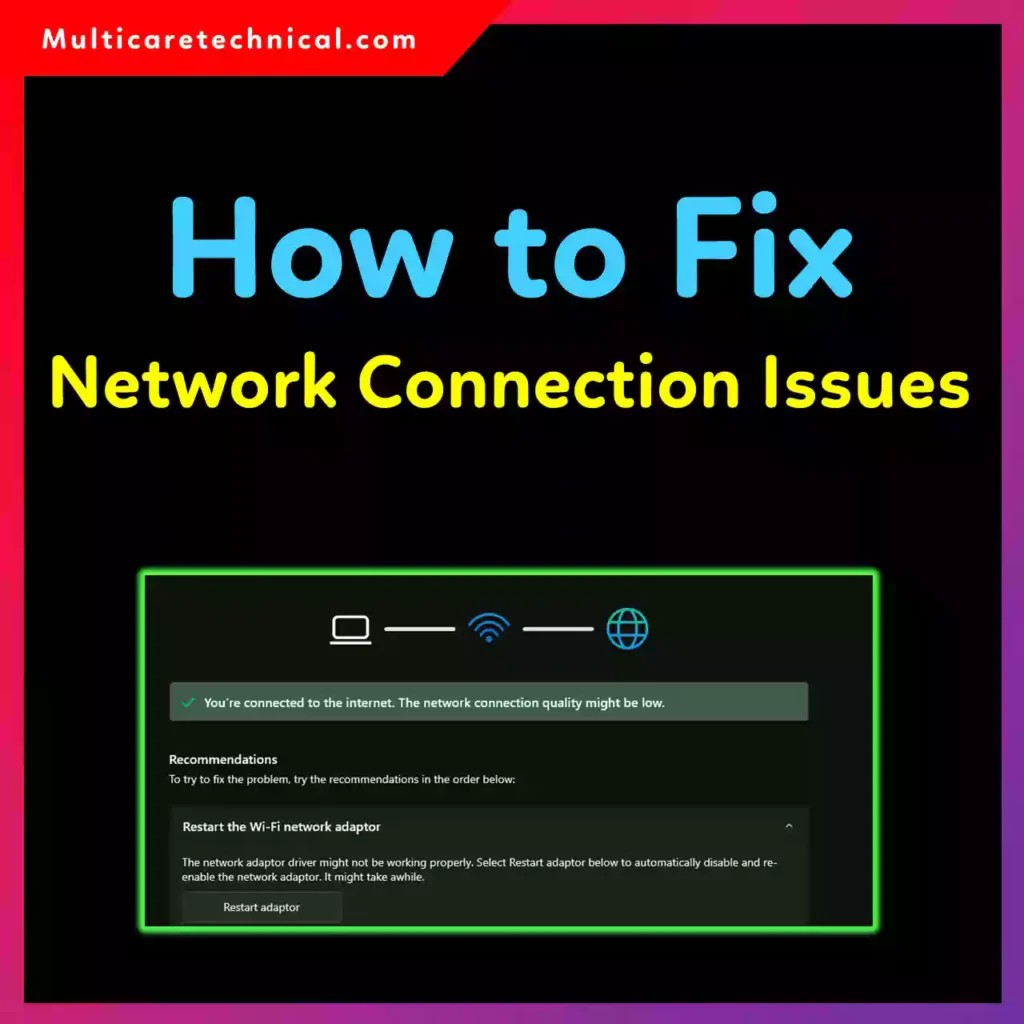
This step-by-step guide shows how to fix network connection issues in Windows 10 using proven methods that work for Wi-Fi, Ethernet, and sharing problems.
Quick Fix Checklist (Featured Snippet)
- Restart network devices
- Run Windows Network Troubleshooter
- Reset network settings
- Update or reinstall network drivers
- Fix Ethernet and sharing settings
- Check DNS configuration
Common Network Problems in Windows 10
You may be facing one of these:
- No internet access (Wi-Fi connected but not working)
- Ethernet connected but no internet
- Network Connections folder empty
- Network sharing not working
- Frequent disconnects
Let’s fix them one by one.
Fix 1: Restart Your Network Devices (Don’t Skip This)
Before changing settings:
- Restart your PC
- Power off your router and modem
- Wait 30 seconds
- Turn everything back on
This alone fixes many cases of how to fix internet connection in Windows 10.
Fix 2: Run Windows Network Troubleshooter
Windows 10 has a built-in repair tool.
Steps:
- Go to Settings → Update & Security
- Click Troubleshoot
- Select Internet Connections
- Click Run the troubleshooter
This automatically detects DNS, adapter, and IP issues.
Fix 3: Reset Network Settings (Most Effective Fix)
If you’re wondering how to fix network connection Windows 10 completely, this is the best solution.
Steps:
- Open Settings
- Go to Network & Internet
- Click Network reset
- Select Reset now
- Restart your PC
⚠️ This removes saved Wi-Fi passwords (re-enter them later).
Fix 4: Update or Reinstall Network Drivers
Outdated drivers often cause connection failures.
Steps:
- Press Win + X → Device Manager
- Expand Network adapters
- Right-click your adapter → Update driver
- Choose Search automatically
If that fails:
- Right-click → Uninstall device
- Restart Windows (driver reinstalls automatically)
This is critical for how to fix ethernet connection in Windows 10.
Fix 5: Fix Ethernet Not Working in Windows 10
If Ethernet shows “Connected” but no internet:
- Open Network & Internet settings
- Click Change adapter options
- Right-click Ethernet → Disable
- Wait 10 seconds
- Enable it again
Also:
- Try a different Ethernet cable
- Plug into another router port
Fix 6: Network Connections Folder Is Empty (Very Common)
If you’re searching how to fix network connections folder empty in Windows 10, do this:
Steps:
- Press Win + R
- Type
services.msc - Make sure these services are Running:
- Network Connections
- Network List Service
- Network Location Awareness
- Restart your PC
This instantly restores missing adapters.
Fix 7: Fix Network Sharing Problems
To fix how to fix network sharing problem in Windows 10:
- Open Control Panel
- Go to Network and Sharing Center
- Click Change advanced sharing settings
- Turn on:
- Network discovery
- File and printer sharing
- Save changes
Make sure all devices are on the same network.
Fix 8: Flush DNS Cache (Advanced but Safe)
DNS issues can block internet access.
Steps:
- Open Command Prompt (Admin)
- Run:
ipconfig /flushdns
- Restart your PC
Brief Explanation: What Is DNS?
DNS (Domain Name System) acts like the internet’s address book. It converts website names (like google.com) into IP addresses computers understand.
If DNS is broken:
- Websites won’t load
- Internet may connect but not work
- Network errors appear randomly
Using a stable DNS helps maintain reliable connectivity.
Helpful Windows Fixes You May Also Need
Some network problems are linked to system settings and drivers:
- 🔊 Disable Hands-Free Audio in Windows 11 Permanently
- 🖥️ Put Apps on Home Screen in Windows 10/11
- ⚠️ Fix Driver Power State Failure in Windows 11/10
How to Prevent Network Issues in the Future
- Keep Windows updated
- Update network drivers regularly
- Avoid unknown VPNs
- Restart router weekly
- Use trusted DNS servers
FAQs (Optimized for AI Overviews)
How do I fix internet connection in Windows 10?
Restart devices, run the troubleshooter, reset network settings, and update network drivers.
Why is Ethernet connected but no internet in Windows 10?
This is usually caused by driver issues, DNS errors, or router configuration problems.
How do I fix an empty Network Connections folder?
Restart network-related services from services.msc.
Can DNS cause network connection problems?
Yes, incorrect DNS settings can block websites even when the network is connected.
Final Thoughts
Most Windows 10 network issues come down to drivers, DNS, or corrupted settings. You don’t need to reinstall Windows—just follow the steps above in order, and your internet should be back in minutes.
If one fix doesn’t work, move to the next. These methods cover Wi-Fi, Ethernet, and sharing issues completely.