
Need your YouTube Channel ID for API access, monetization setup, brand verification, or linking services? If you’re using your phone, don’t worry — this guide shows you exactly how to find YouTube channel ID on mobile, including how to find YouTube channel ID on mobile iPhone in just a few taps.
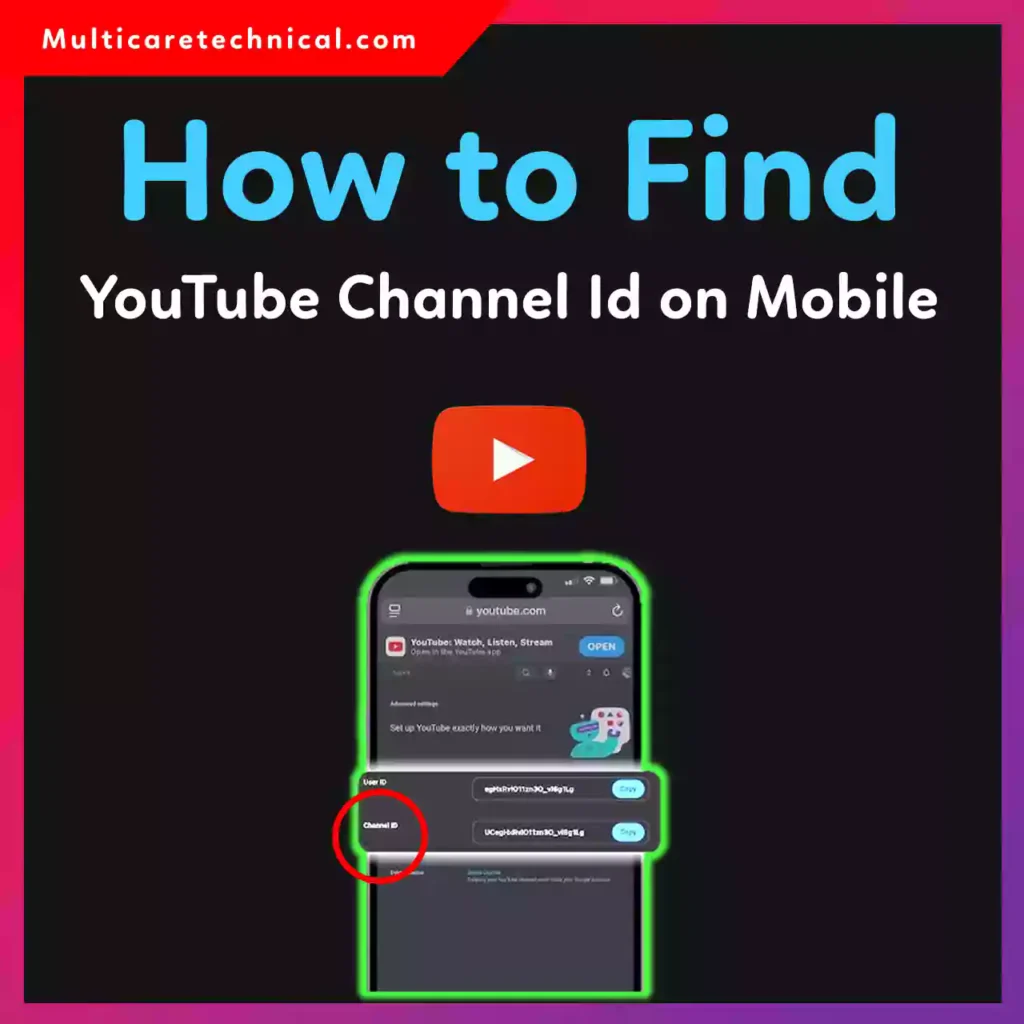
Whether you’re a creator, developer, or business owner, your Channel ID is a unique code that identifies your channel inside YouTube’s system.
🔥 Quick Answer (Featured Snippet Optimized)
To find your YouTube Channel ID on mobile:
- Open the YouTube app.
- Tap your profile picture.
- Go to Your Channel.
- Tap the three dots (⋮) > Share.
- Copy the channel link.
- Paste it in your browser and look for
/channel/UCxxxxxxxx.
👉 The string starting with UC is your YouTube Channel ID.
📱 Method 1: How to Find YouTube Channel ID on Mobile (Android)
If you’re using Android, follow these steps:
- Open the YouTube app.
- Tap your profile icon (top right).
- Select Your Channel.
- Tap the three dots (⋮).
- Tap Share > Copy link.
- Open Chrome.
- Paste the link in the address bar.
If the URL looks like:
https://www.youtube.com/channel/UCabcd1234xyz
Your Channel ID is:
UCabcd1234xyz
If it shows:
youtube.com/@yourchannelname
Tap it and then switch to Desktop Mode in your browser. The URL will reveal the /channel/UC… format.
🍎 How to Find YouTube Channel ID on Mobile iPhone
Searching specifically for how to find YouTube channel ID on mobile iPhone? Here’s the exact process:
- Open the YouTube app.
- Tap your profile picture.
- Select View Channel.
- Tap Share.
- Copy the link.
- Open Safari.
- Paste the link.
- Tap the aA icon > Request Desktop Website.
Now check the URL — it will display:
/channel/UCXXXXXXXXXXXX
That full UC code is your Channel ID.
💻 Alternative Method (Using YouTube Studio on Mobile Browser)
You can also find it via YouTube Studio:
- Open your mobile browser.
- Visit studio.youtube.com.
- Switch to Desktop Mode.
- Go to Settings.
- Click Channel > Advanced Settings.
- You’ll see your Channel ID listed there.
This method works for both Android and iPhone.
🎯 Why You Need Your YouTube Channel ID
Your Channel ID is required for:
- YouTube API integration
- Linking AdSense
- Website embedding
- Brand account verification
- Developer tools
- Analytics integration
If you’re building your online brand, you may also want to learn:
- How to manage Instagram drafts:
https://multicaretechnical.com/how-to-find-drafts-on-instagram-story-post-reels-android-iphone-computer - How to get a virtual number for business setup:
https://multicaretechnical.com/how-to-get-a-virtual-phone-number-complete-2026-guide-india-uk-australia-more - How to customize your device professionally:
https://multicaretechnical.com/how-to-change-iphone-wallpaper-lock-screen-home-screen-step-by-step-guide
📌 Important Notes
- Channel ID always starts with UC.
- It is different from your username or handle (@name).
- It cannot be changed.
- Each YouTube channel has a unique ID.
📊 7 Quick Facts About YouTube Channel ID
- It starts with “UC”.
- It’s automatically generated by YouTube.
- It never changes.
- It’s required for API usage.
- It’s different from a custom URL.
- It works across devices.
- You can find it using desktop mode on mobile.
❓ Short FAQ (Optimized for AI Overviews)
Q1: How do I find my YouTube Channel ID on mobile?
Open YouTube → Go to Your Channel → Share → Paste link in browser → Look for /channel/UCxxxxx.
Q2: How to find YouTube channel ID on mobile iPhone?
Copy your channel link from the app, paste in Safari, enable Desktop Mode, and check the URL for /channel/UC code.
Q3: Is Channel ID the same as username?
No. Username or handle (@name) is customizable, but Channel ID is permanent.
Q4: Can I change my YouTube Channel ID?
No. YouTube assigns it automatically and it cannot be edited.
🏁 Conclusion
Now you know exactly how to find YouTube channel ID on mobile iPhone and Android. The fastest method is copying your channel link and checking the URL in desktop mode. Your Channel ID is essential for integrations, monetization, and advanced tools — so keep it saved somewhere secure.
If you’re serious about growing your digital presence, knowing small technical details like this makes a big difference.