
Introduction
Ad blockers are useful tools that improve browsing speed, reduce distractions, and protect privacy on your iPhone. However, there are times when you may need to disable them—such as accessing certain websites, viewing full content, or troubleshooting issues with apps and web pages.
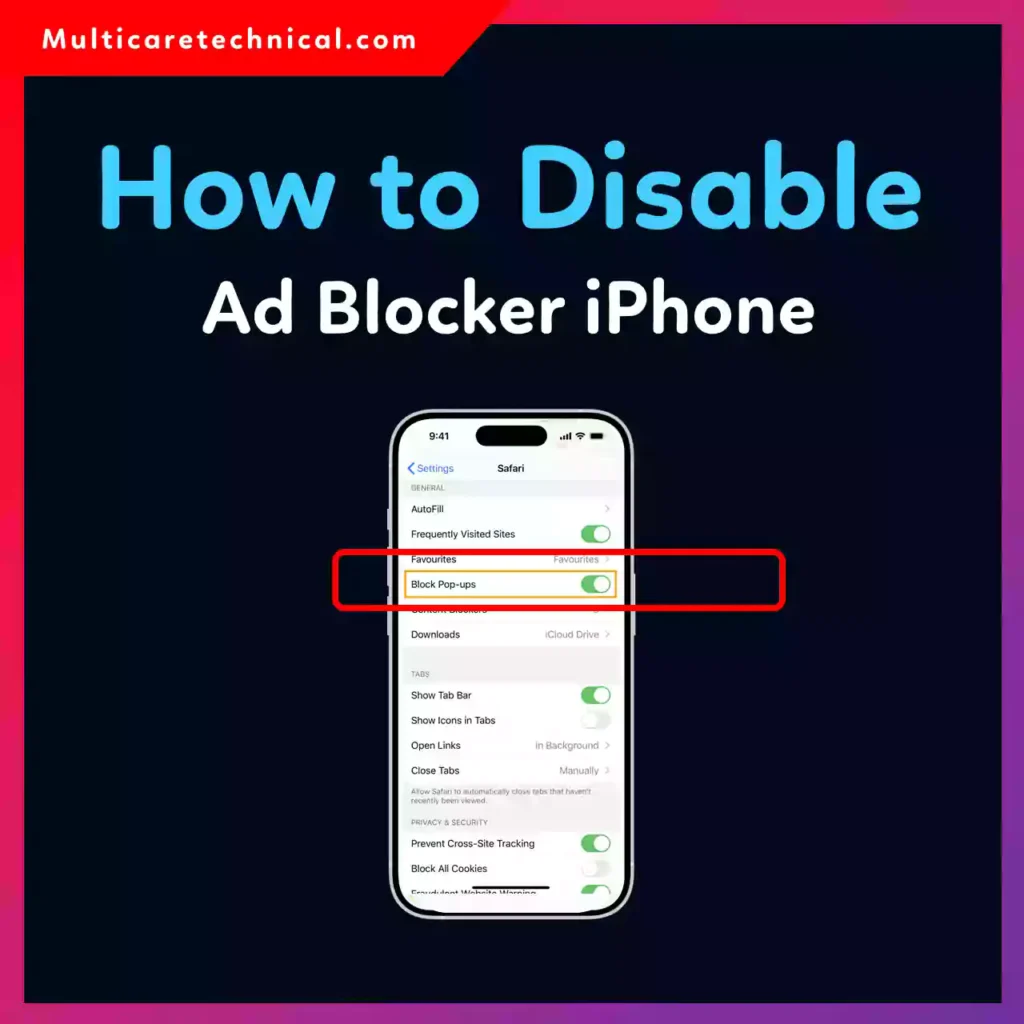
Many websites now restrict access when an ad blocker is active, and some services simply won’t load correctly. If you’ve ever seen messages like “Please disable your ad blocker to continue,” you’re not alone.
In this guide, you’ll learn exactly how to disable ad blockers on an iPhone, whether you’re using Safari content blockers, third-party apps, or browser extensions.
Quick Answer
To disable an ad blocker on iPhone:
- Open Settings
- Go to Safari
- Tap Extensions or Content Blockers
- Turn off the ad blocker toggle
Alternatively, for specific websites:
- Open the site in Safari
- Tap the “AA” icon in the address bar
- Select Turn Off Content Blockers
Table of Contents
- What Is an Ad Blocker on iPhone?
- Why You Might Need to Disable It
- How to Disable Ad Blocker in Safari
- How to Turn Off Ad Blocker for Specific Websites
- How to Disable Third-Party Ad Blocker Apps
- Common Errors and Fixes
- Best Practices and Pro Tips
- FAQs
- Conclusion
What Is an Ad Blocker on iPhone?
An ad blocker on iPhone is typically a content-blocking extension that works with Safari. These tools filter out ads, pop-ups, trackers, and sometimes even scripts that websites rely on.
There are two main types:
- Safari Content Blockers (built into iOS settings)
- Third-party apps (like AdGuard, 1Blocker, etc.)
These blockers improve browsing experience but can sometimes interfere with website functionality.
Why You Might Need to Disable It
While ad blockers are helpful, there are several situations where disabling them becomes necessary:
- A website won’t load or display properly
- Login forms or buttons don’t work
- Streaming or embedded content fails
- Websites request you to disable blockers
- Troubleshooting slow or broken pages
Disabling the blocker temporarily can often resolve these issues instantly.
How to Disable Ad Blocker in Safari (iPhone)
Follow these steps to completely disable ad blockers in Safari:
Step-by-Step Instructions
- Open the Settings app on your iPhone
- Scroll down and tap Safari
- Tap Extensions or Content Blockers
- Find your ad blocker (e.g., AdGuard, 1Blocker)
- Toggle it OFF
That’s it—your ad blocker is now disabled across all websites in Safari.
How to Turn Off Ad Blocker for a Specific Website
If you don’t want to disable your ad blocker entirely, you can turn it off for a single website.
Steps:
- Open Safari
- Visit the website
- Tap the “AA” icon in the address bar
- Tap Turn Off Content Blockers
This allows ads and scripts only for that specific site while keeping your protection active elsewhere.
How to Disable Third-Party Ad Blocker Apps
Some ad blockers work outside Safari and require a different method to disable.
Method 1: Disable via Settings
- Open Settings
- Go to General > VPN & Device Management
- Look for any active ad blocker profiles
- Disable or remove them
Method 2: Open the App
- Launch the ad blocker app (e.g., AdGuard)
- Toggle off protection inside the app
Method 3: Delete the App
If you no longer need it:
- Press and hold the app icon
- Tap Remove App
- Confirm deletion
Common Errors and Fixes
Even after disabling ad blockers, you might still face issues. Here are common problems and how to fix them:
1. Website Still Not Loading
Fix:
- Clear Safari cache
- Go to Settings > Safari > Clear History and Website Data
2. Ads Still Not Showing
Fix:
- Restart Safari or your iPhone
- Ensure all content blockers are turned off
3. Page Layout Is Broken
Fix:
- Disable other extensions
- Check if JavaScript is enabled
4. Ad Blocker Keeps Turning On
Fix:
- Check app settings
- Remove configuration profiles
Best Practices / Pro Tips
1. Disable Only When Needed
Keep your ad blocker enabled for security and privacy. Turn it off only for trusted websites.
2. Use Website-Specific Control
Instead of disabling globally, use the “Turn Off Content Blockers” option for individual sites.
3. Keep Your iPhone Updated
New iOS updates fix compatibility issues between Safari and content blockers.
4. Monitor Privacy Settings
Ad blockers are just one part of privacy. You can also adjust location and tracking settings.
👉 For better privacy control, check this guide:
https://multicaretechnical.com/how-to-turn-off-google-location-history-iphone-android-2026-privacy-guide
5. Optimize Other iPhone Settings
Improving your iPhone experience goes beyond ad blockers. You may also find these helpful:
- https://multicaretechnical.com/how-to-turn-off-google-gemini-on-iphone-complete-guide
- https://multicaretechnical.com/how-to-turn-on-weather-alerts-on-iphone-complete-guide
Conclusion
Disabling an ad blocker on your iPhone is simple once you know where to look. Whether you’re using Safari’s built-in content blockers or a third-party app, you can easily turn them off either globally or for specific websites.
The key is to strike a balance—keep your ad blocker enabled for general browsing, but disable it when necessary to ensure websites function properly.
By following the steps and tips in this guide, you’ll have full control over your browsing experience while maintaining privacy and performance.
FAQs
1. How do I know if an ad blocker is enabled on my iPhone?
Check Settings > Safari > Extensions or Content Blockers. If toggled on, your ad blocker is active.
2. Can I disable ad blockers for only one website?
Yes, use the “AA” icon in Safari and select Turn Off Content Blockers for that site.
3. Will disabling ad blockers affect my privacy?
Yes, slightly. You may see more ads and trackers, so only disable for trusted websites.
4. Why are some websites not working with ad blockers?
Ad blockers can block scripts or elements required for the site to function properly.
5. Do all browsers on iPhone use the same ad blocker settings?
No, Safari uses system-level content blockers, while other browsers may use separate settings or apps.