
Introduction
A blank page appearing in the middle or at the end of a Microsoft Word document can be frustrating. Whether you’re preparing a business report, technical documentation, school assignment, or professional proposal, unwanted blank pages can make your document look unprofessional.
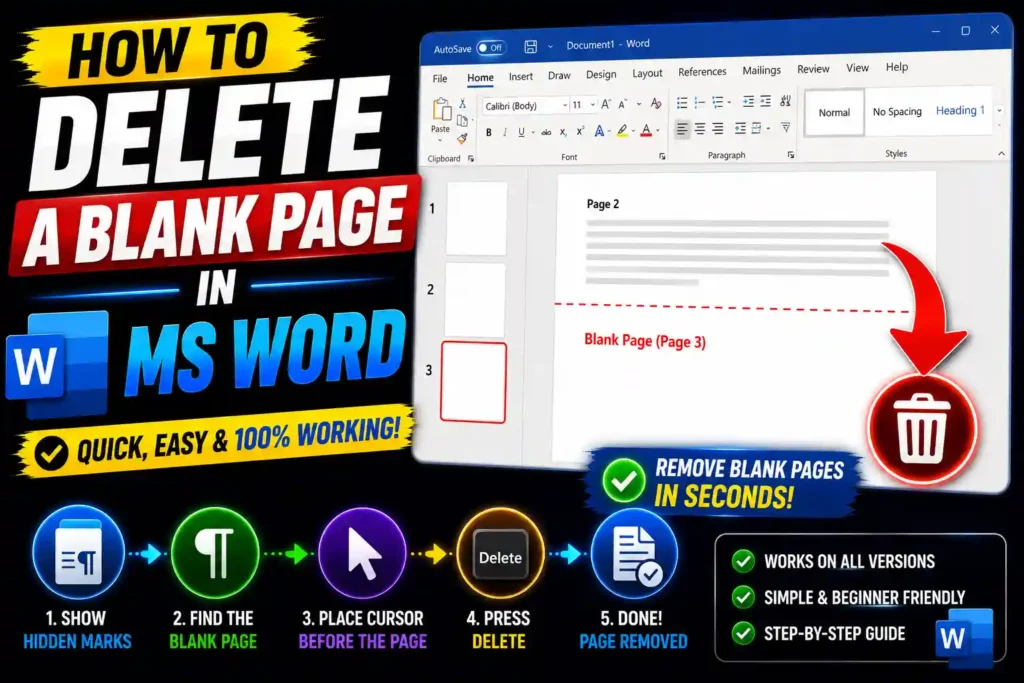
Many users press the Backspace or Delete key repeatedly, only to find that the blank page refuses to disappear. This usually happens because the page contains hidden formatting elements such as paragraph marks, page breaks, section breaks, or table formatting.
Fortunately, Microsoft Word provides several ways to identify and remove blank pages. Once you understand what is causing the extra page, deleting it becomes a simple process.
In this guide, you’ll learn how to delete a blank page in MS Word on Windows and Mac, troubleshoot common causes, and prevent blank pages from appearing in future documents.
Quick Answer
To delete a blank page in MS Word:
- Press Ctrl + Shift + 8 to show paragraph marks.
- Locate hidden page breaks, section breaks, or empty paragraphs.
- Select the unwanted formatting marks.
- Press Delete or Backspace.
- Save the document.
Most blank pages are caused by extra paragraph marks, page breaks, or section breaks.
Table of Contents
- Why Blank Pages Appear in MS Word
- How to Show Hidden Formatting Marks
- Step-by-Step Methods to Delete a Blank Page
- Removing Page Breaks
- Removing Section Breaks
- Fixing Blank Pages After Tables
- Common Errors and Fixes
- Best Practices and Pro Tips
- Frequently Asked Questions
- Conclusion
Why Blank Pages Appear in MS Word
Blank pages usually don’t appear randomly. They are typically caused by hidden formatting elements within the document.
Common causes include:
- Extra paragraph marks
- Manual page breaks
- Section breaks
- Hidden content
- Large tables
- Incorrect page formatting
- Imported document formatting
- Template issues
Identifying the root cause is the first step toward removing the page successfully.
How to Show Hidden Formatting Marks
Before deleting a blank page, it’s helpful to reveal hidden formatting symbols.
Steps
- Open your Word document.
- Click the Home tab.
- Select the ¶ Show/Hide button.
Alternatively, press:
Ctrl + Shift + 8You will now see:
- Paragraph marks (¶)
- Page breaks
- Section breaks
- Hidden spaces
These marks help identify what is creating the blank page.
Step-by-Step Guide to Delete a Blank Page in MS Word
Method 1: Delete Extra Paragraph Marks
This is the most common solution.
Steps
- Enable formatting marks.
- Go to the blank page.
- Highlight extra paragraph symbols (¶).
- Press Delete.
If the blank page is at the end of the document, removing unnecessary paragraph marks often solves the issue immediately.
Method 2: Use the Navigation Pane
The Navigation Pane makes it easier to locate blank pages.
Steps
- Click the View tab.
- Enable Navigation Pane.
- Select the Pages tab.
- Locate the blank page.
- Click the page and inspect its contents.
- Remove hidden formatting marks.
This method works especially well for lengthy documents.
Method 3: Delete a Blank Page at the End of a Document
Blank pages frequently appear at the end of Word files.
Steps
- Press Ctrl + End.
- Highlight all paragraph marks after the final content.
- Press Delete repeatedly until the page disappears.
If the blank page remains, a page break or section break may be present.
Removing Page Breaks
A manual page break forces content onto a new page.
How to Find a Page Break
After enabling formatting marks, you may see:
---------- Page Break ----------Remove the Page Break
- Place the cursor before the page break.
- Press Delete.
Or:
- Select the page break.
- Press Backspace.
The content should immediately move up, removing the blank page.
Removing Section Breaks
Section breaks are another common cause of unwanted blank pages.
You may see:
Section Break (Next Page)Delete a Section Break
- Enable formatting marks.
- Locate the section break.
- Select it carefully.
- Press Delete.
Important Note
Deleting a section break may change:
- Headers
- Footers
- Page numbering
- Margins
Always review document formatting afterward.
Fixing Blank Pages Caused by Tables
Many users encounter a blank page after a table at the end of a document.
Word automatically inserts a paragraph after every table.
If the table reaches the bottom margin, the paragraph may push onto a new page.
Solution
- Show formatting marks.
- Select the paragraph mark after the table.
- Reduce font size to 1 pt.
- Change spacing to zero.
The blank page often disappears without affecting the table.
Delete Blank Pages in Word on Mac
The process is very similar on macOS.
Steps
- Open the Word document.
- Click Home.
- Select Show All Nonprinting Characters.
- Find page breaks, section breaks, or paragraph marks.
- Delete the unwanted elements.
Mac users can also use:
Command + 8to display formatting marks.
Delete Multiple Blank Pages
Large documents sometimes contain several blank pages.
Quick Method
- Open the Navigation Pane.
- Review each page.
- Remove:
- Page breaks
- Section breaks
- Empty paragraphs
This approach is much faster than manually scrolling through the document.
Common Errors and Fixes
Error: Blank Page Won’t Delete
Cause
Hidden formatting elements remain.
Fix
Enable paragraph marks and remove all hidden content.
Error: Deleting the Blank Page Changes Formatting
Cause
A section break was removed.
Fix
Replace the deleted section break with a continuous section break if needed.
Error: Blank Page Appears After a Table
Cause
Word inserts a mandatory paragraph after tables.
Fix
Reduce the paragraph font size to 1 pt.
Error: Extra Page Appears When Printing
Cause
Printer settings or page margins.
Fix
Check page setup and print preview.
Error: Imported Document Contains Blank Pages
Cause
Formatting carried over from another file.
Fix
Remove unnecessary section breaks and page breaks.
Best Practices and Pro Tips
Keep Formatting Marks Visible During Editing
Professional document editors often work with formatting marks enabled because they make troubleshooting easier.
Use Page Breaks Instead of Repeated Enter Keys
Avoid pressing Enter multiple times to move content.
Instead, insert proper page breaks when necessary.
Review Documents Before Printing
Use Print Preview to identify hidden blank pages.
This prevents wasted paper and improves professionalism.
Minimize Unnecessary Section Breaks
Use section breaks only when required for:
- Different headers
- Different footers
- Different page numbering
Too many section breaks increase formatting complexity.
Save a Backup Before Major Formatting Changes
For large reports and business documents, save a copy before removing section breaks.
Related Guides
If you work with business documents, servers, or website management, these guides may also be helpful:
- How to Transfer Domain: https://multicaretechnical.com/how-to-transfer-domain-complete-step-by-step-guide-for-2026
- How to Transfer FSMO Roles in Windows Server: https://multicaretechnical.com/how-to-transfer-fsmo-roles-in-windows-server
- How to Fix Keyboard Not Typing on Windows and Laptop: https://multicaretechnical.com/how-to-fix-keyboard-not-typing-on-windows-and-laptop-complete-guide-2026
Frequently Asked Questions
1. Why can’t I delete a blank page in Word?
Most blank pages are caused by hidden paragraph marks, page breaks, or section breaks that must be removed first.
2. How do I show hidden formatting marks in Word?
Press Ctrl + Shift + 8 on Windows or Command + 8 on Mac.
3. What causes a blank page after a table?
Word automatically inserts a paragraph after tables. If the table reaches the bottom of the page, the paragraph may create a new blank page.
4. Will deleting a section break affect formatting?
Yes. It can impact headers, footers, margins, and page numbering.
5. How do I remove multiple blank pages at once?
Use the Navigation Pane to identify each blank page and remove the associated page breaks, section breaks, or paragraph marks.
Conclusion
Knowing how to delete a blank page in MS Word can save time and help create cleaner, more professional documents. Most unwanted pages are caused by hidden paragraph marks, page breaks, section breaks, or table formatting issues.
By enabling formatting marks and following the methods outlined in this guide, you can quickly locate the source of the problem and remove blank pages without damaging your document layout.
Whether you’re editing a business report, technical document, or school project, these troubleshooting techniques will help you maintain a polished and professional Word document every time.