
Introduction
Few computer problems are as frustrating as a keyboard that suddenly stops typing. Whether you’re working on an important project, sending emails, coding, or browsing the web, a non-responsive keyboard can bring productivity to a halt.
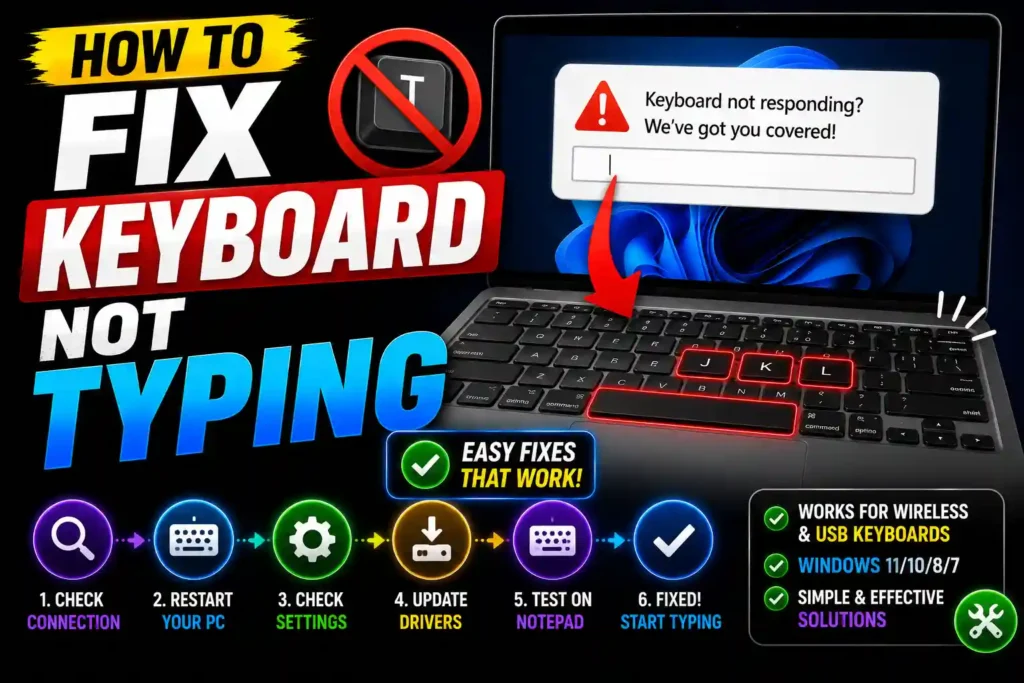
The issue can occur on desktop computers, laptops, wired keyboards, and wireless keyboards. Sometimes only a few keys stop working, while in other cases the entire keyboard becomes unresponsive.
The good news is that most keyboard typing issues are caused by simple software settings, driver problems, connection issues, or temporary system glitches. In many cases, you can solve the problem within minutes without replacing your keyboard.
This guide explains how to fix a keyboard that is not typing using proven troubleshooting methods for Windows computers and laptops.
Quick Answer
If your keyboard is not typing:
- Restart your computer.
- Check keyboard connections.
- Test another USB port.
- Turn off Filter Keys.
- Update or reinstall keyboard drivers.
- Run the Windows Keyboard Troubleshooter.
- Check for hardware damage.
- Test the keyboard on another device.
If the keyboard works on another computer, the issue is likely related to Windows settings or drivers.
Table of Contents
- Why Is My Keyboard Not Typing?
- Basic Troubleshooting Steps
- How to Fix Keyboard Not Typing Step by Step
- Laptop Keyboard-Specific Fixes
- Wireless Keyboard Troubleshooting
- Common Errors and Fixes
- Best Practices and Pro Tips
- Frequently Asked Questions
- Conclusion
Why Is My Keyboard Not Typing?
Several factors can prevent a keyboard from functioning properly.
Common causes include:
- Loose USB connection
- Low wireless keyboard battery
- Outdated drivers
- Corrupted system files
- Incorrect keyboard settings
- Filter Keys enabled
- Hardware failure
- Windows update issues
- Physical keyboard damage
- Dust and debris under keys
Identifying the root cause helps speed up the troubleshooting process.
Basic Troubleshooting Steps
Before making advanced changes, perform these simple checks.
Restart Your Computer
Temporary Windows glitches can sometimes prevent keyboard input.
A restart refreshes system processes and often resolves minor issues.
Check Physical Connections
For wired keyboards:
- Disconnect the keyboard.
- Wait 10 seconds.
- Reconnect it securely.
For wireless keyboards:
- Verify Bluetooth or wireless connectivity.
- Replace batteries if necessary.
Test Another USB Port
A faulty USB port can make a keyboard appear broken.
Connect the keyboard to:
- Another USB port
- A different computer
This helps determine whether the issue is hardware-related.
How to Fix Keyboard Not Typing Step by Step
Method 1: Check Num Lock and Function Keys
Some laptops disable parts of the keyboard through function key combinations.
Look for keys labeled:
- Fn
- Num Lock
- F Lock
Toggle these settings and test the keyboard again.
Method 2: Turn Off Filter Keys
Filter Keys is an accessibility feature that can interfere with normal typing.
Disable Filter Keys
- Open Settings.
- Select Accessibility.
- Click Keyboard.
- Locate Filter Keys.
- Turn it Off.
Test your keyboard after making the change.
Method 3: Run the Keyboard Troubleshooter
Windows includes built-in troubleshooting tools.
Steps
- Open Settings.
- Navigate to System.
- Select Troubleshoot.
- Click Other Troubleshooters.
- Run the Keyboard Troubleshooter.
Windows will automatically detect and repair common issues.
Method 4: Update Keyboard Drivers
Outdated drivers can prevent proper keyboard operation.
Update Driver
- Press Windows + X.
- Open Device Manager.
- Expand Keyboards.
- Right-click your keyboard.
- Select Update Driver.
- Choose Search Automatically for Drivers.
Restart your PC after installation.
Method 5: Reinstall Keyboard Drivers
Corrupted drivers often cause keyboard failures.
Reinstall Steps
- Open Device Manager.
- Expand Keyboards.
- Right-click the keyboard.
- Select Uninstall Device.
- Restart Windows.
Windows automatically reinstalls the driver during startup.
Method 6: Check Windows Updates
Microsoft frequently releases updates that fix hardware compatibility problems.
Update Windows
- Open Settings.
- Select Windows Update.
- Click Check for Updates.
- Install available updates.
- Restart the computer.
Method 7: Disable Fast Startup
Fast Startup occasionally creates hardware initialization issues.
Disable Fast Startup
- Open Control Panel.
- Select Power Options.
- Click Choose What the Power Buttons Do.
- Select Change Settings That Are Currently Unavailable.
- Uncheck Turn On Fast Startup.
- Save changes and restart.
Method 8: Perform a System File Check
Corrupted Windows system files may interfere with keyboard functionality.
Run SFC Scan
- Open Command Prompt as Administrator.
- Type:
sfc /scannow- Press Enter.
- Wait for the scan to finish.
- Restart your PC.
Method 9: Check for Malware
Malware can affect device drivers and keyboard functionality.
Run a full scan using:
- Windows Security
- Microsoft Defender
- Trusted antivirus software
Laptop Keyboard-Specific Fixes
Laptop keyboards may experience unique issues.
Perform a Power Reset
- Shut down the laptop.
- Disconnect power.
- Remove the battery (if removable).
- Hold the power button for 20 seconds.
- Reconnect power.
- Start the laptop.
This resets hardware components.
Check for Physical Damage
Look for:
- Liquid spills
- Broken keys
- Dust buildup
- Loose keyboard ribbon cable
If hardware damage is present, repair or replacement may be necessary.
Test External Keyboard
Connect a USB keyboard.
If the external keyboard works:
- Windows is functioning correctly.
- The laptop keyboard hardware may be defective.
Wireless Keyboard Troubleshooting
Wireless keyboards have additional failure points.
Replace Batteries
Weak batteries often cause intermittent typing issues.
Install fresh batteries and retest.
Reconnect Bluetooth
Steps
- Open Bluetooth Settings.
- Remove the keyboard.
- Pair it again.
- Test functionality.
Check Wireless Receiver
For USB receiver keyboards:
- Reinsert the receiver.
- Try another USB port.
- Avoid USB hubs when possible.
Common Errors and Fixes
Error: Keyboard Works in BIOS but Not Windows
Cause
Driver or Windows configuration issue.
Fix
Reinstall drivers and run system file checks.
Error: Some Keys Not Typing
Cause
Dust, debris, or physical damage.
Fix
Clean the keyboard carefully using compressed air.
Error: Laptop Keyboard Suddenly Stops Working
Cause
Driver corruption or power management issue.
Fix
Update drivers and perform a power reset.
Error: Wireless Keyboard Disconnects Frequently
Cause
Low battery or Bluetooth interference.
Fix
Replace batteries and reconnect the device.
Error: Keyboard Types Wrong Characters
Cause
Incorrect keyboard layout.
Fix
- Open Settings.
- Navigate to Time & Language.
- Select Language & Region.
- Verify keyboard layout is set to English (US).
Best Practices and Pro Tips
Keep Drivers Updated
Regularly update drivers to ensure compatibility with Windows updates.
Avoid Food and Liquids Near Keyboards
Spills remain one of the most common causes of keyboard failure.
Clean the Keyboard Regularly
Use compressed air to remove dust and debris.
Routine cleaning can extend keyboard lifespan.
Use Quality USB Ports
Avoid damaged ports and low-quality USB hubs.
Direct motherboard connections are generally more reliable.
Create Restore Points
Before making major system changes, create a restore point for easier recovery.
Related Guides
If you manage websites, domains, or enterprise systems, these resources may also help:
- How to Transfer Domain: https://multicaretechnical.com/how-to-transfer-domain-complete-step-by-step-guide-for-2026
- How to Transfer FSMO Roles in Windows Server: https://multicaretechnical.com/how-to-transfer-fsmo-roles-in-windows-server
- How Should You Approach a Compressed URL? Complete Security Guide: https://multicaretechnical.com/how-should-you-approach-a-compressed-url-complete-security-guide
Frequently Asked Questions
1. Why is my keyboard not typing but the mouse works?
The issue is usually caused by driver problems, keyboard settings, connection issues, or hardware failure.
2. How do I fix a laptop keyboard that stopped working?
Start by restarting the laptop, updating drivers, disabling Filter Keys, and testing an external keyboard.
3. Can Windows updates cause keyboard issues?
Yes. Occasionally, driver compatibility problems after updates can affect keyboard functionality.
4. Why are only some keyboard keys not working?
Dust buildup, liquid damage, worn-out switches, or hardware defects often affect individual keys.
5. How do I know if my keyboard is physically damaged?
Test it on another computer. If it still fails, hardware damage is likely the cause.
Conclusion
When a keyboard is not typing, the problem is often caused by simple issues such as connection problems, incorrect settings, outdated drivers, or temporary Windows glitches. Fortunately, most cases can be resolved without replacing the keyboard.
By following the troubleshooting steps in this guide—checking connections, disabling Filter Keys, updating drivers, running system scans, and testing hardware—you can quickly identify the root cause and restore normal keyboard functionality.
If none of these solutions work, testing the keyboard on another device can help determine whether hardware replacement is necessary.