
Changing the local account name in Windows 11 is a common task for home users, businesses, and IT professionals. Whether you want to correct a spelling mistake, update a user’s identity, or rename an administrator account, Windows 11 offers several methods to accomplish the task.
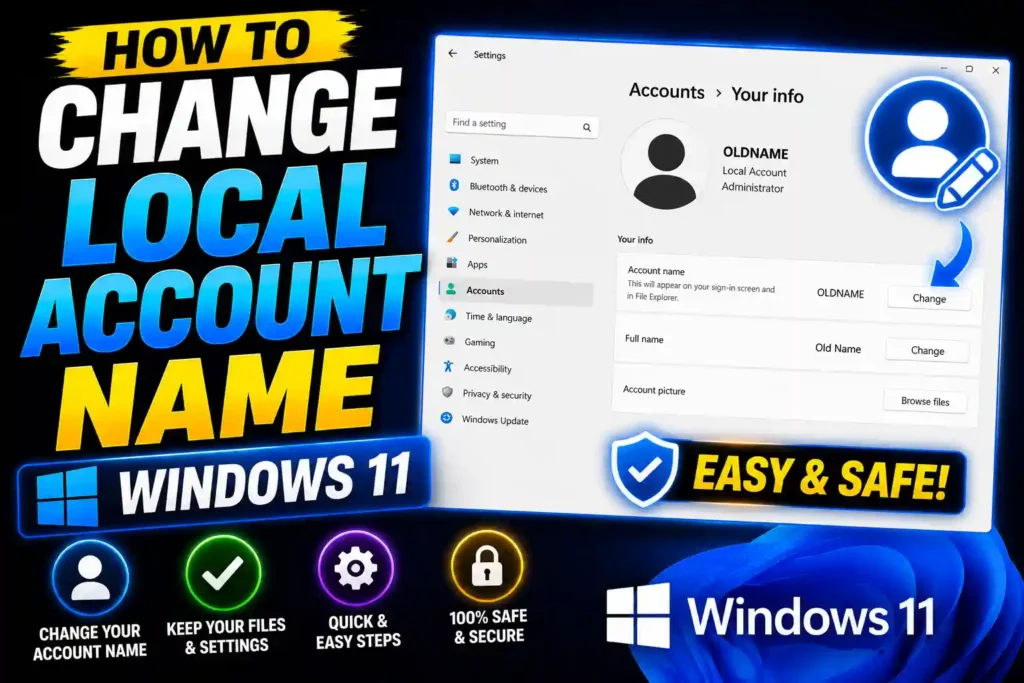
Unlike Microsoft accounts, local accounts store user information directly on the computer. Renaming them can help keep devices organized, especially in offices, schools, and shared environments.
This guide explains multiple ways to change a local account name in Windows 11, including methods for Windows 11 Home, Windows 11 Pro, Command Prompt, and administrator accounts.
Quick Answer
To change a local account name in Windows 11:
- Open Control Panel.
- Select User Accounts.
- Click Change your account name.
- Enter the new account name.
- Click Change Name.
- Sign out and sign back in to see the updated name.
This method works for most local accounts and requires administrator permissions.
Table of Contents
- What Is a Local Account in Windows 11?
- Why Change a Local Account Name?
- How to Change Local User Name Windows 11 Using Control Panel
- How to Change Local Account Name Windows 11 Home
- How to Change Local Account Name Windows 11 Pro
- How to Rename Local Account Name Windows 11 Using Computer Management
- How to Change Local Account Name Windows 11 CMD
- How to Change Local Account Administrator Name Windows 11
- How to Change PC Local Account Name Windows 11 Through Netplwiz
- How to Change Local Account User Name Windows 11 Using Settings
- Common Errors and Fixes
- Best Practices
- FAQ
- Conclusion
What Is a Local Account in Windows 11?
A local account is a Windows account that exists only on a specific computer. It is not linked to online Microsoft services.
Many IT professionals prefer local accounts for:
- Test environments
- Shared computers
- Business workstations
- Offline systems
- Privacy-focused setups
Renaming the account does not affect personal files, installed applications, or user permissions.
Why Change a Local Account Name?
There are several reasons why users rename local accounts:
- Correct spelling mistakes
- Update employee names
- Improve device organization
- Standardize naming conventions
- Replace default account names
- Improve security practices
For organizations managing multiple devices, consistent account naming helps simplify administration and troubleshooting.
How to Change Local User Name Windows 11 Using Control Panel
The Control Panel method is one of the easiest options.
Steps
- Press Windows + R.
- Type control and press Enter.
- Click User Accounts.
- Select User Accounts again.
- Click Change your account name.
- Enter the desired name.
- Click Change Name.
After signing out and back in, the updated account name will appear on the login screen and Start menu.
How to Change Local Account Name Windows 11 Home
Windows 11 Home users can rename local accounts without additional tools.
Method 1: Control Panel
The Control Panel method described above works perfectly on Windows 11 Home.
Method 2: Netplwiz
- Press Windows + R.
- Type netplwiz.
- Press Enter.
- Select the account.
- Click Properties.
- Enter the new username.
- Click Apply and OK.
Restart the computer to ensure all changes take effect.
How to Change Local Account Name Windows 11 Pro
Windows 11 Pro includes advanced administrative tools that make account management easier.
Using Computer Management
- Right-click the Start button.
- Select Computer Management.
- Expand Local Users and Groups.
- Click Users.
- Right-click the target account.
- Select Rename.
- Enter the new account name.
This method is commonly used by IT administrators because it provides direct access to user management features.
How to Rename Local Account Name Windows 11 Using Computer Management
Computer Management is ideal for businesses and power users.
Benefits
- Faster account management
- Suitable for multiple user accounts
- Built-in administrative tool
- No third-party software required
Steps
- Open Computer Management.
- Navigate to Local Users and Groups → Users.
- Locate the desired account.
- Right-click and choose Rename.
- Enter the new account name.
The change applies immediately.
How to Change Local Account Name Windows 11 CMD
Advanced users often prefer Command Prompt because it is fast and scriptable.
Open Command Prompt as Administrator
- Search for cmd.
- Right-click Command Prompt.
- Select Run as administrator.
View Existing Accounts
wmic useraccount get nameRename the Account
wmic useraccount where name='OldName' rename NewNameExample:
wmic useraccount where name='John' rename JohnSmithAfter executing the command, restart the system or sign out and sign back in.
Alternative PowerShell Method
Rename-LocalUser -Name "OldName" -NewName "NewName"PowerShell is the preferred option in newer Windows environments because some WMIC features are being phased out.
How to Change Local Account Administrator Name Windows 11
Many systems still use the default Administrator account.
Renaming this account improves security because attackers often target accounts named “Administrator.”
Using Local Security Policy
- Press Windows + R.
- Type:
secpol.msc- Navigate to:
Security Settings
→ Local Policies
→ Security Options- Locate:
Accounts: Rename administrator account- Open the policy.
- Enter a new administrator name.
- Click Apply.
This method is commonly used in enterprise environments.
How to Change PC Local Account Name Windows 11 Through Netplwiz
Netplwiz offers another straightforward method.
Steps
- Press Windows + R.
- Type:
netplwiz- Press Enter.
- Select the account.
- Click Properties.
- Change the username field.
- Click Apply and OK.
Many technicians use this approach because it is fast and works on most Windows editions.
How to Change Local Account User Name Windows 11 Using Settings
The Settings app has limited support for renaming local accounts directly. In many cases, Control Panel remains the easiest option.
If you’re using a Microsoft account instead of a local account, name changes must usually be performed through your Microsoft profile.
Before making major account changes, it’s always wise to create a backup of important files. Our guide on backing up a Mac can also provide general backup best practices:
You may also find these related tutorials useful:
- https://multicaretechnical.com/how-to-change-default-apps-on-android-complete-guide-for-samsung-android-tv-browser-sms-more
- https://multicaretechnical.com/how-to-use-apple-shortcuts-complete-guide-for-iphone-ipad-mac-and-apple-watch-2026
Common Errors and Fixes
Access Denied Error
Cause
The account lacks administrator privileges.
Fix
Run Command Prompt, PowerShell, or Computer Management as Administrator.
Name Does Not Update Immediately
Cause
Windows session cache.
Fix
Sign out and sign back in, or restart the PC.
User Folder Name Remains the Same
Cause
Changing the account name does not rename the profile folder.
Example:
C:\Users\OldNameremains unchanged.
Fix
Renaming the profile folder requires additional registry modifications and should be performed carefully.
Computer Management Missing
Cause
Windows 11 Home edition does not include Local Users and Groups.
Fix
Use Control Panel or Netplwiz instead.
Best Practices and Pro Tips
Create a Backup First
Always back up important files before making account changes.
Use Consistent Naming
Organizations should adopt standardized usernames.
Examples:
- jsmith
- asmith
- itadmin01
Rename Default Administrator Accounts
This adds an extra layer of security.
Verify Application Access
After renaming the account, ensure all applications function correctly.
Document Changes
IT teams should record username changes for future troubleshooting and audits.
Frequently Asked Questions
1. Can I change a local account name in Windows 11 without losing files?
Yes. Renaming a local account does not delete files, programs, or settings.
2. Does changing the account name rename the user folder?
No. The profile folder inside C:\Users remains unchanged unless manually modified.
3. Can I rename the built-in Administrator account?
Yes. Windows 11 allows renaming the Administrator account through Local Security Policy or Computer Management.
4. Is Command Prompt safe for renaming accounts?
Yes, when executed with administrator privileges and correct commands.
5. What is the easiest way to rename a local account?
For most users, Control Panel is the quickest and simplest method.
Conclusion
Learning how to change a local account name in Windows 11 is useful for both home users and IT professionals. Windows provides multiple methods, including Control Panel, Netplwiz, Computer Management, PowerShell, and Command Prompt.
For Windows 11 Home users, Control Panel and Netplwiz offer the easiest solutions. Windows 11 Pro users gain access to advanced tools such as Computer Management and Local Security Policy. Regardless of the method you choose, the process is straightforward and does not affect your personal files or installed applications.
By following the steps outlined in this guide, you can safely rename local user accounts, administrator accounts, and standard accounts while maintaining system stability and organization.