
Factory resetting Windows 10 directly from boot is the most reliable way to fix problems such as system crashes, malware infections, boot failures, or forgotten passwords.
If your PC won’t start normally or you want to reset everything cleanly, using the Advanced Startup (boot menu) is the perfect method.
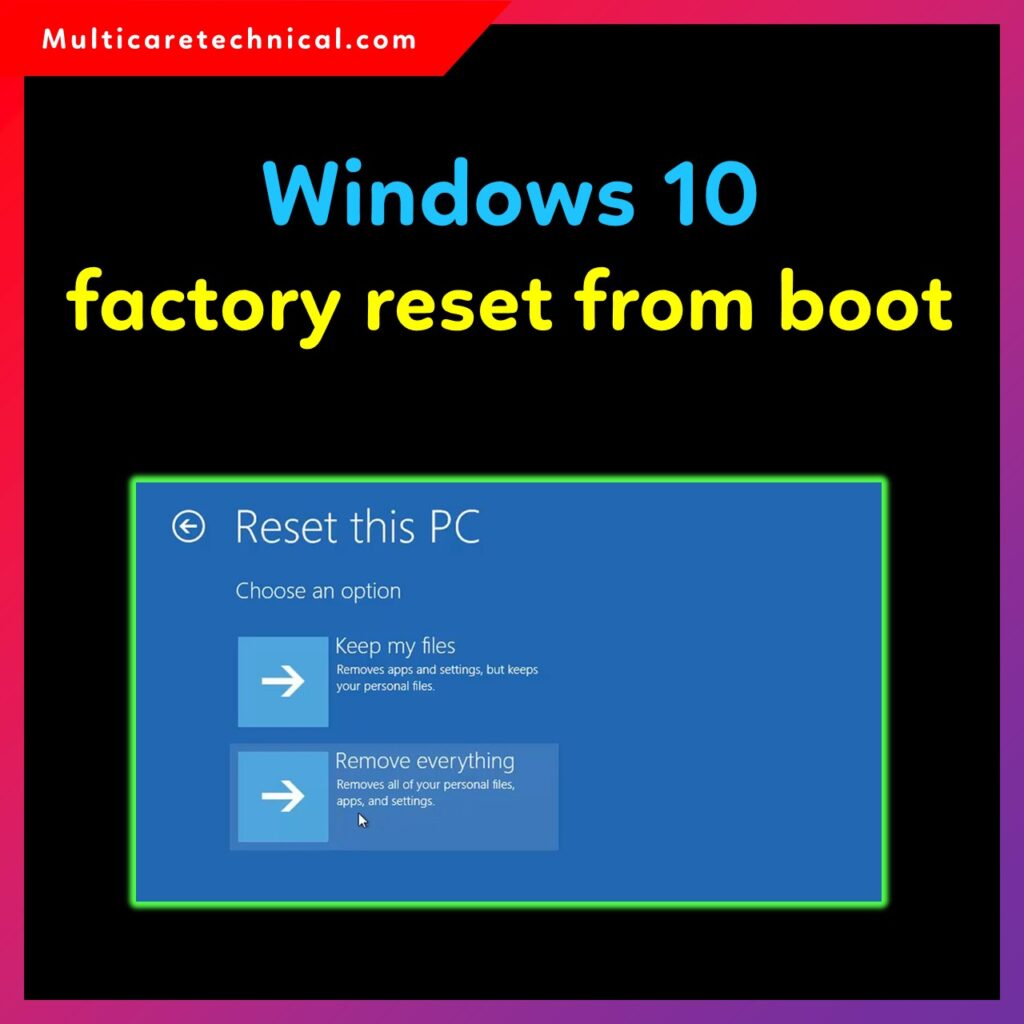
This guide explains how to perform Windows 10 factory reset from boot using different methods:
- Without password
- Using USB
- Using command line
- Without USB
- And more…
What Is Factory Reset From Boot?
Factory reset from boot means resetting Windows 10 directly through the Advanced Startup Recovery Menu, even when:
- The system is not loading
- You forgot the login password
- The PC is stuck in a boot loop
- Windows won’t turn on normally
This process reinstalls Windows while giving you two choices:
- Keep my files
- Remove everything (full factory reset)
⭐ 1. Windows 10 Factory Reset From Boot (Standard Method)
Follow these steps to reset Windows 10 from the startup screen:
Steps:
- Turn off your PC
- Turn it on and immediately press:
F11 (most PCs), or F9 / F12 / Esc depending on the manufacturer - The Advanced Startup menu will appear
- Click Troubleshoot
- Click Reset this PC
- Choose:
- Keep my files
- Remove everything
- Follow the on-screen steps to complete factory reset
This is the most commonly used and simple method.
⭐ 2. Windows 10 Factory Reset From Boot Without Password
If you forgot your Windows password, you can still reset the system from boot.
Steps:
- Restart PC
- Press F11 or Esc → Troubleshoot
- Select Reset this PC
- Choose Remove everything
- Windows will reset without needing your password
This fully wipes all data and resets Windows.
⭐ 3. Windows 10 Factory Reset From Boot Without USB
If you don’t have a bootable USB, don’t worry — you can reset Windows using Recovery Mode.
Method A: Hard Reboot Method
- Turn PC on
- When Windows logo appears → Hold power button to force shutdown
- Repeat 3 times
- Windows will automatically enter Automatic Repair
- Click Advanced Options → Troubleshoot → Reset this PC
Method B: Using Boot Keys
- Press F11 repeatedly at startup
- Choose Reset this PC
This method uses built-in recovery tools — no USB required.
⭐ 4. Windows 10 Factory Reset From Boot USB
If your system is seriously corrupted or missing recovery files, a USB installer works best.
Steps Using Bootable USB:
- Create a bootable USB using Media Creation Tool
- Insert USB → Restart PC
- Press F12 / F9 / Esc to open Boot Menu
- Select the USB installer
- Click Repair your computer in the bottom-left
- Go to Troubleshoot → Reset this PC
- Complete the reset process
This method rebuilds Windows cleanly and fixes major system errors.
⭐ 5. Windows 10 Factory Reset From Boot Command Line
You can reset Windows using Command Prompt (CMD) from the boot menu.
Steps:
- Boot into Advanced Startup
- Go to:
Troubleshoot → Advanced Options → Command Prompt - Type the following:
systemreset -factoryreset
If the above doesn’t work, use:
systemreset
- Choose Keep my files or Remove everything
This method is powerful and works even when the GUI reset option fails.
⭐ Useful Internal Links (as requested)
- Find Windows 10 Product Key (Complete 2025 Guide)
https://multicaretechnical.com/how-to-find-my-windows-10-product-key-on-my-pc-complete-guide-2025 - How to Update Drivers on Windows 11
https://multicaretechnical.com/how-to-update-drivers-on-windows-11-complete-guide - Install Windows 11 Without Internet
https://multicaretechnical.com/windows-11-setup-without-internet-complete-guide
⭐ Conclusion
Factory resetting Windows 10 from boot is the best solution when your PC is not working properly, stuck in a boot loop, or you have forgotten the password.
You can reset Windows:
- Without password
- Without USB
- Using command line
- Using USB installer
Choose the method that suits your situation and bring your PC back to a fresh, clean state.
⭐ FAQs – Windows 10 Factory Reset From Boot
1. Can I reset Windows 10 from boot without a password?
Yes. Boot into Recovery Mode and choose Remove everything.
2. How long does a factory reset take?
Around 20–90 minutes depending on your SSD/HDD speed.
3. Will factory reset remove viruses?
Yes, a full reset removes most malware and corrupted files.
4. Can I reset Windows 10 using command prompt?
Yes, use the command:systemreset -factoryreset
5. Do I need a USB to factory reset Windows 10?
No. You can reset using built-in recovery options.