
Ever spent hours building the perfect Excel formula—only to have it accidentally overwritten or broken? Yeah… that pain is real. 😅
The good news: Excel gives you multiple ways to lock formulas, protect your calculations, and keep your data clean—without turning your sheet into a locked vault.
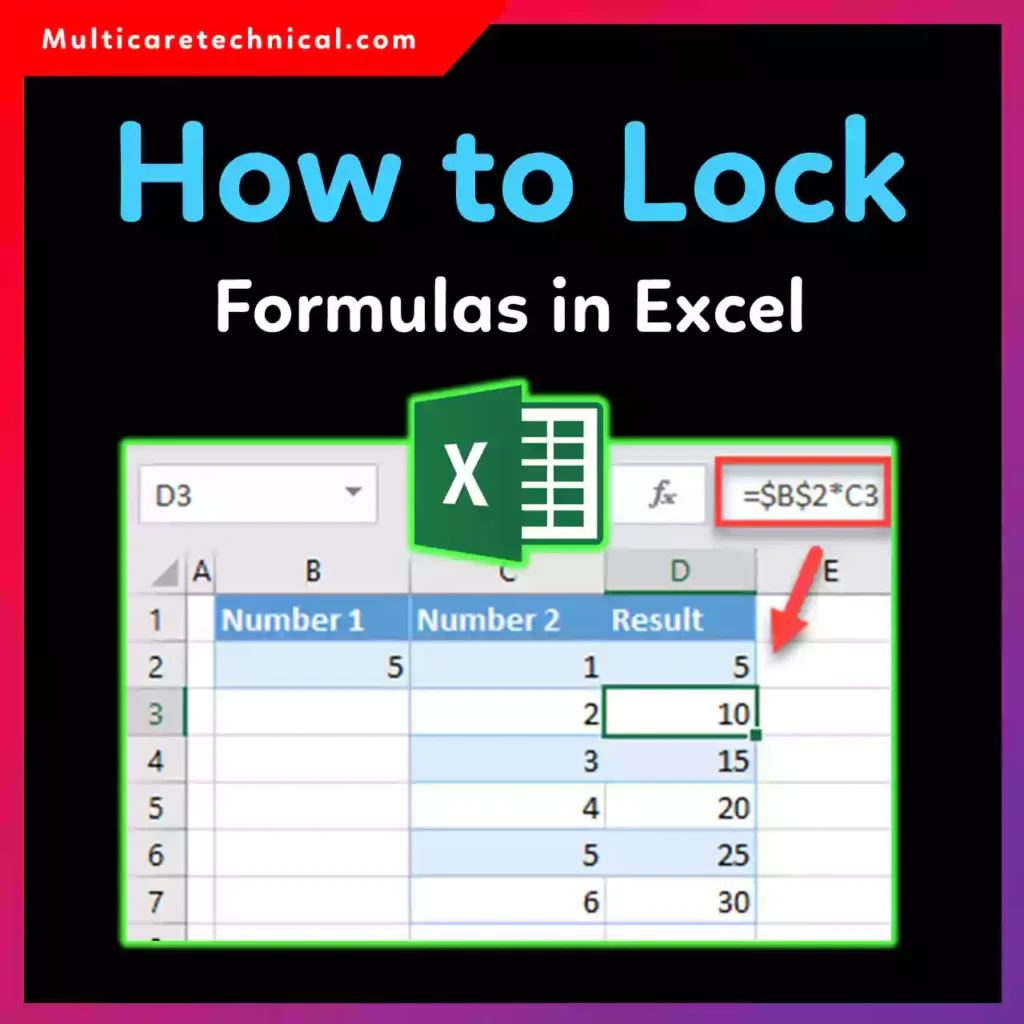
In this guide, you’ll learn how to lock formulas in Excel step by step, whether you’re using Excel 365, Excel for Mac, or Windows, and even without protecting the sheet.
Why You Should Lock Formulas in Excel
Locking formulas helps you:
- Prevent accidental edits
- Protect business logic and calculations
- Safely share spreadsheets with others
- Avoid errors when copying formulas
- Keep dashboards and reports intact
If you’re already working with large datasets, you might also want to learn how to delete duplicates in Excel to keep your data clean.
How to Lock Formulas in Excel From Editing (Most Reliable Method)
This is the classic and safest way to lock formulas.
Step-by-step:
- Select all cells (
Ctrl + A) - Right-click → Format Cells
- Go to Protection
- Uncheck Locked → OK
- Now select only the formula cells
- Open Format Cells → Protection
- Check Locked
- Go to Review → Protect Sheet
- Set a password (optional)
✅ Result: Users can edit data cells, but formulas stay locked.
How to Lock Formulas in Excel Without Protecting the Sheet
If you don’t want to protect the entire sheet, here’s a workaround:
Option 1: Hide formulas using cell formatting
- Select formula cells
- Press
Ctrl + 1 - Go to Protection
- Check Hidden
- Protect the sheet (password optional)
While the sheet is technically protected, users won’t see or edit formulas—even from the formula bar.
How to Lock Formulas in Excel Using $ Shortcut (Absolute References)
When copying formulas, Excel can shift references—unless you lock them.
Use the $ shortcut:
A1→ Relative reference$A$1→ Fully lockedA$1→ Row locked$A1→ Column locked
Shortcut:
- Click inside the formula
- Select the cell reference
- Press F4
This is perfect for locking formulas in Excel when copying across rows or columns.
If you’re rearranging data, this pairs well with learning how to move columns in Excel without breaking your data.
How to Lock Formulas in Excel 365
Excel 365 works the same way as Windows Excel, with a cleaner UI.
- Select formula cells
- Format Cells → Protection → Locked
- Review → Protect Sheet
💡 Excel 365 also supports cloud sharing, so locking formulas is a must when collaborating.
How to Lock Formulas in Excel on Mac
On Excel for Mac, the steps are almost identical:
- Select formula cells
- Right-click → Format Cells
- Go to Protection
- Check Locked
- Click Review → Protect Sheet
Shortcut lovers: Mac users can still use F4 (or Fn + F4) to lock references.
How to Lock Formulas in an Excel Workbook
To protect formulas across the entire workbook:
- Lock formulas in each sheet
- Protect each sheet individually
- Go to Review → Protect Workbook
- Set a password
This prevents users from adding, deleting, or renaming sheets.
Bonus Tip: Lock Formula Display (Hide Formula Bar)
For extra protection:
- File → Options → Advanced
- Uncheck Show formulas in cells
This works great for dashboards and client-facing reports.
Common Mistakes to Avoid
- Forgetting to unlock input cells
- Locking everything (bad UX 😬)
- Not using
$for copied formulas - Sharing unlocked formulas publicly
If formatting text is part of your workflow, check out how to capitalize all letters in Word for cleaner documents.
Quick FAQ (Optimized for Featured Snippets)
How do I lock formulas in Excel?
Lock formula cells using Format Cells → Protection → Locked, then protect the sheet.
Can I lock formulas without protecting the sheet?
You can hide formulas and apply minimal sheet protection to prevent editing.
How do I lock formulas when copying?
Use absolute references ($A$1) with the F4 shortcut.
Does this work in Excel 365 and Mac?
Yes, the process works on Excel 365, Windows, and Mac.
Final Thoughts
Learning how to lock formulas in Excel is one of those small skills that saves you from big headaches. Whether you’re managing budgets, reports, or dashboards, locked formulas keep your work safe, professional, and error-free.
Once you start using cell locking and $ references correctly, Excel becomes way more powerful—and way less stressful. 🚀