
Introduction
Microsoft Edge is the default web browser in Windows 11 and comes preinstalled as part of the operating system. While Edge has improved significantly with features like vertical tabs, AI-powered browsing, and better performance, many users still prefer browsers such as Google Chrome, Mozilla Firefox, or Brave.
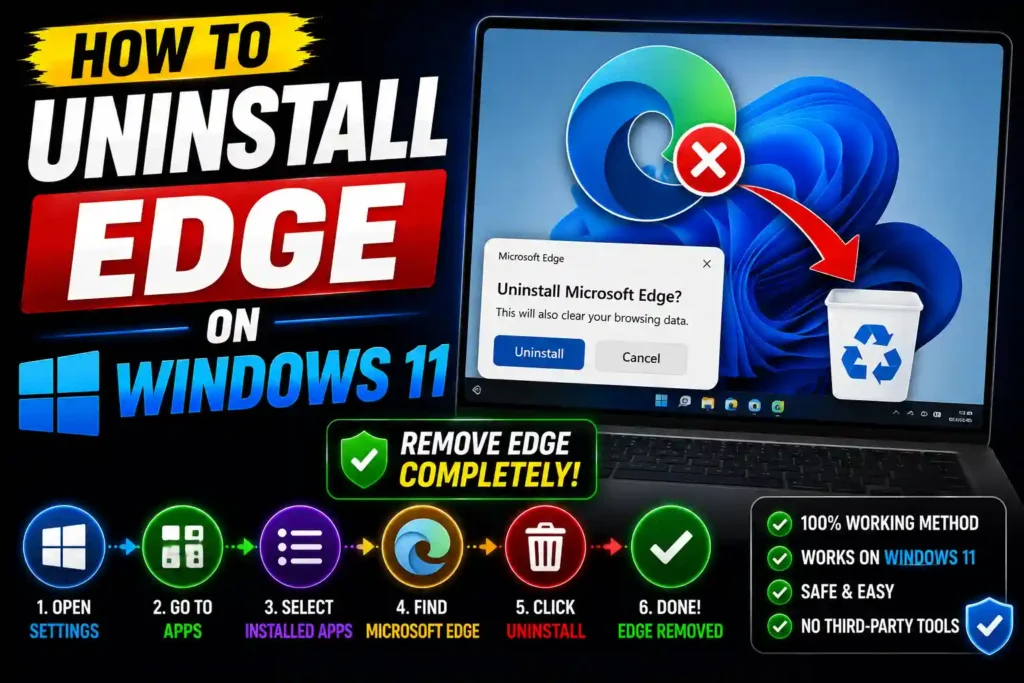
If you’re wondering how to uninstall Edge on Windows 11, you may have already discovered that the usual Uninstall button is often grayed out. That’s because Microsoft treats Edge as a core Windows component on most consumer editions of Windows 11.
The good news is that there are still ways to remove or disable Microsoft Edge depending on your Windows version and system configuration. This guide explains every available method, what limitations you should expect, and the safest alternatives if complete removal isn’t possible.
Quick Answer
Microsoft Edge cannot normally be uninstalled from most Windows 11 consumer editions because it is integrated into the operating system. However, you can:
- Uninstall it from Settings if the option is available.
- Remove it using Command Prompt on certain versions.
- Use PowerShell in specific enterprise environments.
- Set another browser as the default.
- Disable Edge from startup and background apps if removal isn’t supported.
For most users, changing the default browser is the safest solution.
Table of Contents
- Can Microsoft Edge be uninstalled?
- How to uninstall Edge from Windows 11
- Command Prompt uninstall method
- PowerShell method
- What to do if Edge won’t uninstall
- Common errors and solutions
- Best practices
- FAQs
- Conclusion
Can You Uninstall Microsoft Edge on Windows 11?
The answer depends on how Edge was installed.
You can usually uninstall Edge if:
- It was installed manually.
- It was installed from Microsoft Store (supported regions).
- It is a beta, dev, or canary version.
You usually cannot uninstall Edge if:
- It came preinstalled with Windows 11.
- It is required by Windows features.
- Your organization manages your computer through IT policies.
Because many Windows features rely on Edge components, Microsoft prevents complete removal on most home computers.
Step-by-Step Guide
Method 1: Uninstall Edge from Settings
This is the easiest method.
- Press Windows + I.
- Open Apps.
- Select Installed Apps.
- Find Microsoft Edge.
- Click the three-dot menu.
- Choose Uninstall.
If the Uninstall button is available, follow the prompts.
If it is grayed out, continue to the next method.
Method 2: Uninstall Edge Using Command Prompt
Note: This method may not work on the latest Windows 11 builds because Microsoft has restricted Edge removal.
Step 1
Open Command Prompt as Administrator.
Step 2
Navigate to the Edge installation folder.
Example:
cd %PROGRAMFILES(X86)%\Microsoft\Edge\Application\Current\InstallerIf Current doesn’t exist, replace it with the installed version number.
Step 3
Run the uninstall command.
setup.exe --uninstall --system-level --verbose-logging --force-uninstallWait until the process finishes.
Restart your computer.
Method 3: Remove Edge Using PowerShell
Some enterprise or managed systems allow removal through PowerShell.
- Search for PowerShell.
- Run as Administrator.
- Execute the required uninstall command provided by your IT administrator or deployment scripts.
For standard home editions of Windows 11, this method usually does not remove the built-in version of Edge.
Method 4: Set Another Browser as Default
If uninstalling Edge isn’t possible, changing your default browser is the next best option.
- Open Settings.
- Go to Apps.
- Select Default Apps.
- Choose your preferred browser.
- Set it as the default for:
- HTTP
- HTTPS
- HTML
- PDF (optional)
Now Windows will open links in your preferred browser whenever possible.
Method 5: Prevent Edge from Running Automatically
If you don’t use Edge, you can reduce its background activity.
Disable Startup
- Open Task Manager.
- Select Startup apps.
- Disable Microsoft Edge.
Disable Background Apps
- Open Edge.
- Go to Settings.
- Select System and Performance.
- Turn off:
- Startup Boost
- Continue running background extensions and apps when Microsoft Edge is closed
Method 6: Hide Edge from Your Workflow
Instead of removing Edge completely, you can:
- Unpin it from the Taskbar.
- Remove it from the Start menu.
- Delete desktop shortcuts.
- Set another browser as default.
This keeps your desktop cleaner while avoiding system issues.
Common Errors and Fixes
Error: Uninstall Button Is Grayed Out
Cause
Windows treats Edge as a system application.
Fix
Use another browser as default or try the Command Prompt method if supported.
Error: Setup.exe Not Found
Cause
Incorrect installation folder.
Fix
Browse to:
C:\Program Files (x86)\Microsoft\Edge\ApplicationLocate the newest version folder.
Error: Access Denied
Cause
Insufficient administrator permissions.
Fix
Run Command Prompt as Administrator.
Error: Edge Reinstalls After Windows Update
Cause
Windows Update restores essential system components.
Fix
This behavior is expected. Simply reset your preferred default browser after updates if needed.
Error: Windows Features Stop Working
Cause
Some Windows components depend on Edge technologies.
Fix
Reinstall Microsoft Edge from Microsoft’s official website if system features stop functioning correctly.
Best Practices / Pro Tips
Before removing or disabling Edge, keep these recommendations in mind:
- Install another browser first.
- Export bookmarks if you’ve used Edge previously.
- Keep Windows updated.
- Avoid third-party “Edge remover” utilities, as they may damage Windows files.
- Create a System Restore Point before making major system changes.
- Leave Microsoft Edge installed if your organization requires it for work-related applications.
If you’re optimizing your Windows 11 experience, you may also find these guides helpful:
- How to Turn Off Mouse Acceleration in Windows 11 (Complete Guide)
https://multicaretechnical.com/how-to-turn-off-mouse-acceleration-windows-11-complete-guide - How to Fix Bluetooth Disappeared Windows 11 (12 Proven Solutions)
https://multicaretechnical.com/how-to-fix-bluetooth-disappeared-windows-11-12-proven-solutions - How to Pin a Row in Excel (Complete Guide)
https://multicaretechnical.com/how-to-pin-a-row-in-excel-complete-guide
Frequently Asked Questions
1. Can I completely uninstall Microsoft Edge from Windows 11?
Not on most consumer editions. Edge is integrated into Windows 11, and Microsoft prevents complete removal on many systems.
2. Why is the Uninstall button disabled?
The button is disabled because Edge is considered a system application required by certain Windows features.
3. Will removing Edge improve performance?
In most cases, no. Since Edge is deeply integrated into Windows, uninstalling it typically provides little to no noticeable performance improvement.
4. Can I reinstall Microsoft Edge later?
Yes. You can download and reinstall the latest version of Microsoft Edge from Microsoft’s official website if you remove or damage the installation.
5. Is it safe to use third-party Edge removal tools?
No. Many third-party tools modify protected Windows files and may cause system instability or problems during future Windows updates.
Conclusion
Although many users want to uninstall Microsoft Edge from Windows 11, complete removal is not supported on most consumer installations because Edge is closely integrated with the operating system. If the standard uninstall option is unavailable, you can try supported command-line methods on compatible versions or simply set another browser as your default and disable Edge’s background activity.
For most users, leaving Edge installed while using their preferred browser provides the best balance between system stability and personal preference. By following the methods and best practices in this guide, you can minimize Edge’s presence without risking Windows functionality.