
Introduction
Snapchat Stories are a popular way to share moments with friends, family, and followers. Whether you’re posting photos from a vacation, sharing updates throughout the day, or promoting a business event, Stories make communication quick and engaging.
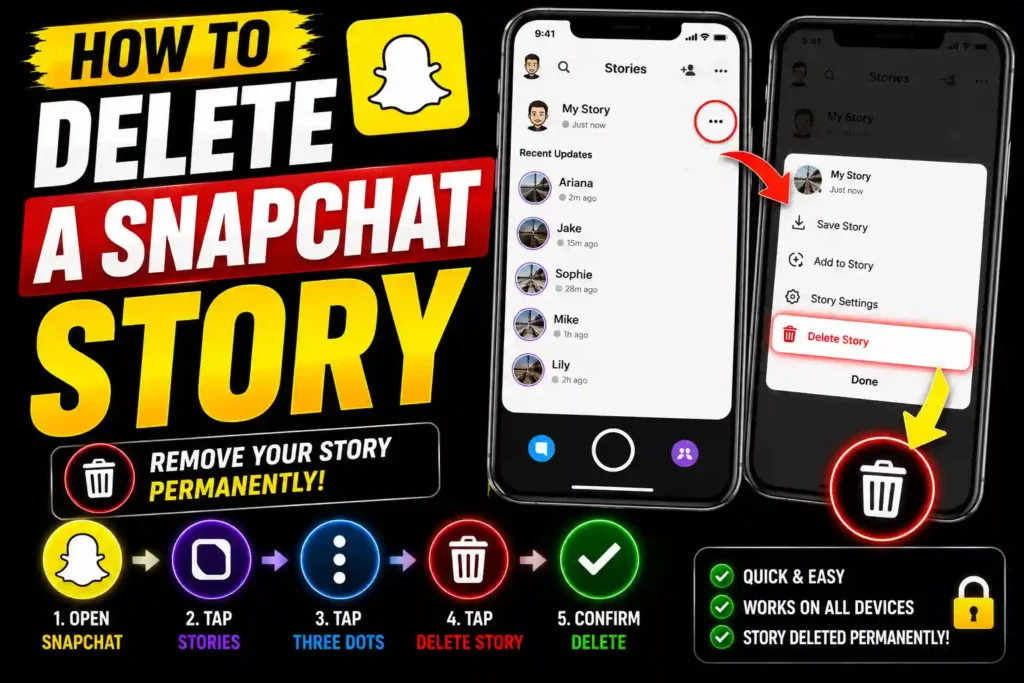
However, there are times when you may want to remove a Story before the standard 24-hour expiration period. Maybe you uploaded the wrong image, shared something accidentally, noticed a typo, or simply changed your mind.
The good news is that Snapchat allows users to delete Stories at any time before they disappear automatically.
In this guide, you’ll learn exactly how to delete a Snapchat Story, what happens after deletion, common issues you may encounter, and best practices for managing your Snapchat content safely.
Quick Answer
To delete a Snapchat Story:
- Open Snapchat.
- Tap your profile icon.
- Select My Story.
- Open the Story Snap you want to remove.
- Tap the three-dot menu.
- Choose Delete Snap.
- Confirm the deletion.
The selected Story Snap will be removed immediately and will no longer be visible to viewers.
Table of Contents
- What Is a Snapchat Story?
- Can You Delete a Snapchat Story?
- What Happens When You Delete a Story?
- How to Delete a Snapchat Story
- How to Delete Multiple Story Snaps
- How to Delete a Private Story
- How to Delete a Shared Story
- Common Errors and Fixes
- Best Practices and Pro Tips
- Frequently Asked Questions
- Conclusion
What Is a Snapchat Story?
A Snapchat Story is a collection of photos and videos that remain visible for up to 24 hours.
Stories can be shared in several ways:
- My Story
- Private Story
- Shared Story
- Public Story (for eligible accounts)
Unlike regular Snaps sent directly to friends, Stories can be viewed multiple times within their active period.
Many users rely on Stories for:
- Personal updates
- Event sharing
- Marketing campaigns
- Brand engagement
- Community interaction
Can You Delete a Snapchat Story?
Yes.
Snapchat allows users to manually delete Story content before it expires.
You can remove:
- Individual Story Snaps
- My Story posts
- Private Story content
- Shared Story contributions
Deletion takes effect immediately and prevents future viewers from accessing the removed content.
However, users who already viewed the Story before deletion may still remember or have captured the content through screenshots or screen recordings.
What Happens When You Delete a Story?
When you delete a Snapchat Story:
The Story Disappears
The selected Snap is removed from your Story.
Future Viewers Cannot See It
Anyone who hasn’t viewed the Story will lose access immediately.
Existing Views Remain Counted
Previous views are not erased from Snapchat’s records.
Screenshots Still Exist
If someone captured a screenshot before deletion, removing the Story cannot remove those copies.
This is why it’s always important to think carefully before posting sensitive information online.
Step-by-Step Guide: How to Delete a Snapchat Story
Follow these instructions to remove a Story from Snapchat.
Step 1: Open Snapchat
Launch the Snapchat app on your smartphone.
Make sure you’re logged into the correct account.
Step 2: Tap Your Profile Icon
In the upper-left corner, tap your Bitmoji or profile picture.
This opens your Profile page.
Step 3: Locate My Story
Scroll to the Stories section.
Tap My Story to view active Story posts.
Step 4: Open the Snap You Want to Delete
Select the specific photo or video you want to remove.
The Story Snap will begin playing.
Step 5: Tap the Three-Dot Menu
Look for the menu icon in the upper-right corner.
Tap it to open additional options.
Step 6: Select Delete Snap
Choose Delete Snap from the menu.
Snapchat will ask you to confirm.
Step 7: Confirm Deletion
Tap Delete.
The Story Snap will immediately be removed from your account.
How to Delete Multiple Story Snaps
If your Story contains several photos or videos, you must delete them individually.
Currently, Snapchat does not provide a “Delete Entire Story” button for all Story types.
To remove multiple Snaps:
- Open your Story.
- Select the first Snap.
- Delete it.
- Repeat for each remaining Snap.
Although this process takes a little longer, it ensures you maintain control over specific Story content.
How to Delete a Private Story
Private Stories work similarly to standard Stories.
To remove content:
- Open Snapchat.
- Visit your profile.
- Open the Private Story.
- Select the Snap.
- Tap the menu icon.
- Choose Delete.
The content will immediately disappear from the Private Story audience.
How to Delete a Shared Story
Shared Stories allow multiple users to contribute content.
If you added a Snap to a Shared Story:
- Open the Shared Story.
- Find your contribution.
- Open the Snap.
- Tap the menu icon.
- Select Delete.
You can only remove content that you personally posted.
Common Errors and Fixes
Story Won’t Delete
Possible Cause
Poor internet connection.
Fix
Connect to a stable Wi-Fi or mobile network and try again.
Delete Option Missing
Possible Cause
Viewing another person’s Story.
Fix
You can only delete content from your own Story.
App Freezes During Deletion
Possible Cause
Temporary application bug.
Fix
- Force close Snapchat.
- Restart the app.
- Update to the latest version.
Story Still Visible
Possible Cause
Cached data or synchronization delay.
Fix
Wait a few minutes and refresh the application.
Account Login Problems
Possible Cause
Authentication issues.
Fix
Log out and log back in or reset your password if necessary.
Best Practices and Pro Tips
Review Before Posting
Always preview photos and videos before sharing them publicly.
Avoid Sensitive Information
Never post:
- Passwords
- Financial information
- Personal identification documents
- Confidential business data
Use Private Stories When Appropriate
Private Stories provide more control over who can view your content.
Monitor Story Viewers
Review audience engagement and visibility settings regularly.
Keep Snapchat Updated
Using the latest version improves security and reduces app errors.
Understand Screenshot Risks
Even after deletion, screenshots taken by viewers cannot be removed.
Related Resources
If you enjoy learning about apps, privacy, and account management, you may find these guides useful:
- https://multicaretechnical.com/how-to-delete-transactions-on-cash-app-2026-guide
- https://multicaretechnical.com/book-of-dead-game-rapidfire-slots-voor-de-avontuur
- https://multicaretechnical.com/westcasino-online-casino-schnelle-gewinne-hochinte
These resources cover various online platforms, account management topics, and digital experiences.
Frequently Asked Questions
Can I delete a Snapchat Story before 24 hours?
Yes. Snapchat allows users to remove Story content at any time before it automatically expires.
Does deleting a Story remove it for everyone?
Yes, future viewers can no longer see it. However, people who already viewed it may still remember or have screenshots.
Can I recover a deleted Snapchat Story?
Generally, no. Once deleted, Story content cannot typically be restored.
Can I delete someone else’s Story?
No. You can only delete content that belongs to your own account.
Why is my Snapchat Story not deleting?
The issue is usually caused by poor internet connectivity, app glitches, or outdated software.
Conclusion
Deleting a Snapchat Story is a straightforward process that takes only a few seconds. Whether you’ve posted the wrong photo, changed your mind, or want to improve privacy, Snapchat gives you the ability to remove Story content before the 24-hour expiration period.
Simply open your profile, access the Story, select the Snap, and choose the delete option. If problems occur, checking your internet connection, updating the app, or restarting Snapchat usually resolves the issue.
By following the best practices outlined in this guide, you can manage your Stories more effectively, protect your privacy, and maintain better control over the content you share online.