
Introduction
Apple introduced 5G support starting with the iPhone 12 series, bringing faster download speeds, lower latency, and improved network performance. While 5G offers many advantages, it isn’t always the best option for every user.
Many iPhone owners choose to disable 5G because of increased battery consumption, inconsistent coverage, network switching issues, or data usage concerns. In some areas, LTE may actually provide a more stable experience than a weak 5G signal.
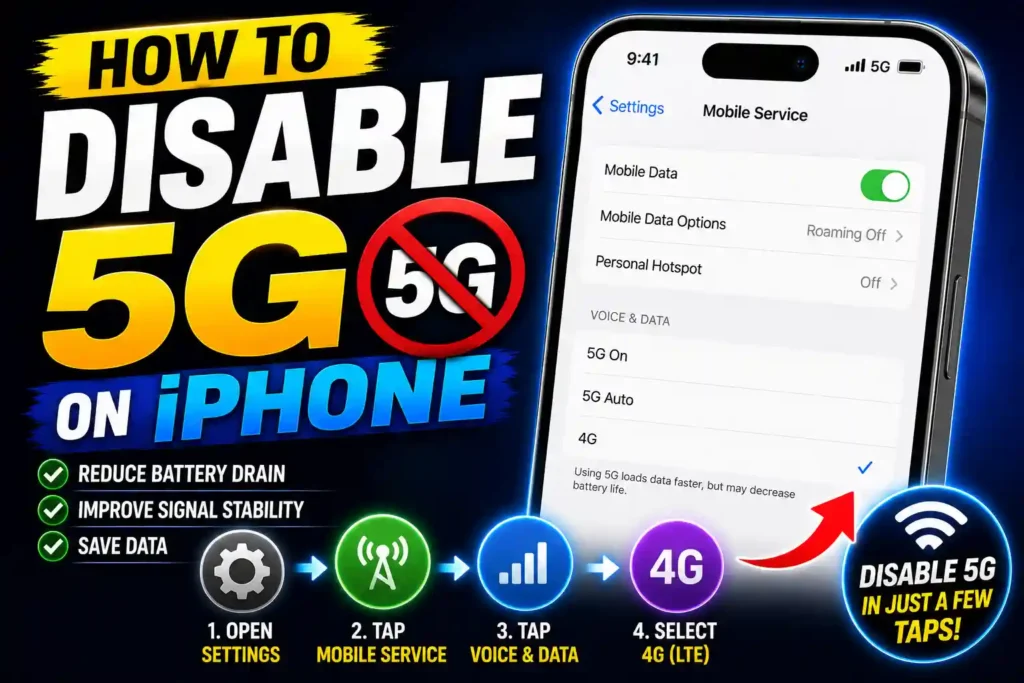
The good news is that Apple makes it easy to switch from 5G to LTE through your iPhone settings. Whether you’re trying to extend battery life, troubleshoot connection problems, or simply prefer LTE, this guide explains everything you need to know.
By the end of this article, you’ll understand how to disable 5G on your iPhone, what happens after switching to LTE, and when it makes sense to turn 5G back on.
Quick Answer
To disable 5G on an iPhone:
- Open Settings.
- Tap Cellular.
- Select Cellular Data Options.
- Tap Voice & Data.
- Choose LTE.
Your iPhone will stop using 5G and connect through LTE instead.
Table of Contents
- What Happens When You Disable 5G?
- Why Disable 5G on an iPhone?
- Which iPhones Support 5G?
- How to Disable 5G on iPhone
- How to Re-Enable 5G
- Common Issues and Fixes
- Best Practices and Pro Tips
- Conclusion
- FAQs
What Happens When You Disable 5G?
Disabling 5G doesn’t affect your ability to make calls, send texts, browse the web, or use apps.
Your iPhone simply connects using LTE (4G) instead of 5G.
You may notice:
Benefits
- Better battery life
- More consistent signal strength
- Reduced network switching
- Lower power consumption
Possible Drawbacks
- Slower download speeds
- Longer file transfer times
- Reduced performance in high-density areas
For many users, especially those in locations with limited 5G coverage, LTE delivers a smoother overall experience.
Why Disable 5G on an iPhone?
There are several reasons people choose LTE over 5G.
Improve Battery Life
5G radios consume more power than LTE.
When the phone constantly searches for a stronger 5G signal, battery drain increases significantly.
Switching to LTE often extends battery life throughout the day.
Fix Weak Signal Issues
In some regions, 5G coverage remains inconsistent.
Your iPhone may repeatedly switch between:
5G
5G Auto
LTE
This constant switching can affect call quality and internet stability.
Reduce Data Usage
Faster connections often encourage higher data consumption.
Streaming services may automatically increase video quality when connected to 5G.
LTE can help reduce unnecessary data usage.
Troubleshoot Network Problems
Some carrier-related issues are easier to diagnose when using LTE.
If you’re experiencing:
- Slow internet
- Dropped calls
- Delayed messages
- Network instability
disabling 5G may help identify the cause.
Which iPhones Support 5G?
Apple introduced 5G support beginning with the iPhone 12 lineup.
Supported devices include:
- iPhone 12
- iPhone 12 Mini
- iPhone 12 Pro
- iPhone 12 Pro Max
- iPhone 13 Series
- iPhone 14 Series
- iPhone 15 Series
- iPhone 16 Series
- Newer supported models
Older devices such as iPhone 11 and earlier do not support 5G.
How to Disable 5G on iPhone
Follow these steps carefully.
Step 1: Open Settings
Locate and open:
Settingson your iPhone.
Step 2: Tap Cellular
Select:
Cellularor
Mobile Datadepending on your region and carrier.
Step 3: Open Cellular Data Options
Tap:
Cellular Data OptionsThis menu controls your mobile network settings.
Step 4: Select Voice & Data
Choose:
Voice & DataYou will see several network options.
Step 5: Choose LTE
Available options may include:
5G Auto
5G On
LTE
Tap:
LTEYour iPhone will immediately stop using 5G.
Understanding 5G Settings on iPhone
Apple provides three primary network options.
5G Auto
RecommendedThe iPhone uses 5G only when beneficial.
This helps balance speed and battery life.
5G On
Maximum PerformanceThe device prioritizes 5G whenever available.
Battery usage may increase.
LTE
Battery-Friendly OptionThe phone uses LTE exclusively.
Many users prefer this setting when traveling or working in weak 5G coverage areas.
How to Re-Enable 5G
If you want to restore 5G:
- Open Settings.
- Tap Cellular.
- Select Cellular Data Options.
- Tap Voice & Data.
- Choose:
- 5G Auto
- or 5G On
Your device will reconnect to available 5G networks.
Common Issues and Fixes
LTE Option Missing
Cause
Carrier settings may not be updated.
Fix
Go to:
Settings
General
About
Install any available carrier updates.
5G Keeps Turning Back On
Cause
Carrier profile restrictions.
Fix
Contact your carrier and verify account settings.
No Internet After Switching to LTE
Cause
Network registration issue.
Fix
Enable Airplane Mode for 30 seconds and disable it again.
Cellular Settings Not Available
Cause
SIM card or eSIM issue.
Fix
Restart the device and verify that the SIM is active.
Slow LTE Speeds
Cause
Network congestion.
Fix
Test in another location or switch back to 5G Auto if available.
Best Practices and Pro Tips
Use 5G Auto Instead of 5G On
For most users, 5G Auto provides the best balance between speed and battery life.
Monitor Battery Performance
After switching to LTE, monitor battery usage for several days.
Many users notice a measurable improvement.
Keep Carrier Settings Updated
Carrier updates improve network compatibility and performance.
Check periodically for updates.
Restart After Network Changes
Restarting the device helps ensure network settings are applied correctly.
Troubleshoot System Issues Separately
If you’re dealing with Windows-related troubleshooting on your PC, these guides may help:
- DISM Commands Windows 11 Complete Guide to Repair Windows System Files:
https://multicaretechnical.com/dism-commands-windows-11-complete-guide-to-repair-windows-system-files - Windows Installed on First Disk but Boots From Second Disk in Windows 10 Fix Guide:
https://multicaretechnical.com/windows-installed-on-first-disk-but-boots-from-second-disk-in-windows-10-fix-guide - How to Change Local Account Name Windows 11 Step-by-Step Guide:
https://multicaretechnical.com/how-to-change-local-account-name-windows-11-step-by-step-guide
Conclusion
Disabling 5G on an iPhone is a simple process that can improve battery life, reduce network instability, and provide a more consistent mobile experience in areas with weak 5G coverage.
Most users can switch to LTE in less than a minute through the Cellular settings menu. If network conditions improve later, re-enabling 5G is just as easy.
Whether you’re troubleshooting connectivity issues, conserving battery power, or managing mobile data usage, knowing how to disable 5G gives you greater control over your iPhone’s performance.
Frequently Asked Questions
1. Does disabling 5G improve battery life?
Yes. LTE generally uses less power than 5G, especially in areas with weak 5G coverage.
2. Will I still be able to make calls if I disable 5G?
Yes. Calls, texts, and mobile data continue to work normally through LTE.
3. Is LTE slower than 5G?
In most cases, yes. However, LTE may provide more stable performance where 5G coverage is limited.
4. Why can’t I see the LTE option on my iPhone?
Your carrier settings may need updating, or your carrier may manage network options differently.
5. Can I turn 5G back on later?
Yes. Simply return to Cellular Data Options and select 5G Auto or 5G On.