
Introduction
Many Windows 10 users discover something confusing after installing a new SSD or hard drive: Windows is installed on Disk 0, but the computer only starts when Disk 1 is connected.
This issue often becomes apparent when upgrading storage, replacing drives, or checking Disk Management. You may see Windows installed on one disk while the “System,” “Active,” or EFI boot partition exists on another disk.
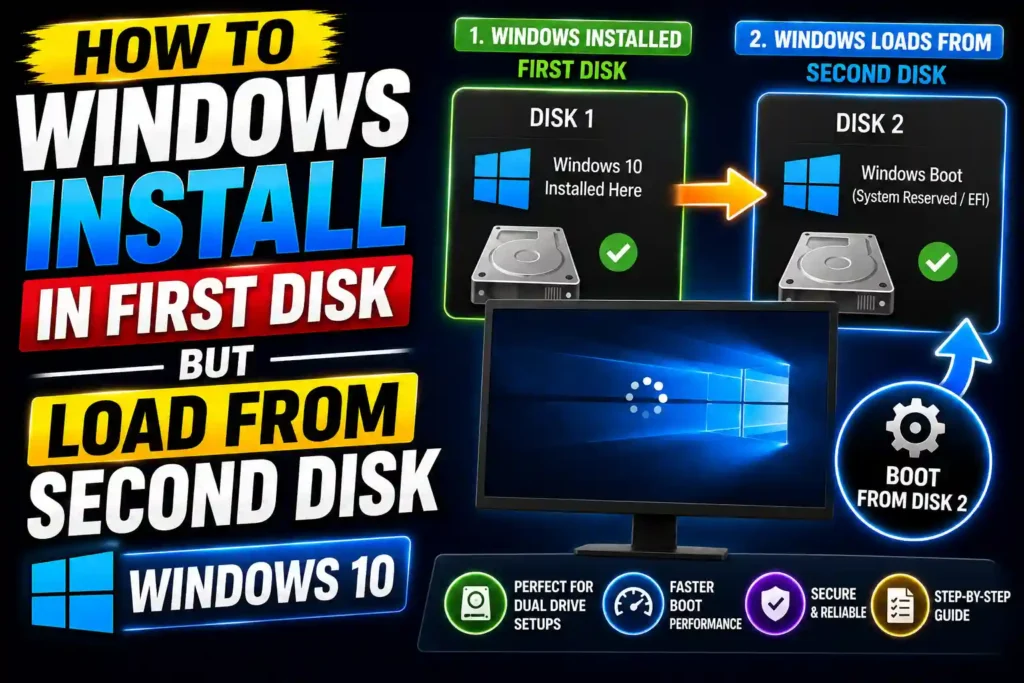
Although Windows appears to work normally, this configuration can create problems later. If the second drive fails, is removed, or is formatted, Windows may no longer boot.
The good news is that this issue is common and can usually be fixed without reinstalling Windows.
In this guide, you’ll learn why Windows 10 loads from a second disk even though it is installed on the first disk, how to identify the problem, and how to move the boot files to the correct drive.
Quick Answer
If Windows 10 is installed on Disk 0 but boots from Disk 1, the Windows Boot Manager or System Reserved partition was likely created on the second drive during installation.
You can verify this in Disk Management:
- The drive containing Windows will show Boot
- The drive containing startup files will show System, EFI System Partition, or Active
To fix the issue, create boot files on the Windows drive using Windows Recovery tools or BCDBoot, then change the BIOS boot order to the correct disk.
Table of Contents
- Why Windows Boots From Another Disk
- Understanding Boot and System Partitions
- How to Check Which Drive Contains Boot Files
- How to Move Boot Files to the Windows Drive
- Using BCDBoot to Repair Startup Files
- Common Errors and Fixes
- Best Practices and Pro Tips
- Conclusion
- FAQs
Why Windows Boots From Another Disk
This situation usually occurs during Windows installation.
If multiple drives are connected, Windows Setup may:
- Install Windows on one drive
- Create boot files on another drive
- Use an existing EFI partition from another disk
- Store the Boot Configuration Data (BCD) elsewhere
As a result:
Disk 0
Contains:
Windows Folder
Program Files
Users
Applications
Disk 1
Contains:
EFI System Partition
System Reserved Partition
Boot Manager
BCD Store
The computer must access both drives to start successfully.
Understanding Boot and System Partitions
Many users misunderstand the labels shown in Disk Management.
Boot Partition
The Boot partition contains:
- Windows operating system files
- Windows folder
- Installed applications
This is usually where Windows is installed.
System Partition
The System partition contains:
- Windows Boot Manager
- BCD configuration
- Startup files
This partition is required before Windows can load.
Example
You may see:
Disk 0
C: (Boot, Page File, Crash Dump)

Disk 1
System, Active, Primary Partition
In this case:
- Windows is installed on Disk 0
- Startup files are located on Disk 1
This explains why Windows cannot start if Disk 1 is removed.
How to Check Which Drive Contains Boot Files
Method 1: Use Disk Management
- Press Windows + X.
- Select Disk Management.
- Look for partition labels.
Common labels include:
- Boot
- System
- Active
- EFI System Partition
The partition labeled System contains startup files.
Method 2: Use System Information
- Press Windows + R.
- Type:
msinfo32- Press Enter.
Review:
- BIOS Mode
- System Drive
- Boot Device
This helps identify the active startup configuration.
How to Move Boot Files to the Windows Drive
Before making changes:
- Back up important data
- Create a restore point
- Disconnect unnecessary drives
The process differs depending on whether your system uses Legacy BIOS or UEFI.
Method 1: Fix Boot Files Using BCDBoot
BCDBoot is Microsoft’s recommended tool.
Step 1: Open Command Prompt as Administrator
Search:
cmdRight-click Command Prompt and choose:
Run as AdministratorStep 2: Create Boot Files
If Windows is installed on drive C:
bcdboot C:\Windows /s C: /f ALLFor UEFI systems:
bcdboot C:\Windows /f UEFIFor Legacy BIOS:
bcdboot C:\Windows /f BIOSThis copies startup files to the correct drive.
Step 3: Restart
Restart the computer and enter BIOS.
Change the boot priority so the Windows drive is first.
Save changes and reboot.
Method 2: Use Windows Recovery Environment
If Windows will not start:
Step 1
Boot from Windows 10 installation media.
Choose:
Repair your computerStep 2
Select:
Troubleshoot
Advanced Options
Command Prompt
Step 3
Run:
bootrec /fixmbr
bootrec /fixboot
bootrec /scanos
bootrec /rebuildbcd
These commands repair startup records.
Step 4
Restart and test booting from the correct disk.
Legacy BIOS vs UEFI
Understanding your boot mode is important.
Legacy BIOS
Uses:
MBR Partition Style
System Reserved Partition
Active Partition
Common labels:
System
Active
Primary Partition
UEFI
Uses:
GPT Partition Style
EFI System Partition
Common labels:
EFI System PartitionUEFI is generally faster and more secure.
Common Errors and Fixes
Error: Operating System Not Found
Cause
Boot files are missing or corrupted.
Fix
Run:
bootrec /rebuildbcdand
bcdboot C:\WindowsError: Boot Device Missing
Cause
Wrong boot order in BIOS.
Fix
Set the Windows drive as the first boot device.
Error: Access Denied During Bootrec
Cause
EFI partition permissions.
Fix
Assign a temporary drive letter to the EFI partition and rerun BCDBoot.
Error: Windows Only Starts When Second Drive Is Connected
Cause
Boot Manager is located on the second disk.
Fix
Move boot files using BCDBoot and update BIOS settings.
Best Practices and Pro Tips
Disconnect Other Drives During Windows Installation
This is the easiest way to avoid boot partition issues.
Windows will place startup files on the same drive automatically.
Check Disk Management After Installation
Verify that:
System
Boot
EFI
partitions are on the intended drive.
Keep Windows Repair Media Available
A bootable USB can save hours of troubleshooting.
Run DISM and SFC Regularly
Corrupted startup files can cause boot issues.
You can repair Windows health using our detailed guide:
Document Your Disk Layout
IT professionals managing multiple systems should keep records of:
- Disk numbers
- Partition styles
- Boot configurations
This simplifies future maintenance.
Related Guides
You may also find these tutorials helpful:
- DISM Commands Windows 11 Complete Guide to Repair Windows System Files:
https://multicaretechnical.com/dism-commands-windows-11-complete-guide-to-repair-windows-system-files - How to Program TV Remote Complete Setup Guide for Smart TVs and Streaming Devices:
https://multicaretechnical.com/how-to-program-tv-remote-complete-setup-guide-for-smart-tvs-and-streaming-devices - How to Change Local Account Name Windows 11 Step-by-Step Guide:
https://multicaretechnical.com/how-to-change-local-account-name-windows-11-step-by-step-guide
Conclusion
If Windows 10 is installed on the first disk but loads from a second disk, the problem is usually related to where Windows Setup created the boot files. While the operating system itself may reside on Disk 0, the Boot Manager, BCD store, or System partition may exist on Disk 1.
This configuration works until the second drive is removed or fails. Fortunately, tools like BCDBoot and Windows Recovery Environment allow you to move startup files to the correct drive without reinstalling Windows.
By verifying your partition layout, repairing boot files, and adjusting BIOS settings, you can ensure that Windows starts independently from the intended disk.
Frequently Asked Questions
1. Why is Windows installed on Disk 0 but booting from Disk 1?
Windows Setup may have created the boot partition on Disk 1 because both drives were connected during installation.
2. Can I remove the second drive?
Not until the boot files are moved to the Windows drive. Otherwise, Windows may fail to start.
3. What does “System” mean in Disk Management?
The System partition contains boot files required to start Windows.
4. Is Disk 0 always the boot drive?
No. Disk numbers do not determine where boot files are stored.
5. Can BCDBoot fix boot partition issues?
Yes. BCDBoot can create and rebuild Windows boot files on the correct drive.