
Introduction
Windows 11 is designed to be stable and reliable, but system corruption, failed updates, damaged files, and software conflicts can sometimes cause unexpected problems. Common symptoms include slow performance, Windows Update errors, startup issues, app crashes, and missing system files.
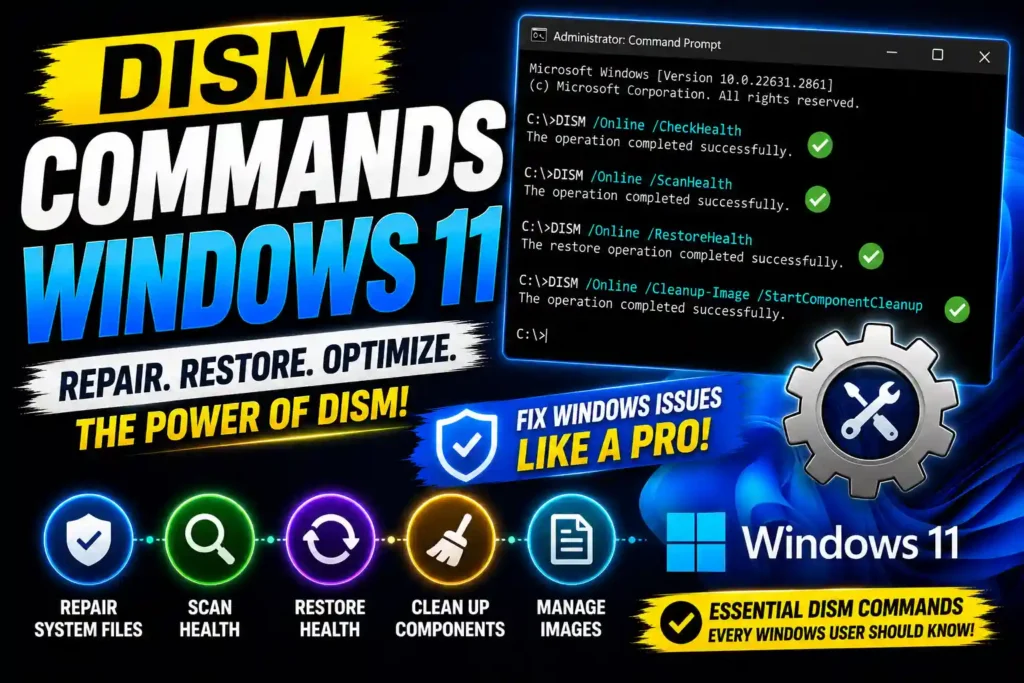
Fortunately, Microsoft includes a powerful built-in tool called Deployment Image Servicing and Management (DISM) that can diagnose and repair Windows image corruption. IT professionals, system administrators, and everyday users often rely on DISM commands to restore Windows without performing a complete reinstallation.
In this guide, you’ll learn the most important DISM commands for Windows 11, when to use them, and how to repair system issues safely.
Quick Answer
DISM (Deployment Image Servicing and Management) is a Windows command-line tool used to repair corrupted Windows system images. The most commonly used Windows 11 DISM command is:
DISM /Online /Cleanup-Image /RestoreHealthThis command scans the Windows image for corruption and automatically downloads healthy files from Windows Update to repair damaged components.
For best results, run:
DISM /Online /Cleanup-Image /RestoreHealthfollowed by:
sfc /scannowto repair system files completely.
Table of Contents
- What Is DISM in Windows 11?
- Why Use DISM Commands?
- Most Useful DISM Commands for Windows 11
- Step-by-Step Guide to Run DISM
- Using DISM with a Windows ISO
- Common DISM Errors and Fixes
- Best Practices and Pro Tips
- Conclusion
- FAQs
What Is DISM in Windows 11?
Deployment Image Servicing and Management (DISM) is a Microsoft command-line utility built into Windows.
Its primary purpose is to:
- Repair Windows image corruption
- Fix Windows Update problems
- Restore missing system components
- Manage Windows installation images
- Prepare Windows deployment environments
Unlike System File Checker (SFC), which repairs individual system files, DISM repairs the underlying Windows image that SFC depends on.
Think of DISM as fixing the source while SFC fixes the symptoms.
Why Use DISM Commands?
You may need DISM if you experience:
- Windows Update failures
- Blue Screen errors
- Missing Windows components
- Corrupted system files
- Slow system performance
- Failed feature updates
- Random application crashes
DISM is especially useful when SFC reports:
Windows Resource Protection found corrupt files but was unable to fix some of them.
Most Useful DISM Commands for Windows 11
1. Check Windows Image Health
This command quickly checks whether corruption exists.
DISM /Online /Cleanup-Image /CheckHealthWhat it does
- Performs a fast scan
- Detects corruption markers
- Does not repair anything
Best used for quick diagnostics.
2. Scan Windows Image
This command performs a more detailed scan.
DISM /Online /Cleanup-Image /ScanHealthWhat it does
- Scans the entire component store
- Detects corruption issues
- Generates a detailed report
- Does not repair files
The scan may take several minutes.
3. Restore Windows Image Health
This is the most commonly used DISM command.
DISM /Online /Cleanup-Image /RestoreHealthWhat it does
- Scans for corruption
- Downloads healthy files
- Repairs damaged Windows components
- Restores system stability
Depending on system speed and internet connection, the process may take 10–30 minutes.
4. Analyze Component Store
DISM /Online /Cleanup-Image /AnalyzeComponentStoreWhat it does
- Evaluates WinSxS folder size
- Identifies unnecessary files
- Provides cleanup recommendations
Useful for administrators managing storage.
5. Clean Up Component Store
DISM /Online /Cleanup-Image /StartComponentCleanupWhat it does
- Removes outdated component versions
- Reduces disk usage
- Improves maintenance efficiency
Safe to run periodically.
6. Reset Component Store
DISM /Online /Cleanup-Image /StartComponentCleanup /ResetBaseWhat it does
- Removes superseded updates
- Frees disk space
- Makes installed updates permanent
Use carefully because old updates cannot be uninstalled afterward.
7. Repair Using Windows ISO
When Windows Update cannot provide repair files, use a Windows 11 ISO.
DISM /Online /Cleanup-Image /RestoreHealth /Source:WIM:D:\sources\install.wim:1 /LimitAccessReplace:
D:with your mounted ISO drive letter.
This method is useful in environments with restricted internet access.
Step-by-Step Guide to Run DISM in Windows 11
Step 1: Open Command Prompt as Administrator
- Press Windows + S.
- Search for Command Prompt.
- Select Run as Administrator.
- Click Yes when prompted.
Step 2: Check for Corruption
Run:
DISM /Online /Cleanup-Image /CheckHealthWait for the process to finish.
Step 3: Perform a Full Scan
Run:
DISM /Online /Cleanup-Image /ScanHealthThis identifies deeper corruption issues.
Step 4: Repair Windows
Run:
DISM /Online /Cleanup-Image /RestoreHealthAllow the process to complete without interruption.
Step 5: Run SFC
After DISM finishes:
sfc /scannowThis repairs any remaining system file corruption.
Using DISM with a Windows 11 ISO
Sometimes RestoreHealth fails because Windows Update cannot provide repair files.
In such cases:
- Download Windows 11 ISO from Microsoft.
- Mount the ISO.
- Note the drive letter.
- Open Command Prompt as Administrator.
- Run:
DISM /Online /Cleanup-Image /RestoreHealth /Source:WIM:X:\sources\install.wim:1 /LimitAccessReplace X with the mounted drive letter.
This method often resolves stubborn corruption issues.
Common DISM Errors and Fixes
Error 0x800f081f
Cause
Windows cannot find source files.
Fix
Use a Windows ISO as the repair source.
Example:
DISM /Online /Cleanup-Image /RestoreHealth /Source:WIM:D:\sources\install.wim:1 /LimitAccessError 87
Cause
Incorrect command syntax.
Fix
Verify spaces and parameters.
Correct example:
DISM /Online /Cleanup-Image /RestoreHealthError 0x800f0906
Cause
Unable to download repair files.
Fix
- Check internet connection
- Configure Windows Update correctly
- Use an offline ISO source
DISM Stuck at 62%, 84%, or 100%
Cause
Large repair operations can appear frozen.
Fix
- Wait at least 30–60 minutes
- Avoid closing Command Prompt
- Restart and try again if necessary
Best Practices and Pro Tips
Run SFC After DISM
Always follow:
DISM /Online /Cleanup-Image /RestoreHealthwith:
sfc /scannowfor complete repairs.
Use Stable Internet
RestoreHealth may download files from Microsoft servers.
A stable connection improves success rates.
Create Restore Points
Before major repairs, create a System Restore point.
This provides a rollback option if issues occur.
Keep Windows Updated
Regular updates reduce component corruption and improve stability.
Use ISO Sources for Enterprise Environments
IT professionals managing multiple systems often use local Windows images instead of downloading repair files repeatedly.
Related Windows and Technical Guides
If you’re troubleshooting other computer issues, these guides may help:
- How to Fix MySQL Shutdown Unexpectedly in XAMPP Complete Guide:
https://multicaretechnical.com/how-to-fix-mysql-shutdown-unexpectedly-in-xampp-complete-guide - How to Program TV Remote Complete Setup Guide for Smart TVs and Streaming Devices:
https://multicaretechnical.com/how-to-program-tv-remote-complete-setup-guide-for-smart-tvs-and-streaming-devices - How to Change Local Account Name Windows 11 Step-by-Step Guide:
https://multicaretechnical.com/how-to-change-local-account-name-windows-11-step-by-step-guide
Conclusion
DISM is one of the most powerful troubleshooting tools included with Windows 11. Whether you’re dealing with update failures, corrupted system files, startup issues, or unexplained performance problems, DISM can often repair Windows without requiring a complete reinstall.
For most users, the command:
DISM /Online /Cleanup-Image /RestoreHealthis all that’s needed to restore system health. Following it with:
sfc /scannowensures that both the Windows image and system files are repaired properly.
Learning these DISM commands can save hours of troubleshooting and help keep Windows 11 running smoothly.
Frequently Asked Questions
1. What does DISM stand for in Windows 11?
DISM stands for Deployment Image Servicing and Management. It is a Microsoft tool used to repair and maintain Windows system images.
2. Is DISM safe to use?
Yes. DISM is a built-in Microsoft utility and is safe when used with correct commands.
3. Should I run DISM or SFC first?
Run DISM first to repair the Windows image, then run SFC to repair system files.
4. How long does DISM RestoreHealth take?
Most systems complete the process within 10–30 minutes, although heavily corrupted systems may take longer.
5. Can DISM fix Windows Update errors?
Yes. Many Windows Update failures are caused by component store corruption, which DISM can repair.