
Introduction
Restoring an iPhone backup is one of the most effective ways to recover your personal data after upgrading to a new device, resetting your phone, or troubleshooting software issues. Whether your backup is stored in iCloud, on a Mac, or on a Windows PC, Apple provides several methods to bring your apps, photos, contacts, messages, and settings back to your device.
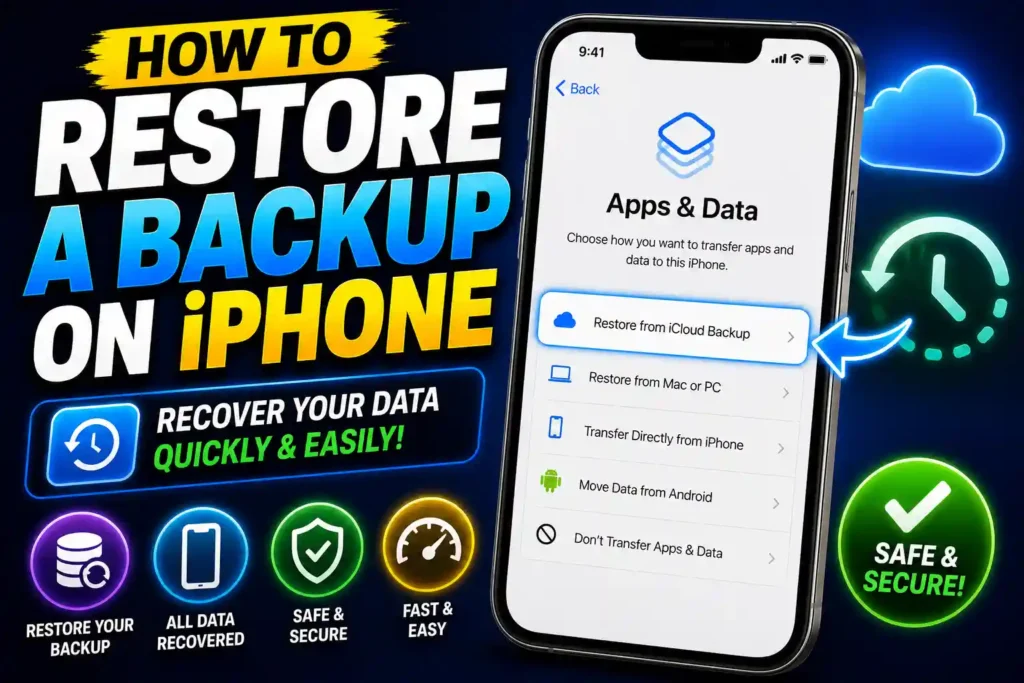
Many users become confused when they need to restore a backup because the process varies depending on where the backup is stored and whether the iPhone has already been set up. Fortunately, restoring a backup is straightforward once you understand the available options.
This guide explains how to restore a backup on iPhone using iCloud, Mac, PC, and iTunes. You’ll also learn what to do if your iPhone is already set up and how to avoid common restoration errors.
Quick Answer
If you want to restore a backup on an iPhone, erase the device if necessary, then choose one of the available restoration methods:
- Restore from iCloud Backup during setup.
- Restore from a Mac using Finder.
- Restore from a Windows PC using Apple Devices or iTunes.
- Select the desired backup and wait for the restoration process to complete.
Most users restoring to a new iPhone will use iCloud Backup during the initial setup process.
Table of Contents
- Understanding iPhone Backups
- How Backup Restoration Works
- How to Restore a Backup on iPhone from iCloud
- How to Restore a Backup on iPhone After Setup
- How to Restore a Backup on iPhone Without Resetting
- How to Restore a Backup on iPhone from Mac
- How to Restore a Backup on iPhone from PC
- How to Restore a Backup on iPhone from iTunes
- How to Restore a Backup on iPhone 15-17
- Common Errors and Fixes
- Best Practices and Pro Tips
- FAQ
Understanding iPhone Backups
Before restoring a backup, it’s important to understand what an iPhone backup includes.
A backup typically contains:
- App data
- Device settings
- Home screen layout
- Messages
- Contacts
- Call history
- Photos and videos (depending on settings)
- Health data
- Notes and reminders
A backup helps you quickly return your iPhone to a previous state without manually reinstalling everything.
How Backup Restoration Works
When restoring a backup, Apple replaces the current content on the iPhone with information stored in the selected backup.
For this reason, users should verify that the backup contains the latest data before beginning the restoration process.
If you’re troubleshooting storage issues before restoring, you may find this guide helpful:
How to Restore a Backup on iPhone from iCloud
Restoring from iCloud is the most common method.
Step 1: Turn On the iPhone
Power on your device and begin the setup process.
Step 2: Connect to Wi-Fi
A stable internet connection is required.
Step 3: Reach Apps & Data Screen
During setup, select:
Restore from iCloud Backup
Step 4: Sign In
Log in using your Apple Account credentials.
Step 5: Choose a Backup
Select the most recent or most appropriate backup.
Step 6: Wait for Restoration
The process may take several minutes or several hours depending on:
- Backup size
- Internet speed
- Number of apps
Keep the device connected to Wi-Fi and power until completion.
How to Restore a Backup on iPhone After Setup
One of the most common questions is how to restore a backup on iPhone after setup.
If the iPhone has already been configured, the backup restore option is no longer available directly.
To Restore After Setup
- Open Settings.
- Tap General.
- Select Transfer or Reset iPhone.
- Tap Erase All Content and Settings.
- Restart the setup process.
- Choose Restore from iCloud Backup.
This method allows access to the backup restoration screen again.
Always ensure important current data is backed up before erasing the device.
How to Restore a Backup on iPhone Without Resetting
Many users want to restore a backup without resetting the device.
Unfortunately, Apple does not currently allow a full backup restoration over existing data without first erasing the iPhone.
However, alternatives include:
- Syncing photos from iCloud.
- Downloading contacts from iCloud.
- Restoring specific files from cloud services.
- Using third-party data management software where appropriate.
For complete backup restoration, a reset is generally required.
How to Restore a Backup on iPhone from Mac
Mac users can restore backups using Finder.
Step 1: Connect the iPhone
Use a USB or USB-C cable.
Step 2: Open Finder
Select your iPhone from the sidebar.
Step 3: Open General Tab
Locate the backup management section.
Step 4: Click Restore Backup
Choose the desired backup.
Step 5: Start Restoration
Enter encryption passwords if prompted.
Step 6: Wait for Completion
Do not disconnect the iPhone until the process finishes.
If you frequently work on Apple devices, you may also find this guide useful:
How to Restore a Backup on iPhone from PC
Windows users can restore backups using Apple’s device management software.
Step 1: Install Apple Devices or iTunes
Use the latest available version.
Step 2: Connect Your iPhone
Use a certified cable.
Step 3: Open the Device Manager
Select the connected iPhone.
Step 4: Choose Restore Backup
Locate available backups stored on the computer.
Step 5: Select Backup
Choose the backup you want to restore.
Step 6: Complete Restoration
Keep the device connected throughout the process.
How to Restore a Backup on iPhone from iTunes
Although newer systems use Finder or Apple Devices, many users still have backups created through iTunes.
Restoring an iTunes Backup
- Launch iTunes.
- Connect the iPhone.
- Click the device icon.
- Select Summary.
- Click Restore Backup.
- Choose a backup.
- Enter the encryption password if necessary.
- Wait for the process to finish.
Encrypted backups often contain additional data such as passwords and health information.
How to Restore a Backup on iPhone 15-17
The restoration process for iPhone 15, iPhone 16, and iPhone 17 models remains largely identical.
For Newer iPhones
- Start device setup.
- Connect to Wi-Fi.
- Select Restore from iCloud Backup.
- Sign in to your Apple Account.
- Choose the desired backup.
Apple’s Quick Start feature can also transfer data directly from an older iPhone, reducing the need for traditional backup restoration.
If you recently recovered social media data before switching devices, you may also want to review:
Common Errors and Fixes
Backup Not Showing
Fix
- Verify the correct Apple Account.
- Check backup date.
- Ensure iCloud Backup was enabled previously.
Not Enough Storage
Fix
- Free storage space.
- Choose a smaller backup if available.
- Upgrade device storage if necessary.
Restore Stuck or Frozen
Fix
- Verify internet connection.
- Restart the device.
- Retry the restoration process.
Incorrect Backup Password
Fix
Encrypted backups require the original password.
Without it, the backup cannot be restored.
iPhone Disconnects During Restore
Fix
- Use an original cable.
- Avoid USB hubs.
- Connect directly to the computer.
Best Practices and Pro Tips
Create Regular Backups
Automatic iCloud backups help protect your data.
Keep Multiple Backup Copies
Store backups in both iCloud and on a computer when possible.
Verify Backup Dates
Always confirm you’re restoring the most recent version.
Use Encrypted Computer Backups
Encrypted backups preserve more personal information.
Stay Connected to Power
Large restorations can take significant time.
Conclusion
Knowing how to restore a backup on iPhone can save hours of setup time and help recover valuable personal information. Whether you’re using iCloud, a Mac, a Windows PC, or an older iTunes backup, Apple’s restoration tools make it possible to bring back apps, photos, messages, and settings with minimal effort.
For most users, restoring from iCloud during device setup is the easiest solution. Advanced users and IT professionals may prefer local backups stored on Macs or PCs for greater control and faster recovery speeds.
By maintaining regular backups and following the steps outlined above, you’ll always be prepared if you need to restore your iPhone in the future.
Frequently Asked Questions
1. Can I restore an iPhone backup after the phone is already set up?
Yes. However, you must erase the device and go through the setup process again to access the backup restoration option.
2. Can I restore an iPhone backup without resetting?
No. Apple generally requires the device to be erased before a full backup can be restored.
3. How long does restoring an iPhone backup take?
It can take anywhere from a few minutes to several hours depending on backup size and internet speed.
4. Can I restore an iCloud backup to a new iPhone?
Yes. During setup, choose Restore from iCloud Backup and select the desired backup.
5. What happens if my backup is encrypted?
You must enter the backup password to restore the encrypted data.