
If your iPhone feels slower than usual, websites load incorrectly, apps crash unexpectedly, or storage space is running low, clearing cache may help. Cache files are temporary data stored by apps and browsers to improve loading speeds and user experience. Over time, however, these files can accumulate and cause performance issues.
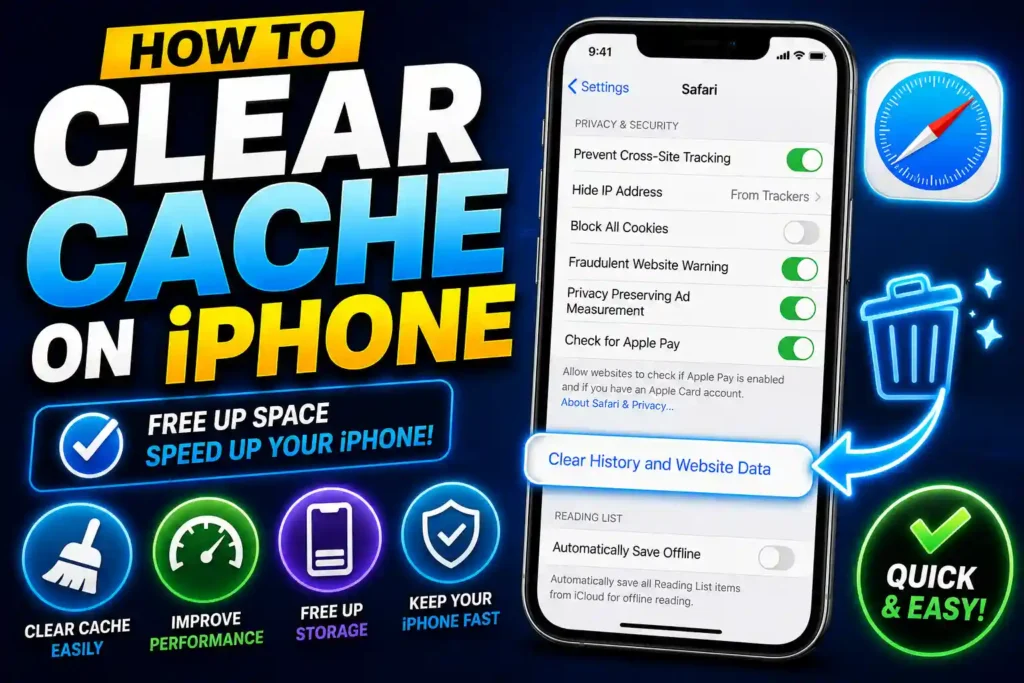
Fortunately, clearing cache on an iPhone is simple. Whether you want to clear Safari data, remove Chrome browsing information, free up storage used by Instagram, or clean temporary files from WhatsApp, there are several effective methods available.
This guide explains everything you need to know about clearing cache on iPhone models ranging from iPhone 11 to the latest iPhone 16 series.
Quick Answer
To clear cache on an iPhone:
- Open Settings.
- Scroll down and tap Safari.
- Select Clear History and Website Data.
- Confirm the action.
For apps, you may need to offload, reinstall, or use built-in cache-clearing options if available.
Clearing cache can free storage space and improve app performance.
Table of Contents
- What Is Cache on iPhone?
- Why You Should Clear Cache
- How to Clear Cache on iPhone Safari
- How to Clear Cache on iPhone Chrome
- How to Clear Cache on iPhone Apps
- How to Clear Cache on iPhone Instagram
- How to Clear Cache on iPhone WhatsApp
- How to Clear Cache on iPhone 11–16
- Common Errors and Fixes
- Best Practices and Pro Tips
- FAQs
- Conclusion
What Is Cache on iPhone?
Cache consists of temporary files that apps and websites store on your device.
Examples include:
- Website images
- Login information
- App thumbnails
- Streaming data
- Search history
- Temporary downloads
These files help content load faster. However, excessive cached data can consume storage and occasionally create performance problems.
Why You Should Clear Cache
Clearing cache can provide several benefits.
Free Up Storage Space
Large cache files may occupy hundreds of megabytes or even several gigabytes.
Fix App Problems
Corrupted cache files can cause crashes, freezes, and loading issues.
Improve Browser Performance
Removing outdated website data often resolves browsing problems.
Refresh Website Content
Clearing cache forces websites to load the latest versions of files.
Enhance Privacy
Removing browsing data helps protect personal information.
How to Clear Cache on iPhone Safari
Safari is the default web browser on iPhone and often accumulates significant cache data.
Steps to Clear Safari Cache
- Open Settings.
- Scroll down and tap Safari.
- Select Clear History and Website Data.
- Confirm your choice.
This removes:
- Browsing history
- Cookies
- Cached files
- Website data
After clearing Safari cache, some websites may require you to log in again.
How to Clear Cache on iPhone Chrome
Google Chrome stores its own browsing data separately from Safari.
Steps to Clear Chrome Cache
- Open Chrome.
- Tap the three-dot menu.
- Select History.
- Tap Clear Browsing Data.
- Choose:
- Cached Images and Files
- Cookies
- Browsing History (optional)
- Tap Clear Browsing Data again.
This can resolve website loading issues and improve browser performance.
If certain websites still do not function correctly, you may also want to review browser settings:
How to Clear Cache on iPhone Apps
Unlike Android, iOS does not provide a universal “Clear Cache” button for most applications.
Instead, there are several methods.
Method 1: Offload the App
- Open Settings.
- Select General.
- Tap iPhone Storage.
- Choose the app.
- Select Offload App.
This removes the application while preserving documents and settings.
Method 2: Delete and Reinstall
- Touch and hold the app icon.
- Select Remove App.
- Delete the app.
- Reinstall from the App Store.
This completely removes cached files.
How to Clear Cache on iPhone Instagram
Instagram can consume significant storage over time due to cached images, videos, and stories.
Check Instagram Storage Usage
- Open Settings.
- Tap General.
- Select iPhone Storage.
- Find Instagram.
If storage usage is unusually high:
Recommended Solution
Delete Instagram and reinstall it.
Unlike some Android versions, Instagram on iPhone does not provide a dedicated cache-clearing option.
After reinstalling:
- Cached files are removed.
- App performance often improves.
- Storage space is recovered.
How to Clear Cache on iPhone WhatsApp
WhatsApp stores media files, documents, and temporary data.
Manage WhatsApp Storage
- Open WhatsApp.
- Tap Settings.
- Select Storage and Data.
- Open Manage Storage.
You can:
- Delete large files
- Remove forwarded media
- Delete unnecessary videos
- Free up storage
This helps reduce WhatsApp’s overall storage footprint without deleting important conversations.
How to Clear Cache on iPhone 11–16
The cache-clearing process remains largely the same across modern iPhones.
Supported models include:
- iPhone 11
- iPhone 12
- iPhone 13
- iPhone 14
- iPhone 15
- iPhone 16
Whether you’re using the latest iOS version or an earlier release, Safari, Chrome, and app storage management follow similar procedures.
Additional Storage Cleanup Tips
Besides clearing cache, consider these options:
Remove Unused Apps
Unused apps consume storage and may generate cache files.
Delete Old Downloads
Large downloaded files often remain unnoticed.
Review Photos and Videos
Media libraries frequently account for most storage usage.
Empty Recently Deleted Album
Deleted photos continue occupying space until permanently removed.
Common Errors and Fixes
iPhone Still Running Slow After Clearing Cache
Fix
Restart your device after clearing cache files.
Safari Websites Not Loading Properly
Fix
Clear Safari history and website data again, then reopen the browser.
App Storage Remains Large
Fix
Delete and reinstall the app rather than offloading it.
Login Information Missing
Fix
Clearing browser cache often removes stored sessions. Log in again if required.
Not Enough Storage After Clearing Cache
Fix
Review photos, videos, downloads, and unused applications for additional cleanup opportunities.
Best Practices and Pro Tips
Clear Browser Cache Periodically
Monthly maintenance helps maintain smooth browsing performance.
Don’t Clear Cache Excessively
Cached files exist to improve loading speeds. Clearing them too frequently may temporarily slow apps.
Keep iOS Updated
Software updates often improve storage management and performance.
Monitor High-Storage Apps
Social media, streaming, and messaging apps tend to generate the most cache data.
Use Built-In Storage Tools
The iPhone Storage section provides valuable insights into storage usage patterns.
If you’re troubleshooting technology-related issues across other devices, these guides may also help:
- https://multicaretechnical.com/how-to-fix-roblox-not-opening-on-windows-11-complete-troubleshooting-guide
- https://multicaretechnical.com/how-to-access-web-browser-on-ps5-complete-2026-guide
- https://multicaretechnical.com/how-to-enable-javascript-on-chrome-windows-mac-android-iphone-chromebook
Frequently Asked Questions
1. Does clearing cache delete photos?
No. Clearing browser or app cache does not delete photos stored in your Photos app.
2. Will clearing Safari cache log me out of websites?
Yes. Some websites may require you to sign in again after clearing website data.
3. How often should I clear cache on iPhone?
For most users, once every few weeks or once a month is sufficient.
4. Can clearing cache improve iPhone performance?
Yes. Removing unnecessary cached files can improve responsiveness and free storage space.
5. Is there a universal clear cache button on iPhone?
No. Most apps require individual management through app settings, offloading, or reinstallation.
Conclusion
Clearing cache on your iPhone is one of the simplest ways to improve performance, recover storage space, and resolve browser or app-related issues. While iOS does not offer a universal cache-clearing option for every application, Safari, Chrome, Instagram, WhatsApp, and other apps can be managed effectively through built-in settings and storage tools.
Regular maintenance helps keep your device running smoothly, especially if you use storage-intensive applications or browse the web frequently. By following the methods outlined in this guide, you can optimize your iPhone’s performance while maintaining a clean and organized storage environment.