
Sometimes administrators need to run scripts or programs with the highest system privileges in Windows. One common method is to create a scheduled task to run as SYSTEM, which allows the task to execute with full system-level permissions.
This method is widely used by IT administrators, system engineers, and developers to automate tasks like maintenance scripts, updates, backups, or administrative operations.
In this guide, you’ll learn how to run scheduled task as SYSTEM in Windows 10 & 11, including Task Scheduler, PowerShell, and command line methods.
What Does “Run as SYSTEM” Mean?
The SYSTEM account is a built-in Windows account that has higher privileges than administrator accounts.
Running a scheduled task as SYSTEM allows the task to:
- Access system files
- Modify protected settings
- Run scripts without user login
- Execute administrative automation tasks
Because of these permissions, many administrators create scheduled task to run as SYSTEM for automated system maintenance.
Method 1 – Create Scheduled Task to Run as SYSTEM (Task Scheduler)
This is the easiest method to run a scheduled task as SYSTEM.
Step 1: Open Task Scheduler
- Press Windows + S
- Search Task Scheduler
- Open the application
Step 2: Create a New Task
- Click Create Task
- Enter a task name
Example:
SystemMaintenanceTask
Step 3: Configure Security Options
Under Security Options:
- Click Change User or Group
- Type:
SYSTEM
Click Check Names and confirm.
Now select:
✔ Run whether user is logged in or not
✔ Run with highest privileges
This ensures the scheduled task runs as SYSTEM Windows 10 & 11.
Step 4: Set Trigger
Click Triggers → New
Choose when the task runs:
- At system startup
- On schedule
- At logon
Example:
Daily at 2:00 AM
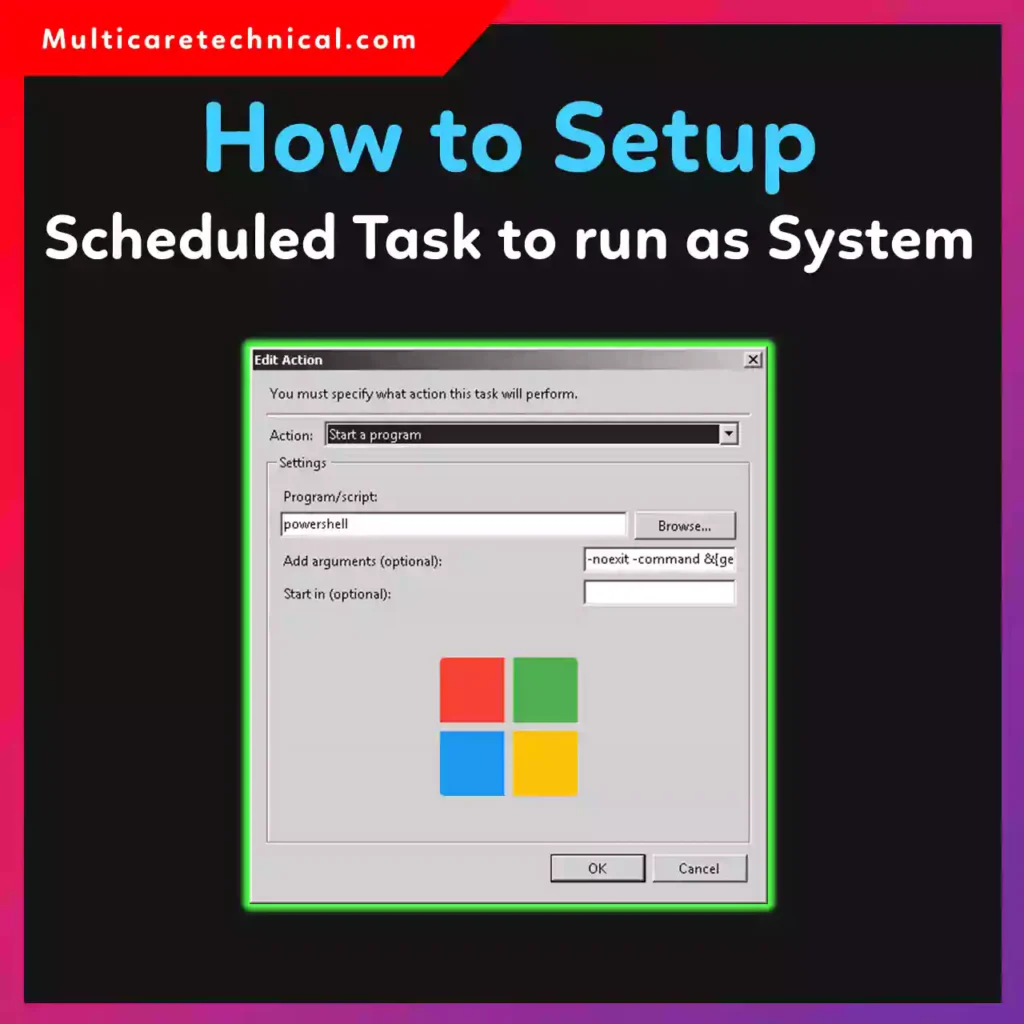
Step 5: Add Action
Go to Actions → New
Choose:
Start a Program
Example command:
powershell.exe
Add arguments:
-ExecutionPolicy Bypass -File C:\Scripts\maintenance.ps1
Step 6: Save the Task
Click OK and the task will now run as SYSTEM automatically.
Method 2 – PowerShell Create Scheduled Task to Run as SYSTEM
Administrators often prefer PowerShell automation to create scheduled tasks.
This method allows you to quickly deploy tasks across multiple computers.
PowerShell Command
$action = New-ScheduledTaskAction -Execute "powershell.exe"
$trigger = New-ScheduledTaskTrigger -Daily -At 2am
Register-ScheduledTask -TaskName "SystemScriptTask" -Action $action -Trigger $trigger -User "SYSTEM" -RunLevel Highest
This PowerShell create scheduled task to run as SYSTEM command will automatically generate the task.
Method 3 – Run Scheduled Task as SYSTEM Command Line
You can also run scheduled task as SYSTEM using the command line with the schtasks tool.
Example Command
schtasks /create /tn "SystemTask" /tr "cmd.exe" /sc daily /st 02:00 /ru SYSTEM
Explanation:
/tn→ Task name/tr→ Program to run/sc→ Schedule type/st→ Start time/ru SYSTEM→ Run as SYSTEM account
This is the fastest method for administrators using scripts or remote management tools.
How to Test the Scheduled Task
To verify your task works:
- Open Task Scheduler
- Find your task
- Right-click
- Click Run
If the task fails, you can check the logs using Event Viewer.
Here is a guide explaining how to open it:
https://multicaretechnical.com/how-to-open-event-viewer-in-windows-complete-2026-guide
Troubleshooting Scheduled Task Issues
If your task doesn’t run as expected, try the following checks.
Verify Task Permissions
Ensure the task is configured to Run with highest privileges.
Check Task History
Enable task history to see execution logs.
Review Event Viewer Logs
System errors are often logged in Event Viewer.
Contact Microsoft Support
If Windows automation features are not working correctly, Microsoft support may help:
https://multicaretechnical.com/how-do-i-contact-microsoft-live-chat-step-by-step-guide-2026
When Should You Run Tasks as SYSTEM?
Running tasks as SYSTEM is useful for:
- System maintenance scripts
- Automated software deployment
- Backup scripts
- System cleanup automation
For large-scale deployments, administrators often combine this with deployment automation tools like MDT:
https://multicaretechnical.com/how-to-setup-microsoft-deployment-toolkit-step-by-step-complete-2026-guide
Security Warning
Running tasks as SYSTEM provides full system access, so always ensure:
- Scripts are secure
- Tasks are monitored
- Unauthorized users cannot modify tasks
Improper configuration can create security risks.
FAQ – Run Scheduled Task as SYSTEM
How do I create scheduled task to run as SYSTEM?
Open Task Scheduler, create a new task, change the user account to SYSTEM, enable Run with highest privileges, then configure triggers and actions.
Can I run scheduled task as SYSTEM using PowerShell?
Yes. You can use PowerShell commands like Register-ScheduledTask to create automated tasks that run under the SYSTEM account.
How do I run scheduled task as SYSTEM command line?
Use the schtasks command with /ru SYSTEM to configure the task to run under the system account.
Example:
schtasks /create /tn "SystemTask" /tr "cmd.exe" /sc daily /st 02:00 /ru SYSTEM
Does scheduled task run as SYSTEM without login?
Yes. Tasks configured with the SYSTEM account run even if no user is logged into the computer.
Is running scheduled task as SYSTEM safe?
It is safe if used correctly, but since SYSTEM has full privileges, only trusted scripts should run under this account.
Conclusion
Learning how to set scheduled task to run as SYSTEM in Windows 10 & 11 is an essential skill for administrators and advanced users. By using Task Scheduler, PowerShell, or command line tools, you can automate powerful system-level tasks efficiently.
Whether you want to run maintenance scripts, automate deployments, or execute administrative commands, running scheduled tasks as SYSTEM provides the highest level of control in Windows.