
If you’re still clicking menus in Excel, you’re leaving serious productivity on the table.
The fastest Excel users don’t work harder—they use keyboard shortcuts.
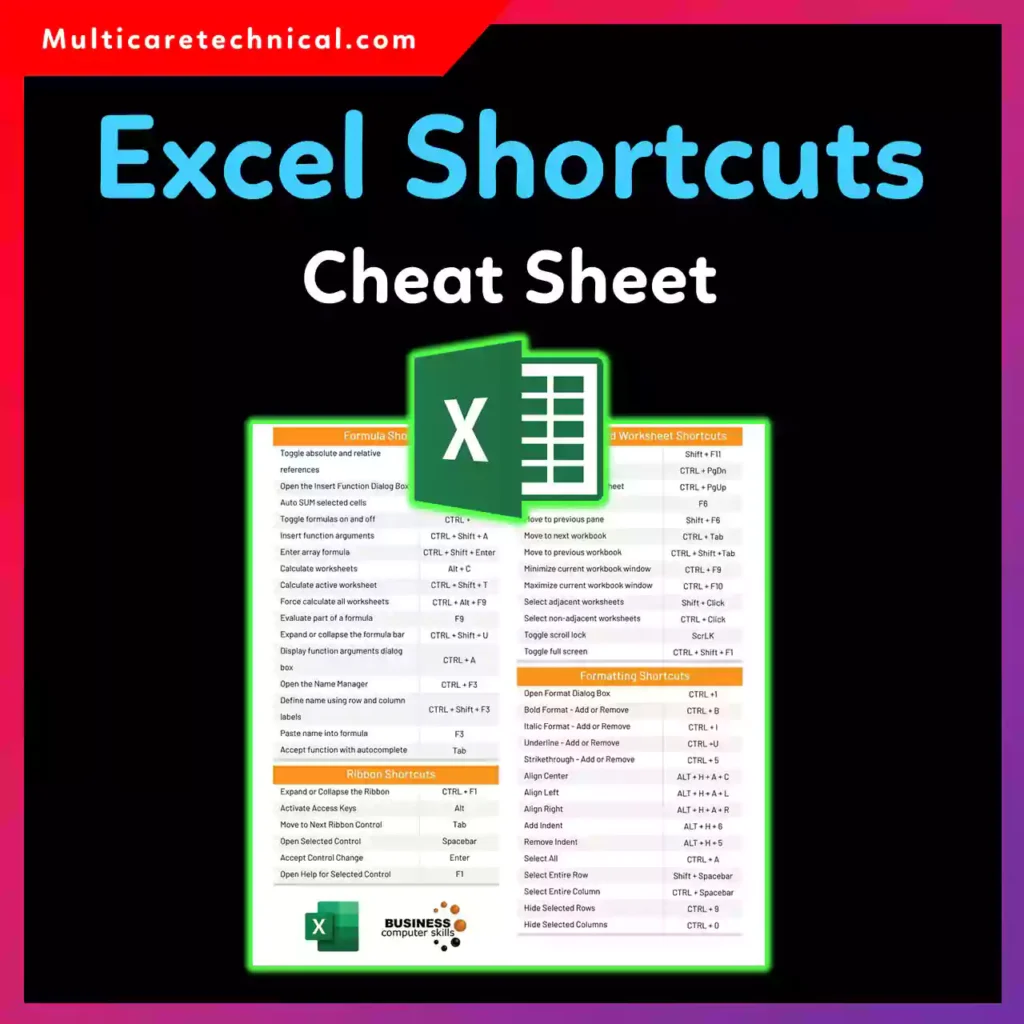
This Excel shortcuts cheat sheet brings together the most useful shortcuts for Windows and Mac, perfect for beginners, office users, students, and power users who want to work smarter (and faster).
Why You Need an Excel Shortcuts Cheat Sheet
Using Excel shortcuts helps you:
- Work 2–3× faster
- Reduce repetitive mouse clicks
- Improve accuracy
- Look like an Excel pro at work 😎
- Save hours every week
And once you master shortcuts, tasks like locking formulas in Excel or cleaning data become way easier.
Most Used Excel Shortcuts (Quick Reference)
🔹 General Excel Shortcuts (Windows)
| Action | Shortcut |
|---|---|
| New workbook | Ctrl + N |
| Open workbook | Ctrl + O |
| Save | Ctrl + S |
| Undo | Ctrl + Z |
| Redo | Ctrl + Y |
| Find | Ctrl + F |
| Replace | Ctrl + H |
| Select all | Ctrl + A |
Editing & Formatting Shortcuts
| Action | Shortcut |
|---|---|
| Copy | Ctrl + C |
| Paste | Ctrl + V |
| Cut | Ctrl + X |
| Bold | Ctrl + B |
| Italic | Ctrl + I |
| Underline | Ctrl + U |
| Format cells | Ctrl + 1 |
| AutoSum | Alt + = |
These shortcuts are especially useful when you’re cleaning large sheets or trying to delete duplicates in Excel.
Navigation Shortcuts (Move Like Lightning ⚡)
| Action | Shortcut |
|---|---|
| Go to last used cell | Ctrl + End |
| Go to first cell | Ctrl + Home |
| Move to next sheet | Ctrl + Page Down |
| Move to previous sheet | Ctrl + Page Up |
| Jump to edge of data | Ctrl + Arrow Keys |
Formula & Calculation Shortcuts
| Action | Shortcut |
|---|---|
| Insert formula | = |
| Edit cell | F2 |
| Lock cell reference ($) | F4 |
| Recalculate sheet | Shift + F9 |
| Recalculate workbook | F9 |
💡 F4 is a must-know for formulas—it locks cell references using $.
Excel Shortcuts Cheat Sheet for Mac
Mac users, you’re covered too 🍎
| Action | Shortcut (Mac) |
|---|---|
| Copy | Command + C |
| Paste | Command + V |
| Cut | Command + X |
| Save | Command + S |
| Undo | Command + Z |
| Format cells | Command + 1 |
| Lock reference ($) | Fn + F4 |
This makes the Excel shortcuts cheat sheet Mac version just as powerful as Windows.
Data Management Shortcuts
| Action | Shortcut |
|---|---|
| Insert row | Ctrl + Shift + + |
| Delete row | Ctrl + - |
| Sort | Alt + A + S + S |
| Filter | Ctrl + Shift + L |
| Move columns | Alt + Shift + Arrow |
If column management is your thing, this pairs perfectly with learning how to move columns in Excel without breaking your data.
Excel Shortcuts Cheat Sheet Printable (Best Tip)
For daily use:
- Print this cheat sheet
- Keep it near your desk
- Highlight your top 10 shortcuts
A printable Excel shortcuts cheat sheet is one of the easiest ways to improve speed fast.
Excel Shortcuts Cheat Sheet PDF (Why It’s Useful)
Many users prefer an Excel shortcuts cheat sheet PDF because it:
- Works offline
- Is easy to share
- Looks clean on mobile & tablet
- Is perfect for training or classes
(If you want, I can generate a printable PDF version next.)
Common Mistakes to Avoid
- Trying to memorize everything at once
- Ignoring Mac-specific shortcuts
- Not using
F4for formulas - Falling back to the mouse too often
Start with 5–10 shortcuts and build from there.
Quick FAQs (Optimized for AI Overviews)
What is the most useful Excel shortcut?
Ctrl + S (Save) and Ctrl + Z (Undo) are the most used, followed by Ctrl + C and Ctrl + V.
Is there an Excel shortcuts cheat sheet PDF?
Yes, many users prefer a PDF version for offline access and printing.
Are Excel shortcuts different on Mac?
Yes, Mac uses the Command (⌘) key instead of Ctrl for most shortcuts.
Can shortcuts really make Excel faster?
Absolutely. Keyboard shortcuts can reduce task time by more than 50%.
Final Thoughts
Mastering an Excel shortcuts cheat sheet is one of the easiest ways to level up your Excel skills—no advanced formulas required. Whether you’re on Windows or Mac, shortcuts help you work faster, cleaner, and with way less frustration.
Once shortcuts become muscle memory, Excel feels less like work and more like control. 🚀