
Hyperlinks in Microsoft Word usually appear after pasting text from websites, emails, or documents. While links are useful, sometimes you need to remove them all — especially when preparing assignments, reports, or official documents.
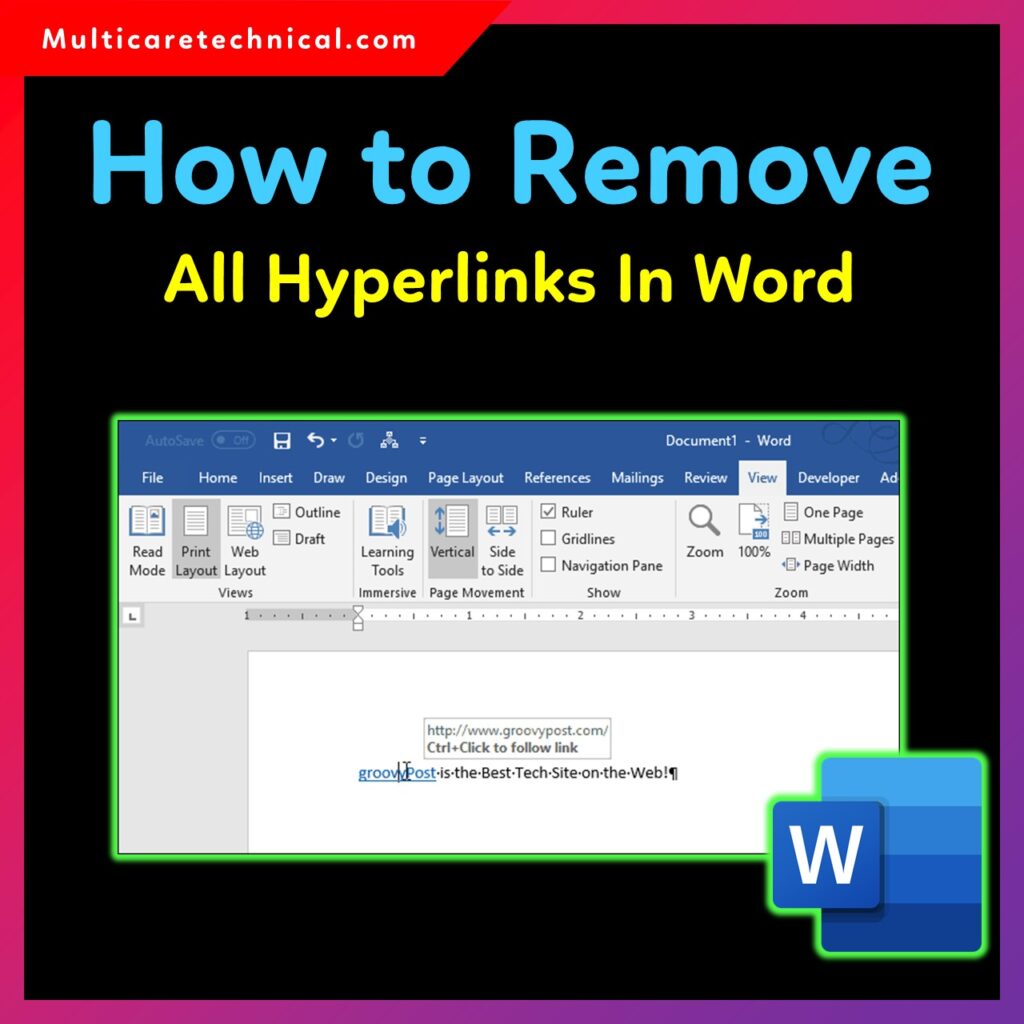
The good news? Removing every hyperlink in Word takes just a few seconds!
In this guide, you’ll learn:
✔ How to remove all hyperlinks in Word at once
✔ How to remove hyperlinks individually
✔ How to remove hyperlinks on Word Mac and MacBook
✔ How to remove all hyperlinks in Word Online
✔ How to remove hyperlink formatting inside a table
This is the most accurate and updated method for all platforms.
1. How to Remove All Hyperlinks in Word at Once (Windows)
This is the fastest method and works in Word 2016, Word 2019, Word 2021, and Office 365.
Shortcut Method
- Press Ctrl + A to select all text.
- Press:
Ctrl + Shift + F9
All hyperlinks will be removed instantly — plain text remains.
This solves your keyword: how to remove all hyperlinks in word at once.
2. How to Remove Hyperlinks Individually in Word
- Right-click any hyperlink.
- Click Remove Hyperlink.
This method is helpful if you only want to remove specific links.
3. How to Remove All Hyperlinks in Word Mac / MacBook
Removing all links on macOS is also very simple.
Method A — Using Keyboard Shortcut
- Press Command + A to select all text.
- Press:
Command + Shift + FN + F9
(Some MacBooks require Command + Fn + Shift + F9)
This covers your keywords:
- how to remove all hyperlinks in word mac
- how to remove all hyperlinks in word mac at once
- how to remove all hyperlinks in word macbook
4. How to Remove All Hyperlinks in Word Online
Microsoft Word Online does not support the F9 unlink shortcut. Use this method instead:
- Select all text (Ctrl + A).
- Right-click → Remove Link (appears in the context menu).
- If it doesn’t appear, click Formatting options → Clear formatting.
This removes most hyperlink formatting quickly.
5. How to Remove All Hyperlinks in a Word Table
Hyperlinks inside tables behave differently because Word treats each cell separately.
Method
- Select the entire table using the table handle.
- Press Ctrl + Shift + F9 (Windows).
- On Mac use Command + Shift + FN + F9.
This solves your keyword: how to remove all hyperlinks in word table.
6. Additional Tips to Control Hyperlinks in Word
Turn Off Automatic Hyperlinks
If you don’t want Word to auto-convert URLs to blue clickable links:
- Go to File → Options → Proofing.
- Click AutoCorrect Options.
- Go to AutoFormat As You Type.
- Uncheck Internet and network paths with hyperlinks.
Internal Links (Added as Requested)
- Remove / reduce space between lines in Word:
https://multicaretechnical.com/how-to-remove-reduce-space-between-lines-in-word-complete-guide - How to double-space in Google Docs:
https://multicaretechnical.com/how-to-double-space-in-google-docs-complete-guide-for-all-devices - Clear computer cache in Windows 11:
https://multicaretechnical.com/how-to-clear-computer-cache-in-windows-11-cmd-run-shortcut-chrome-ram-cache-discord
Conclusion
Removing all hyperlinks in Word can be done in seconds using shortcut keys on both Windows and Mac. Whether you’re using Word Online, MacBook, or dealing with hyperlinks inside tables, this guide covers every method. Use the shortcut Ctrl + Shift + F9 (Windows) or Command + Shift + Fn + F9 (Mac) for the fastest results.
FAQ
1. What is the shortcut to remove all hyperlinks in Word?
Windows: Ctrl + Shift + F9
Mac: Command + Shift + Fn + F9
2. Does removing hyperlinks delete text?
No, it only removes the hyperlink — the blue color and underline disappear.
3. How do I stop Word from creating hyperlinks automatically?
Disable it in File → Options → Proofing → AutoCorrect Options.
4. Can I remove hyperlinks from headings or tables?
Yes, use the same shortcut to remove links inside tables, headings, or lists.
5. Why doesn’t F9 unlink work in Word Online?
Word Online has limited keyboard support; use the right-click → Remove Link option instead.