
Introduction
Managing servers remotely is a standard practice for modern IT professionals. Instead of physically accessing a server in a data center or server room, administrators typically connect using Remote Desktop Protocol (RDP).
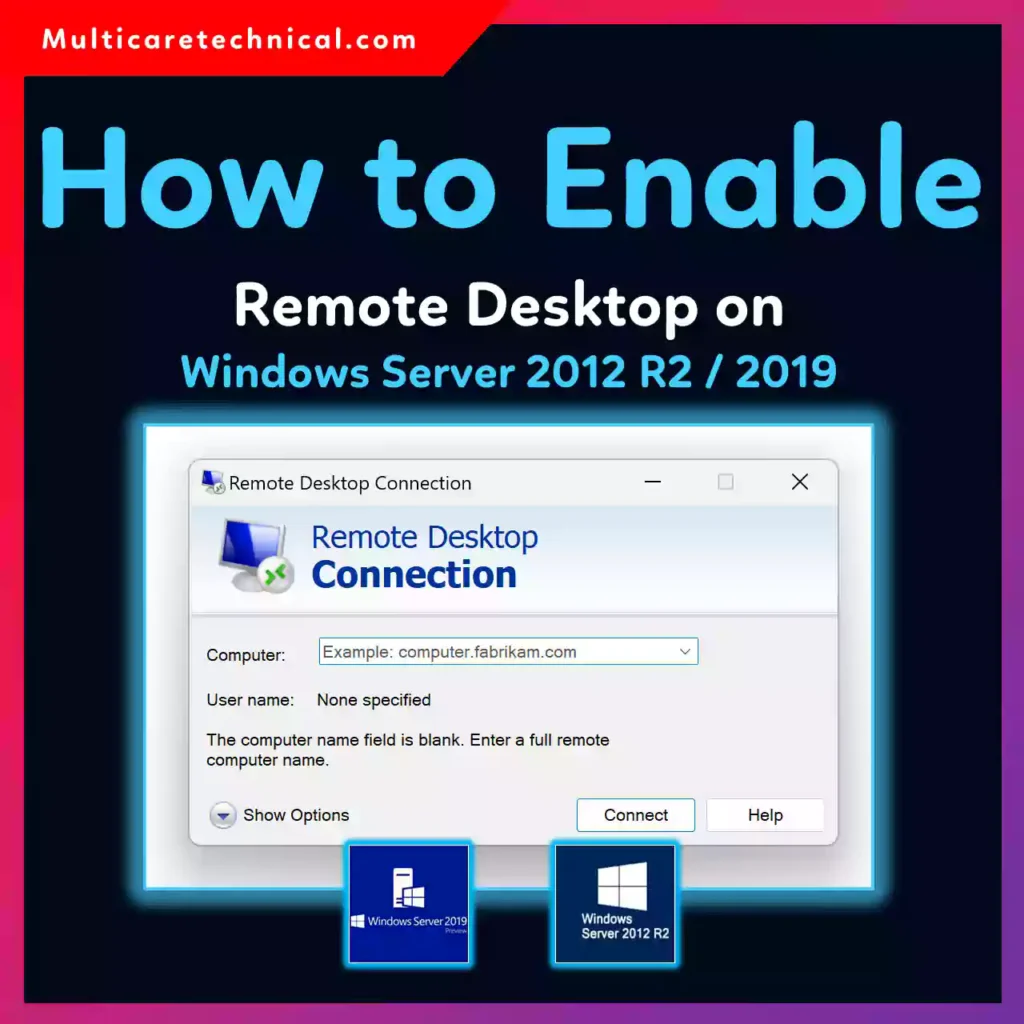
Both Windows Server 2012 R2 and Windows Server 2019 include built-in Remote Desktop functionality, allowing administrators to manage systems from anywhere on the network.
However, Remote Desktop is disabled by default for security reasons. This means you must manually enable it before connecting to the server remotely.
For system administrators and IT professionals in the United States, enabling Remote Desktop properly is essential for performing tasks such as:
- Server configuration
- System maintenance
- Software installation
- Troubleshooting network services
In this guide, you’ll learn how to enable Remote Desktop on Windows Server 2012 R2 and Windows Server 2019, including multiple methods, troubleshooting tips, and best practices for secure remote access.
Quick Answer
To enable Remote Desktop on Windows Server 2012 R2 or Windows Server 2019, open Server Manager → Local Server → Remote Desktop → Enable, select Allow remote connections to this computer, and apply the changes. Ensure the Windows Firewall allows Remote Desktop (TCP port 3389) and that the user has permission to access the server remotely.
Table of Contents
- What Is Remote Desktop in Windows Server
- Why Remote Desktop Is Important for Administrators
- System Requirements for Remote Desktop
- Methods to Enable Remote Desktop
- Step-by-Step Guide (GUI Method)
- Enable Remote Desktop Using PowerShell
- Enable Remote Desktop Using Group Policy
- Common Errors and Fixes
- Best Practices for Secure Remote Desktop Access
- Conclusion
- FAQ
What Is Remote Desktop in Windows Server?
Remote Desktop is a built-in Microsoft technology that allows administrators to access and control a server remotely using the Remote Desktop Protocol (RDP).
Once enabled, administrators can connect to the server from another computer and perform tasks exactly as if they were sitting in front of it.
Common uses include:
- Managing servers in remote data centers
- Installing updates and software
- Monitoring system performance
- Troubleshooting network issues
Remote Desktop is widely used in enterprise IT environments because it provides secure graphical access to Windows servers.
Why Remote Desktop Is Important for Administrators
Remote management is essential in modern IT infrastructure.
Here are some reasons administrators rely on Remote Desktop.
1. Centralized Server Management
Instead of visiting physical servers, administrators can manage systems remotely.
2. Faster Troubleshooting
Remote access allows IT teams to quickly diagnose problems without downtime.
3. Efficient System Maintenance
Tasks such as updates, backups, and service monitoring can be performed remotely.
For example, administrators often configure update management using tools described in this guide:
4. Enterprise Network Management
In domain environments, Remote Desktop is often used to manage Active Directory servers and domain controllers.
If you are setting up client machines in your domain network, you may also find this guide helpful:
System Requirements for Remote Desktop
Before enabling Remote Desktop, ensure the following requirements are met:
- Administrator access to the server
- Windows Server 2012 R2 or Windows Server 2019 installed
- Firewall rules allowing RDP traffic
- Network connectivity between client and server
By default, RDP uses:
TCP Port 3389
Make sure this port is open if connecting across networks.
Methods to Enable Remote Desktop
There are several ways to enable Remote Desktop on Windows Server.
- Server Manager (GUI method)
- System Properties
- PowerShell commands
- Group Policy configuration
Most administrators prefer the Server Manager method, which is simple and fast.
Step-by-Step Guide to Enable Remote Desktop
Method 1: Enable Remote Desktop Using Server Manager
This is the easiest and most common method.
Step 1: Open Server Manager
- Log in to your Windows Server.
- Open Server Manager from the Start menu.
Step 2: Navigate to Local Server
Inside Server Manager:
- Click Local Server in the left panel.
- Locate Remote Desktop in the properties section.
Step 3: Enable Remote Desktop
- Click Disabled next to Remote Desktop.
- Select Allow remote connections to this computer.
- Click OK.
Windows will automatically configure the firewall rules.
Step 4: Add Authorized Users
By default, only administrators can access Remote Desktop.
To allow other users:
- Click Select Users
- Add the required user accounts
- Click OK
Step 5: Test the Connection
From another computer:
- Press Windows + R
- Type:
mstsc
- Enter the server IP address or hostname
- Click Connect
If everything is configured correctly, the server desktop will appear.
Enable Remote Desktop Using PowerShell
IT professionals often automate server management using PowerShell.
Run PowerShell as Administrator and execute:
Set-ItemProperty -Path 'HKLM:\System\CurrentControlSet\Control\Terminal Server' -name "fDenyTSConnections" -value 0
Next, enable the firewall rule:
Enable-NetFirewallRule -DisplayGroup "Remote Desktop"
Remote Desktop will now be enabled.
Enable Remote Desktop Using Group Policy
In enterprise environments, administrators often enable Remote Desktop using Group Policy.
Steps:
- Open Group Policy Management
- Navigate to:
Computer Configuration
Administrative Templates
Windows Components
Remote Desktop Services
Remote Desktop Session Host
Connections
- Enable the policy:
Allow users to connect remotely using Remote Desktop Services
Apply the policy and restart the server if required.
Common Errors and Fixes
Even after enabling Remote Desktop, connection problems may occur.
Here are the most common issues.
Remote Desktop Cannot Connect to the Server
Cause
- Firewall blocking port 3389
- Remote Desktop disabled
Fix
Verify firewall settings and ensure RDP is enabled.
Network Level Authentication Error
Cause
Older clients may not support Network Level Authentication (NLA).
Fix
Disable NLA temporarily from Remote Desktop settings.
Access Denied Error
Cause
User is not part of the Remote Desktop Users group.
Fix
Add the user to the Remote Desktop Users group.
Server Not Responding
Cause
Network connectivity issue.
Fix
Test connectivity using:
ping server-ip
Best Practices for Secure Remote Desktop
Remote Desktop is powerful, but it can also be a security risk if not configured properly.
Follow these best practices.
Use Strong Passwords
Always enforce complex passwords for administrator accounts.
Enable Network Level Authentication
NLA improves security by requiring authentication before establishing an RDP session.
Restrict RDP Access
Limit Remote Desktop access to specific IP addresses whenever possible.
Use VPN for Remote Access
Instead of exposing RDP directly to the internet, use a VPN connection.
Install Security Updates
Always keep your server updated with the latest patches to prevent security vulnerabilities.
For example, emergency updates released by Microsoft are explained in this guide:
Conclusion
Remote Desktop is one of the most important tools for managing Windows Server 2012 R2 and Windows Server 2019 systems.
By enabling RDP, administrators can remotely manage servers, install software, perform maintenance, and troubleshoot problems without physical access.
The process of enabling Remote Desktop is simple:
- Open Server Manager
- Enable Remote Desktop
- Configure firewall rules
- Add authorized users
- Test the connection
However, security should always be a top priority. Use strong passwords, enable Network Level Authentication, and limit access to trusted networks.
When configured correctly, Remote Desktop becomes a powerful and secure tool for managing enterprise Windows infrastructure.
FAQ
How do I enable Remote Desktop on Windows Server 2019?
Open Server Manager → Local Server → Remote Desktop → Enable, select Allow remote connections, and confirm the firewall settings.
What port does Remote Desktop use?
Remote Desktop uses TCP port 3389 by default.
Can non-administrators use Remote Desktop?
Yes. You can add users to the Remote Desktop Users group to allow access.
Is Remote Desktop secure?
Yes, if configured properly with Network Level Authentication, strong passwords, and restricted network access.
Why can’t I connect to Remote Desktop?
Common causes include firewall blocking, incorrect credentials, disabled RDP service, or network connectivity issues.