
Apple Maps makes it easier to navigate unfamiliar places, find nearby businesses, and get turn-by-turn driving directions. One of its most useful features is spoken navigation, which tells you when to turn, change lanes, or take an exit without requiring you to look at your iPhone.
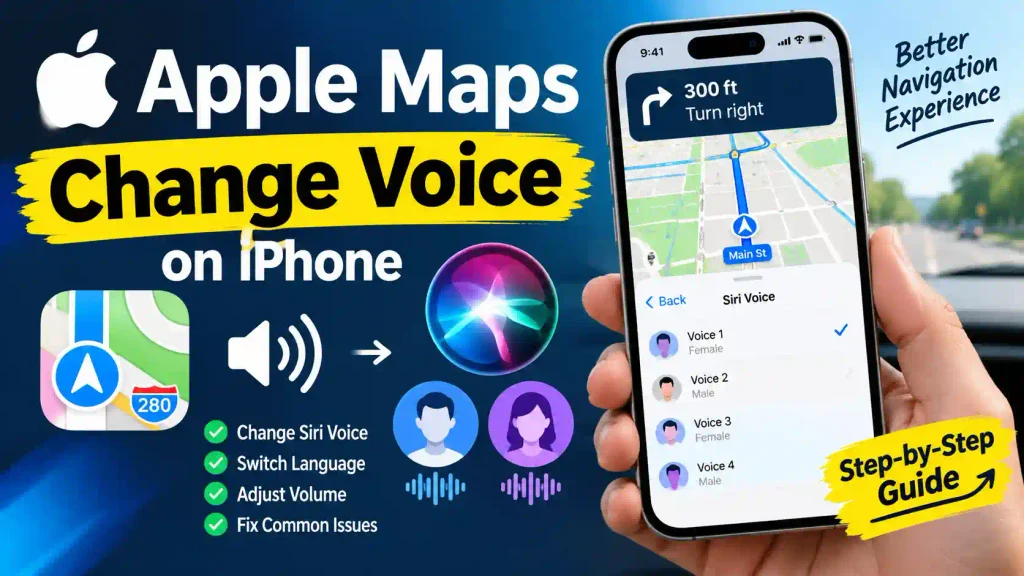
However, you might not like the default navigation voice. Perhaps you prefer a different Siri voice, want directions in another language, or simply want to make navigation louder and easier to understand.
Fortunately, changing the Apple Maps voice is straightforward. You can customize the voice and language through your iPhone’s Siri settings. You can also adjust spoken direction volume and control how navigation audio interacts with music and other apps.
In this guide, you’ll learn how to change Apple Maps voice on your iPhone, adjust navigation volume, troubleshoot common problems, and customize your navigation experience.
Quick Answer: How to Change Apple Maps Voice
To change the Apple Maps navigation voice on your iPhone:
Open the Settings app.
Tap Siri or Apple Intelligence & Siri, depending on your iOS version.
Select Voice.
Browse the available voice variations.
Tap a voice to preview and select it.
Open Apple Maps and start a navigation route to test the new voice.
Important: Apple Maps uses Siri’s selected voice and language for spoken turn-by-turn directions. Changing Siri’s voice can also change how Siri speaks in other supported features.
Table of Contents
How to Change Apple Maps Voice on iPhone
How to Change Apple Maps Language
How to Change Apple Maps Navigation Volume
How to Turn Apple Maps Voice Directions On or Off
Common Apple Maps Voice Problems and Fixes
Best Practices for Apple Maps Voice Navigation
Frequently Asked Questions
- How to Change Apple Maps Voice on iPhone
Apple Maps does not provide a separate voice-selection menu inside the navigation application. Instead, it uses the voice configured in your iPhone’s Siri settings.
Follow these steps to select a different navigation voice.
Step 1: Open iPhone Settings
Unlock your iPhone and locate the Settings application.
Tap its icon to open the main settings menu.
Step 2: Open Siri Settings
Scroll through the settings options and tap Siri.
On some iPhone models and iOS versions, this option may appear as Apple Intelligence & Siri.
Step 3: Select the Voice Option
Inside Siri settings, locate and tap Voice.
You should see the available voice variations for your selected language.
Step 4: Choose Your Preferred Voice
Browse the available voice options.
Tap each available option to preview how it sounds. Depending on your selected language, you may see different voice varieties and individual voice choices.
Select the voice you prefer.
Some voice options may require an additional download before they become available. Allow the download to finish if prompted.
Step 5: Test the New Apple Maps Voice
Now open the Apple Maps application.
Enter your destination in the search bar.
Select your preferred destination.
Tap Directions.
Choose a transportation option, such as Driving.
Tap Go to begin navigation.
Apple Maps should now use your selected Siri voice for spoken directions.
Pro Tip: If the previous voice continues playing, close and reopen Apple Maps and start a new navigation session.
- How to Change Apple Maps Language
Would you prefer navigation instructions in Spanish, French, or another supported language?
You can change the language used for Siri and Apple Maps by modifying the language in your iPhone’s Siri settings.
Follow these instructions:
Open Settings on your iPhone.
Tap Siri or Apple Intelligence & Siri.
Select Language.
Browse the available languages.
Select your preferred language.
Confirm your selection if prompted.
Your selected Siri language is also used for Apple Maps turn-by-turn spoken directions.
For example, if you change Siri’s language from English (United States) to Spanish, Apple Maps can use Spanish for its spoken navigation instructions, provided the language and feature are supported.
Important: Changing Siri’s language affects more than Apple Maps. It can also change how you interact with Siri across your iPhone.
If you regularly use different Apple features, you may also find our guide on how to use Apple Shortcuts helpful.
- How to Change Apple Maps Navigation Volume
Sometimes, the Apple Maps voice is difficult to hear, especially when driving with music playing or traveling on a noisy road.
You don’t necessarily need to change the Siri voice. You can simply increase the spoken navigation volume.
There are two ways to adjust it.
Method 1: Change Volume During Navigation
Open Apple Maps.
Enter a destination.
Select your preferred route.
Tap Go to start navigation.
Locate the Audio Control button on the navigation screen.
Tap it to view the available audio options.
Select the louder volume option.
Depending on your iOS version, you may see options for louder, normal, or softer spoken directions.
Method 2: Change the Default Navigation Volume
You can also configure the default spoken direction volume through Settings.
Open Settings.
Tap Apps.
Find and select Maps.
Tap Spoken Directions.
Locate the Voice Volume section.
Choose your preferred volume level.
Your selection will control the default volume of spoken Apple Maps directions.
This is particularly useful if you frequently drive and don’t want to adjust the volume every time you start navigation.
- How to Turn Apple Maps Voice Directions On or Off
If you prefer visual navigation without spoken instructions, you can mute Apple Maps.
You can also enable spoken directions again whenever you need them.
Follow these steps:
Open Apple Maps.
Search for a destination.
Select your route.
Tap Go.
Tap the Audio Control button on the navigation screen.
Select your preferred audio setting.
Apple Maps generally provides three useful options:
Unmuted: All navigation instructions are spoken.
Audio Alerts Only: Only important driving alerts are spoken.
Muted: No spoken navigation instructions are played.
These options make it easy to control how much audio guidance you receive while traveling.
For example, you can select Audio Alerts Only when you want to hear important driving notifications without listening to every turn instruction.
- Common Apple Maps Voice Problems and Fixes
Sometimes, Apple Maps may not speak directions even after you have selected your preferred Siri voice.
Here are some common problems and their solutions.
Problem 1: Apple Maps Is Not Speaking Directions
If Apple Maps displays the route but doesn’t provide voice instructions, check the navigation audio settings.
Solution:
Start a navigation session.
Tap the Audio Control button.
Select the Unmuted option.
Increase the navigation volume if necessary.
Also, make sure your iPhone isn’t connected to an audio device that is playing the navigation instructions elsewhere.
Problem 2: Apple Maps Still Uses the Old Voice
If you changed Siri’s voice but Apple Maps continues using the previous one, try restarting the navigation session.
Solution:
Open Settings.
Tap Siri or Apple Intelligence & Siri.
Select Voice.
Choose another available voice.
Wait for any required voice download to finish.
Close Apple Maps.
Reopen Maps and start a new route.
If the problem continues, restart your iPhone.
Problem 3: Apple Maps Voice Is Too Quiet
Navigation instructions may be difficult to hear when music, podcasts, or road noise are present.
Solution:
Open Settings.
Tap Apps.
Select Maps.
Open Spoken Directions.
Change Voice Volume to Louder.
You should also check your iPhone’s media volume and connected car audio settings.
Problem 4: Apple Maps Voice Is Speaking in the Wrong Language
This usually happens when the Siri language is different from your preferred navigation language.
Solution:
Open Settings.
Tap Siri or Apple Intelligence & Siri.
Select Language.
Choose your preferred language.
Return to Apple Maps.
Start a new navigation session.
Remember that changing Siri’s language can affect other Siri features as well.
Problem 5: Apple Maps Does Not Speak When Navigation Starts
Apple Maps may not provide spoken turn-by-turn directions if you are viewing directions from a starting point other than your current location without actively following the route.
Solution:
Make sure you are using your current location as the starting point when appropriate.
Tap Go to begin active navigation instead of simply viewing the route or its individual steps.
Also, check that your iPhone has an internet connection and Precise Location is enabled for Maps.
- Best Practices for Apple Maps Voice Navigation
Changing the navigation voice is only one way to improve your Apple Maps experience.
Here are a few additional tips worth considering.
Choose a Voice You Can Understand Easily
Select a voice that is clear and comfortable to understand.
When driving, clear navigation instructions are more important than choosing a voice simply because it sounds different.
Keep Spoken Directions Enabled
If you frequently travel to unfamiliar places, keeping spoken directions enabled can help you follow routes without constantly checking your iPhone.
Use Audio Alerts When Necessary
If you don’t want continuous navigation instructions, Audio Alerts Only can be a useful alternative.
It helps reduce unnecessary audio interruptions while keeping important driving alerts available.
Configure Navigation Audio for Your Car
If you connect your iPhone to a supported vehicle audio system, check the Maps audio settings.
You can enable Directions on Radio on supported cars to hear navigation instructions through the vehicle’s speakers while listening to the radio.
You can also enable Directions Pause Spoken Audio to temporarily pause supported spoken media, such as podcasts and audiobooks, when navigation instructions are announced.
Keep Your iPhone Updated
Installing the latest compatible iOS updates can help resolve software-related navigation problems and improve overall device performance.
To check for updates, open:
Settings > General > Software Update
Before installing an update, make sure your iPhone has sufficient battery power and an appropriate internet connection.
Conclusion
Changing Apple Maps voice on an iPhone is simple once you know where to find the correct settings.
You can select a different Siri voice, change the navigation language, adjust spoken direction volume, and control whether Apple Maps provides continuous voice instructions or only important audio alerts.
The most important thing to remember is that Apple Maps uses Siri’s configured voice and language for spoken navigation. Therefore, you need to change these settings through your iPhone’s Siri menu rather than searching for a separate voice-selection option inside Maps.
Follow the steps in this guide to customize Apple Maps and make your navigation experience more comfortable.
Frequently Asked Questions (FAQs)
- Can I change the voice in Apple Maps?
Yes. You can change the Apple Maps navigation voice through your iPhone’s Siri settings. Open Settings, tap Siri or Apple Intelligence & Siri, select Voice, and choose your preferred available voice.
- Does Apple Maps use Siri’s voice?
Yes. Apple Maps uses Siri’s configured voice and language for spoken turn-by-turn navigation. Changing Siri’s voice can therefore change the voice you hear while navigating.
- Can I change Apple Maps voice to a male or female voice?
Yes, depending on the language and available voice options. Open Settings > Siri > Voice and browse the available variations. Select the voice you prefer. The available choices depend on your language and iOS version.
- How do I make Apple Maps voice louder?
Start navigation in Apple Maps, tap the Audio Control button, and select the louder option. You can also go to Settings > Apps > Maps > Spoken Directions and select Louder under Voice Volume.
- Why is Apple Maps not talking during navigation?
Apple Maps may be muted, the navigation volume may be too low, or your audio may be playing through another connected device. Start active navigation, check the Audio Control settings, increase the volume, and verify your iPhone’s location and internet settings.