
App Clips on iPhone allow you to use a small part of an app without downloading and installing the complete application. Whether you want to pay for parking, rent a bike, order food, or access a specific service, App Clips make these tasks faster and more convenient.
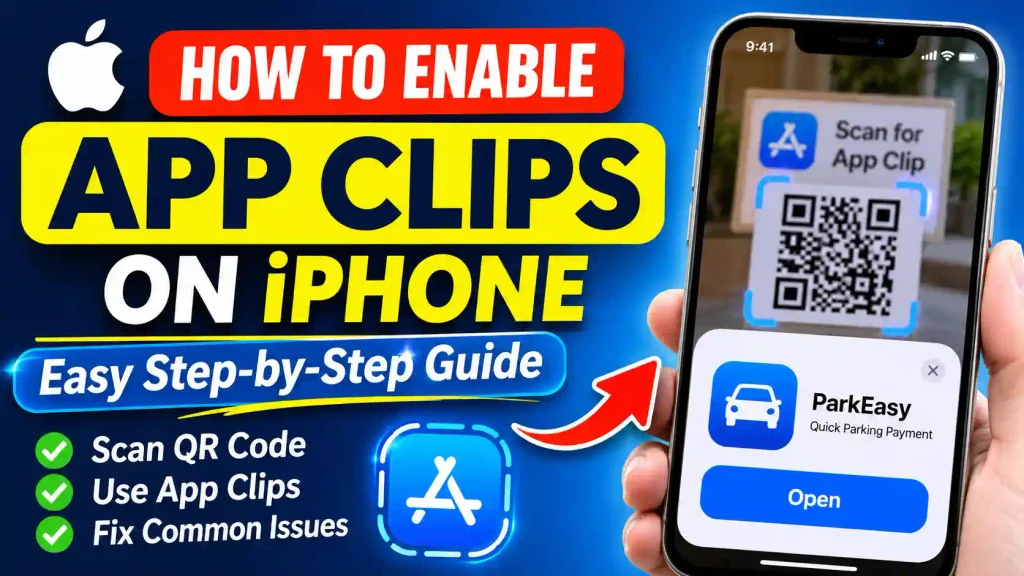
However, some iPhone users may find that App Clips are not opening or that their iPhone prevents them from accessing them. This can happen because of Screen Time restrictions, outdated iOS software, or other settings.
If you’re wondering how to enable App Clips on iPhone, this guide explains everything you need to know. You’ll learn how App Clips work, how to check and remove restrictions, how to launch them, and how to troubleshoot common problems.
Quick Answer: How to Enable App Clips on iPhone
To enable App Clips on your iPhone, make sure Screen Time restrictions are not preventing them from opening.
Follow these steps:
- Open the Settings app on your iPhone.
- Tap Screen Time.
- Select Content & Privacy Restrictions.
- Open App Store, Media, Web & Games.
- Find the App Clips option.
- Make sure App Clips are allowed and not restricted.
The exact menu names may vary depending on your iOS version. If you don’t see these options, check your iPhone’s iOS version and Screen Time configuration.
Important: App Clips do not require a separate universal enable switch on most iPhones. They normally work automatically when supported, provided that restrictions do not block them.
Table of Contents
- What Are App Clips on iPhone?
- Why Should You Enable App Clips?
- How to Enable App Clips on iPhone
- How to Open and Use App Clips
- How to Find Previously Used App Clips
- How to Remove App Clips from iPhone
- Common App Clips Problems and Fixes
- Best Practices and Pro Tips
- Frequently Asked Questions
1. What Are App Clips on iPhone?
App Clips are lightweight versions of existing iPhone applications that allow users to access specific features without installing the complete application.
For example, imagine you’re visiting a parking garage that requires a mobile application to make payments. Instead of downloading the full parking application, you can scan an App Clip Code or QR code and immediately access the payment functionality.
App Clips are designed to make everyday tasks easier by reducing unnecessary downloads and installation steps.
Apple introduced App Clips with iOS 14, and they are supported on iPhones running iOS 14 or later.
How Do App Clips Work?
App Clips work through different discovery methods. You can access them using:
- QR Codes: Scan a supported QR code using your iPhone camera.
- App Clip Codes: Scan Apple’s specially designed App Clip Codes.
- NFC Tags: Bring your iPhone close to a supported NFC tag.
- Safari: Open a website that provides an App Clip link or supported banner.
- Messages: Tap an App Clip link shared through a text message.
- Apple Maps: Access App Clips through supported business location cards.
After discovering an App Clip, your iPhone displays a small preview card. Tap the available Open or Play button to launch it.
2. Why Should You Enable App Clips?
App Clips are useful when you need to access a particular application feature without installing the complete app.
Here are some important advantages:
1. No Full App Installation Required
You don’t need to download an entire application just to complete a simple task.
2. Save Storage Space
App Clips are designed to be lightweight, helping you avoid installing applications that you may only use once.
3. Faster Access
You can access supported services by scanning a QR code, using NFC, or opening a link.
4. Convenient Payments
Supported App Clips allow you to use Apple Pay for purchases and payments.
5. Better User Experience
You can complete simple tasks without creating a permanent application installation.
3. How to Enable App Clips on iPhone
If App Clips are not opening on your iPhone, the first thing you should check is whether Screen Time restrictions are blocking them.
Follow the instructions below.
Step 1: Open iPhone Settings
Unlock your iPhone and open the Settings application.
You will find different options for managing your device, including Wi-Fi, Bluetooth, General, Display & Brightness, and Screen Time.
Step 2: Open Screen Time
Scroll down and tap Screen Time.
Screen Time allows you to manage application usage, content restrictions, privacy settings, and other parental controls.
Step 3: Open Content & Privacy Restrictions
Inside the Screen Time menu, find and select Content & Privacy Restrictions.
If this feature is disabled, your iPhone may not have any Screen Time content restrictions enabled.
If it is enabled, continue to the next step.
Step 4: Find App Store Restrictions
Look for App Store, Media, Web & Games or the corresponding app installation and content restriction menu available in your iOS version.
Tap the option to view the available restrictions.
Step 5: Allow App Clips
Find the App Clips setting.
Check whether App Clips are restricted from opening.
If the setting indicates that App Clips are prevented from opening, change the restriction to allow them.
You may need to enter your Screen Time passcode to make this change.
Step 6: Test App Clips
After changing the restriction, open Safari or use your iPhone camera to scan a supported App Clip Code or QR code.
If an App Clip card appears, tap Open or Play.
Your iPhone should now be able to launch the supported App Clip.
Note: If you cannot find an App Clips permission setting, don’t assume the feature is disabled. Apple does not provide a universal App Clips activation switch on every iOS version.
4. How to Open and Use App Clips on iPhone
Once you’ve checked the restrictions, you can start using App Clips.
Here are the different ways to access them.
Method 1: Using the iPhone Camera
- Open the Camera application.
- Point your camera toward a supported QR code or App Clip Code.
- Wait for the notification or link to appear.
- Tap the notification.
- When the App Clip preview appears, tap Open or Play.
Make sure your camera can clearly recognize the code.
Method 2: Using Safari
- Open Safari on your iPhone.
- Visit a website that provides an App Clip experience.
- Look for an App Clip link or supported Smart App Banner.
- Tap the link or banner.
- Select the available action to launch the App Clip.
Not every website supports App Clips.
Method 3: Using NFC
Some businesses provide NFC tags that launch App Clips.
To use this method:
- Make sure your iPhone supports the required NFC functionality.
- Locate an NFC tag that supports an App Clip experience.
- Hold your iPhone near the tag.
- Wait for the App Clip notification to appear.
- Tap the notification to open the App Clip.
Method 4: Using Messages
You can also open an App Clip through a supported link shared in Messages.
- Open the Messages application.
- Find the message containing the App Clip link.
- Tap the link.
- Wait for the App Clip preview to appear.
- Tap Open or Play.
Apple also supports App Clips through certain Maps experiences and links in other supported applications.
5. How to Find Previously Used App Clips
If you’ve previously opened an App Clip and want to access it again, you can find it through the App Library.
Follow these steps:
- Swipe left across your Home Screen until you reach the App Library.
- Tap the search field at the top.
- Scroll down through the alphabetical application list.
- Look for the App Clips section.
- Find the App Clip you previously used.
Depending on the App Clip and its availability, you may be able to open it again.
6. How to Remove App Clips from iPhone
If you no longer need an App Clip, you can remove it from your iPhone.
Remove an Individual App Clip
- Open the App Library.
- Tap the search field.
- Find the App Clip you want to remove.
- Touch and hold its icon.
- Select Remove App Clip.
Remove All App Clips
If you want to remove all previously downloaded App Clips:
- Open Settings.
- Find App Clips. Depending on your iOS version, it may appear under Settings > Apps > App Clips.
- Select the option to remove all App Clips, if available.
- Confirm your selection.
Removing App Clips does not delete the corresponding full applications installed on your iPhone.
7. Common App Clips Problems and Fixes
Sometimes App Clips may not open even when your iPhone supports the feature.
Here are some common problems and their solutions.
Problem 1: App Clips Are Not Opening
Possible Cause: Screen Time restrictions may be preventing App Clips from opening.
Solution:
- Open Settings.
- Navigate to Screen Time.
- Select Content & Privacy Restrictions.
- Check the App Clips restriction.
- Make sure App Clips are allowed.
Problem 2: QR Code Is Not Working
Possible Cause: The QR code may be damaged, unsupported, or incorrectly positioned.
Solution:
- Clean your iPhone camera lens.
- Improve the lighting around the QR code.
- Hold your iPhone steady.
- Make sure the code is designed to launch an App Clip.
- Try scanning the code again.
Remember that an ordinary QR code does not automatically launch an App Clip.
Problem 3: App Clip Is Not Available
Possible Cause: The business or service may not offer an App Clip experience.
Solution:
- Check whether the website provides an App Clip link.
- Contact the service provider.
- Try opening the full application through the App Store.
Problem 4: App Clip Keeps Loading
Possible Cause: A slow internet connection or temporary server issue may prevent the App Clip from loading.
Solution:
- Check your Wi-Fi connection.
- Try switching to cellular data.
- Close Safari or the application that launched the App Clip.
- Restart your iPhone.
- Try launching the App Clip again.
Problem 5: App Clips Are Missing from Settings
Possible Cause: The available settings may differ depending on your iOS version.
Solution:
- Update your iPhone to the latest compatible iOS version.
- Search for App Clips using the Settings search field.
- Check Screen Time restrictions.
- Confirm that your device supports the required functionality.
8. Best Practices and Pro Tips
Here are some useful recommendations for getting the best experience with App Clips.
Keep iOS Updated: Install the latest compatible iOS updates to receive security improvements and bug fixes.
Use Trusted QR Codes: Only scan QR codes from businesses and websites you trust. Avoid suspicious codes that redirect you to unknown websites.
Check Internet Connectivity: Most App Clips require an internet connection to download and operate.
Review Screen Time Settings: If you manage a child’s iPhone, review content restrictions to ensure App Clips are allowed when appropriate.
Remove Unused App Clips: Periodically review previously used App Clips and remove those you no longer need.
Use Apple Pay Carefully: When an App Clip supports payments, verify the business and transaction amount before confirming payment.
Related Windows Troubleshooting Guides
If you regularly troubleshoot Windows computers, you may also find these guides helpful:
- How to Enable Windows Action Center
- How to Turn Off Fast Startup in Windows 11
- How to Enable Windows Fax and Scan in Windows 11
Conclusion
App Clips make it easier to access specific application features without downloading the complete application to your iPhone.
If App Clips are not working, start by checking your Screen Time settings and making sure that App Clips are not restricted. You can then test the feature using a supported QR code, NFC tag, Safari link, or Messages link.
Remember that App Clips generally work automatically on supported iPhones running iOS 14 or later. You don’t need to install a separate application or enable a universal activation switch.
By following the steps in this guide, you can access, manage, and troubleshoot App Clips more easily.
Frequently Asked Questions (FAQs)
1. How do I turn on App Clips on my iPhone?
App Clips generally work automatically on supported iPhones. If they are not opening, navigate to Settings > Screen Time > Content & Privacy Restrictions and check whether App Clips are restricted.
2. Why are App Clips not showing on my iPhone?
App Clips may not appear because the website, business, or service does not support them. Screen Time restrictions, connectivity issues, or outdated software may also prevent them from launching.
3. Which iOS version supports App Clips?
Apple introduced App Clips with iOS 14. Therefore, iPhones running iOS 14 or later can support App Clips, provided the device and the particular App Clip experience are compatible.
4. Can I use App Clips without downloading the full application?
Yes. App Clips are designed to provide selected application features without requiring users to download the complete application. However, some advanced features may require installing the full app.
5. How do I delete all App Clips from my iPhone?
Open Settings and search for App Clips. Depending on your iOS version, navigate to Settings > Apps > App Clips and use the available removal option to delete all previously downloaded App Clips.