
Windows Action Center is a useful feature that helps users manage notifications, access important system alerts, and quickly control frequently used settings. It provides a central place to review notifications from applications, check security messages, and access shortcuts such as Wi-Fi, Bluetooth, Battery Saver, and other system controls.
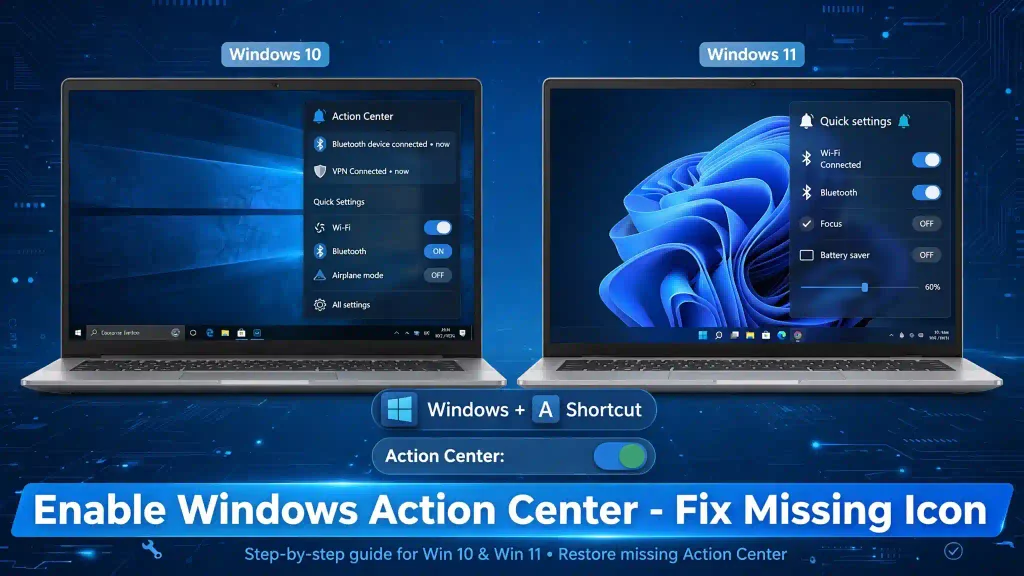
However, sometimes Action Center may disappear from the taskbar, stop opening, or become disabled because of Windows settings, Group Policy restrictions, registry changes, or system configuration issues.
If you cannot find or open Action Center on your Windows computer, this guide explains how to enable it and troubleshoot common problems.
Important: Windows 10 and Windows 11 handle Action Center differently. Windows 10 includes the traditional Action Center, while Windows 11 separates notifications from Quick Settings. The instructions below cover both operating systems.
1. Quick Answer: How to Enable Windows Action Center
To enable Action Center in Windows 10:
- Press Windows + I to open Settings.
- Navigate to Personalization > Taskbar.
- Select Turn system icons on or off.
- Find Action Center.
- Switch it to On if the option is available.
In Windows 11, the traditional Action Center has been replaced by separate Notifications and Quick Settings panels. Click the clock or notification area to open notifications, or click the network, volume, or battery icons to access Quick Settings.
2. Table of Contents
- What Is Windows Action Center?
- Windows Action Center vs. Quick Settings
- How to Enable Action Center in Windows 10
- How to Access Notifications in Windows 11
- Enable Action Center Using Group Policy
- Enable Action Center Through Windows Registry
- How to Fix Action Center Not Opening
- Common Errors and Fixes
- Best Practices and Pro Tips
- Frequently Asked Questions
3. What Is Windows Action Center?
Windows Action Center is a built-in Windows feature that provides quick access to notifications and frequently used system controls.
In Windows 10, Microsoft introduced Action Center as a centralized notification and quick-action panel. Users could open it from the taskbar notification icon or by pressing Windows + A.
It helps users manage notifications without opening individual applications.
For example, you can receive notifications about:
- Windows Security alerts.
- Incoming emails.
- Calendar reminders.
- Application updates.
- Bluetooth connections.
- System maintenance.
- Network connectivity.
- Other application notifications.
Action Center also provides Quick Actions, which allow users to enable or disable certain Windows features without navigating through multiple Settings pages.
Main Features of Action Center
1. Notification Management
View notifications from Windows and installed applications in one place.
2. Quick Actions
Access commonly used controls such as Wi-Fi, Bluetooth, Airplane Mode, and Battery Saver.
3. Windows Security Alerts
Receive important security notifications about antivirus protection, firewall status, and other system issues.
4. Notification Control
Manage which applications can display notifications and how those notifications appear.
4. Windows Action Center vs. Quick Settings in Windows 11
Before enabling Action Center, it is important to understand the differences between Windows 10 and Windows 11.
| Feature | Windows 10 | Windows 11 |
|---|---|---|
| Traditional Action Center | Available | Removed |
| Notifications | Inside Action Center | Separate panel |
| Quick Actions | Inside Action Center | Quick Settings |
| Keyboard shortcut | Windows + A | Opens Quick Settings |
| Notification shortcut | Windows + N | Windows + N |
| Taskbar access | Notification icon | Clock and system tray |
In Windows 11, Microsoft redesigned the notification experience.
Instead of one combined Action Center, users have separate interfaces for notifications and Quick Settings.
Therefore, you cannot restore the original Windows 10 Action Center through a normal Windows 11 setting.
5. How to Enable Action Center in Windows 10
If you are using Windows 10 and the Action Center icon is missing from the taskbar, follow these methods.
Method 1: Enable Action Center Using Windows Settings
This is the easiest way to enable the Action Center icon.
Follow these steps:
- Press Windows + I to open the Windows Settings application.
- Click Personalization.
- Select Taskbar from the left sidebar.
- Scroll down and click Turn system icons on or off.
- Find the Action Center option.
- Turn the switch to On, if available.
- Close the Settings application.
Now check the notification area on the right side of your taskbar. The Action Center icon should appear if it was previously disabled.
Note: The availability of this toggle depends on your Windows 10 version and configuration. If you cannot find it, try the following methods.
Method 2: Enable Action Center Using Local Group Policy Editor
Windows 10 Professional, Enterprise, and Education editions include the Local Group Policy Editor.
A Group Policy setting can prevent users from accessing the Notifications and Action Center interface.
Follow these steps:
- Press Windows + R to open the Run dialog box.
- Type
gpedit.mscand press Enter. - Navigate to the following location:
User Configuration > Administrative Templates > Start Menu and Taskbar
- Find Remove Notifications and Action Center.
- Double-click the policy.
- Select Disabled or Not Configured.
- Click Apply and then OK.
- Restart your computer or sign out and sign back in.
The Action Center should now be available if this policy was responsible for disabling it.
Important: Selecting Disabled here does not disable Action Center. It removes the restriction that prevents users from accessing it.
Method 3: Enable Action Center Using Windows Registry
If you are using Windows 10 Home, you can use Registry Editor to check whether a policy is disabling Action Center.
Follow these instructions carefully:
- Press Windows + R.
- Type
regeditand press Enter. - Click Yes if User Account Control asks for permission.
- Navigate to this registry location:
HKEY_CURRENT_USER\Software\Policies\Microsoft\Windows\Explorer
- Look for a DWORD value named
DisableNotificationCenter. - Double-click it if it exists.
- Change its value data to
0. - Click OK and restart Windows.
If the DisableNotificationCenter value does not exist, no change is necessary at this location.
Registry safety tip: Before making changes, create a registry backup or a system restore point. If your computer is managed by an organization, check with your IT administrator before changing policy settings.
6. How to Access Notifications and Quick Settings in Windows 11
Windows 11 does not have the traditional Windows 10 Action Center. However, it provides similar functionality through two separate interfaces.
Method 1: Open the Notification Center
To access notifications in Windows 11:
- Click the date and time displayed on the taskbar.
- The Notification Center will open.
- Review your available notifications.
- Click individual notifications to open the associated application.
- Use the notification controls to dismiss individual alerts or clear notifications.
You can also press Windows + N to open the Notification Center directly.
Method 2: Enable Notifications in Windows 11 Settings
If notifications are not appearing, check the notification settings.
- Press Windows + I.
- Open System.
- Select Notifications.
- Turn on the Notifications switch.
- Review the notification settings for individual applications.
- Enable notifications for the applications you want to receive alerts from.
You can also configure notification sounds, banners, and notification visibility on the lock screen.
Method 3: Open Quick Settings
Quick Settings provides fast access to frequently used system controls.
To open it:
- Click the network, volume, or battery icon on the right side of the taskbar.
- The Quick Settings panel will appear.
- Select the controls you want to use.
- Click outside the panel to close it.
Alternatively, press Windows + A to open Quick Settings.
You can customize available controls using the pencil or Edit Quick Settings option, depending on your Windows 11 version.
7. Common Action Center Errors and Fixes
Sometimes Action Center or Windows 11 notifications may stop working even when the relevant settings are enabled.
Here are some common problems and their solutions.
Problem 1: Action Center Icon Is Missing
Possible causes:
- The system icon is disabled.
- Group Policy restrictions are enabled.
- Windows Explorer is experiencing an issue.
Solution:
Open Settings and check the taskbar system icon settings. If necessary, review the Group Policy configuration described earlier.
You can also restart Windows Explorer through Task Manager.
Problem 2: Windows + A Is Not Opening Action Center
In Windows 10, Windows + A should open the traditional Action Center.
In Windows 11, the same shortcut opens Quick Settings.
If the shortcut does not work:
- Restart your computer.
- Check whether your keyboard is working correctly.
- Restart Windows Explorer.
- Install available Windows updates.
- Check for keyboard shortcut conflicts caused by third-party software.
Problem 3: Notifications Are Not Appearing
If applications are not displaying notifications:
- Open Settings.
- Navigate to System > Notifications.
- Enable notifications.
- Check notification permissions for individual applications.
- Turn off Do Not Disturb or Focus Assist if it is suppressing alerts.
Problem 4: Action Center Opens but Displays Nothing
An empty notification panel does not necessarily indicate a Windows problem. Notifications may have expired, been dismissed, or been disabled for individual applications.
Check application notification permissions and generate a test notification to verify that the feature works.
Problem 5: Action Center Is Disabled by an Administrator
If you see a message indicating that some settings are managed by your organization, a Group Policy or device-management configuration may be controlling notifications.
Contact your system administrator if you use a work-managed computer.
8. Best Practices and Pro Tips
Here are some recommendations to keep Windows notifications and system controls working properly.
1. Keep Windows Updated
Install supported Windows updates to receive security improvements and bug fixes.
2. Manage Application Notifications
Allow notifications only for applications that provide useful information. This helps reduce unnecessary interruptions.
3. Check Do Not Disturb Settings
If you are not receiving notifications, check Do Not Disturb and Focus settings before changing registry values.
4. Avoid Unnecessary Registry Changes
Do not modify random registry entries to restore Action Center. Change only the relevant policy value after creating a backup.
5. Restart Windows Explorer When Necessary
If the taskbar or notification area stops responding, restarting Windows Explorer can resolve temporary interface problems.
6. Review Other Windows Features
If you are troubleshooting Windows features, these Multicare Technical tutorials may also help:
- How to Turn Off Fast Startup in Windows 11
- How to Enable Windows Fax and Scan in Windows 11
- How to Disable AI Overview in Google Search (2026 Guide)
9. Frequently Asked Questions (FAQs)
1. How do I enable Action Center in Windows 10?
Open Settings using Windows + I, navigate to Personalization > Taskbar > Turn system icons on or off, and enable Action Center if the option is available.
2. Why is Action Center missing in Windows 11?
Windows 11 removed the traditional Windows 10 Action Center and replaced it with separate Notification Center and Quick Settings panels. Press Windows + N for notifications and Windows + A for Quick Settings.
3. What is the keyboard shortcut for Windows Action Center?
In Windows 10, press Windows + A to open Action Center. In Windows 11, Windows + A opens Quick Settings, while Windows + N opens Notification Center.
4. Can I enable Action Center using Group Policy?
Yes. In supported Windows editions, open Local Group Policy Editor and navigate to User Configuration > Administrative Templates > Start Menu and Taskbar. Set Remove Notifications and Action Center to Disabled or Not Configured.
5. How do I fix Action Center if it is not opening?
Restart Windows Explorer, check system notification settings, review Group Policy restrictions, and install available Windows updates. If the issue continues, check for corrupted system files using DISM and System File Checker.
10. Conclusion
Windows Action Center makes it easier to manage notifications and access important system controls.
If you are using Windows 10, you can enable the traditional Action Center through Taskbar settings, Group Policy Editor, or Registry Editor.
However, Windows 11 uses a redesigned notification system with separate Notification Center and Quick Settings panels. You can access notifications using Windows + N and Quick Settings using Windows + A.
If these features are not working correctly, check notification permissions, review system policies, and restart Windows Explorer.
Following the methods in this guide should help you restore access to the notification and quick-control features available in your Windows version.