
Sending multiple files through email can quickly become inconvenient, especially when you need to share documents, photos, spreadsheets, or project folders. Attaching every file separately takes time, makes messages harder to organize, and increases the chance of forgetting an important attachment.
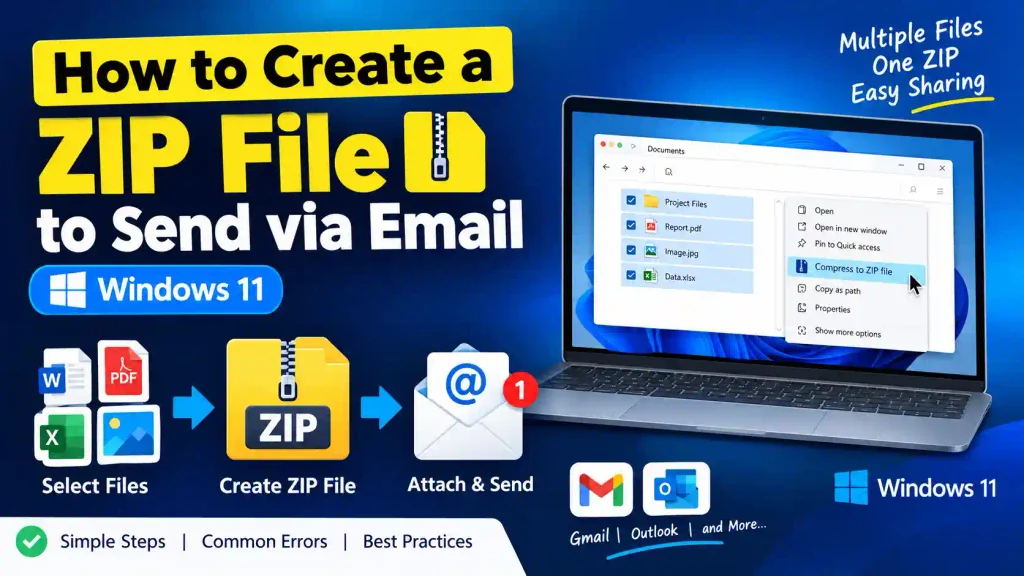
A simple solution is to create a ZIP file. A ZIP file combines multiple files and folders into a single archive that you can attach to an email. It may also reduce the total file size, making it easier to share certain types of files.
Windows 11 includes a built-in option for creating ZIP files, so you usually do not need to install additional software. Whether you are sharing work documents with a colleague, sending photos to a friend, or delivering project files to a client, you can create a ZIP archive in just a few steps.
In this guide, you will learn how to create a ZIP file to send via email, attach it in Gmail or Outlook, troubleshoot common problems, and choose a better sharing method when the attachment is too large.
Quick Answer: How to Create a ZIP File for Email
To create a ZIP file in Windows 11, follow these steps:
- Open File Explorer and locate the files or folders you want to send.
- Select the required items. Hold Ctrl while clicking to select multiple files.
- Right-click the selected items.
- Choose Compress to ZIP file. Depending on your Windows version, you may find this option under Compress to ZIP file or Send to > Compressed (zipped) folder.
- Enter a name for the ZIP file and press Enter.
- Open your email account, create a new message, and attach the ZIP file.
Before sending, check your email provider’s attachment size limit. If the ZIP file is too large, upload it to a cloud storage service and email a sharing link instead.
Table of Contents
- What Is a ZIP File?
- Why Create a ZIP File Before Sending Email?
- How to Create a ZIP File in Windows 11
- How to Attach a ZIP File to Gmail
- How to Send a ZIP File Using Outlook
- How to Create a ZIP File on Windows 10
- Common ZIP File Errors and Fixes
- Best Practices for Sending ZIP Files by Email
- Frequently Asked Questions
What Is a ZIP File?
A ZIP file is a compressed archive that can contain one or more files and folders. It keeps related items together in a single file, making them easier to store, transfer, and share.
For example, suppose you need to email 15 photographs and three PDF documents to a customer. Instead of attaching 18 separate files, you can combine them into one ZIP archive and attach that archive to your email.
The recipient can download the ZIP file and extract its contents using built-in Windows tools or compatible archive software.
ZIP files can also compress data, although the amount of compression depends on the file type. Text documents and some spreadsheets may become smaller, while JPEG photos, MP4 videos, and already-compressed files may show little or no size reduction.
Important: Creating a ZIP file does not automatically encrypt it or protect it with a password. If you need to share confidential information, use an appropriate encryption method and a secure sharing channel.
Why Create a ZIP File Before Sending Email?
Creating a ZIP archive offers several practical advantages.
- Simplifies attachments: Send many related files as one attachment.
- Keeps files organized: Preserve a folder structure when archiving folders.
- May reduce file size: Compression can help with certain file types.
- Makes downloading easier: Recipients can download one archive instead of several attachments.
- Improves project delivery: Group reports, images, documents, and supporting materials into one package.
However, a ZIP file is not a guaranteed way to bypass email attachment limits. Some email services also block certain file types, including potentially dangerous executable files, even when they are inside an archive.
How to Create a ZIP File in Windows 11
Windows 11 makes it easy to compress files without downloading third-party applications. The following method works for common documents, images, PDFs, and folders.
Step 1: Open File Explorer
Press Windows + E on your keyboard to open File Explorer.
Navigate to the folder containing the files you want to send. For example, your files might be in Documents, Downloads, or a folder on your desktop.
If you have several related files, consider placing them in a dedicated folder first. This makes it easier to identify the correct items before creating the archive.
Step 2: Select the Files or Folders
Click a file to select it. To select multiple files, use one of these methods:
- Hold Ctrl and click individual files.
- Hold Shift to select a continuous range of files.
- Press Ctrl + A to select all items in the current folder.
Make sure you select only the files you intend to share. Avoid including personal documents, saved passwords, or other sensitive information accidentally.
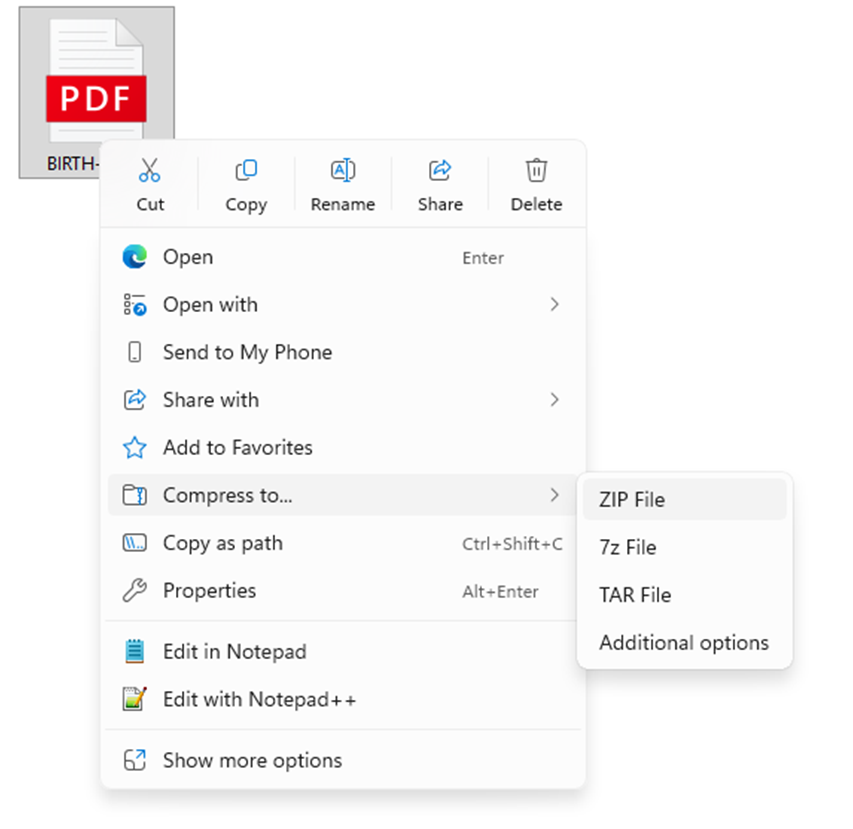
Step 3: Create the ZIP File
Right-click the selected files or folders.
In Windows 11, choose Compress to ZIP file if that option appears in the context menu. On some versions or configurations, the option may be available under Send to > Compressed (zipped) folder.
Windows will create a ZIP archive in the current folder.
Step 4: Rename the ZIP Archive
Enter a descriptive name for your ZIP file, such as:
Project-Documents.zipMonthly-Report.zipCustomer-Photos.zipJob-Application.zip
Press Enter to save the name.
Use a name that tells the recipient what the archive contains. Avoid confusing names such as New Folder (3).zip or File123.zip.
Step 5: Check the ZIP File
Double-click the ZIP file to view its contents. Confirm that all the intended files are present and that you have not included anything unnecessary.
You can also right-click the archive and select Extract All to test whether its contents can be extracted successfully. You do not need to extract it again if you are satisfied that the archive is correct.
Step 6: Attach the ZIP File to Your Email
Open your email service, create a new message, and select the attachment option.
Browse to the ZIP file, select it, and wait for the upload to finish. Enter the recipient’s email address, add a subject and message, and send the email.
Your ZIP file is now ready to share.
How to Attach a ZIP File to Gmail
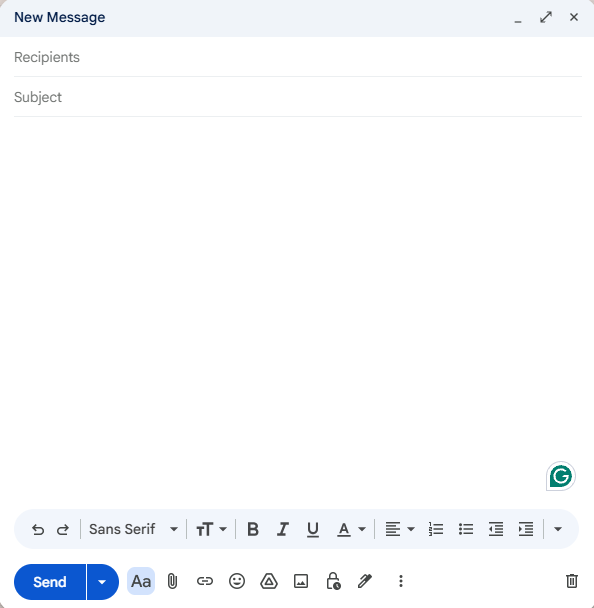
Once you have created the ZIP file, you can attach it to Gmail using these steps:
- Open Gmail in your browser.
- Click Compose.
- Enter the recipient’s email address and a subject.
- Click the paperclip icon labeled Attach files.
- Browse to the folder containing your ZIP archive.
- Select the ZIP file and click Open.
- Wait for Gmail to finish attaching the file.
- Review the message and click Send.
If the attachment exceeds Gmail’s standard 25 MB attachment limit, Gmail may upload the file to Google Drive and insert a sharing link instead. Check the sharing permissions to ensure the intended recipient can access it.
If Gmail rejects the attachment because of its file type or security restrictions, do not assume that compressing it again will solve the problem. Use an approved cloud-sharing method or follow your organization’s security policy.
How to Send a ZIP File Using Outlook
You can attach ZIP files to Outlook messages in much the same way.
- Open Outlook or your organization’s Outlook email account.
- Create a new email message.
- Enter the recipient, subject, and message.
- Select Attach File or the attachment icon.
- Browse to your ZIP archive and select it.
- Wait for the attachment or cloud upload to complete.
- Confirm that the file or sharing link is correct, then send the email.
Attachment limits vary by Outlook version, account type, and organizational settings. If the file is too large, Outlook may offer a cloud-sharing option, or you may need to upload the archive to OneDrive or another approved service.
For business accounts, your Microsoft 365 administrator may impose additional restrictions.
How to Create a ZIP File in Windows 10
If you are using Windows 10, you can create a ZIP file without installing extra software.
- Open File Explorer by pressing Windows + E.
- Select the files or folders you want to compress.
- Right-click the selection.
- Choose Send to > Compressed (zipped) folder.
- Enter a name for the ZIP file.
- Press Enter.
The ZIP file will appear in the same location as the original items. You can then attach it to an email using Gmail, Outlook, or another email service.
If you regularly automate file-related tasks on Windows, you may also find our guide on how to create a scheduled task in Windows 11 helpful.
Common ZIP File Errors and Fixes
Sometimes, creating or sending a ZIP archive does not work as expected. Here are common problems and their solutions.
1. The ZIP File Is Too Large to Email
Problem: Your email service rejects the attachment or asks you to use cloud storage.
Solution: Check the archive’s size and compare it with your provider’s attachment limit. Upload the file to Google Drive, OneDrive, or another approved storage service, then share the link with the recipient.
You can also remove unnecessary files before creating the ZIP archive. However, compression may not significantly reduce the size of videos, photos, or other files that are already compressed.
2. The Compress Option Is Missing
Problem: You cannot find the ZIP compression option in File Explorer.
Solution: Right-click the selected files and check the full context menu. In Windows 11, select Show more options if needed, then look for Send to > Compressed (zipped) folder.
If the option is still missing, restart File Explorer and install any pending Windows updates. You can also use a trusted archive utility as an alternative.
3. The Recipient Cannot Open the ZIP File
Problem: The recipient downloads the archive but receives an error when trying to extract it.
Solution: Confirm that the upload and download completed successfully. If the archive may be corrupted, create a new ZIP file from the original files and send it again.
Ask the recipient to save the attachment to their computer before extracting it. They can right-click the archive and select Extract All in Windows.
4. The ZIP File Does Not Reduce the Size
Problem: The archive is almost as large as the original files.
Solution: This is normal for many file types. JPEG images, MP4 videos, and other compressed formats often cannot be reduced much further by standard ZIP compression.
For large files, cloud storage is usually a better solution than repeatedly compressing the same content.
5. The Email Service Blocks the ZIP Attachment
Problem: Your email provider rejects the ZIP file for security reasons.
Solution: Some services scan archives and block prohibited or potentially dangerous file types. Do not rename an executable file or disguise a blocked attachment to bypass security controls.
Use a secure, approved file-sharing service instead. For workplace documents, follow your organization’s IT and data-sharing policies.
Best Practices for Sending ZIP Files by Email
Follow these tips to make file sharing easier and safer.
- Use descriptive filenames. Names such as
Invoice-October-2026.zipare easier to recognize than generic filenames. - Check the contents before sending. Open the archive and verify that all required files are included.
- Remove unnecessary information. Do not include confidential documents, temporary files, or unrelated personal data.
- Check the file size. Remember that email attachment limits can be lower than the size of the ZIP file you can create.
- Use cloud storage for large archives. Share a link with appropriate access permissions instead of repeatedly trying to email a large attachment.
- Protect sensitive information. A standard ZIP file is not automatically password-protected or encrypted. Use an approved encryption tool when confidentiality is required, and share passwords through a separate secure channel.
- Keep a copy of the original files. Retaining the source documents makes it easier to create a replacement archive if the original becomes corrupted.
For additional Windows troubleshooting, see our guides on how to enable WordPad in Windows 11 and how to find your motherboard model in Windows 11.
These guides can help you with other everyday Windows tasks while preparing files for work or personal use.
Frequently Asked Questions (FAQs)
1. How do I create a ZIP file to send via email?
Select the files in Windows File Explorer, right-click them, and choose Compress to ZIP file. Name the archive, open your email account, and attach the ZIP file to a new message.
2. Can I create a ZIP file without installing software?
Yes. Windows 10 and Windows 11 include built-in ZIP compression features. You can create and extract ZIP files directly through File Explorer without installing a third-party application.
3. Does creating a ZIP file reduce its size?
It can. The amount of compression depends on the file types. Documents and some uncompressed data may become significantly smaller, while JPEG images and MP4 videos usually show little improvement.
4. What should I do if my ZIP file is too large to email?
Upload the archive to a cloud storage service, such as Google Drive or OneDrive, and share a link with the recipient. Check the sharing permissions and ensure the recipient has access to the file.
5. Is a ZIP file safe to send through email?
A ZIP file is a convenient way to package files, but it is not automatically encrypted or guaranteed to be safe. Scan files when appropriate, avoid including sensitive information unnecessarily, and use encryption or secure sharing methods for confidential data.
Conclusion
Creating a ZIP file is one of the easiest ways to organize multiple files before sending them through email. Windows 11 and Windows 10 provide built-in compression options, so you can create an archive without installing additional software.
Simply select your files, create the ZIP archive, verify its contents, and attach it to your email. If the archive exceeds your email provider’s size limit or is blocked by a security policy, use an approved cloud-sharing service instead.
By following these steps, you can share documents, photos, reports, and project files more efficiently while keeping your attachments organized.