
Introduction
Bluetooth suddenly disappearing from Windows 11 can be frustrating, especially if you rely on wireless headphones, keyboards, mice, printers, or other Bluetooth devices. In many cases, the Bluetooth toggle vanishes from Quick Settings, Settings, and even Device Manager, making it seem like your PC no longer supports Bluetooth.
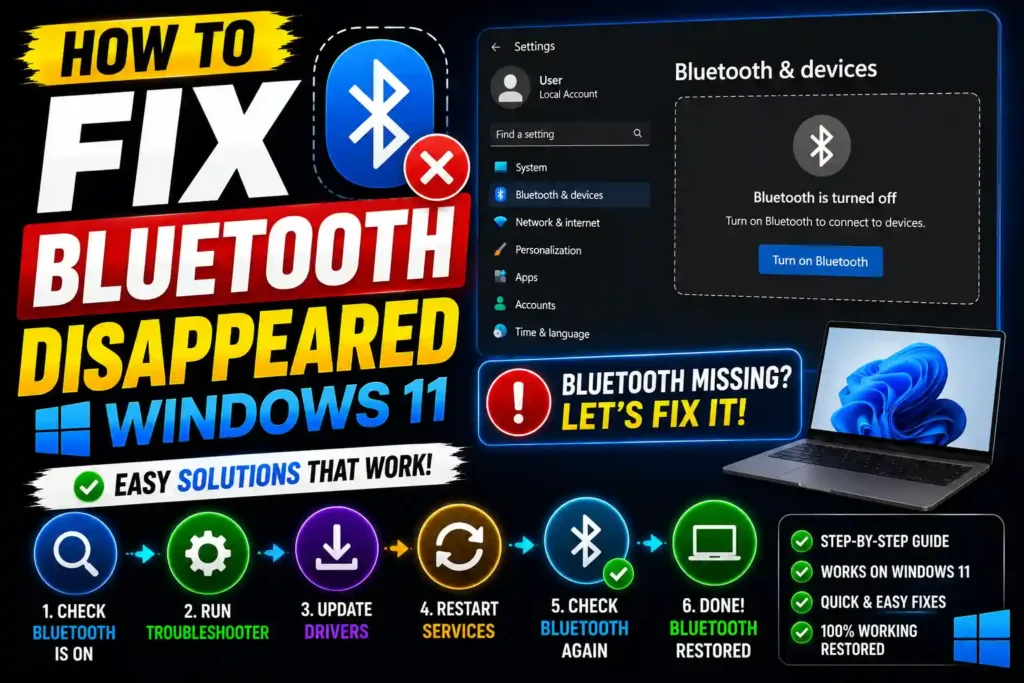
Fortunately, this issue is usually caused by corrupted drivers, disabled services, Windows updates, power management settings, or hardware detection problems. The good news is that you can often restore Bluetooth without reinstalling Windows.
This guide explains why Bluetooth disappears in Windows 11 and provides step-by-step solutions that work for most laptops and desktop computers.
Quick Answer
If Bluetooth disappeared in Windows 11:
- Restart your computer.
- Run the Bluetooth Troubleshooter.
- Enable hidden Bluetooth devices in Device Manager.
- Restart the Bluetooth Support Service.
- Reinstall or update the Bluetooth driver.
- Install Windows Updates.
- Download the latest Bluetooth driver from your PC manufacturer’s website.
- Check BIOS/UEFI if Bluetooth has been disabled.
Most users restore Bluetooth after reinstalling the correct driver or restarting the Bluetooth services.
Table of Contents
- Why Bluetooth disappears in Windows 11
- How to restore Bluetooth
- Step-by-step troubleshooting
- Common Bluetooth errors
- Best practices
- FAQs
- Conclusion
Why Did Bluetooth Disappear in Windows 11?
Several issues can cause Bluetooth to disappear completely.
Common reasons include:
- Corrupted Bluetooth drivers
- Windows Update installation problems
- Disabled Bluetooth services
- Hidden or disabled Bluetooth adapter
- Power management conflicts
- BIOS settings disabling Bluetooth
- Hardware failure
- Third-party driver conflicts
- Fast Startup issues
Understanding the cause helps you apply the correct fix faster.
Step-by-Step Guide to Fix Bluetooth Disappeared in Windows 11
Method 1: Restart Your Computer
A simple restart often restores hardware detection.
- Save your work.
- Click Start.
- Select Power.
- Choose Restart.
After Windows loads, check whether the Bluetooth icon has returned.
Method 2: Check Quick Settings
Sometimes Bluetooth is simply hidden.
- Press Windows + A.
- Look for the Bluetooth tile.
- If missing, click the pencil icon or Edit Quick Settings.
- Add Bluetooth back.
If Bluetooth is unavailable, continue with the next solution.
Method 3: Check Device Manager
- Press Windows + X.
- Select Device Manager.
- Click View.
- Choose Show hidden devices.
- Expand Bluetooth.
If you see your Bluetooth adapter:
- Right-click it.
- Choose Enable device.
If it has a yellow warning icon:
- Update or reinstall the driver.
Method 4: Run the Bluetooth Troubleshooter
Windows includes a built-in troubleshooter.
- Open Settings.
- Go to System → Troubleshoot.
- Select Other troubleshooters.
- Find Bluetooth.
- Click Run.
Follow the on-screen instructions.
Method 5: Restart Bluetooth Services
Bluetooth depends on Windows services.
- Press Windows + R.
- Type:
services.msc- Press Enter.
Locate:
- Bluetooth Support Service
Double-click it.
Set:
- Startup type → Automatic
- Click Start
- Click Apply
- Click OK
Restart your PC.
Method 6: Reinstall the Bluetooth Driver
Driver corruption is one of the most common causes.
- Open Device Manager.
- Expand Bluetooth.
- Right-click the Bluetooth adapter.
- Select Uninstall device.
- Restart your PC.
Windows should automatically reinstall the driver.
If not, download the latest driver from your laptop or motherboard manufacturer.
Method 7: Update Bluetooth Driver
- Open Device Manager.
- Right-click the Bluetooth adapter.
- Choose Update driver.
- Select Search automatically for drivers.
If Windows finds an update, install it and restart.
Method 8: Install Windows Updates
Microsoft frequently releases Bluetooth fixes.
- Open Settings.
- Select Windows Update.
- Click Check for updates.
- Install all available updates.
- Restart your PC.
Method 9: Disable Fast Startup
Fast Startup can prevent Windows from detecting hardware correctly.
- Open Control Panel.
- Select Power Options.
- Click Choose what the power buttons do.
- Select Change settings that are currently unavailable.
- Uncheck:
Turn on Fast Startup
- Save changes.
- Restart the PC.
Method 10: Check BIOS or UEFI Settings
Some systems allow Bluetooth to be disabled in BIOS.
Restart the computer and enter BIOS.
Look for:
- Wireless Devices
- Integrated Peripherals
- Onboard Devices
Ensure Bluetooth is enabled.
Save changes and restart.
Method 11: Scan for Hardware Changes
- Open Device Manager.
- Click Action.
- Select Scan for hardware changes.
Windows may detect the missing Bluetooth adapter.
Method 12: Perform a Network Reset
Although intended for networking, a reset sometimes resolves Bluetooth adapter conflicts.
- Open Settings.
- Go to Network & Internet.
- Choose Advanced network settings.
- Select Network reset.
- Restart the computer.
Common Bluetooth Errors and Fixes
Bluetooth Toggle Missing
Cause:
- Driver issue
- Disabled service
Fix:
- Reinstall driver
- Restart Bluetooth Support Service
Bluetooth Missing from Device Manager
Cause:
- Hidden adapter
- BIOS disabled
- Hardware failure
Fix:
- Show hidden devices
- Scan for hardware changes
- Check BIOS
Bluetooth Device Won’t Connect
Cause:
- Outdated drivers
- Pairing issues
Fix:
- Remove and pair the device again.
- Update drivers.
Bluetooth Keeps Disconnecting
Cause:
- Power management
- Driver corruption
Fix:
- Disable power-saving for the Bluetooth adapter.
- Update drivers.
Bluetooth Stops Working After Windows Update
Cause:
- Driver incompatibility
Fix:
- Roll back the driver.
- Install the manufacturer’s latest Bluetooth driver.
Best Practices and Pro Tips
To prevent Bluetooth issues in Windows 11:
- Keep Windows updated.
- Install drivers from your PC manufacturer.
- Avoid third-party driver updater software.
- Restart your computer regularly.
- Create a restore point before major updates.
- Keep BIOS updated when recommended by the manufacturer.
- Avoid forcing shutdowns frequently.
- Remove unused Bluetooth devices occasionally.
For additional Windows optimization, you may also find these guides helpful:
- How to Turn Off Mouse Acceleration in Windows 11 (Complete Guide): https://multicaretechnical.com/how-to-turn-off-mouse-acceleration-windows-11-complete-guide
- Windows 11 Low Latency Profile: Complete Guide to Reduce Lag and Improve Performance: https://multicaretechnical.com/windows-11-low-latency-profile-complete-guide-to-reduce-lag-and-improve-performance
- How to Pin a Row in Excel (Complete Guide): https://multicaretechnical.com/how-to-pin-a-row-in-excel-complete-guide
Frequently Asked Questions
1. Why did Bluetooth suddenly disappear in Windows 11?
It usually happens because of corrupted drivers, disabled services, Windows updates, BIOS settings, or hardware detection issues.
2. Why is Bluetooth missing from Device Manager?
The adapter may be hidden, disabled, missing drivers, or disabled in BIOS. Enabling hidden devices or reinstalling the driver usually fixes the issue.
3. Can Windows Update remove Bluetooth?
Sometimes a Windows update installs an incompatible driver, causing Bluetooth to disappear. Updating or reinstalling the correct driver usually restores functionality.
4. How do I reinstall Bluetooth on Windows 11?
Open Device Manager, uninstall the Bluetooth adapter, restart the PC, and let Windows automatically reinstall the driver. You can also download the latest driver from your computer manufacturer’s support page.
5. What if none of the fixes work?
If Bluetooth is still missing after trying every solution, the Bluetooth hardware may have failed. In that case, contact your computer manufacturer or use a compatible USB Bluetooth adapter.
Conclusion
When Bluetooth disappears in Windows 11, the problem is usually related to drivers, Windows services, updates, or hardware detection rather than a permanent hardware failure. By following the troubleshooting steps in this guide—starting with simple fixes like restarting your PC and progressing to driver reinstallation, service checks, BIOS verification, and Windows updates—you can restore Bluetooth functionality in most cases.
Keeping your system updated, using official manufacturer drivers, and avoiding unnecessary driver modification tools can help prevent the issue from happening again. If all software solutions fail, testing with a USB Bluetooth adapter or contacting your device manufacturer can help determine whether the internal Bluetooth hardware needs replacement.