
Introduction
Seeing a Blue Screen of Death (BSOD) with the message KMODE_EXCEPTION_NOT_HANDLED can be alarming, especially when it causes your Windows 11 PC to restart unexpectedly. This error often appears during startup, gaming, software installation, driver updates, or while performing everyday tasks.
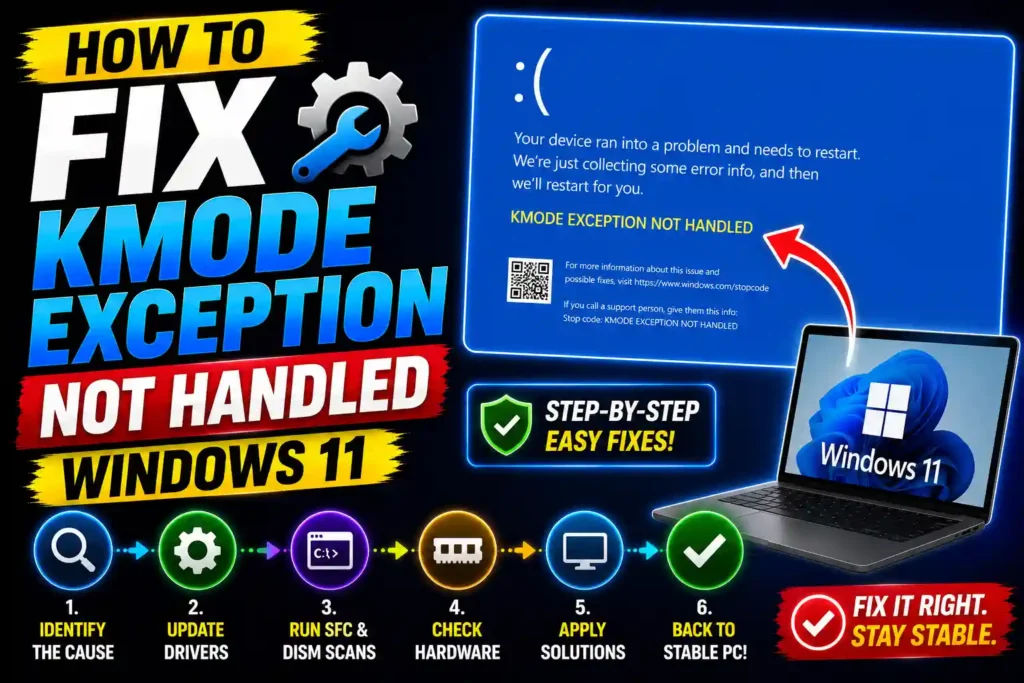
The KMODE Exception Not Handled error usually indicates that a Windows kernel process encountered an exception that the operating system could not manage. In many cases, faulty device drivers, corrupted system files, memory issues, or incompatible hardware trigger the problem.
The good news is that this error is typically fixable without reinstalling Windows. In this guide, you’ll learn what causes the KMODE Exception Not Handled error and how to resolve it using proven troubleshooting methods.
Quick Answer
If you’re experiencing the KMODE Exception Not Handled error in Windows 11, start by booting into Safe Mode and updating or removing problematic drivers. Then run the following commands:
sfc /scannowDISM /Online /Cleanup-Image /RestoreHealthIf the issue persists, test your RAM, update Windows, and check hardware compatibility.
Table of Contents
- What Is KMODE Exception Not Handled?
- What Causes the Error?
- How to Boot Into Safe Mode
- Step-by-Step Fixes
- Driver-Related Solutions
- Memory and Hardware Checks
- Common Errors and Fixes
- Best Practices and Pro Tips
- FAQ
- Conclusion
What Is KMODE Exception Not Handled?
KMODE stands for Kernel Mode, a privileged operating mode used by Windows to communicate directly with hardware and system resources.
When a kernel-mode program generates an exception that Windows cannot process, the system stops to prevent further damage and displays the KMODE_EXCEPTION_NOT_HANDLED blue screen error.
This safety mechanism protects data integrity but requires troubleshooting to identify the underlying cause.
What Causes the KMODE Exception Not Handled Error?
Several issues can trigger this Windows 11 BSOD:
- Corrupted or outdated drivers
- Faulty RAM modules
- Corrupted Windows system files
- Failed Windows updates
- Overclocking instability
- Antivirus software conflicts
- SSD or hard drive errors
- Incompatible hardware devices
- BIOS firmware issues
Identifying the root cause is the key to resolving the error permanently.
How to Boot Into Safe Mode
If Windows repeatedly crashes, start in Safe Mode before troubleshooting.
Method 1: Through Recovery Environment
- Hold the power button to force shutdown.
- Repeat this process three times.
- Windows will enter Recovery Mode.
- Select Troubleshoot.
- Click Advanced Options.
- Select Startup Settings.
- Click Restart.
- Press 4 or F4 for Safe Mode.
Once inside Safe Mode, continue with the fixes below.
Step-by-Step Guide to Fix KMODE Exception Not Handled Windows 11
Fix 1: Update Device Drivers
Faulty drivers are the most common cause of this error.
Steps
- Press Windows + X.
- Open Device Manager.
- Look for devices with warning icons.
- Right-click the device.
- Select Update Driver.
- Choose Search Automatically for Drivers.
Pay special attention to:
- Graphics drivers
- Network adapters
- Storage controllers
- Audio drivers
After updating, restart the PC.
Fix 2: Remove Recently Installed Drivers
If the error started after a driver installation:
Steps
- Open Device Manager.
- Right-click the problematic device.
- Select Properties.
- Open the Driver tab.
- Click Roll Back Driver.
This restores the previous working version.
Fix 3: Run System File Checker
Corrupted system files frequently cause BSOD errors.
Steps
- Open Command Prompt as Administrator.
- Run:
sfc /scannow- Wait for completion.
- Restart Windows.
The System File Checker automatically repairs damaged Windows files.
Fix 4: Repair Windows Image with DISM
If SFC cannot resolve all issues, use DISM.
Commands
DISM /Online /Cleanup-Image /CheckHealthDISM /Online /Cleanup-Image /ScanHealthDISM /Online /Cleanup-Image /RestoreHealthAfter DISM finishes, run:
sfc /scannowagain for a final verification.
Fix 5: Check RAM Using Windows Memory Diagnostic
Defective memory often triggers KMODE errors.
Steps
- Press Windows + R.
- Type:
mdsched.exe- Press Enter.
- Select Restart now and check for problems.
Windows will test installed memory modules and report any errors.
Fix 6: Disable Fast Startup
Fast Startup occasionally causes driver conflicts during boot.
Steps
- Open Control Panel.
- Select Power Options.
- Click Choose what the power buttons do.
- Select Change settings that are currently unavailable.
- Uncheck Turn on fast startup.
- Save changes.
Restart the computer and check whether the error returns.
Fix 7: Check Disk for Errors
Storage corruption can generate BSOD crashes.
Steps
Open Command Prompt as Administrator and run:
chkdsk C: /f /rPress Y when prompted and restart the PC.
The disk scan may take some time depending on drive size.
Fix 8: Remove Third-Party Antivirus Software
Some security applications install kernel-level drivers that may conflict with Windows.
Temporarily uninstall:
- Third-party antivirus software
- Security suites
- System optimization utilities
Use Windows Security temporarily to determine whether the software caused the issue.
Fix 9: Update Windows 11
Microsoft frequently releases stability fixes.
Steps
- Open Settings.
- Select Windows Update.
- Click Check for Updates.
- Install all available updates.
- Restart the system.
Fix 10: Update BIOS Firmware
An outdated BIOS may cause hardware compatibility issues.
Important
Only update BIOS firmware if:
- The manufacturer recommends it.
- The release notes mention stability fixes.
- You are comfortable following vendor instructions.
Improper BIOS updates can cause boot failures.
Common Errors and Fixes
| Error Situation | Recommended Fix |
|---|---|
| Error after driver update | Roll back driver |
| Error after Windows update | Uninstall recent update |
| Random BSOD during gaming | Update GPU drivers |
| Startup crashes | Use Safe Mode |
| Frequent system freezes | Test RAM |
| SSD-related crashes | Run CHKDSK |
| Overclocked system instability | Restore default BIOS settings |
Best Practices and Pro Tips
Keep Drivers Updated
Install drivers directly from hardware manufacturers whenever possible.
Avoid Unnecessary Driver Utilities
Many third-party driver updater tools install unstable or incorrect drivers.
Create Restore Points
System Restore allows quick recovery after problematic updates or software installations.
Monitor Hardware Temperatures
Overheating CPUs, GPUs, and RAM modules can cause system instability.
Avoid Aggressive Overclocking
Overclocking increases the likelihood of kernel-level exceptions and BSOD errors.
Maintain Storage Health
Monitor SSD health and replace aging drives before failures occur.
Additional Troubleshooting Resources
If you’re troubleshooting other Windows and technology issues, these guides may help:
- How to Disable Bing Windows 11 Search: https://multicaretechnical.com/how-to-disable-bing-windows-11-search-2026-guide-remove-web-results
- How to Add Printer to Mac: https://multicaretechnical.com/how-to-add-printer-to-mac-2026-guide-easy-setup-for-all-macos-versions
- How to Fix Microsoft Windows Recycle Bin Bug: https://multicaretechnical.com/how-to-fix-microsoft-windows-recycle-bin-bug-2026-complete-guide
These resources cover additional system maintenance and troubleshooting topics.
Frequently Asked Questions
1. What causes KMODE Exception Not Handled in Windows 11?
The most common causes include faulty drivers, corrupted system files, RAM failures, disk errors, and incompatible hardware.
2. Can bad RAM cause KMODE Exception Not Handled?
Yes. Defective memory modules frequently trigger kernel-level exceptions that result in BSOD crashes.
3. Is KMODE Exception Not Handled a hardware problem?
Sometimes. The error can be caused by faulty RAM, storage devices, overheating, or hardware incompatibility.
4. Can outdated drivers trigger this error?
Yes. Old or incompatible drivers are among the leading causes of KMODE Exception Not Handled errors.
5. Do I need to reinstall Windows 11?
Usually not. Most cases can be resolved through driver updates, SFC scans, DISM repairs, memory testing, and disk checks.
Conclusion
The KMODE Exception Not Handled error in Windows 11 is usually linked to driver conflicts, corrupted system files, memory issues, or hardware instability. While the blue screen can appear intimidating, most users can resolve the problem without reinstalling Windows.
Start by booting into Safe Mode, updating drivers, running SFC and DISM scans, checking RAM health, and verifying disk integrity. If the issue persists, investigate hardware compatibility, BIOS updates, and recently installed software.
Following the troubleshooting steps in this guide will help restore system stability, prevent future crashes, and keep your Windows 11 PC running reliably.