
Introduction
Your MacBook likely contains some of your most valuable digital assets, including personal photos, business documents, work projects, emails, and application data. Losing that information because of hardware failure, accidental deletion, theft, malware, or system corruption can be frustrating and costly.
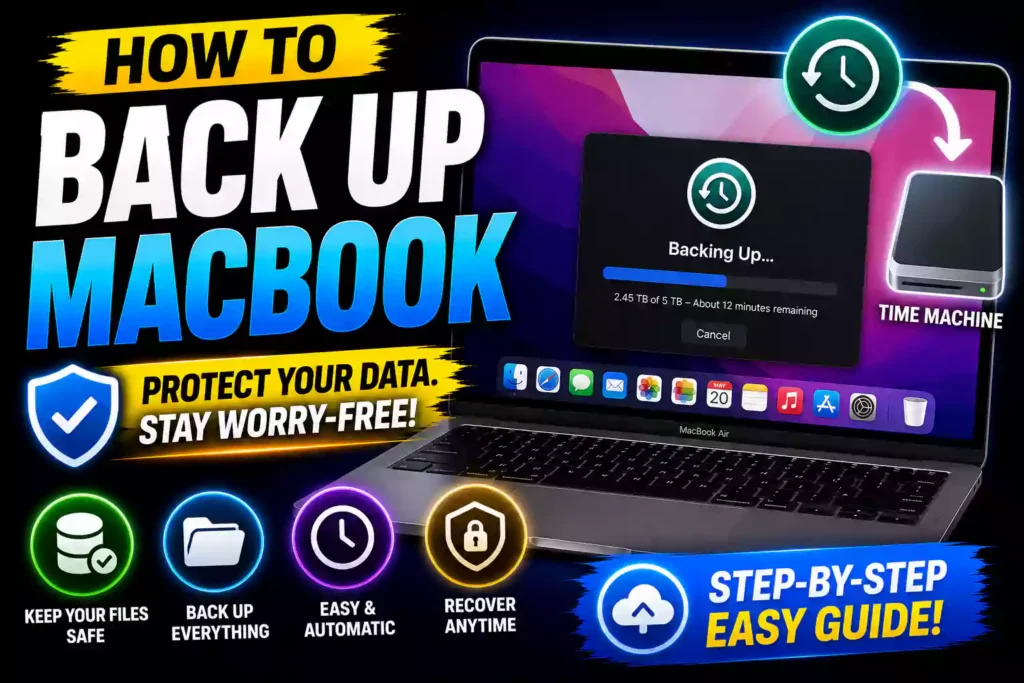
The good news is that Apple provides several reliable ways to protect your data. Whether you prefer using iCloud, an external hard drive, Time Machine, or another cloud service, creating regular backups is one of the most important maintenance tasks for any Mac user.
This guide explains how to back up a MacBook safely and efficiently. You’ll learn the advantages of different backup methods, step-by-step instructions, common problems, and expert recommendations for maintaining a secure backup strategy.
Quick Answer
To back up a MacBook, connect an external hard drive and use Time Machine, or enable iCloud Drive to sync important files to the cloud. For maximum protection, use both local and cloud backups. Time Machine creates complete system backups, while iCloud stores files online for easy access across devices.
Table of Contents
- Why Backing Up Your MacBook Matters
- Understanding Backup Options
- Using Time Machine
- Using iCloud
- Backing Up to an External Hard Drive
- Cloud Backup Alternatives
- MacBook Air Backup Guide
- MacBook Pro Backup Guide
- Common Backup Errors and Fixes
- Best Practices and Pro Tips
- FAQs
- Conclusion
Why Backing Up Your MacBook Matters
Even modern Macs can experience unexpected issues.
Common causes of data loss include:
- SSD failure
- Accidental file deletion
- Malware attacks
- Operating system corruption
- Physical damage
- Device theft
- Failed updates
A proper backup ensures your important files remain accessible even if the computer becomes unusable.
For IT professionals, maintaining reliable backups is considered a core best practice for business continuity and disaster recovery.
Understanding Your MacBook Backup Options
Apple users generally choose from three primary backup methods:
Time Machine
Creates a complete backup of your Mac, including:
- Applications
- Documents
- Photos
- System settings
- User accounts
iCloud
Stores selected files online and syncs them across Apple devices.
Third-Party Cloud Services
Services such as Google Drive, Dropbox, and OneDrive provide additional cloud protection.
Many experts recommend combining local and cloud backups for maximum security.
How to Back Up MacBook with Time Machine
Time Machine is Apple’s built-in backup solution and remains the easiest way to create complete system backups.
What You’ll Need
- External hard drive
- USB-C, Thunderbolt, or compatible connection
- Sufficient storage capacity
Apple generally recommends a drive at least twice the size of your Mac’s storage.
Step 1: Connect the Drive
Plug the external hard drive into your MacBook.
Step 2: Open Time Machine Settings
Navigate to:
Apple Menu → System Settings → General → Time Machine
Step 3: Add Backup Disk
Select:
Add Backup Disk
Choose the connected drive.
Step 4: Enable Automatic Backups
Turn on automatic backups.
Time Machine will now create:
- Hourly backups
- Daily backups
- Weekly backups
without requiring further user intervention.
Benefits of Time Machine
- Full system recovery
- Version history
- Automatic operation
- Easy file restoration
How to Back Up MacBook to External Hard Drive
Using an external drive remains one of the safest and fastest backup methods.
Manual Backup Method
- Connect an external drive.
- Open Finder.
- Locate important folders.
- Copy files to the external drive.
Typical folders include:
- Documents
- Downloads
- Desktop
- Photos
- Projects
Advantages
- Fast transfer speeds
- Offline protection
- No subscription fees
- Easy recovery
Disadvantages
- Requires manual maintenance
- Risk of drive failure if used as the only backup source
For most users, Time Machine combined with an external drive offers the best balance of convenience and protection.
How to Back Up MacBook on iCloud
iCloud is Apple’s cloud storage platform.
While it is not a full system image backup solution like Time Machine, it provides excellent protection for personal files.
Enable iCloud Drive
- Open System Settings.
- Click your Apple ID.
- Select iCloud.
- Turn on iCloud Drive.
Choose Data to Sync
You can sync:
- Desktop
- Documents
- Photos
- Notes
- Contacts
- Calendars
Files are automatically uploaded and synchronized across your Apple devices.
Benefits
- Offsite backup protection
- Automatic synchronization
- Easy file access
- Multi-device support
How to Back Up MacBook to Cloud Storage
Besides iCloud, many users use additional cloud services.
Popular options include:
- Google Drive
- Microsoft OneDrive
- Dropbox
These services provide extra redundancy and can serve as a secondary backup layer.
Why Cloud Backups Matter
Cloud storage protects your data even if:
- Your MacBook is stolen
- Your home experiences a disaster
- An external drive fails
Many IT professionals follow the “3-2-1 Backup Rule”:
- 3 copies of data
- 2 different storage types
- 1 offsite copy
Cloud backups satisfy the offsite requirement.
How to Back Up MacBook Air to iCloud
The process for MacBook Air models is identical to other modern Macs.
Steps
- Open System Settings.
- Sign in with Apple ID.
- Select iCloud.
- Enable iCloud Drive.
- Enable Desktop & Documents syncing.
MacBook Air users often prefer cloud backups because of limited internal storage and portability.
iCloud automatically keeps files available across iPhone, iPad, and Mac devices.
How to Back Up MacBook Pro to iCloud
MacBook Pro users frequently work with larger files such as:
- Videos
- Graphic design projects
- Software development projects
To back up a MacBook Pro to iCloud:
- Open System Settings.
- Access Apple ID settings.
- Enable iCloud Drive.
- Upgrade storage if necessary.
- Allow synchronization to complete.
Large projects may require additional iCloud storage plans.
How to Back Up MacBook Pro to External Hard Drive
Professional users often require complete backups of large datasets.
Recommended Process
- Connect a high-capacity external SSD.
- Configure Time Machine.
- Enable automatic backups.
- Verify backup completion regularly.
Advantages include:
- Faster recovery
- Lower long-term costs
- Better support for large media libraries
External SSDs are particularly beneficial for video editors, developers, and content creators.
Common Backup Errors and Fixes
Time Machine Cannot Find Backup Disk
Fix
Reconnect the drive and verify permissions.
iCloud Storage Full
Fix
Delete unnecessary files or upgrade the storage plan.
Backup Process Is Slow
Fix
Use a faster SSD and avoid backing up over congested Wi-Fi networks.
Backup Fails Repeatedly
Fix
Run Disk Utility and verify the health of the backup drive.
Missing Files After Backup
Fix
Ensure the folders were not excluded from backup settings.
Best Practices and Pro Tips
Use Multiple Backup Methods
Never rely on a single backup solution.
Combine:
- Time Machine
- External Drive
- Cloud Storage
for maximum protection.
Schedule Regular Verification
Test backup restoration periodically to ensure files can be recovered.
Encrypt Backup Drives
Encryption protects sensitive information if the drive is lost or stolen.
Keep macOS Updated
System updates often improve backup reliability and security.
Store One Backup Offsite
An offsite copy protects against fire, theft, and natural disasters.
Related Troubleshooting Guides
If you’re managing multiple operating systems and devices, these guides may also help:
How to Reset MacBook to Factory Settings
https://multicaretechnical.com/how-to-reset-macbook-to-factory-settings-complete-guide-for-all-macos-versions
How to Fix Windows 11 Black Screen With Cursor
https://multicaretechnical.com/how-to-fix-windows-11-black-screen-with-cursor-complete-2026-guide
How to Fix Windows Update Error
https://multicaretechnical.com/how-to-fix-windows-update-error-complete-troubleshooting-guide-for-windows-11-windows-10
Frequently Asked Questions
1. What is the best way to back up a MacBook?
Time Machine combined with iCloud provides the most complete protection for most users.
2. Does iCloud back up my entire MacBook?
No. iCloud primarily syncs files and data. It does not create a complete system image like Time Machine.
3. How often should I back up my MacBook?
Automatic daily backups are recommended, especially for work-related systems.
4. Can I back up my MacBook without an external hard drive?
Yes. You can use iCloud or other cloud storage services, although Time Machine requires external storage.
5. How much storage do I need for backups?
Apple generally recommends a backup drive with at least twice the storage capacity of your MacBook.
Conclusion
Knowing how to back up a MacBook is essential for protecting personal files, business data, and critical system information. Whether you use Time Machine, iCloud, an external hard drive, or a cloud service, maintaining current backups dramatically reduces the risk of permanent data loss.
For the best protection, combine local backups with cloud storage and follow the 3-2-1 backup strategy. This approach ensures your information remains safe regardless of hardware failure, accidental deletion, theft, or system issues.
A few minutes spent setting up backups today can save hours—or even days—of recovery work in the future.