
Introduction
Microsoft Outlook offers powerful customization options that allow users to personalize folder layouts, reading panes, message lists, and navigation settings. While these features improve productivity, accidental changes or corrupted view settings can make Outlook difficult to use.
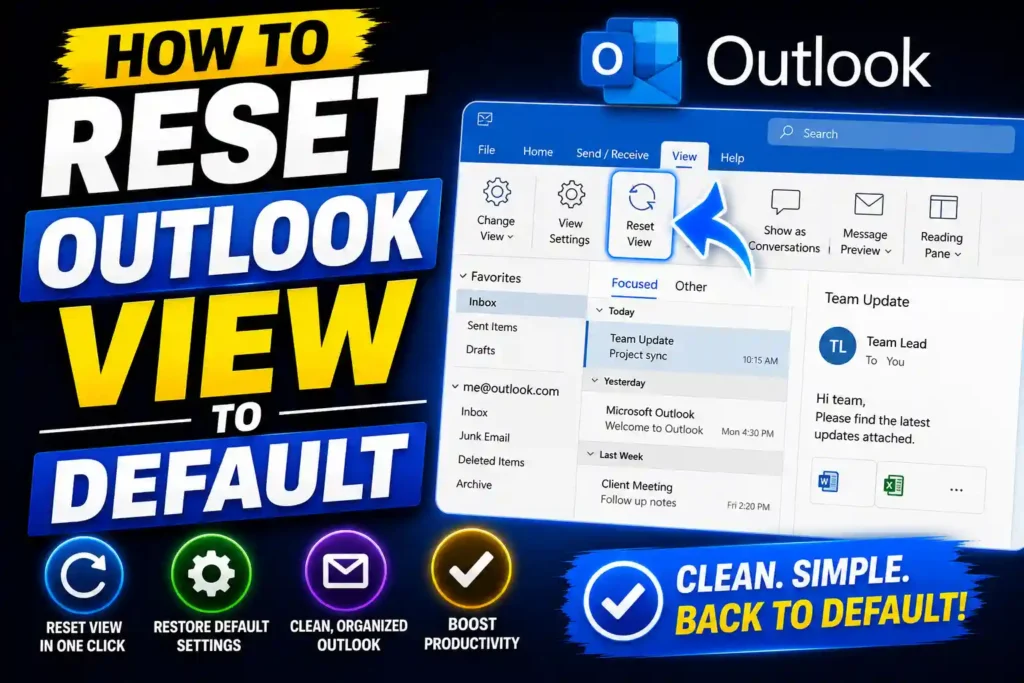
Many users encounter problems such as missing folders, misplaced reading panes, unusual message layouts, or inbox views that suddenly look different. Fortunately, Outlook provides built-in tools that let you restore the default view quickly.
Whether you’re an IT professional managing enterprise email accounts or a home user trying to fix a cluttered inbox, this guide explains how to reset Outlook view to default using several proven methods.
Quick Answer
To reset Outlook view to default:
- Open Microsoft Outlook.
- Select the folder with the view issue.
- Click the View tab.
- Choose Reset View.
- Confirm the action if prompted.
This restores the selected folder’s layout and display settings to Outlook’s default configuration.
Table of Contents
- What Does Resetting Outlook View Mean?
- Signs That Outlook View Needs Resetting
- How to Reset Outlook View to Default
- Reset All Outlook Views Using Command Line
- Fix Navigation Pane Problems
- Restore Reading Pane Settings
- Common Outlook View Issues and Solutions
- Advanced Troubleshooting Methods
- Best Practices for Managing Outlook Views
- Frequently Asked Questions
- Conclusion
What Does Resetting Outlook View Mean?
Outlook stores display preferences for each folder. These settings control:
- Message arrangement
- Reading pane location
- Column configuration
- Sorting and grouping
- Folder pane layout
- Preview settings
- Conversation view options
Resetting the view removes customizations and restores Microsoft’s default layout for the selected folder.
This process does not:
- Delete emails
- Remove contacts
- Erase calendar entries
- Affect email accounts
- Delete PST or OST files
Only the visual appearance is restored.
Signs That Outlook View Needs Resetting
You may need to reset Outlook if:
- Emails appear in unexpected columns.
- The reading pane disappears.
- Folder lists are missing.
- Messages are grouped incorrectly.
- Inbox layout changes unexpectedly.
- Outlook displays blank sections.
- Navigation pane behaves abnormally.
- Customized views become corrupted.
These issues often occur after Outlook updates, profile changes, add-in conflicts, or accidental customization.
How to Reset Outlook View to Default
Method 1: Use the Reset View Button
This is the easiest solution.
Step 1: Open Outlook
Launch Microsoft Outlook normally.
Step 2: Select the Affected Folder
Choose the folder experiencing display issues, such as:
- Inbox
- Sent Items
- Drafts
- Archive
- Custom folders
Step 3: Open the View Tab
At the top ribbon, click View.
Step 4: Click Reset View
Locate the Current View section and select Reset View.
Step 5: Confirm the Reset
Outlook will restore the folder to its original settings.
Check whether the layout problem has been resolved.
Method 2: Change View Settings Manually
If Reset View doesn’t solve the problem:
- Open the View tab.
- Select Change View.
- Choose:
- Compact
- Single
- Preview
Most users prefer Compact View, which is Outlook’s standard inbox layout.
Reset All Outlook Views Using Command Line
Sometimes multiple folders become corrupted simultaneously.
In such cases, resetting all views can save time.
Steps
- Close Outlook completely.
- Press Windows + R.
- Type:
outlook.exe /cleanviews- Press Enter.
Outlook launches and removes all custom view settings.
When to Use /cleanviews
Use this command when:
- Multiple folders have display issues.
- View settings won’t reset normally.
- Outlook crashes while changing views.
- Profile corruption affects layouts.
Note that this command removes all custom views.
Fix Navigation Pane Problems
The Navigation Pane contains:
- Calendar
- Contacts
- Tasks
- Folder lists
If it disappears or behaves strangely, reset it separately.
Steps
- Close Outlook.
- Press Windows + R.
- Enter:
outlook.exe /resetnavpane- Press Enter.
This rebuilds Navigation Pane settings.
Restore Reading Pane Settings
The Reading Pane allows users to preview emails.
If it moves unexpectedly or disappears:
Enable Reading Pane
- Open Outlook.
- Click View.
- Select Reading Pane.
- Choose:
- Right
- Bottom
Most Outlook users prefer the Right position.
Disable Reading Pane
If troubleshooting:
- Go to View.
- Select Reading Pane.
- Click Off.
Then re-enable it.
Common Outlook View Issues and Solutions
Missing Emails in Inbox
Sometimes emails appear missing because filters are active.
To fix:
- Click View.
- Select View Settings.
- Open Filter.
- Clear all filters.
Restart Outlook afterward.
Messages Grouped Incorrectly
Disable grouping:
- View
- View Settings
- Group By
- Uncheck grouping options
This restores a simpler message list.
Folder Pane Missing
Try:
- Press Alt + F1
- Reset Navigation Pane
- Restart Outlook
Folder visibility should return.
Outlook Shows Blank Spaces
Possible causes:
- Corrupt profile
- Faulty add-ins
- Graphics acceleration issues
Test Outlook in Safe Mode:
outlook.exe /safeIf the problem disappears, investigate add-ins.
Advanced Troubleshooting Methods
If standard view resets fail, use these additional fixes.
Create a New Outlook Profile
- Open Control Panel.
- Select Mail.
- Click Show Profiles.
- Create a new profile.
- Add your email account.
A fresh profile often resolves persistent display issues.
Update Microsoft Outlook
Older Outlook versions may contain bugs affecting views.
Install available updates through Microsoft Office.
Keeping Outlook current improves stability and security.
Disable Problematic Add-ins
Add-ins can modify Outlook’s appearance.
To disable:
- File
- Options
- Add-ins
- Manage COM Add-ins
- Uncheck suspicious add-ins
Restart Outlook.
Run Office Repair
If Outlook files are damaged:
- Open Control Panel.
- Programs and Features.
- Select Microsoft Office.
- Click Change.
- Choose Quick Repair.
If necessary, run Online Repair.
Related Technical Troubleshooting Guides
If you frequently troubleshoot Windows and Microsoft applications, these guides may also help:
- How to enable Resizable BAR: https://multicaretechnical.com/how-to-enable-resizable-bar-on-nvidia-amd-msi-asus-gigabyte-asrock-systems
- How to change DNS on a router: https://multicaretechnical.com/how-to-change-dns-on-router-complete-guide-for-tp-link-huawei-att-more
- How to restore a backup on iPhone: https://multicaretechnical.com/how-to-restore-a-backup-on-iphone-icloud-mac-pc-itunes-guide
Troubleshooting Other Windows Problems
While Outlook view issues are unrelated to Windows Update, many users searching for Outlook fixes also encounter operating system maintenance problems.
How to Fix Windows Update Error 0x800f0831
This update error is commonly associated with missing update packages or corrupted system files. Running DISM and System File Checker tools often helps resolve the issue.
How to Fix Windows Update Error Encountered
General Windows Update errors can usually be corrected by running the Windows Update Troubleshooter, clearing the SoftwareDistribution folder, and restarting update services.
How to Fix Windows Update Error 0x800f0805
This error may appear when optional features or update components fail to install correctly. Checking component store health can help.
How to Fix Windows Update Error 0x800f081f
Missing source files often trigger this problem. Using DISM with a valid Windows installation source frequently resolves it.
How to Fix Windows Update Error 0x800f0838
This issue can result from update package conflicts or damaged update metadata. Installing cumulative updates manually may help.
How to Fix Windows Update Error 0x800f0991
Corrupted update files or incomplete upgrades may generate this code. Resetting Windows Update components is a common solution.
How to Fix Windows Update Not Working
If updates stop downloading or installing entirely, restart update services, check network connectivity, and verify sufficient disk space.
How to Fix Windows Update Failed
Repeated update failures may require repairing Windows system files, updating drivers, or performing an in-place upgrade.
Best Practices for Managing Outlook Views
Follow these recommendations to avoid future view problems:
Avoid Excessive Customization
Too many view modifications increase the likelihood of corruption.
Back Up Outlook Profiles
Keep backups of important Outlook data and settings.
Update Outlook Regularly
New updates often fix display-related bugs.
Limit Unnecessary Add-ins
Only install trusted add-ins.
Use Separate Views for Different Tasks
Create custom views only when needed and document their settings.
Frequently Asked Questions
1. Does resetting Outlook view delete emails?
No. Resetting the view only changes display settings. Emails, folders, and attachments remain untouched.
2. Why did my Outlook inbox layout suddenly change?
Updates, add-ins, accidental clicks, or corrupted view settings can alter Outlook’s appearance unexpectedly.
3. How do I reset all Outlook folders at once?
Run:
outlook.exe /cleanviewsThis removes all customized folder views.
4. What does Outlook Reset View actually do?
It restores the selected folder’s display settings to Microsoft’s default configuration.
5. Why is Reset View grayed out in Outlook?
The folder may already be using the default view, or permissions and profile issues may prevent modifications.
Conclusion
Knowing how to reset Outlook view to default can quickly resolve layout problems, missing panes, unusual message arrangements, and corrupted display settings. In most situations, the built-in Reset View option restores normal functionality within seconds.
For more serious issues, commands such as /cleanviews and /resetnavpane provide deeper troubleshooting capabilities. Combined with profile repairs, Office updates, and add-in management, these methods can solve nearly every Outlook display problem.
By following the steps outlined in this guide, both everyday users and IT professionals can restore Outlook’s default appearance and maintain a more stable email experience.