
Introduction
Spotify Premium offers ad-free listening, offline downloads, unlimited skips, and higher audio quality. While many users enjoy these benefits, there may come a time when you want to cancel your subscription. Whether you’re reducing monthly expenses, switching to another music service, or simply no longer need Premium features, Spotify makes cancellation relatively straightforward.
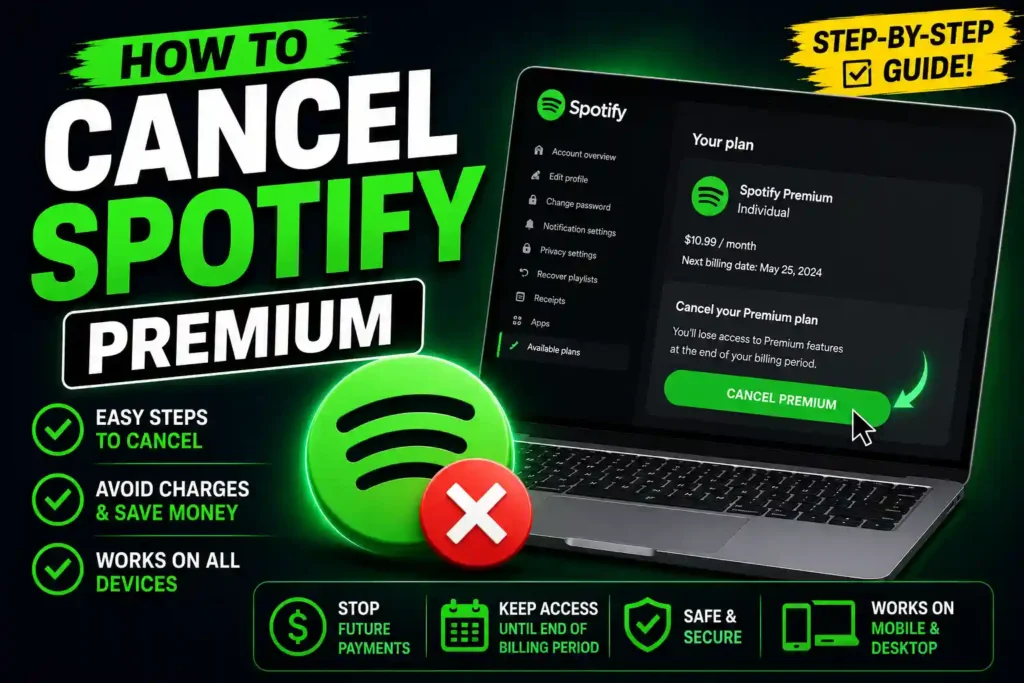
However, the exact steps depend on how you originally subscribed. Some users pay directly through Spotify, while others subscribe through Apple App Store, Google Play, mobile carriers, or bundled services.
This guide explains how to cancel Spotify Premium on any device, stop auto-renewal, cancel a trial subscription, and understand Spotify’s refund policies.
Quick Answer
To cancel Spotify Premium:
- Sign in to your Spotify account.
- Go to Account Settings.
- Select Your Plan.
- Click Change Plan.
- Scroll down and choose Cancel Premium.
- Confirm the cancellation.
Your Premium features remain active until the end of your current billing period.
Table of Contents
- Understanding Spotify Premium Cancellation
- How to Cancel Spotify Premium Membership
- How to Cancel Spotify Premium Plan
- How to Cancel Spotify Premium on App
- How to Cancel Spotify Premium on Phone
- How to Cancel Spotify Premium on Android
- How to Cancel Spotify Premium on iPhone
- How to Cancel Spotify Premium Autopay
- How to Cancel Spotify Premium Trial
- How to Cancel Spotify Premium and Get Refund
- Common Errors and Fixes
- Best Practices and Pro Tips
- FAQs
- Conclusion
Understanding Spotify Premium Cancellation
Before canceling, it’s important to know what happens afterward.
When you cancel Spotify Premium:
- Your account switches to Spotify Free.
- Premium features remain active until the billing cycle ends.
- Offline downloads become unavailable after cancellation.
- Your playlists and saved music remain intact.
- No additional charges occur after the subscription expires.
Canceling does not delete your Spotify account.
How to Cancel Spotify Premium Membership
Most users subscribe directly through Spotify’s website.
Step 1: Log In
Visit Spotify and sign in.
Step 2: Open Account Page
Click your profile picture and select Account.
Step 3: Go to Your Plan
Find the Your Plan section.
Step 4: Choose Change Plan
Click Change Plan.
Step 5: Select Cancel Premium
Scroll down and click Cancel Premium.
Step 6: Confirm
Follow the prompts and confirm cancellation.
Spotify will display your final Premium expiration date.
How to Cancel Spotify Premium Plan
The cancellation process is identical regardless of whether you’re on:
- Individual Plan
- Student Plan
- Duo Plan
- Family Plan
Simply access your account settings and cancel from the plan management section.
If you’re the Family Plan manager, canceling will affect all members connected to the subscription.
How to Cancel Spotify Premium on App
Many users search for how to cancel Spotify Premium on app.
An important detail is that Spotify generally does not allow cancellation directly through the mobile app.
Instead:
- Open the Spotify app.
- Tap your profile.
- Select Account.
- Follow the link to your account page in a browser.
- Manage your subscription online.
Spotify redirects users to web account settings because billing is managed outside the app.
How to Cancel Spotify Premium on Phone
Whether you use Android or iPhone, the easiest method is through a mobile browser.
Steps
- Open Chrome, Safari, or another browser.
- Visit Spotify Account Settings.
- Sign in.
- Navigate to Your Plan.
- Select Cancel Premium.
- Confirm cancellation.
This method works on virtually any smartphone.
How to Cancel Spotify Premium on Android
Android users may have subscribed through Spotify or Google Play.
If You Subscribed Through Spotify
- Sign in through Spotify Account.
- Go to Your Plan.
- Cancel Premium.
If You Subscribed Through Google Play
- Open Google Play Store.
- Tap your profile icon.
- Select Payments & Subscriptions.
- Tap Subscriptions.
- Choose Spotify.
- Tap Cancel Subscription.
The subscription remains active until the billing period ends.
How to Cancel Spotify Premium on iPhone
Cancellation depends on how you subscribed.
If Spotify Bills You Directly
Use Spotify Account Settings through Safari or another browser.
If Apple Bills You
- Open Settings.
- Tap your Apple ID.
- Select Subscriptions.
- Choose Spotify.
- Tap Cancel Subscription.
Apple manages billing separately from Spotify.
If Safari isn’t working correctly, you may find this guide helpful:
How to Cancel Spotify Premium Autopay
Spotify subscriptions automatically renew each billing cycle.
To stop autopay:
- Open Spotify Account Settings.
- Go to Your Plan.
- Select Cancel Premium.
- Confirm.
Once canceled, automatic payments stop after the current billing period expires.
Always verify your cancellation confirmation email for peace of mind.
How to Cancel Spotify Premium Trial
Spotify frequently offers free trials for new users.
To Cancel a Trial
- Sign in to Spotify Account.
- Open Your Plan.
- Select Cancel Premium.
- Confirm cancellation before the trial ends.
If you forget to cancel before the trial expiration date, the subscription automatically converts into a paid Premium plan.
Setting a reminder before the trial expires can help avoid unwanted charges.
How to Cancel Spotify Premium and Get Refund
Many users wonder whether Spotify offers refunds after cancellation.
Spotify Refund Policy
Refund eligibility depends on:
- Billing method
- Country
- Time since purchase
- Applicable consumer laws
Generally:
- Future charges stop after cancellation.
- Partial-month refunds are uncommon.
- Recently charged subscriptions may qualify in certain situations.
To Request a Refund
- Contact Spotify Support.
- Explain the reason for the request.
- Provide billing details.
- Wait for eligibility review.
If you subscribed through Apple or Google Play, refund requests typically must go through those platforms.
Common Errors and Fixes
Can’t Find Cancel Premium Option
Cause
Your subscription may be billed through Apple, Google Play, or a third-party provider.
Fix
Check your payment method and manage the subscription through that service.
Subscription Still Active After Cancellation
Cause
Premium remains available until the billing period ends.
Fix
Verify the expiration date shown in your account.
Spotify Keeps Charging Me
Cause
Cancellation may not have been completed.
Fix
Check your confirmation email and account status.
Forgot Which Account Has Premium
Cause
Multiple Spotify accounts.
Fix
Review billing emails and log into each account.
Payment Information Cannot Be Found
Cause
Billing is managed by another provider.
Fix
Check Apple, Google Play, PayPal, or mobile carrier subscriptions.
Best Practices / Pro Tips
Verify Cancellation Immediately
Always look for a confirmation email after canceling.
Download Important Content
Offline downloads disappear once Premium expires.
Keep Your Playlists
Spotify retains playlists even after moving to the free plan.
Review Other Subscriptions
Many users discover additional recurring subscriptions while reviewing Spotify billing.
Improve Browser Access
If account pages do not load correctly, these guides may help:
- https://multicaretechnical.com/how-to-enable-cookies-in-safari-on-iphone-ipad-and-mac-2026-guide
- https://multicaretechnical.com/how-to-disable-cookies-on-iphone-11-to-17-safari-chrome
- https://multicaretechnical.com/how-to-block-websites-on-chrome-mobile-android-iphone-and-laptop-2026-guide
Frequently Asked Questions
How do I cancel Spotify Premium immediately?
You can cancel anytime through account settings. Premium remains active until the current billing cycle ends.
Can I cancel Spotify Premium through the app?
In most cases, no. Spotify usually requires users to manage subscriptions through account settings or the original billing provider.
Will I lose my playlists if I cancel Spotify Premium?
No. Your playlists and saved music remain in your account.
Can I get a refund after canceling Spotify Premium?
Refund eligibility depends on Spotify policies, billing provider, and local consumer laws.
How do I stop Spotify Premium auto-renewal?
Cancel the subscription through Spotify Account Settings, Apple Subscriptions, or Google Play Subscriptions.
Conclusion
Canceling Spotify Premium is usually a quick process once you know where your subscription is billed. Whether you’re using an iPhone, Android device, desktop computer, or web browser, the key is identifying whether Spotify, Apple, Google Play, or another provider manages your payments.
After cancellation, Premium benefits remain available until the end of the current billing cycle, allowing you to continue enjoying ad-free music and downloads until your plan expires. By following the steps in this guide, you can stop auto-renewal, avoid unexpected charges, and manage your Spotify subscription with confidence.