
The Recycle Bin is one of the most important icons in Windows, yet many users suddenly find it missing from their desktop. Whether you’re using Windows 11, Windows 10, or even Windows 7, restoring the Recycle Bin takes just a few clicks—if you know where to look.
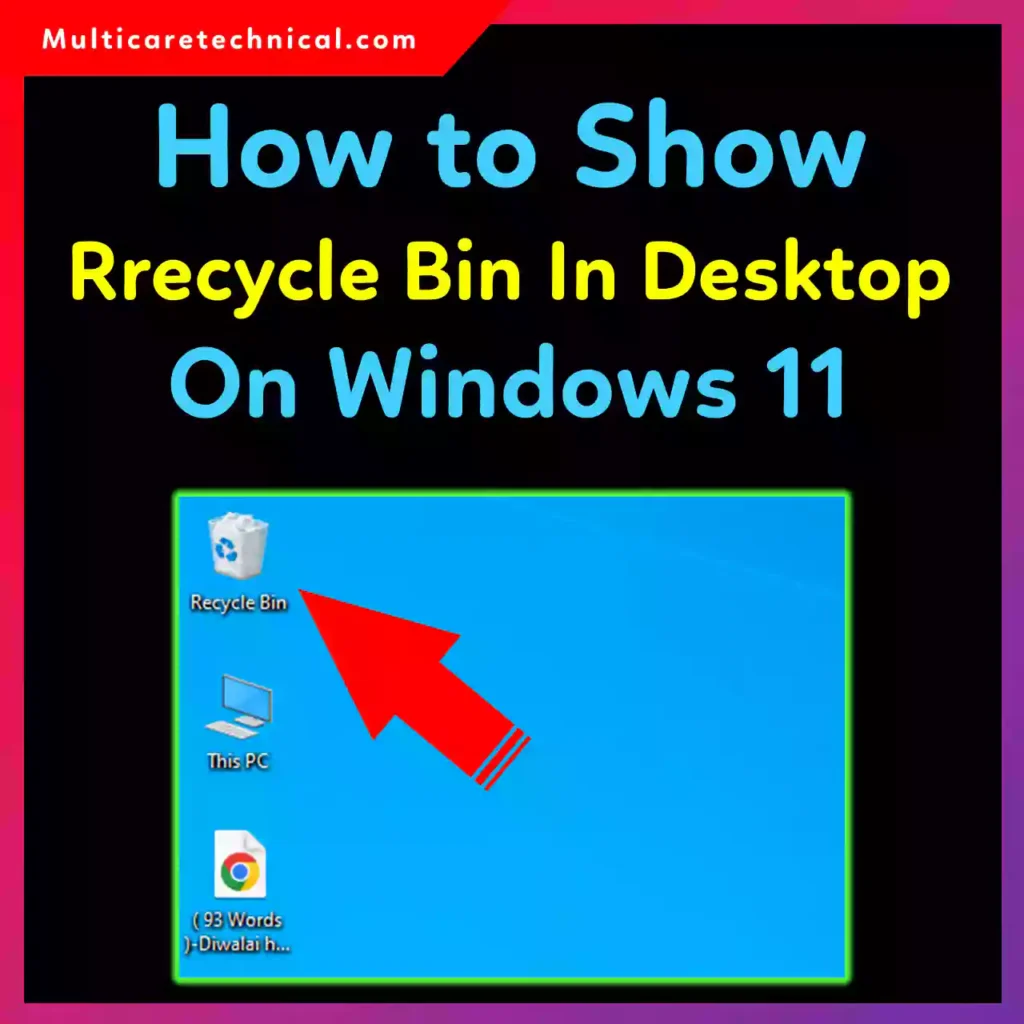
In this guide, you’ll learn how to show Recycle Bin on the desktop, how to remove it if needed, and how to access Recycle Bin when it’s not on the desktop at all.
Why Recycle Bin Disappears from the Desktop
The Recycle Bin icon usually disappears due to:
- Desktop icon settings being changed
- Windows updates or upgrades
- Switching themes
- Accidental customization
- Activation restrictions (common on unactivated Windows)
Luckily, none of these issues cost money—$0 fix, every time.
How to Show Recycle Bin on Desktop in Windows 11
Step-by-Step Method (Windows 11)
- Right-click on an empty area of the Desktop
- Click Personalize
- Select Themes
- Scroll down and click Desktop icon settings
- Check the box for Recycle Bin
- Click Apply → OK
✅ The Recycle Bin icon will instantly appear on your desktop.
Tip: If you’re already customizing your system UI, this guide on how to change Windows 11 battery icon pairs well with desktop tweaks.
How to Show Recycle Bin on Desktop in Windows 10
The steps are nearly identical:
- Right-click on the Desktop
- Select Personalize
- Click Themes
- Choose Desktop icon settings
- Enable Recycle Bin
- Click Apply
This works on all Windows 10 editions, activated or not.
How to Show Recycle Bin on Desktop in Windows 7
For older systems, the steps still hold up:
- Right-click the Desktop
- Choose Personalize
- Click Change desktop icons (left panel)
- Check Recycle Bin
- Click OK
If you’re running legacy hardware, Windows 7 still remains popular in many environments.
How to Remove Recycle Bin from Desktop (Windows 11)
Many users also search for how to remove recycle bin from desktop Windows 11 for a cleaner look.
Steps:
- Right-click Desktop
- Click Personalize
- Go to Themes → Desktop icon settings
- Uncheck Recycle Bin
- Click Apply
🧹 The Recycle Bin is hidden—but not deleted.
How to Remove Recycle Bin from Desktop Without Activating Windows
Good news:
You do NOT need to activate Windows to remove the Recycle Bin icon.
Even if you see the “Activate Windows” watermark:
- Desktop icon settings still work
- Recycle Bin can be shown or hidden freely
This answers the common query:
“how to remove recycle bin from desktop without activating windows” ✔️
How to Access Recycle Bin When Not on Desktop
If the icon is gone and you need urgent access, try these methods:
Method 1: Use Windows Search
- Press Windows + S
- Type Recycle Bin
- Press Enter
Method 2: File Explorer Address Bar
- Open File Explorer
- Type:
Recycle Bin - Press Enter
Method 3: Run Command
- Press Windows + R
- Type:
shell:RecycleBinFolder - Hit Enter
These methods fully answer “How-to access Recycle Bin when not on desktop”.
Bonus Tips for a Cleaner Windows Desktop
- Pin Recycle Bin to Quick Access
- Use Storage Sense to auto-clean deleted files
- Combine desktop cleanup with productivity tips like how to add a bullet point in Excel
For advanced troubleshooting, knowing system identifiers can help—here’s how to find MAC address in Windows 11.
Quick FAQs (Optimized for AI Overviews)
How do I show Recycle Bin on my desktop again?
Enable it from Desktop icon settings under Personalization.
Can I remove Recycle Bin without activating Windows?
Yes, Windows activation is not required.
Is Recycle Bin deleted if I remove it from desktop?
No, it’s only hidden.
How can I open Recycle Bin if it’s missing?
Use Windows Search, Run command, or File Explorer.
Conclusion
Whether you’re on Windows 11, Windows 10, or Windows 7, restoring or removing the Recycle Bin is quick, free, and safe. Knowing how to access Recycle Bin when it’s not on the desktop ensures you never lose control over deleted files—no matter how customized your system is.