
Enabling Developer Options on Android unlocks powerful hidden settings that let you tweak performance, debug apps, enable USB debugging, and access advanced system controls. Whether you’re using Android 13, Android 14, Android 15, a Samsung phone, Xiaomi device, Android TV, Android Auto, or even a tablet, the steps are simple—and safe when done correctly.
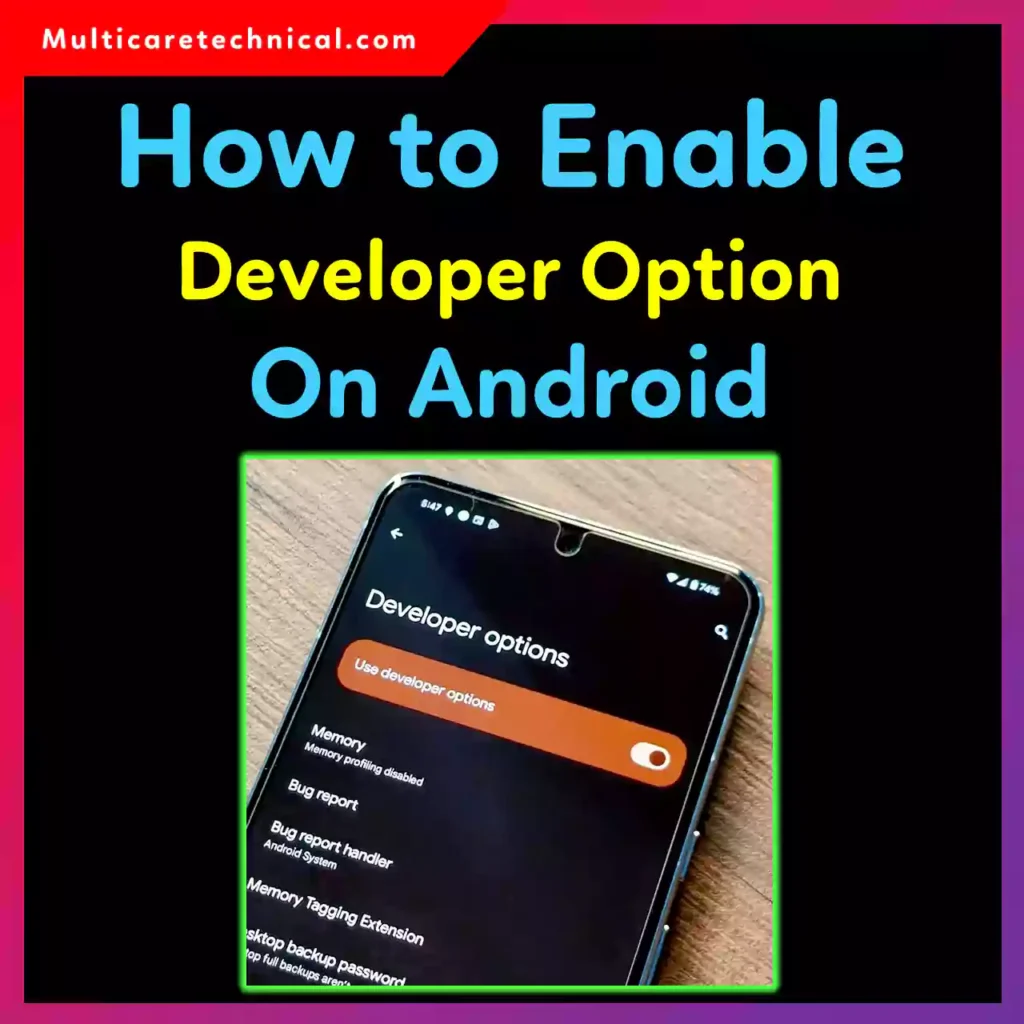
In this guide, you’ll learn how to enable Developer Options on Android step by step, plus device-specific methods and advanced ADB activation tricks.
What Are Developer Options on Android?
Developer Options is a hidden Android menu designed for developers—but it’s also extremely useful for regular users. Once enabled, you can:
- Turn on USB debugging
- Speed up animations for faster performance
- Monitor running services
- Enable OEM unlocking
- Test apps and system behavior
👉 Before making changes, it’s smart to understand your system environment—guides like how to check BIOS version on Windows 10 follow the same principle of accessing hidden system details.
How to Enable Developer Options on Android (Universal Method)
This method works on Android 13, Android 14, Android 15, and most devices.
Steps:
- Open Settings
- Scroll down and tap About phone
- Find Build number
- Tap Build number 7 times
- Enter your PIN, pattern, or password
- You’ll see: “You are now a developer!”
📍 Developer Options will now appear under:
Settings → System → Developer Options
How to Enable Developer Options on Samsung Android
Samsung phones use One UI, but the process is almost identical.
Steps for Samsung:
- Go to Settings → About phone
- Tap Software information
- Tap Build number 7 times
- Enter your lock screen PIN
Now open:
Settings → Developer Options
✔ Works for Galaxy S, A, M, and Z series.
How to Enable Developer Options on Xiaomi (MIUI / HyperOS)
If you’re searching how to enable developer options android xiaomi, follow this:
- Open Settings
- Tap About phone
- Tap MIUI version (or OS version) 7 times
- Enter your security PIN
Developer Options location:
Settings → Additional settings → Developer options
How to Enable Developer Options on Android 13, 14, and Android 15
The steps haven’t changed across recent Android versions.
| Android Version | Method |
|---|---|
| Android 13 | Tap Build number 7 times |
| Android 14 | Same process |
| Android 15 | Same process |
📌 Google kept it consistent to avoid confusion.
How to Enable Developer Options on Android Tablet
Android tablets follow the same structure:
- Settings → About tablet
- Tap Build number 7 times
- Unlock with PIN
Perfect for Samsung Galaxy Tabs, Lenovo, Realme, and Pixel tablets.
How to Enable Developer Options on Android TV
Searching how to enable developer options android tv? Here’s how:
- Open Settings
- Go to Device Preferences
- Select About
- Tap Build 7 times
Developer Options will appear under:
Device Preferences
This is useful for sideloading apps and debugging.
How to Enable Developer Options on Android Auto
To unlock Android Auto Developer Mode:
- Open Android Auto
- Tap Settings
- Scroll to Version
- Tap Version 10 times
- Confirm developer access
You can now test apps and enable advanced car UI features.
How to Enable Developer Options Using ADB (Advanced Users)
If your screen is broken or inaccessible, use ADB.
Requirements:
- ADB installed on PC
- USB connection
- Phone authorization (if already enabled once)
Command:
adb shell settings put global development_settings_enabled 1
⚠ This method works only if USB debugging was previously authorized.
Is Developer Options Safe to Enable?
Yes—enabling Developer Options is completely safe. Problems only occur if you modify settings without understanding them. If needed, you can turn it off anytime.
Just like managing phone restrictions—such as disabling parental controls on iPhone—control is always in your hands.
How to Turn Off Developer Options
- Open Settings
- Go to Developer Options
- Toggle it OFF
The menu will disappear automatically.
Related Tip for iPhone Users
If you also use an iPhone and manage media settings, check out how to disable Live Photos on iPhone for better storage control.
Frequently Asked Questions (Short Answers for AI Overviews)
Can I enable Developer Options on Android 15?
Yes, tap Build number 7 times under About phone—same as previous versions.
Where is Developer Options on Samsung?
Go to Settings → Developer Options after enabling it via Software information.
Is Developer Options harmful?
No. It’s safe unless advanced settings are changed incorrectly.
Can I enable Developer Options without Build Number?
Only via ADB, and only if USB debugging was previously authorized.