
The Xbox Game Bar in Windows 11 is useful for capturing screenshots, recording gameplay, and monitoring performance. But many users want to disable it to improve system performance, avoid pop-ups, or fix gaming lag.
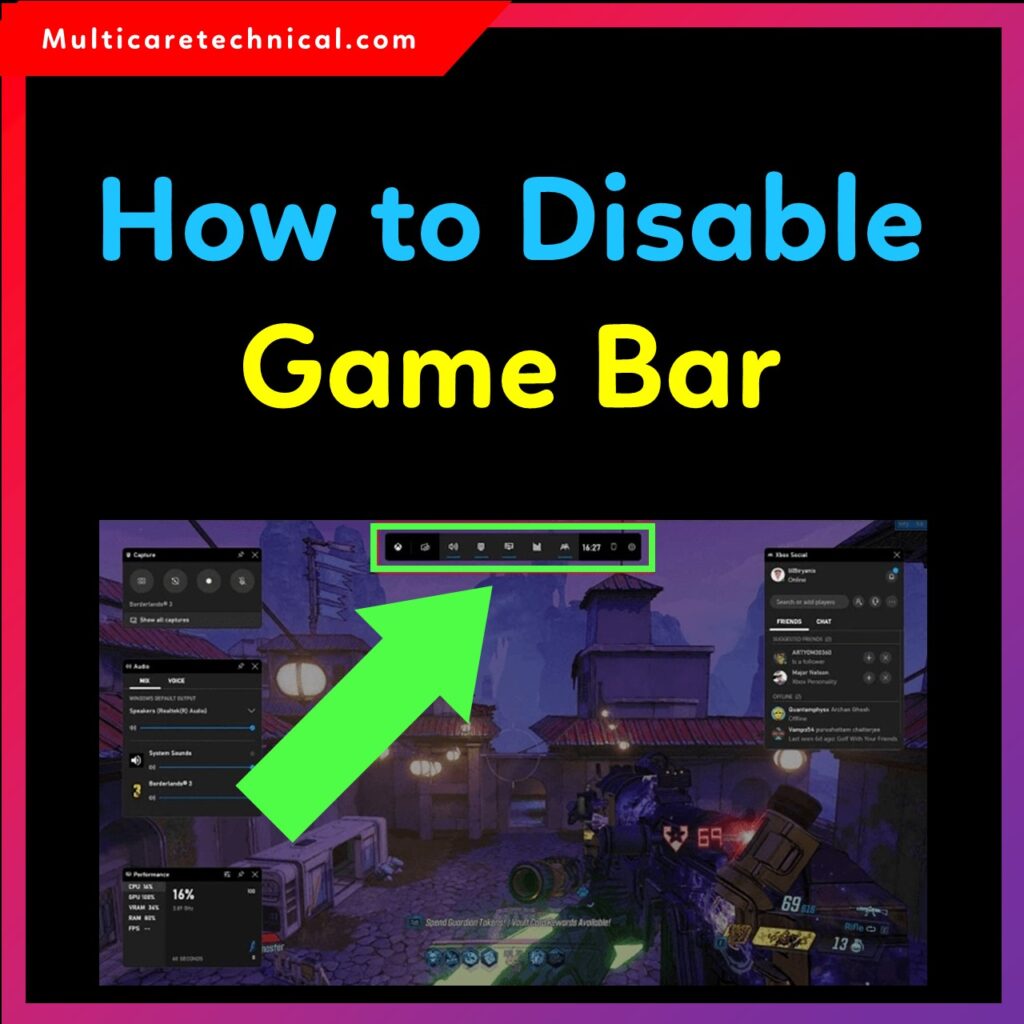
In this guide, you will learn how to disable Game Bar in Windows 11 using multiple methods—including Settings, Registry, and PowerShell.
This tutorial also works on the latest Windows 11 24H2 update.
We’ll also include helpful internal links such as:
- Alt Tab Not Working Windows 11 – Fix Guide
- How to Enable Copilot in Office 365
- How to Turn On Word Count in Google Docs
Let’s get started!
✅ Method 1: Disable Game Bar from Windows Settings
This is the simplest way to turn off the Xbox Game Bar in Windows 11.
Steps:
- Press Windows + I to open Settings.
- Go to Gaming > Xbox Game Bar.
- Turn off the switch for Open Xbox Game Bar using this button.
- Go to Settings > Apps > Installed apps.
- Search Xbox Game Bar → Click Advanced options.
- Click Terminate, then click Uninstall (if available).
This method works for both Windows 11 23H2 and Windows 11 24H2.
✅ Method 2: How to Disable Game Bar Windows 11 Registry
If the Settings option is not available or the Game Bar reactivates automatically, use the Registry method.
Steps:
- Press Windows + R, type regedit, and hit Enter.
- Navigate to:
HKEY_CURRENT_USER\Software\Microsoft\Windows\CurrentVersion\GameDVR
- Find the value:
AppCaptureEnabled
- Double-click and set the value to:
0
- Now go to:
HKEY_CURRENT_USER\System\GameConfigStore
- Change the value of:
GameDVR_Enabled
to:
0
- Restart your PC.
This completely disables Game Bar at a system level.
✅ Method 3: How to Disable Game Bar Windows 11 PowerShell
For advanced users, PowerShell can disable/remove the Game Bar app entirely.
Command:
To uninstall Xbox Game Bar:
Get-AppxPackage Microsoft.XboxGamingOverlay | Remove-AppxPackage
To disable Game DVR (Recordings):
reg add "HKCU\Software\Microsoft\Windows\CurrentVersion\GameDVR" /v AppCaptureEnabled /t REG_DWORD /d 0 /f
This method works even in Windows 11 24H2, where some UI options may be removed.
🎮 Why Disable the Game Bar?
- Reduces background CPU/RAM usage
- Prevents unwanted pop-ups
- Fixes gaming lag
- Helps avoid accidental shortcut triggers
- Reduces system load on older or low-end PCs
🖥 How to Disable Game Bar in Windows 11 24H2
The 24H2 update hides several gaming settings.
To disable Game Bar in Windows 11 24H2, use either:
- Registry method (recommended)
- PowerShell uninstall command
Both methods ensure Game Bar stays permanently disabled.
📌 Internal Links Added
Here are the internal links placed inside the article:
- https://multicaretechnical.com/alt-tab-not-working-windows-11-complete-step-by-step-fix-2025-guide
- https://multicaretechnical.com/how-to-enable-copilot-in-office-365-complete-step-by-step-guide-2025
- https://multicaretechnical.com/how-to-turn-on-word-count-in-google-docs-complete-step-by-step-guide
❓ Frequently Asked Questions (FAQ)
1. Is Game Bar safe to disable in Windows 11?
Yes, disabling Game Bar will not affect system stability. It only removes gaming shortcuts and overlays.
2. Does disabling Game Bar improve gaming performance?
On low-end systems, yes. It reduces background memory usage and prevents recording overlays.
3. How do I re-enable Game Bar if needed?
Go to Settings > Gaming > Xbox Game Bar and enable it again.
If uninstalled, reinstall from Microsoft Store.
4. Does this work in Windows 11 24H2?
Yes, all methods—Settings, Registry, PowerShell—work in Windows 11 24H2.
5. Can I disable Game DVR without removing Game Bar?
Yes. Change AppCaptureEnabled and GameDVR_Enabled values to 0 in Registry.