
Have you accidentally placed a sticker over an important text message in iMessage? Or perhaps your iPhone’s Messages app has accumulated too many unwanted stickers, Live Stickers, or Memoji that you no longer use.
Apple’s Messages app makes it easy to add stickers to conversations, but removing them can be confusing because different types of stickers require different deletion methods.
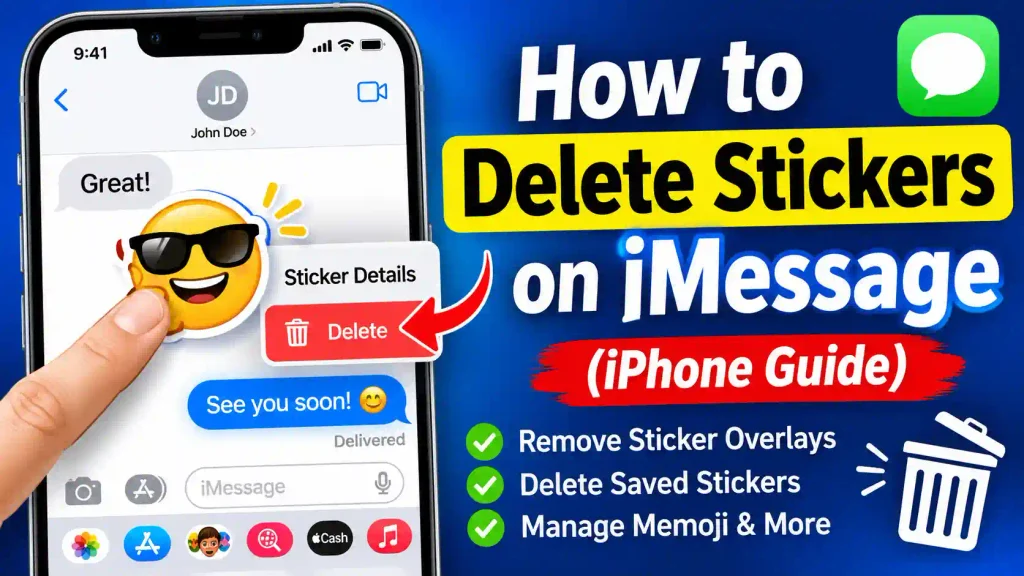
The good news is that you don’t need to delete an entire conversation to remove a sticker placed over a message. You can remove individual stickers while keeping the original message intact.
In this guide, you’ll learn how to delete stickers on iMessage, remove stickers from message bubbles, delete saved Live Stickers, manage Memoji, and troubleshoot common problems.
Whether you’re using a newer iPhone with iOS 26 or an earlier compatible version, these instructions will help you manage unwanted stickers.
Quick Answer: How Do You Delete Stickers on iMessage?
To delete a sticker placed over an iMessage conversation:
- Open the Messages app on your iPhone.
- Open the conversation containing the sticker.
- Touch and hold the message bubble underneath the sticker.
- Tap Sticker Details.
- Swipe left on the sticker you want to remove.
- Tap the Delete button.
The sticker will disappear from the message bubble without deleting the original text or photo underneath it.
Important: This method removes a sticker overlay from a conversation. If you want to delete a saved sticker from your personal sticker collection or remove a sticker sent as a separate message, you’ll need a different method.
Table of Contents
- Understanding iMessage Stickers
- How to Delete Stickers on iMessage
- How to Delete Saved Stickers on iPhone
- How to Remove Live Stickers
- How to Delete Memoji Stickers
- How to Delete a Sticker Sent as a Message
- Common Errors and Fixes
- Best Practices and Pro Tips
- Frequently Asked Questions
1. Understanding iMessage Stickers
Before deleting stickers, it’s important to understand how Apple organizes them.
iMessage supports several types of stickers that you can use to make conversations more expressive.
Here are the main types:
- Regular Stickers: Images and graphics that you can send directly in conversations.
- Live Stickers: Custom stickers created from subjects in your Photos library. They can also include animations from Live Photos.
- Memoji Stickers: Personalized characters with different facial expressions and poses.
- Emoji Stickers: Stickers created using emoji characters.
- Genmoji: Custom-generated emoji available on supported Apple Intelligence devices and software versions.
- Third-Party Stickers: Stickers provided by apps downloaded from Apple’s App Store.
You can send stickers as individual messages or place them directly over existing message bubbles.
This distinction matters because deleting a sticker from a conversation is different from deleting it from your saved sticker collection.
2. How to Delete Stickers on iMessage
If you accidentally placed a sticker over a text message, photo, or another message bubble, you can remove it without deleting the original content.
Follow these steps:
Step 1: Open the Messages App
Unlock your iPhone and open the Messages app.
Find the conversation where you placed the unwanted sticker.
Step 2: Locate the Sticker
Scroll through the conversation until you find the message bubble containing the sticker you want to remove.
Remember that the sticker may be positioned over a text message, photo, or another sticker.
Step 3: Touch and Hold the Message Bubble
Touch and hold the underlying message bubble rather than simply tapping the sticker.
A menu should appear with additional options.
Step 4: Select Sticker Details
Tap Sticker Details from the available options.
Your iPhone will display the stickers attached to that particular message.
Step 5: Swipe Left on the Unwanted Sticker
Find the sticker you want to remove and swipe left across it.
A Delete option should appear.
Step 6: Tap Delete
Tap the red Delete button.
The selected sticker will be removed from the message bubble.
You can repeat these steps if multiple stickers are attached to the same message.
Pro Tip: If a sticker covers important text, double-tap the message bubble to see the text underneath it.
3. How to Delete Saved Stickers on iPhone
Sometimes, the problem isn’t a sticker in a conversation. Instead, you may want to remove an unwanted sticker from your personal sticker collection.
For example, you might have created several stickers from your photos and no longer want to keep some of them.
Here’s how to manage your saved stickers.
Step 1: Open a Text Field
Open Messages or another app that supports the iPhone keyboard.
Tap a text field to display the keyboard.
Step 2: Open the Emoji Keyboard
Tap the Emoji button or the keyboard-switching button to open the emoji keyboard.
Step 3: Open the Stickers Section
Tap the Stickers button to access your saved stickers.
Depending on your iOS version, the sticker controls and keyboard layout may look slightly different.
Step 4: Find the Sticker You Want to Delete
Browse your saved stickers and locate the unwanted sticker.
Step 5: Touch and Hold the Sticker
Press and hold the sticker until an options menu appears.
Step 6: Tap Delete
If the Delete option is available, tap it to remove the saved sticker from your collection.
This removes the saved sticker, not the original photograph used to create it.
Note: Deleting a saved sticker does not automatically remove copies that have already been sent in conversations.
4. How to Remove Live Stickers from iMessage
Live Stickers allow you to turn subjects from your photographs into reusable stickers.
For example, you can create a sticker from a pet, person, or other object in a photo.
If you no longer need a Live Sticker, you can remove it from your sticker collection.
Follow these steps:
- Open the Photos app on your iPhone.
- Select any photo.
- Tap Edit.
- Select the Markup button.
- Tap the Add (+) button.
- Select Add Sticker.
- Find the Live Sticker you want to remove.
- Touch and hold the sticker.
- Tap Remove.
The selected sticker will be removed from your saved sticker collection.
Keep in mind that removing a saved Live Sticker does not delete the original photograph from your Photos library.
Your stickers can also sync across compatible Apple devices when you’re signed in with the same Apple Account and the required iCloud syncing features are enabled.
5. How to Delete Memoji Stickers on iMessage
Memoji stickers are personalized characters that represent different facial expressions and emotions.
If you have created a Memoji that you no longer use, you can delete the character.
Here’s how:
- Open the Messages app.
- Open an existing conversation or start a new one.
- Tap the + button next to the message field.
- Find and open the Memoji section.
- Swipe to locate the Memoji you want to delete.
- Tap the More (three-dot) button.
- Select Delete.
- Confirm the action if prompted.
Your selected Memoji character will be removed.
Important: Deleting a Memoji character is different from deleting a sticker placed in a conversation. Previously sent messages and their contents are not automatically removed when you delete the character.
6. How to Delete a Sticker Sent as a Separate Message
Another common situation occurs when you accidentally send a sticker as a standalone message instead of placing it over an existing message bubble.
In this case, the Sticker Details method is not the correct option.
You need to delete the entire sticker message.
Follow These Steps:
- Open the Messages app.
- Select the conversation containing the sticker.
- Find the standalone sticker message.
- Touch and hold the sticker message.
- Select More, if available.
- Select the message and tap the trash or Delete option.
- Confirm the deletion if prompted.
Can You Unsend a Sticker?
If you accidentally sent a sticker through iMessage, you may be able to use Apple’s Undo Send feature.
To do this:
- Touch and hold the recently sent sticker message.
- Tap Undo Send if the option is available.
- Check the conversation to confirm the message was retracted.
Undo Send is available for up to two minutes after sending an eligible iMessage.
However, compatibility limitations apply. The recipient may still see the original message if their device is running older software. A notification that a message was unsent may also remain.
Remember: Deleting a message normally removes it from your conversation and synced devices, not from the recipient’s device. Undo Send is the appropriate feature when you want to retract an eligible recently sent iMessage.
7. Common Errors and Fixes
Sometimes, the sticker deletion option may not appear or your iPhone may not respond as expected.
Here are some common problems and their solutions.
Problem 1: Sticker Details Is Not Showing
Possible reason: You’re touching the sticker itself instead of the message bubble underneath it.
Solution:
- Open the relevant conversation.
- Touch and hold the underlying message bubble.
- Look for the Sticker Details option.
- Make sure you’re using compatible software.
Apple documents this sticker-removal feature for iOS 17.2 and later.
Problem 2: You Cannot Delete a Sticker from the Keyboard
Possible reason: You’re trying to remove a sticker from the wrong section.
Solution:
Open the emoji keyboard, navigate to Stickers, and touch and hold the saved sticker.
If the Delete option isn’t available, check whether the item is a sticker, Memoji character, or third-party sticker pack. Each has different management controls.
Problem 3: The Sticker Is Still Visible After Deletion
Possible reason: You’re viewing another copy of the sticker or a separate sticker message.
Solution:
- Reopen the conversation.
- Check whether the sticker was placed over a message or sent separately.
- Confirm that you deleted the correct item.
- Check other Apple devices if sticker or message syncing is enabled.
Problem 4: Your iPhone Is Not Responding to Touch
Possible reason: A temporary software issue or an unresponsive touchscreen may be preventing the action.
Solution:
- Close the Messages app.
- Reopen Messages.
- Try deleting the sticker again.
- Restart your iPhone if the problem continues.
- Check for available iOS updates.
Problem 5: You Cannot Remove a Third-Party Sticker Pack
Possible reason: The sticker pack may be provided by an installed third-party application.
Solution:
Open the Messages app and check the available sticker or iMessage app management options.
If the sticker pack is associated with a third-party app, review that app’s management options. Removing the associated app may also remove its sticker functionality, but it can affect other features provided by the app.
8. Best Practices and Pro Tips
Here are some useful tips to keep your Messages app organized and avoid accidentally sending unwanted stickers.
1. Check Stickers Before Sending
Always preview the sticker before tapping the Send button. This helps prevent accidental messages.
2. Avoid Placing Stickers Over Important Text
Stickers can cover important parts of a message. If you want to decorate a conversation, place them carefully.
3. Keep Your Sticker Collection Organized
Remove old or unwanted custom stickers periodically so you can find your favorite designs more easily.
4. Understand the Difference Between Delete and Undo Send
Use Delete when you want to remove a message from your own conversation. Use Undo Send when you want to retract an eligible recently sent iMessage.
5. Keep Your iPhone Updated
Install available iOS updates to benefit from improvements, security fixes, and updated Messages features.
6. Learn Other iPhone Features
If you’re interested in learning more about useful iPhone features, check out our guide on how to enable App Clips on iPhone.
You can also explore our other technology tutorials, including how to uninstall apps on Windows 11 and how to enable Windows Action Center.
Conclusion
Deleting stickers on iMessage is straightforward once you understand the different types of stickers and where they are stored.
If you want to remove a sticker placed over an existing message, use the Sticker Details option, swipe left on the unwanted sticker, and tap Delete.
For saved stickers, use the sticker collection’s management options. You can also manage Live Stickers and Memoji separately.
If you accidentally sent a sticker as a standalone message, delete the message or use Undo Send when eligible.
By following these methods, you can keep your iMessage conversations organized without unnecessarily deleting important messages, photos, or conversations.
Frequently Asked Questions (FAQs)
1. How do I delete stickers from iMessage on my iPhone?
Open Messages, find the message containing the sticker, and touch and hold the underlying message bubble. Tap Sticker Details, swipe left on the unwanted sticker, and select Delete.
2. Can I delete an iMessage sticker without deleting the message?
Yes. Apple allows you to remove an individual sticker placed over an existing message bubble. Use Sticker Details to delete the sticker while keeping the original message intact.
3. How do I delete saved stickers from my iPhone?
Open a text field, switch to the emoji keyboard, and tap Stickers. Touch and hold the saved sticker and select Delete if the option is available. This removes the saved sticker rather than the original photo.
4. Can I delete stickers someone else sent me on iMessage?
If someone placed a sticker over a message bubble, you can remove that sticker from your own conversation using Sticker Details on a compatible device. However, deleting a sticker or message from your device does not automatically delete the sender’s copy or other recipients’ copies.
5. Why can’t I see the Sticker Details option on my iPhone?
Sticker Details may not appear if you’re selecting a standalone sticker message instead of a sticker placed over another message. It may also be related to software compatibility. Make sure your iPhone is updated and try touching and holding the underlying message bubble.