
If you’ve ever launched XAMPP and encountered the frustrating message “MySQL shutdown unexpectedly”, you’re not alone. This is one of the most common issues faced by developers, website administrators, students, and IT professionals working with local development environments.
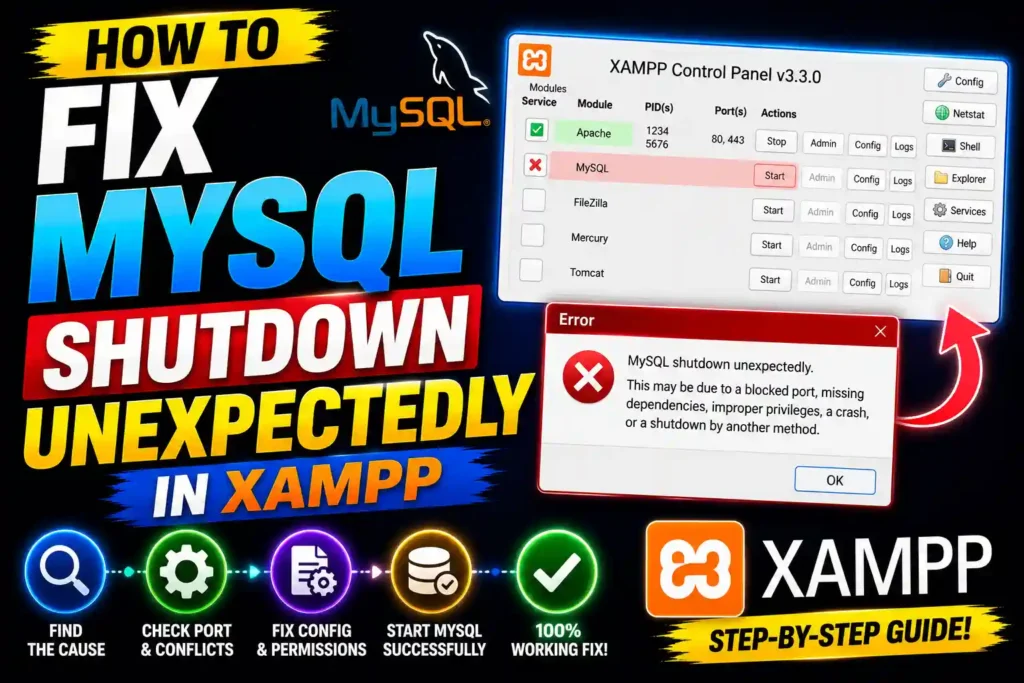
The error can appear after a system crash, improper shutdown, Windows update, power outage, database corruption, or a port conflict. In some cases, MySQL fails to start entirely, preventing access to local websites, WordPress installations, and development databases.
Fortunately, this problem is usually fixable without reinstalling XAMPP or losing your data.
In this guide, you’ll learn the most effective methods to restore MySQL, recover databases, and prevent future failures.
Quick Answer
To fix the MySQL shutdown unexpectedly error in XAMPP:
- Stop XAMPP completely.
- Open the XAMPP installation folder.
- Rename the mysql/data folder as data_old.
- Copy the contents of mysql/backup into a new data folder.
- Copy your database folders from data_old to the new data folder (excluding mysql, performance_schema, and phpmyadmin).
- Start MySQL from XAMPP.
This solution fixes most cases caused by corrupted InnoDB files.
Table of Contents
- Understanding the Error
- Why MySQL Stops Unexpectedly
- How to Fix Error MySQL Shutdown Unexpectedly in XAMPP
- How Do I Fix MySQL Shutdown Unexpectedly?
- Recovering Databases Safely
- Fixing Port Conflicts
- Repairing InnoDB Corruption
- Common Errors and Fixes
- Best Practices
- FAQ
- Conclusion
Understanding the Error
The message:
MySQL shutdown unexpectedly.
This may be due to a blocked port, missing dependencies,
improper privileges, a crash, or a shutdown by another method.
indicates that MySQL attempted to start but encountered a critical issue that forced it to stop.
The root cause is often hidden in the MySQL error log.
Common locations include:
xampp/mysql/data/mysql_error.logor
xampp/mysql/data/*.errReviewing these logs can provide valuable clues.
Why MySQL Shutdown Unexpectedly
Many users ask, “Why MySQL shutdown unexpectedly?”
Several issues can trigger the error.
Corrupted InnoDB Files
The most common cause is corruption in:
ibdata1
ib_logfile0
ib_logfile1
This often happens after:
- Sudden power loss
- Forced shutdowns
- Windows crashes
- System freezes
Port 3306 Conflict
Another application may already be using MySQL’s default port.
Common conflicts include:
- Another MySQL installation
- MariaDB
- WAMP
- Docker containers
Damaged Database Tables
Corrupted database tables can prevent MySQL from starting properly.
Antivirus Interference
Security software may block MySQL executable files or lock database files.
Incorrect Permissions
Windows permission issues can prevent MySQL from accessing required files.
How to Fix Error MySQL Shutdown Unexpectedly in XAMPP
The backup folder recovery method solves most startup failures.
Step 1: Close XAMPP
Exit XAMPP completely.
Also verify that no MySQL processes remain active in Task Manager.
Step 2: Navigate to MySQL Folder
Open:
xampp/mysqlYou should see:
backup
data
Step 3: Rename the Existing Data Folder
Rename:
datato:
data_oldThis creates a backup of your current database files.
Step 4: Create a New Data Folder
Copy the entire contents of:
xampp/mysql/backupinto a new folder named:
dataStep 5: Restore User Databases
From:
data_oldcopy your database folders into the new:
dataDo not copy:
mysql
performance_schema
phpmyadmin
Only copy your own databases.
Step 6: Copy the ibdata1 File
If your databases do not appear after startup:
Copy:
ibdata1from:
data_oldto the new:
dataOverwrite the existing file if necessary.
Step 7: Start MySQL
Launch XAMPP and start MySQL.
In many cases, MySQL starts successfully and all databases are restored.
How Do I Fix MySQL Shutdown Unexpectedly?
If the backup method fails, continue with additional troubleshooting.
Check the Error Log
Open:
xampp/mysql/data/mysql_error.logLook for messages such as:
- InnoDB corruption
- Port conflicts
- Missing tables
- Access denied errors
The log usually identifies the exact problem.
Run XAMPP as Administrator
Right-click:
xampp-control.exeChoose:
Run as administratorInsufficient permissions can prevent MySQL from starting.
Temporarily Disable Antivirus
Some antivirus programs lock database files.
Disable protection briefly and test MySQL startup.
If this resolves the issue, add XAMPP to your antivirus exclusions list.
Recovering Databases Safely
Database recovery should always be performed carefully.
Make a Backup First
Before deleting or replacing files:
- Copy the entire XAMPP folder.
- Store it in a safe location.
- Verify the backup completes successfully.
This protects against accidental data loss.
Export Databases Regularly
Use phpMyAdmin to create SQL exports.
These backups allow quick restoration even if corruption occurs.
Fixing Port Conflicts
Another common cause is port 3306 being occupied.
Check Port Usage
Open Command Prompt:
netstat -ano | findstr :3306If another process is using the port, identify the process ID.
Change the MySQL Port
Open:
xampp/mysql/bin/my.iniFind:
port=3306Change it to:
port=3307Save the file.
Update XAMPP Configuration
Open:
Config > Service and Port SettingsUpdate MySQL to use the same port.
Restart XAMPP afterward.
Repairing InnoDB Corruption
InnoDB corruption is one of the most serious MySQL issues.
Signs of Corruption
You may see messages like:
InnoDB: Page corruption detectedor
InnoDB: log sequence number is in the futureThese errors usually indicate damaged InnoDB files.
Recovery Method
- Stop MySQL.
- Backup the entire data directory.
- Use the backup folder method described earlier.
- Restore user databases.
- Start MySQL.
If corruption persists, database-specific repairs may be required.
Common Errors and Fixes
Error: Port 3306 in Use
Solution
Change MySQL to port 3307 or stop the conflicting service.
Error: Access Denied
Solution
Run XAMPP as Administrator.
Error: InnoDB Corruption
Solution
Replace corrupted data files using the backup recovery process.
Error: Missing Tables
Solution
Restore tables from backups or SQL exports.
Error: MySQL Starts Then Stops
Solution
Review the error log for specific crash messages.
Best Practices and Pro Tips
Always Shut Down XAMPP Properly
Avoid forcing Windows shutdown while MySQL is running.
Keep Regular Database Backups
Export databases frequently.
Automated backups provide additional protection.
Use a UPS
Unexpected power loss is a major cause of database corruption.
Monitor Disk Space
Low disk space can damage databases and prevent MySQL startup.
Update XAMPP Carefully
Always back up databases before upgrading XAMPP.
Related Guides
You may also find these tutorials helpful:
- https://multicaretechnical.com/how-to-change-local-account-name-windows-11-step-by-step-guide
- https://multicaretechnical.com/how-to-program-tv-remote-complete-setup-guide-for-smart-tvs-and-streaming-devices
- https://multicaretechnical.com/how-to-use-apple-shortcuts-complete-guide-for-iphone-ipad-mac-and-apple-watch-2026
Frequently Asked Questions
1. Why does MySQL shut down unexpectedly in XAMPP?
The most common causes are InnoDB corruption, port conflicts, improper shutdowns, damaged tables, and permission issues.
2. Will I lose my databases when fixing this error?
Not necessarily. Most databases can be recovered if you back up the data folder before making changes.
3. What is the fastest fix for MySQL shutdown unexpectedly?
Restoring the MySQL data folder from the XAMPP backup directory is often the quickest solution.
4. How can I identify the exact cause?
Review the MySQL error log located in the mysql/data folder.
5. Can a Windows update cause this issue?
Yes. Unexpected restarts during database activity can lead to file corruption and startup failures.
Conclusion
The MySQL shutdown unexpectedly in XAMPP error can seem alarming, especially when important development projects and databases are involved. However, in most cases, the problem can be resolved through backup folder restoration, port conflict resolution, permission fixes, or InnoDB recovery.
Understanding why MySQL stops unexpectedly is the first step toward a permanent solution. By following the troubleshooting methods in this guide and implementing regular backup practices, you can minimize downtime and protect your databases from future corruption.
For developers and IT professionals, maintaining reliable backups and shutting down MySQL properly remain the best defenses against unexpected database failures.