
Introduction
A Domain Controller (DC) is the backbone of every Windows Server network. It manages authentication, user accounts, policies, and security across the entire domain.
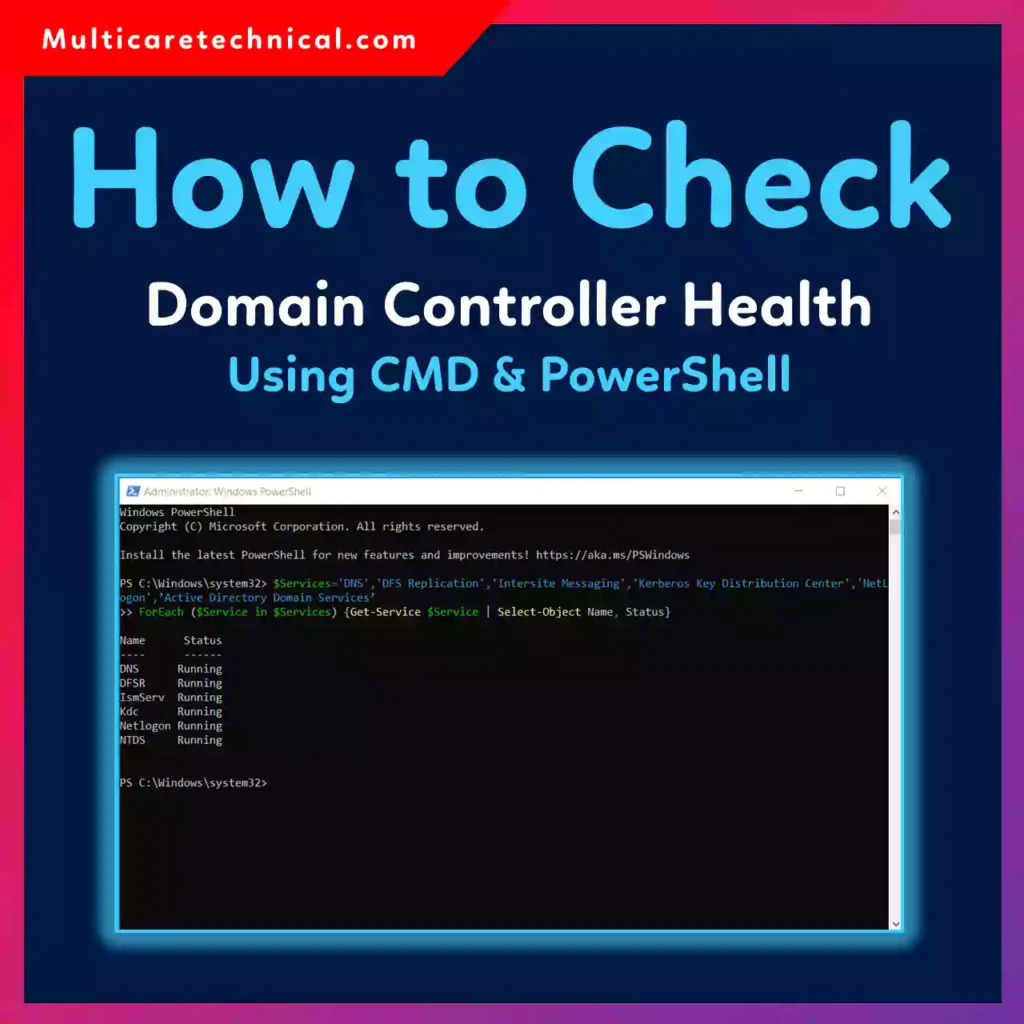
But what happens if the domain controller stops functioning correctly?
You may notice issues like:
- Users unable to log in
- Group policies not applying
- Replication failures
- DNS errors
- Slow authentication
For IT administrators, checking Domain Controller health regularly is critical to maintain a stable Active Directory environment.
Fortunately, Windows Server includes powerful built-in tools that allow you to check the health of your Domain Controller using Command Prompt (CMD) and PowerShell.
In this guide, you’ll learn step-by-step methods used by IT professionals to quickly diagnose Domain Controller problems and ensure everything is running smoothly.
Quick Answer (Featured Snippet)
To check Domain Controller health in Windows Server:
Using CMD:
dcdiag
Using PowerShell:
Get-ADDomainController -Filter *
For deeper diagnostics, administrators commonly run:
dcdiag /v
repadmin /replsummary
repadmin /showrepl
These commands check replication, DNS configuration, Active Directory services, and authentication health.
Table of Contents
- What is Domain Controller Health?
- Why Checking DC Health Is Important
- Requirements Before Running Health Checks
- How to Check Domain Controller Health Using CMD
- How to Check Domain Controller Health Using PowerShell
- Important Commands for Advanced Diagnostics
- Common Domain Controller Errors and Fixes
- Best Practices for Monitoring DC Health
- Conclusion
- FAQs
What is Domain Controller Health?
Domain Controller health refers to the overall operational status of Active Directory services running on a Windows Server domain controller.
A healthy DC ensures that:
- User authentication works properly
- Group Policy Objects (GPO) apply correctly
- Domain replication functions normally
- DNS services are operational
- Kerberos authentication is working
If a Domain Controller becomes unhealthy, the entire network can experience login failures, replication errors, or security issues.
This is why system administrators regularly run diagnostic commands to monitor DC health.
Why Checking Domain Controller Health Is Important
Regular health checks help administrators detect issues before they become major outages.
Key benefits include:
1. Prevent Authentication Failures
A broken DC can stop users from signing into the domain.
2. Detect Replication Problems
If replication fails, domain controllers may have outdated information.
3. Maintain Active Directory Integrity
Corrupted AD objects can break group policies and security settings.
4. Improve Network Security
A healthy DC ensures Kerberos authentication and security policies function properly.
5. Troubleshoot Login Issues
Many login errors are caused by DC replication or DNS problems.
If you’re managing a Windows domain environment, it’s also important to understand related processes like joining devices to a domain, which is explained in this guide:
https://multicaretechnical.com/how-to-join-windows-10-11-to-domain-controller-complete-guide
Requirements Before Running Health Checks
Before running health commands, make sure:
- You are logged in as Domain Administrator
- Active Directory Domain Services is installed
- You run commands from an elevated CMD or PowerShell
- Network connectivity between DCs is working
How to Check Domain Controller Health Using CMD
The dcdiag command is the most commonly used diagnostic tool for Active Directory.
Step 1: Open Command Prompt as Administrator
- Click Start
- Search for Command Prompt
- Right-click and select Run as Administrator
Step 2: Run the Basic DC Health Check
Type:
dcdiag
This command performs multiple tests including:
- Connectivity
- Advertising
- Replication
- Services
- System logs
If everything is working correctly, you will see PASS results.
Step 3: Run a Detailed Diagnostic Scan
For a full health report, run:
dcdiag /v
The /v parameter shows verbose output, which is useful for advanced troubleshooting.
Step 4: Check a Specific Domain Controller
dcdiag /s:DCNAME
Example:
dcdiag /s:DC01
This checks a specific DC instead of the entire domain.
How to Check Domain Controller Health Using PowerShell
PowerShell provides modern tools for Active Directory diagnostics.
Step 1: Open PowerShell as Administrator
- Click Start
- Search PowerShell
- Select Run as Administrator
Step 2: List All Domain Controllers
Run:
Get-ADDomainController -Filter *
This command shows:
- DC names
- Site locations
- IPv4 addresses
- Operating system
Step 3: Check Replication Status
Get-ADReplicationPartnerMetadata -Target *
This command verifies replication partners and their status.
Step 4: Check AD Services
Get-Service NTDS
If the service status shows Running, the Active Directory database is active.
Important Commands for Advanced Diagnostics
Professional system administrators use additional tools to monitor DC health.
Replication Summary
repadmin /replsummary
Shows replication success and failure rates.
Show Replication Details
repadmin /showrepl
Displays replication partners and errors.
Check FSMO Roles
netdom query fsmo
Displays the Flexible Single Master Operations roles.
Check DNS Health
dcdiag /test:dns
DNS problems are one of the most common causes of Active Directory issues.
Common Domain Controller Errors and Fixes
1. Replication Failure
Error:
Replication access was denied
Fix
- Check firewall settings
- Verify DNS configuration
- Ensure time synchronization
2. DNS Configuration Problems
Symptoms
- Authentication errors
- DC not discoverable
Fix
Ensure domain controllers use internal DNS servers only.
3. SYSVOL Not Shared
If SYSVOL fails, group policies will not apply.
Check using:
net share
Look for SYSVOL and NETLOGON shares.
4. Active Directory Service Not Running
Check using:
Get-Service NTDS
Restart service if needed.
5. Administrator Password Issues
Sometimes administrators cannot access the domain due to credential problems.
If that happens, you may need to reset the administrator password using the methods described here:
Best Practices for Monitoring Domain Controller Health
Experienced IT administrators follow these best practices.
Run Regular Health Checks
Schedule DC diagnostics weekly.
Monitor Event Viewer Logs
Check logs regularly for errors.
Related guide:
https://multicaretechnical.com/how-to-install-wsus-server-on-windows-server-2019-step-by-step-guide
Keep Domain Controllers Updated
Install Windows Server updates and security patches regularly.
Monitor Replication
Replication problems are the number one cause of Active Directory failure.
Use:
repadmin /replsummary
Maintain Proper DNS Configuration
Active Directory heavily depends on DNS.
Always configure DCs to use internal DNS servers.
Conclusion
Checking Domain Controller health is an essential task for any Windows Server administrator.
Using built-in tools like dcdiag, repadmin, and PowerShell Active Directory commands, you can quickly diagnose problems with replication, authentication, DNS, and Active Directory services.
Regular health checks help prevent major outages and keep your domain environment stable and secure.
By combining CMD diagnostics, PowerShell commands, and proactive monitoring, IT professionals can maintain reliable domain infrastructure and avoid costly downtime.
FAQ Section
1. What command checks Domain Controller health?
The most common command is:
dcdiag
It runs multiple Active Directory diagnostic tests.
2. How do I check replication between domain controllers?
Use:
repadmin /replsummary
This command displays replication status across all domain controllers.
3. Can PowerShell check Active Directory health?
Yes. Commands like:
Get-ADDomainController -Filter *
and
Get-ADReplicationPartnerMetadata
help monitor Active Directory.
4. How often should I check Domain Controller health?
IT professionals typically run health checks weekly or after major changes to the domain environment.
5. What is the most common Domain Controller problem?
DNS misconfiguration is one of the most common causes of Domain Controller failures.