
Randomizing a list in Excel is one of those skills that sounds simple—but can save you hours when you’re assigning tasks, creating random teams, shuffling names, or running fair selections. The good news? Excel gives you multiple ways to shuffle data, whether you want a quick fix or a fully automated setup.
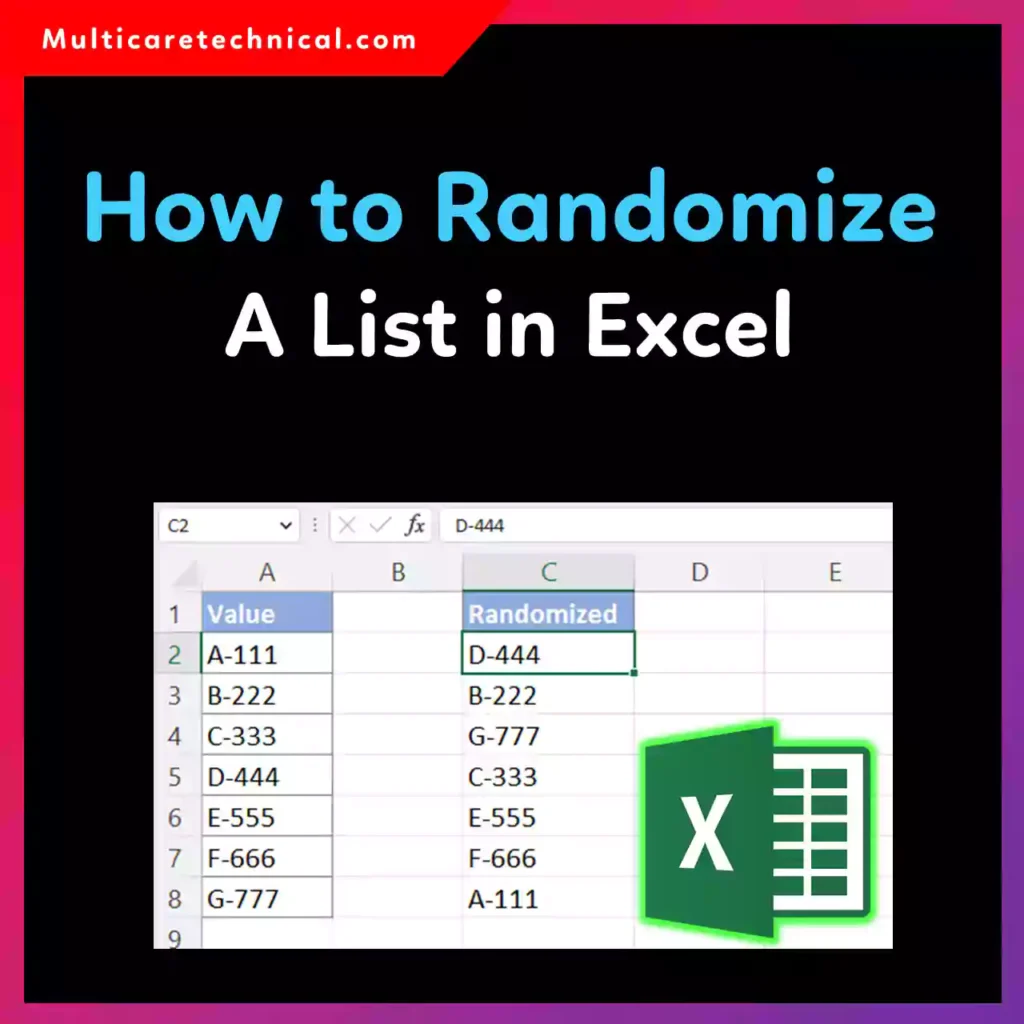
In this guide, you’ll learn every working method to randomize a list in Excel—on Windows and Mac—using formulas, built-in tools, and smart tricks that avoid duplicates and even create equal groups.
Why Randomizing a List in Excel Matters
People randomize Excel lists to:
- Assign work fairly
- Pick random winners
- Shuffle survey responses
- Create random teams or groups
- Avoid bias in data sampling
If you already work with Excel tools like text splitting or project planning, check out this helpful guide on how to separate text in a cell in Excel and this tutorial on how to make a Gantt chart in Excel.
Quick Answer (Featured Snippet Ready)
Is there a way to randomize a list in Excel?
Yes. You can randomize a list in Excel by adding the RAND() or RANDBETWEEN() formula, then sorting the list based on the random numbers.
Method 1: Shuffle a List Using RAND() Formula (Most Popular)
This is the fastest and safest method.
Steps:
- Insert a new column next to your list
- Type this formula:
=RAND() - Drag the formula down
- Select both columns
- Go to Data → Sort
- Sort by the RAND column (Smallest to Largest)
✅ Your list is now shuffled.
Best for:
- Beginners
- One-click randomization
- No duplicates
Method 2: How to Randomize a List in Excel Without Duplicates
The RAND() method already prevents duplicates as long as your original list is unique.
To lock the order:
- Copy the randomized list
- Right-click → Paste Values
This stops Excel from reshuffling every time the sheet refreshes.
Method 3: How to Randomize a List in Excel Using a Formula
If you want a dynamic formula-based approach, use:
=SORT(A2:A20, RANDARRAY(COUNTA(A2:A20)))
⚠️ Requires Excel 365 or Excel 2021+
Why it’s powerful:
- Fully automatic
- No helper columns
- Perfect for dashboards
Method 4: How to Shuffle a List in Excel on Mac
Good news—Excel for Mac works exactly the same.
Mac users can:
- Use
=RAND() - Sort via Data → Sort
- Use
SORT()andRANDARRAY()if available
So yes—how to randomize a list in Excel Mac is 100% possible with no extra tools.
Method 5: How to Randomize a List into Equal Groups in Excel
Perfect for classrooms, teams, or tournaments.
Steps:
- Shuffle the list using
RAND() - Add another column:
=MOD(ROW(A1)-1,4)+1 - Change 4 to the number of groups you want
- Sort by this column
🎯 Result: Evenly distributed random groups.
Method 6: Randomize Using Sort Feature Only (Beginner Trick)
- Add random numbers using:
=RANDBETWEEN(1,1000) - Sort by that column
Simple, fast, and effective.
Bonus Tip: Randomize Once (No Auto Changes)
Excel recalculates randomness constantly.
To stop that:
- Copy the shuffled list
- Paste as Values
Now your order stays locked 🔒
Common Use Cases
- Teachers assigning students
- HR teams selecting candidates
- Project managers creating rotations
- Event organizers picking winners
If you’re troubleshooting Excel on Windows while working with data, this guide on how to enter Recovery Mode in Windows 10 may come in handy.
FAQs (Optimized for AI Overviews)
How do I randomize a list in Excel without duplicates?
Use the RAND() function and sort the list. As long as your original list is unique, duplicates won’t appear.
How do I shuffle a list in Excel?
Add a RAND column, then sort the list based on that column.
Can Excel randomize a list automatically?
Yes. Use SORT() with RANDARRAY() in Excel 365 or newer.
Does Excel for Mac support list randomization?
Yes. Excel Mac supports RAND(), sorting, and modern dynamic array formulas.
How do I randomize a list into equal groups?
Shuffle the list first, then assign group numbers using the MOD() formula.
Conclusion
So, is there a way to randomize a list in Excel? Absolutely—and now you know every reliable method. Whether you’re shuffling names, forming teams, or automating reports, Excel makes randomization simple once you know the right formula.
Try the method that fits your version of Excel—and don’t forget to paste values when you want to lock the result.