
Introduction
The Page Fault in Nonpaged Area error is a common Blue Screen of Death (BSOD) that suddenly restarts your PC on Windows 11, Windows 10, and Windows 7. This error usually appears due to RAM problems, corrupt drivers, faulty system files, or hardware issues.
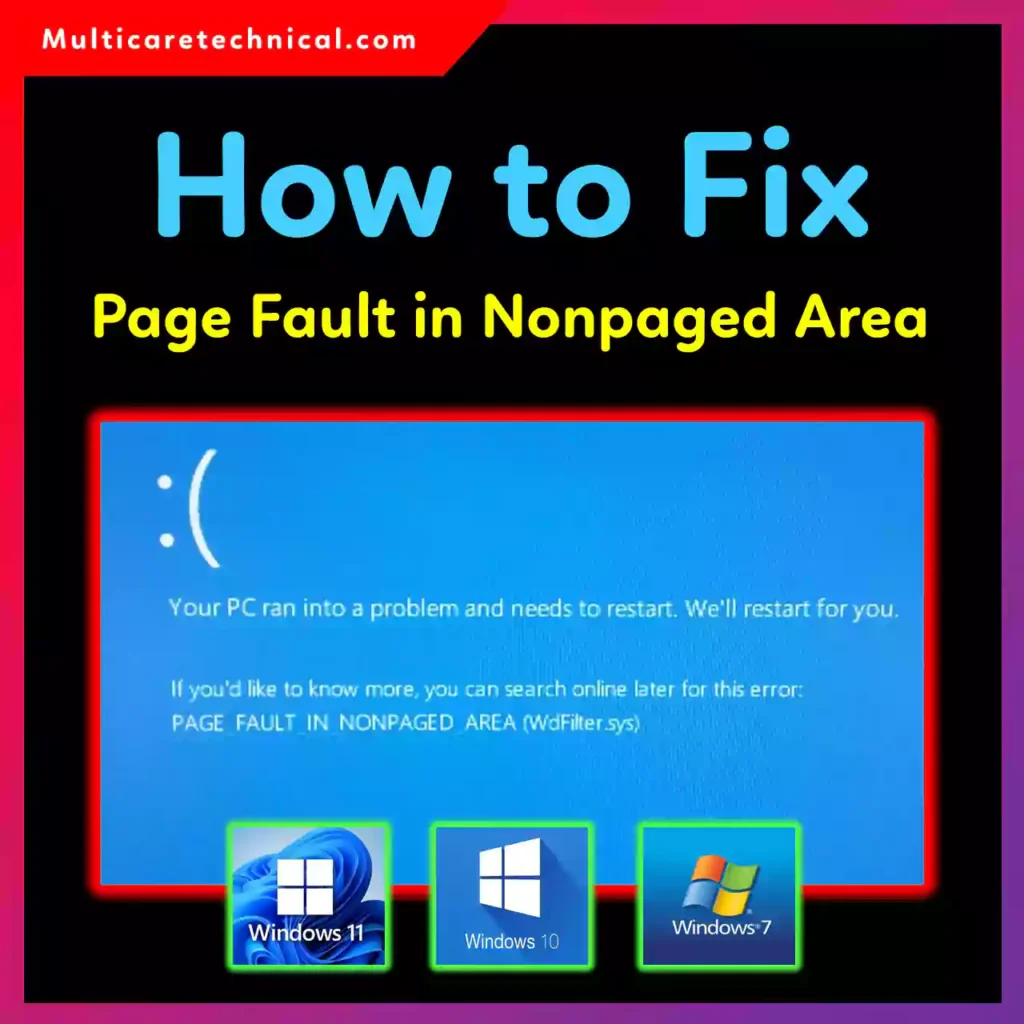
If you’re searching for:
- What causes Page Fault in Nonpaged Area, or
- How to fix Page Fault in Nonpaged Area blue screen error on Windows 10,
then this complete guide has the best solutions with easy steps for all Windows versions.
⭐ What Causes the Page Fault in Nonpaged Area Error?
(Optimized for your long-tail keyword)
Typical causes include:
✔ 1. Faulty RAM (Most Common Reason)
If your RAM stick is damaged or unstable, this BSOD appears.
✔ 2. Corrupted Drivers
Graphic, audio, or network drivers can trigger memory access errors.
✔ 3. Antivirus Memory Scanning Errors
Some antivirus programs conflict with Windows memory management.
✔ 4. Faulty Hard Disk / SSD
Bad sectors force Windows to load invalid memory pages.
✔ 5. Corrupted System Files
Missing system files cause memory referencing issues.
✔ 6. Overclocking Instability
CPU/RAM overclocking leads to memory mismatches.
⭐ How to Fix Page Fault in Nonpaged Area Windows 11/10/7
Fix 1: Restart the PC in Safe Mode
- Hold Shift + Restart
- Go to Troubleshoot → Advanced options → Startup Settings
- Press 4 to boot into Safe Mode
This prevents drivers and services from loading incorrectly.
Fix 2: Run Memory Diagnostic (Check RAM)
- Press Windows + R, type:
mdsched.exe - Click Restart now and check for problems
- Let Windows scan your RAM
If the tool detects errors → Replace faulty RAM.
Fix 3: Check Disk for Bad Sectors
Open Command Prompt as admin:
chkdsk /f /r
Type Y → restart the PC → disk scan runs.
Fix 4: Run SFC and DISM (Repair Windows System Files)
Step 1: Run SFC
sfc /scannow
Step 2: Run DISM
DISM /Online /Cleanup-Image /RestoreHealth
This fixes corrupted system files causing memory faults.
Fix 5: Update or Rollback Drivers
Faulty graphic/network drivers often cause BSOD.
- Right-click Start → Device Manager
- Expand Display adapters / Network adapters
- Update driver
- If issue started after update → click Rollback Driver
Fix 6: Disable or Uninstall Antivirus
Third-party antivirus programs like Avast, AVG, McAfee sometimes cause memory conflicts.
Try disabling or uninstalling temporarily.
Fix 7: Reset Virtual Memory (Page File)
- Open Control Panel → System & Security → System
- Click Advanced system settings
- Under Performance, click Settings
- Go to Advanced → Virtual Memory
- Uncheck Automatically manage
- Set Initial size = 1.5 × RAM
- Set Maximum size = 3 × RAM
- Restart PC
Fix 8: Replace Faulty RAM or SSD (Hardware Check)
If the error keeps appearing frequently, your RAM or SSD may be the root cause.
⭐ Additional Tips
- Remove external devices (USB, HDD, GPU)
- Undo recent Windows updates
- Reinstall Windows if nothing works
⭐ Useful Internal Links
- How to check if your mic is working on Windows/Mac
https://multicaretechnical.com/how-to-check-my-mic-is-working-or-not-in-windows-11-10-7-mac-complete-guide-2025 - How to create a new user on Windows 11
https://multicaretechnical.com/how-to-create-a-new-user-on-windows-11-complete-step-by-step-guide-2025 - How to fix “There was a problem resetting your PC” error
https://multicaretechnical.com/how-to-fix-there-was-a-problem-resetting-your-pc-on-windows-11-complete-guide
⭐ Conclusion
The Page Fault in Nonpaged Area error is usually caused by RAM failures, corrupted drivers, or system file issues. With the methods listed above — memory test, SFC/DISM scan, driver updates, virtual memory reset, and disk repair — you can easily fix this BSOD on Windows 11, Windows 10, and Windows 7.
If the problem persists, consider checking or replacing your hardware.
⭐ FAQ – Page Fault in Nonpaged Area
1. What causes Page Fault in Nonpaged Area?
The error is mainly caused by faulty RAM, corrupt drivers, antivirus conflicts, or damaged system files.
2. How to fix Page Fault in Nonpaged Area blue screen error on Windows 10?
Run Memory Diagnostic, SFC/DISM, update drivers, check disk, and reset virtual memory.
3. Does a bad SSD cause this error?
Yes. Bad sectors or failing SSDs often trigger memory errors.
4. How to fix RAM-related Page Fault errors?
Test RAM using Memory Diagnostic, reseat RAM sticks, or replace the faulty module.
5. Should I uninstall antivirus to fix this error?
Yes, temporarily uninstalling third-party antivirus may solve the issue.