
Editing is one of the most important mechanics in Fortnite, especially in fast-paced build fights. Whether you play on PC, PS4, PS5, Xbox, or with a controller, faster editing can dramatically improve your gameplay.
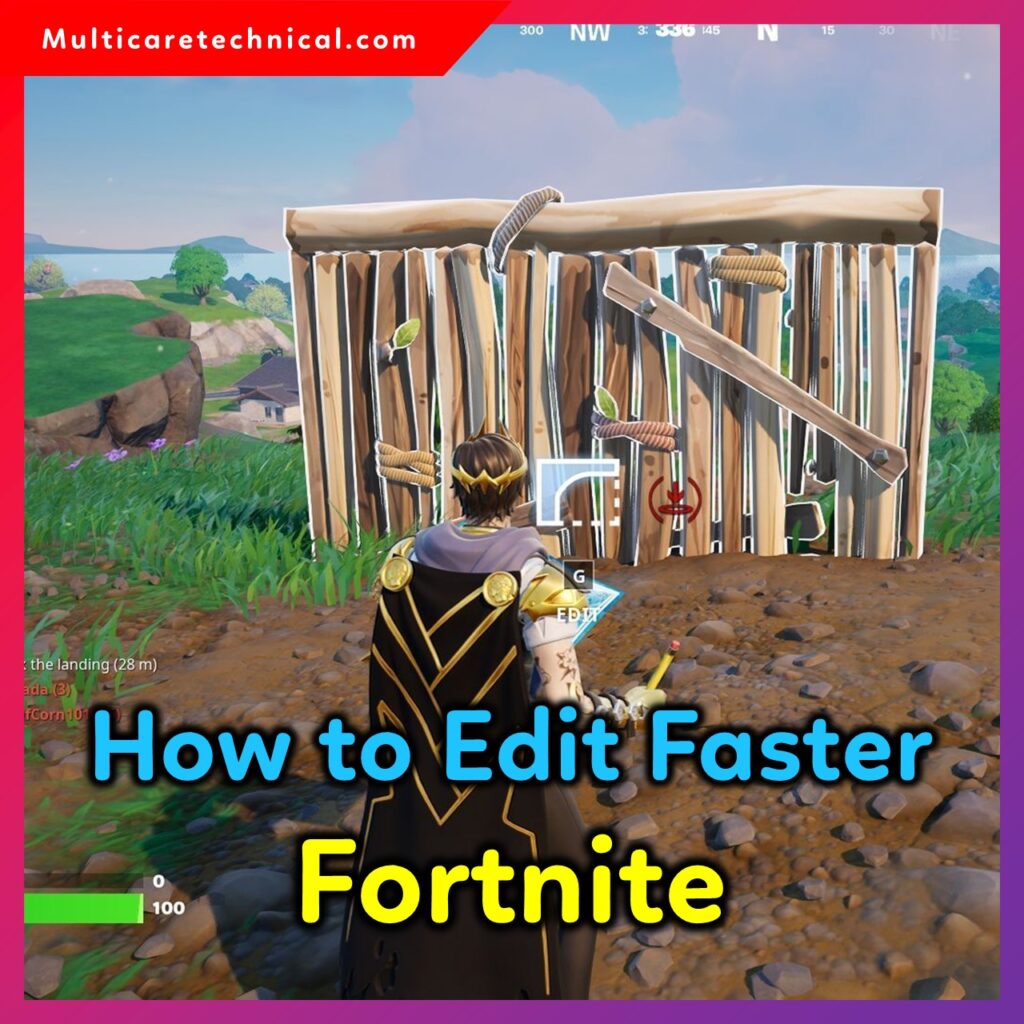
In this guide, you’ll learn the best Fortnite settings, keybinds, sensitivity, and techniques used by pro players to edit with speed and accuracy.
Also check helpful guides:
- How to Reset Windows Password – Complete Step-by-Step Guide 2025
- How to Update Drivers on Windows 11 – Complete Guide
- How to Hard Restart an iPhone – Complete Guide
1. How to Edit Faster in Fortnite – Best Settings
Your settings make the biggest difference in how fast you can edit. Here are the best settings recommended by pro players:
Turn On These Settings
✔ Confirm Edit on Release → ON
✔ Turbo Building → ON
✔ Edit Mode Sensitivity Multiplier → 1.7 – 2.5
✔ HUD Scale → 70–80%
✔ Motion Blur → OFF
✔ Record Replays → OFF (reduces input delay)
These settings reduce input delay and allow smoother, faster edits.
2. How to Edit Faster in Fortnite on PC (Keyboard & Mouse)
PC players have the biggest advantage due to customizable keybinds.
Best Edit Keybinds
Pro-level recommended binds:
- Edit → F / E / G / Caps Lock
- Reset Edit → Right Mouse Button
- Confirm → Mouse Wheel Down
- Floor → F or V
- Stairs → R
- Wall → Q
Tips for Faster Editing
✔ Use double keybinds for consistency
✔ Practice “edit courses” in Creative mode
✔ Use higher edit sensitivity (2.0+)
✔ Keep your mouse at 400–800 DPI
✔ Lower Windows mouse sensitivity
Best Keyboard & Mouse Technique
- Keep fingers close to edit keys
- Use mouse wheel scroll reset
- Reduce mouse lift-off distance
3. How to Edit Faster in Fortnite Controller (PS4, PS5, Xbox)
Controller players rely heavily on sensitivity and bind optimization.
Best Controller Settings
- Edit Hold Time → 0.100
- Build Mode Sensitivity → 1.8x
- Edit Mode Sensitivity → 2.3x
- Look Horizontal Speed → 45%
- Look Vertical Speed → 40%
- Advanced Options → Turn ON
- Look Input Curve → Linear (for faster response)
Optimal Controller Binds
- Edit → Left Stick (L3) or Touchpad (PS5)
- Confirm → R2
- Reset → L2
Extra Tips
✔ Use Scuf, Razer Raiju, or DualSense Edge paddles
✔ Lower right-stick deadzone to 7–10%
✔ Turn vibrations off
4. How to Edit Faster in Fortnite on PS4 & PS5
PS4/PS5 Tips
- Turn on Performance Mode for 120 FPS
- Use wired connection or low-latency controller
- Reduce screen input lag (Game Mode ON)
PS5 Advanced Trick
Use the Haptic Trigger adjustment to reduce resistance for quicker confirmation.
5. How to Edit Faster in Fortnite on Xbox
Xbox Optimization Tips
- Turn on FPS Boost (120 FPS mode)
- Use wired Xbox controller
- Enable Low Latency Mode in settings
- Reduce deadzones for more responsive edits
6. Best Practice Drills to Edit Faster in Fortnite
Do these daily for 10 minutes:
✔ Edit-Up Course
Practice ramp editing while going upward.
✔ Quad Edits
Train double edits into triple edits into quad edits.
✔ Window Peek Edits
Improve precision and timing.
✔ Reset + Edit Combo
Helps with box fights and pressure situations.
✔ Piece Control Edit Drills
Build + edit + claim area quickly.
FAQs – How to Edit Faster in Fortnite
Q1. How do I edit faster in Fortnite settings?
Turn on Confirm Edit on Release, raise edit sensitivity, disable replays, and lower input delay.
Q2. How to edit faster in Fortnite with keyboard and mouse?
Use optimal keybinds like F or E for Edit, scroll wheel reset, 400–800 DPI, and 1.7–2.5 sensitivity.
Q3. How to edit faster in Fortnite on controller?
Use Linear input curve, high edit sensitivity, 7–10% deadzone, and L3 editing bind.
Q4. How to edit faster in Fortnite PS4/PS5?
Enable 120 FPS, use game mode on TV, and reduce trigger resistance.
Q5. How to edit faster on Fortnite Xbox?
Turn on FPS Boost, reduce deadzones, and use wired controller.
Q6. What is the fastest edit setting in Fortnite?
Confirm Edit on Release + high edit sensitivity is the fastest combination.