
Introduction
Few pieces of software have shaped modern life quite like Microsoft Windows. For nearly four decades, it has been the digital doorway through which billions of people work, learn, create, and connect. If computers are the brains of the modern office, Windows has long been its personality—familiar, occasionally frustrating, but undeniably essential.
For IT professionals in the United States, understanding Windows isn’t just about knowing which buttons to click. It’s about understanding the platform that powers the majority of enterprise desktops, runs critical business applications, and defines the expectations of an entire workforce.
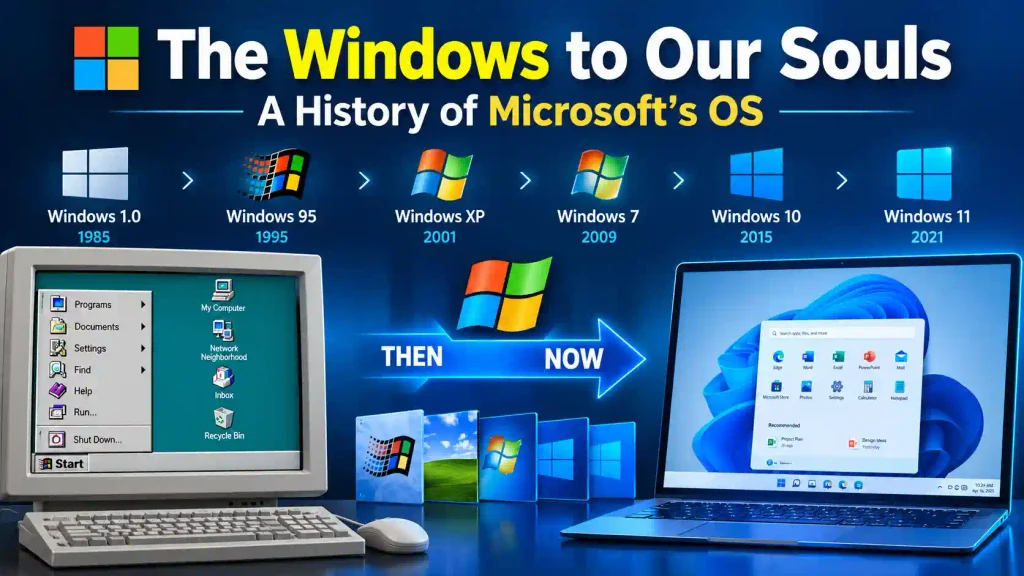
This article walks through the history of Microsoft’s operating system, from a shaky start in 1985 to the cloud-connected world of Windows 11. Along the way, we’ll highlight the milestones, the missteps, and the lessons that still matter today.
Quick Answer
What is the history of Microsoft Windows?
Microsoft Windows began in 1985 as a graphical add-on to MS-DOS. It evolved through major releases like Windows 95, XP, Windows 7, and Windows 10, eventually becoming the world’s dominant desktop operating system. Today, Windows 11 represents Microsoft’s shift toward cloud integration, security-first design, and continuous updates rather than fixed version cycles.
Table of Contents
- The Pre-Windows Era: MS-DOS
- The Early Years: Windows 1.0 to 3.11
- The Game-Changer: Windows 95
- The Turbulent Late 90s: Windows 98 and ME
- The Enterprise Standard: Windows 2000 and XP
- The Rocky Middle: Vista, 7, and 8
- The Modern Era: Windows 10 and 11
- Step-by-Step Guide: Checking Your Windows Version
- Common Errors and Fixes
- Best Practices / Pro Tips
- FAQ
- Conclusion
The Pre-Windows Era: MS-DOS
Before Windows, there was MS-DOS—the Microsoft Disk Operating System. Released in 1981, it was a command-line environment where users typed instructions instead of clicking icons. It was powerful but unforgiving, requiring memorized commands just to copy a file.
MS-DOS became the standard for IBM-compatible PCs, giving Microsoft a foothold that would define the next 40 years. But competitors like Apple’s Macintosh showed that graphical user interfaces (GUIs) were the future. Microsoft needed to respond.
The Early Years: Windows 1.0 to 3.11
Windows 1.0 (1985) was Microsoft’s first attempt at a GUI. It ran on top of MS-DOS and introduced tiled windows, drop-down menus, and a mouse. It was clunky, limited, and not particularly popular—but it planted a flag.
Windows 2.0 (1987) improved window overlap and introduced keyboard shortcuts. More importantly, it brought Microsoft Word and Excel into the graphical world, setting the stage for the Office suite.
Windows 3.0 (1990) was the breakthrough. With a redesigned interface, better memory management, and support for 16 colors, it sold over 10 million copies. Windows 3.1 (1992) followed with TrueType fonts and multimedia support, cementing Windows as a serious platform.
Why it mattered: These versions proved that GUI-based computing wasn’t just for Mac users. Windows was becoming a business tool.
The Game-Changer: Windows 95
August 24, 1995, is a date many IT veterans still remember. Windows 95 launched with the Rolling Stones’ “Start Me Up” and lines of customers waiting outside stores at midnight.
It introduced the Start menu, the taskbar, and plug-and-play hardware detection. It also moved to a 32-bit architecture, improving performance and stability. Internet Explorer arrived bundled, kicking off the browser wars.
Windows 95 wasn’t perfect—blue screens were still common—but it made PCs feel friendly. It was the moment Windows became a cultural phenomenon.
The Turbulent Late 90s: Windows 98 and ME
Windows 98 refined the Windows 95 formula with better USB support, improved disk utilities, and Active Desktop. It was stable enough to become a corporate standard for years.
Windows ME (Millennium Edition, 2000) was the opposite. Aimed at home users, it was plagued by crashes, slow performance, and compatibility problems. Many IT pros still rank it among the worst Windows releases ever. It was also the last DOS-based consumer Windows.
The Enterprise Standard: Windows 2000 and XP
Windows 2000 was built on the NT kernel, designed for business reliability. It introduced Active Directory, better security, and improved networking. For IT departments, it was a revelation.
Windows XP (2001) merged the consumer-friendly look of Windows 98 with the stability of Windows 2000. It became one of the most beloved and long-lived versions of Windows, supported for over 12 years. Its blue Luna theme, built-in firewall, and broad hardware support made it a global standard.
XP’s longevity created a problem: when Microsoft finally ended support in 2014, millions of machines were still running it, many in hospitals and government offices. The lesson? IT pros must plan migrations well in advance.
The Rocky Middle: Vista, 7, and 8
Windows Vista (2007) promised better security and a stunning Aero interface. It delivered neither smoothly. High hardware requirements, aggressive User Account Control prompts, and driver issues made it unpopular.
Windows 7 (2009) fixed almost everything. It was faster, cleaner, and more compatible. It became the new enterprise favorite and remained widely used well into the 2020s.
Windows 8 (2012) was a radical redesign built for touchscreens. The tile-based Start screen confused desktop users, and the removal of the Start button was deeply unpopular. Windows 8.1 brought back the Start button but couldn’t fully repair the damage.
Key takeaway: Users resist change when it breaks familiar workflows. Microsoft learned this the hard way.
The Modern Era: Windows 10 and 11
Windows 10 (2015) was Microsoft’s apology tour. It restored the Start menu, introduced virtual desktops, and shifted to a “Windows as a Service” model with continuous updates. It also offered a free upgrade to Windows 7 and 8 users, driving rapid adoption.
Windows 10 introduced Windows Update for Business, Windows Defender, and tighter integration with Microsoft 365. For IT pros, it meant more predictable patching—and new challenges around update management.
Windows 11 (2021) refined the interface with rounded corners, centered taskbar icons, and Snap Layouts. It also introduced stricter hardware requirements, including TPM 2.0, which sparked debate about e-waste and upgrade cycles.
Windows 11 emphasizes security, cloud integration, and AI features like Copilot. It reflects Microsoft’s vision of Windows as a connected, always-updated platform rather than a static product.
Step-by-Step Guide: Checking Your Windows Version
Knowing your exact Windows version is essential for troubleshooting and compatibility. Here’s how to check it.
- Press Windows + R to open the Run dialog.
- Type winver and press Enter.
- A dialog box will appear showing your Windows version and build number.
- For more detail, go to Settings > System > About.
- Look for “Edition,” “Version,” and “OS Build.”
For older systems like Windows 7 or XP, right-click My Computer and select Properties.
If you’re managing multiple machines, consider using PowerShell with the command Get-ComputerInfo to pull version data remotely.
Need to locate system files or configuration folders that Windows hides by default? Learn how to show hidden folders in Windows 11, 10, 8, 7, and XP.
Common Errors and Fixes
1. Windows Update Failures
Updates can fail due to corrupted files or network issues. Run the Windows Update Troubleshooter and clear the SoftwareDistribution folder.
2. Blue Screen of Death (BSOD)
Often caused by faulty drivers or hardware. Check Event Viewer and update drivers from the manufacturer’s website.
3. Slow Performance After Upgrades
New versions may enable features you don’t need. Disable startup apps and consider a clean install.
4. Activation Issues
Use slmgr /dlv in Command Prompt to check activation status. Contact Microsoft support if the digital license isn’t linked to your account.
5. Compatibility Problems
Right-click the problematic app, choose Properties > Compatibility, and run it in a mode for an older Windows version.
Best Practices / Pro Tips
- Standardize on one or two versions across your organization to simplify support.
- Test updates in a ring model before broad deployment.
- Keep hardware inventories current—especially for Windows 11’s TPM requirement.
- Automate patching with tools like WSUS, Intune, or Configuration Manager.
- Train users on new interfaces after major upgrades to reduce support tickets.
- Back up before upgrading. Always.
If you’re a gamer or support gamers, performance tuning matters. Check out these 15 ways to optimize Windows 11 for gaming.
And if you work with data or reporting, mastering Excel is a Windows superpower. Here’s a helpful guide on Excel conditional formatting based on another cell.
FAQ
1. What was the first version of Windows?
Windows 1.0, released in 1985. It was a graphical shell that ran on top of MS-DOS.
2. Which Windows version was the most popular?
Windows 10 holds the record for the most installed version, followed closely by Windows 7 during its peak.
3. Why was Windows Vista so unpopular?
High system requirements, driver incompatibilities, and intrusive User Account Control prompts frustrated users.
4. Is Windows 11 worth upgrading to?
For most users, yes—especially for security and long-term support. Check hardware compatibility first.
5. How long does Microsoft support each Windows version?
Typically 10 years: five years of mainstream support and five years of extended support. Windows 10 support ends in October 2025.
Conclusion
The history of Microsoft Windows is a story of reinvention. From a clunky graphical shell to a cloud-connected ecosystem, Windows has mirrored—and often shaped—the evolution of personal and enterprise computing.
For IT professionals, that history isn’t just trivia. It’s a roadmap of lessons: the importance of backward compatibility, the risks of radical redesign, and the need for disciplined update management.
As Windows 11 and future versions push deeper into AI and cloud services, one thing remains clear. The windows to our souls may change their look, but they’ll keep framing how we work, communicate, and create for years to come.