
Introduction
When managing a Windows Server, knowing which ports are open is critical for both security and performance. Open ports allow communication between systems, but they can also expose your server to potential vulnerabilities if not monitored properly.
Whether you’re troubleshooting connectivity issues, auditing firewall rules, or securing your infrastructure, checking open ports is a fundamental skill for IT professionals.
In this guide, you’ll learn multiple reliable methods to check open ports on Windows Server—using built-in tools like Command Prompt, PowerShell, and advanced utilities—along with practical tips and troubleshooting steps.
2. Quick Answer
To check open ports on Windows Server quickly:
- Open Command Prompt as Administrator
- Run:
netstat -an | find "LISTEN" - This displays all listening ports on your server.
Alternatively, use PowerShell:
Get-NetTCPConnection -State Listen
3. Table of Contents
- What Are Open Ports?
- Why Checking Open Ports Matters
- Methods to Check Open Ports
- Using Command Prompt (netstat)
- Using PowerShell
- Using Resource Monitor
- Using Windows Firewall
- Step-by-Step Guide
- Common Errors and Fixes
- Best Practices / Pro Tips
- Conclusion
- FAQs
4. Explanation Section
What Are Open Ports?
Ports are communication endpoints used by applications and services. Each port is identified by a number (e.g., 80 for HTTP, 443 for HTTPS).
An open port means:
- A service is actively listening
- The system is ready to accept incoming connections
Why Checking Open Ports Matters
Checking open ports helps you:
- Identify running services
- Troubleshoot connectivity issues
- Detect unauthorized applications
- Improve server security
- Validate firewall configurations
For example, if Remote Desktop (RDP) isn’t working, verifying that port 3389 is open is essential.
5. Step-by-Step Guide
Method 1: Using Command Prompt (netstat)
The netstat command is one of the fastest ways to check open ports.
Steps:
- Open Command Prompt as Administrator
- Run:
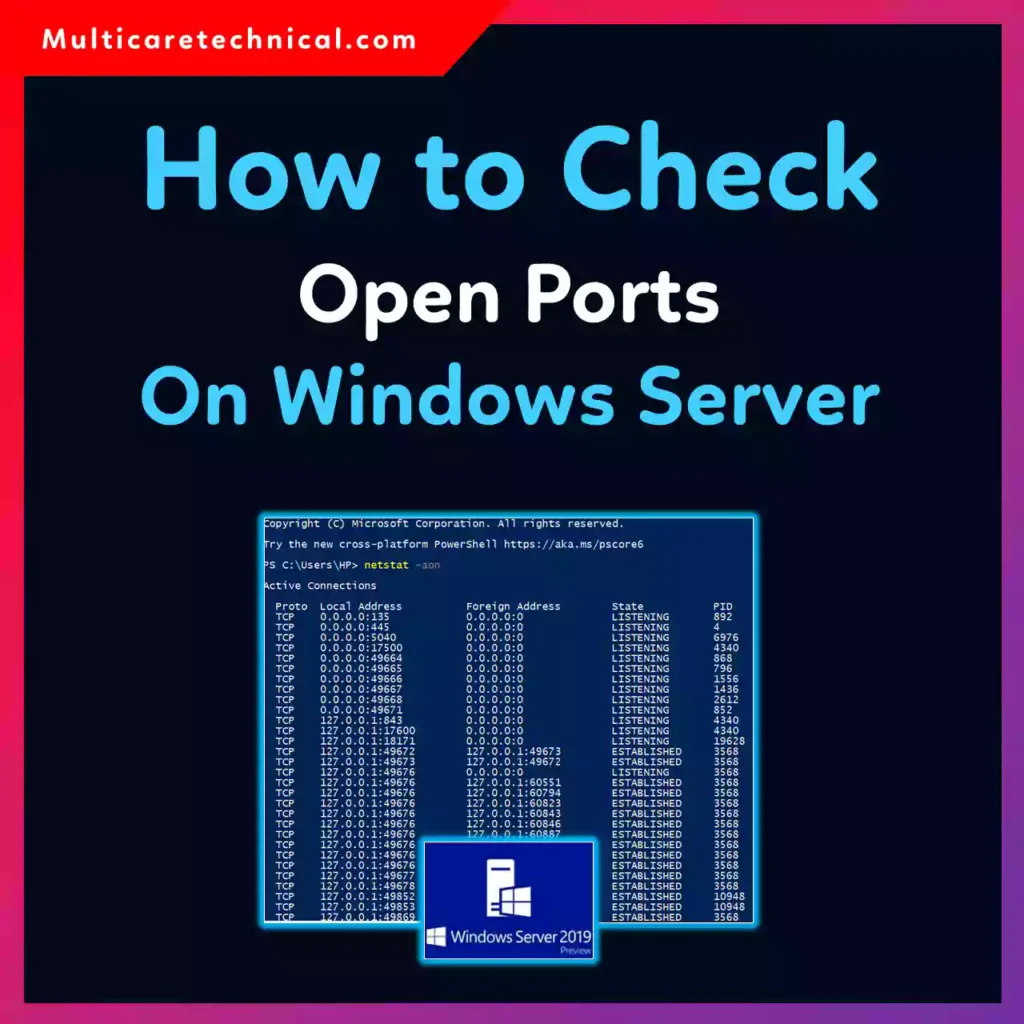
netstat -ano
Output Explanation:
- Proto → Protocol (TCP/UDP)
- Local Address → IP and port
- State → LISTENING, ESTABLISHED, etc.
- PID → Process ID
Filter Listening Ports:
netstat -an | find "LISTEN"
Find Process Using Port:
tasklist | findstr <PID>
Method 2: Using PowerShell
PowerShell provides a modern and more readable approach.
Command:
Get-NetTCPConnection -State Listen
For Specific Port:
Get-NetTCPConnection -LocalPort 80
Advantages:
- Easy filtering
- Script-friendly
- Detailed output
If you’re interested in automation, check this guide:
👉 https://multicaretechnical.com/how-to-monitor-windows-server-performance-using-powershell
Method 3: Using Resource Monitor
Resource Monitor provides a graphical interface.
Steps:
- Press
Win + R - Type
resmon - Go to Network tab
- Expand Listening Ports
Benefits:
- Visual interface
- Shows process names directly
- Great for beginners
Method 4: Using Windows Firewall
You can also check allowed ports via firewall rules.
Steps:
- Open:
Windows Defender Firewall with Advanced Security - Click Inbound Rules
- Look for rules allowing specific ports
This helps confirm whether a port is not only open but also accessible externally.
Method 5: Using Test-NetConnection (External Check)
To test if a port is open from another system:
Test-NetConnection -ComputerName servername -Port 3389
6. Common Errors and Fixes
❌ Port Not Showing as Open
Possible Causes:
- Service not running
- Firewall blocking port
Fix:
- Start the service
- Check firewall rules
❌ Access Denied Error
Cause:
- Not running as Administrator
Fix:
- Run Command Prompt or PowerShell as Admin
❌ Port Open but Connection Fails
Cause:
- Network-level blocking
- Incorrect IP binding
Fix:
- Verify network settings
- Check routing/firewall
❌ Too Many Open Ports
Cause:
- Unnecessary services running
Fix:
- Disable unused services
- Audit installed applications
7. Best Practices / Pro Tips
✅ Regular Port Audits
Check open ports periodically to detect unauthorized services.
✅ Use Windows Admin Center
Centralized management simplifies monitoring:
👉 https://multicaretechnical.com/how-to-install-windows-admin-center-on-windows-server
✅ Close Unused Ports
Disable services that are not required to reduce attack surface.
✅ Monitor Active Directory Ports
For domain environments, ensure replication ports are properly configured:
👉 https://multicaretechnical.com/how-to-check-active-directory-replication-status
✅ Use Firewall Rules Wisely
Only allow necessary ports and restrict access by IP where possible.
✅ Automate with PowerShell
Create scripts to regularly scan and report open ports.
8. Conclusion
Checking open ports on Windows Server is a core administrative task that directly impacts security, troubleshooting, and system performance.
Whether you prefer quick command-line checks using netstat, advanced filtering with PowerShell, or a visual interface like Resource Monitor, each method has its place depending on your needs.
By regularly auditing your open ports and following best practices, you can ensure your server remains secure, efficient, and compliant with IT standards.
FAQs
1. What is the easiest way to check open ports on Windows Server?
The easiest method is using:
netstat -an | find "LISTEN"
2. How do I check if a specific port is open?
Use PowerShell:
Get-NetTCPConnection -LocalPort <port_number>
3. Can I check open ports remotely?
Yes, use:
Test-NetConnection -ComputerName <server> -Port <port>
4. What does LISTENING mean in netstat?
It means the port is open and waiting for incoming connections.
5. How do I close an open port?
- Stop the associated service
- Block the port via Windows Firewall