
If your Windows 10 screen is not showing in full size, appears zoomed in, stretched, black border, or cropped, it usually means your display settings or screen resolution are incorrect. This problem is common after a Windows update, installing a new graphics driver, or connecting an external monitor.
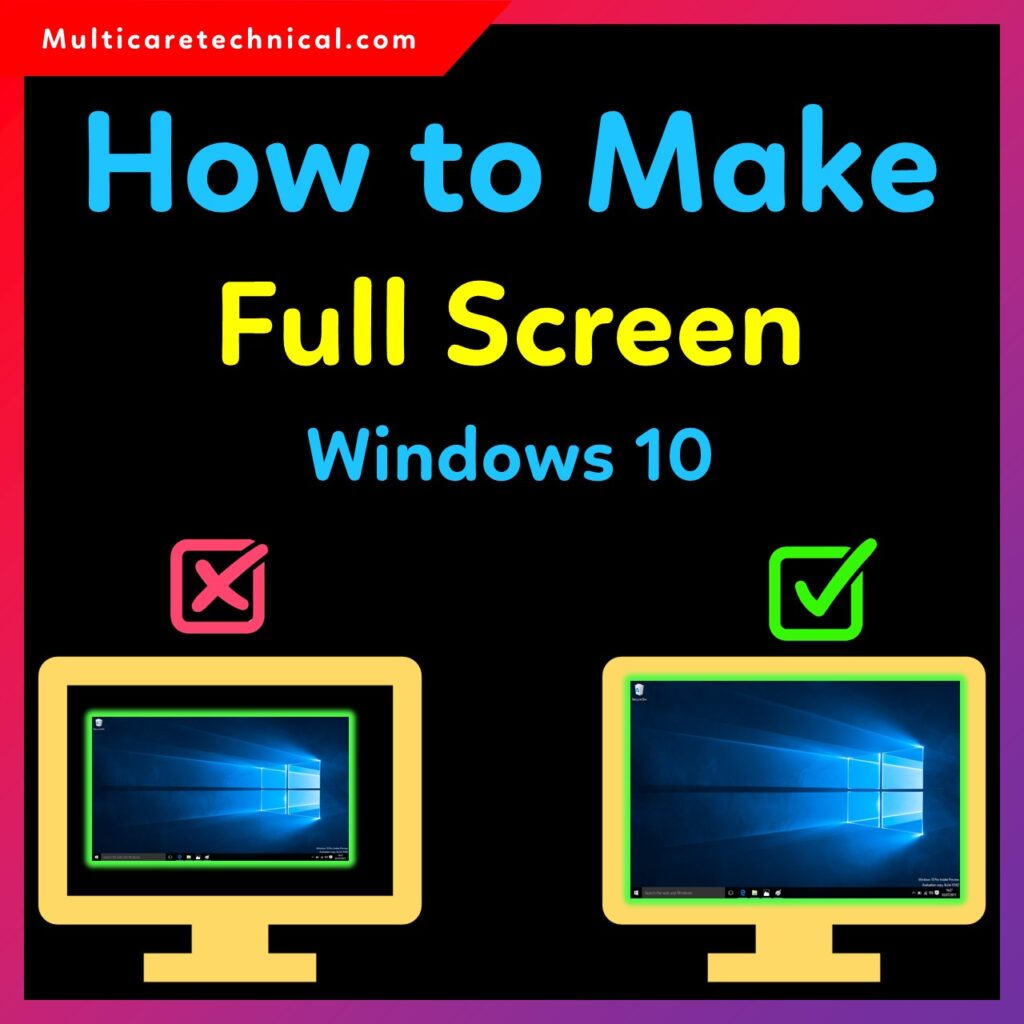
In this guide, you will learn how to make your Windows 10 screen full size again using easy display and resolution settings.
⭐ Why Is Windows 10 Screen Not Full?
Common reasons include:
- Incorrect screen resolution
- Outdated or broken graphics drivers
- Wrong display scaling
- Monitor refresh rate mismatch
- GPU control panel overriding Windows settings
- HDMI/VGA cable not fully connected
Fixing these issues usually restores the full-screen view immediately.
🖥️ How to Make Full Screen on Windows 10
Follow these simple steps to enable proper full-screen mode.
1. Use Full Screen Shortcut (For Apps, Browsers, Games)
- Press F11
This enables full screen in browsers, File Explorer, YouTube, and many apps.
2. Check Display Scaling
- Right-click on desktop
- Select Display settings
- Under Scale and layout, set Scale to:
- 100% (Recommended)
- Avoid 125%, 150%, or 175% if screen looks cropped.
3. Set Correct Screen Resolution (MOST IMPORTANT)
If the wrong resolution is set, your display may look zoomed, cropped, or only half screen.
Steps to Set Screen Resolution on Windows 10:
- Right-click on the desktop
- Click Display Settings
- Scroll to Display Resolution
- Choose the Recommended resolution (usually one of these):
- 1920 × 1080 (Full HD)
- 1366 × 768
- 1600 × 900
- 1280 × 720
- Click Keep Changes
⚠️ If the suitable resolution is not set
Windows may show:
- Half screen
- Cropped top/bottom
- Black bars
- Stretched/zoomed display
This happens because your monitor cannot properly match a lower or incorrect resolution.
4. Update Graphics Drivers
If resolution options are missing, your display driver may be outdated.
Follow this internal link guide:
🔗 How to Update Drivers on Windows 11 – Complete Guide
https://multicaretechnical.com/how-to-update-drivers-on-windows-11-complete-guide
5. Adjust Display in NVIDIA / Intel / AMD Control Panel
NVIDIA Control Panel
- Right-click desktop → NVIDIA Control Panel
- Go to Adjust desktop size and position
- Choose Full-screen under Scaling
Intel Graphics
- Open Intel Graphics Command Center
- Go to Display → Scaling
- Select Scale Full Screen
AMD Radeon
- Open AMD Software
- Go to Display
- Enable GPU Scaling → Select Full Panel
6. Check Your Cable Connection
Make sure your HDMI / DisplayPort / VGA cable is:
- Fully plugged in
- Not damaged
- Inserted into the correct GPU port
Loose connections often cause half-screen problems.
🔗 Internal Links (Added as Requested)
- How to Get Windows 10 Extended Support (2025 Guide)
https://multicaretechnical.com/how-to-get-windows-10-extended-support-2025-guide - How to Update Drivers on Windows 11 – Complete Guide
https://multicaretechnical.com/how-to-update-drivers-on-windows-11-complete-guide - How to Hard Restart an iPhone – Complete Guide for All Models
https://multicaretechnical.com/how-to-hard-restart-an-iphone-complete-guide-for-all-models
❓ FAQs — Full Screen Issue on Windows 10
1. Why is my Windows 10 screen not full?
This occurs due to incorrect screen resolution or scaling settings.
2. How do I get rid of black borders on my screen?
Set the display resolution to the recommended one and adjust GPU scaling to “Full Screen.”
3. Why is my screen showing only half on Windows 10?
This happens when the system selects a lower or unsupported resolution.
4. How do I fix a cropped or zoomed-in display?
Reset display scaling to 100% and set the correct resolution.
5. Which resolution is best for full screen?
1920×1080 (1080p) is the most common full-screen resolution.
📌 Conclusion
Making full screen on Windows 10 is very easy once you correctly set the resolution, scaling, and graphics settings. Wrong display settings cause half-screen or cropped problems, but following the steps above will fix the issue instantly.
If you still face the issue, updating your graphics driver or checking your monitor connection usually solves the problem.